Bar Charts for Nominal Data (Categorical Variables)
Before creating a bar chart, ensure the column is formatted as text:
- Select the column
- Right-click → Format Cells → Text
Steps:
- Select the column with nominal data (e.g., Release Date)
- Go to Insert → Recommended Charts
- Excel will suggest a bar chart – click OK
Example: Movies by Release Season
- Normal season – highest count
- Holiday season – second highest
- Festive season
- Long weekend – fewest
Example: Movies by Genre
| Genre | Count (relative) | |----------|------------------| | Comedy | ██████████ | | Drama | ████████ | | Thriller | ██████ | | Romance | ████ | | Action | ██ |
Histograms for Ratio-Scale Data (Continuous Variables)
Ratio-scale variables (budget, box office collection) require histograms.
Steps:
- Select the column (e.g., Budget)
- Go to Insert → Recommended Charts
- Choose the Histogram option
Budget Histogram
- Displays an exponential-like distribution
- Use the cumulative plot option to see how cumulative probability changes with budget
Outlier Detection with Histograms
Select Box Office Collection → Insert → Histogram
- The histogram reveals an outlier: the movie PK (₹680–744 crores)
- This demonstrates how histograms help identify extreme values
Scatter Plot for Two Continuous Variables
To explore relationships between variables:
- Select both columns (e.g., Budget and Box Office Collection)
- Insert → Recommended Charts → Scatter Plot
- X-axis: Budget (₹ crores)
- Y-axis: Box Office Collection (₹ crores)
- Notable outlier: PK (budget ~₹80 crores, collection >₹700 crores)
Box-and-Whisker Plots for Outlier Analysis
Single Variable Box Plot
- Select the column (e.g., Box Office Collection)
- Insert → Recommended Charts → Box and Whisker
Interpreting the Box Plot
- Bottom line: Minimum value (excluding outliers)
- Lower box edge: First quartile (Q1)
- Middle line in box: Median (Q2)
- Upper box edge: Third quartile (Q3)
- Whisker end: Q3 + 1.5 · IQR (Interquartile Range)
- Points beyond whisker: Outliers
For Box Office Collection:
- Multiple outliers above Q3 + 1.5·IQR
- No outliers on the lower side
- PK appears as a distant point (>₹700 crores)
Multiple Variable Box Plots
You can compare distributions of several variables at once:
- Select multiple columns (e.g., Budget, Box Office Collection, YouTube Likes)
- Insert → Box and Whisker
⚠️ Caution: If scales differ drastically (e.g., crores vs. hundreds of thousands), the plot may become skewed and less readable.
Summary
With Excel's built-in chart tools you can quickly generate:
- ✓ Bar charts for categorical data
- ✓ Histograms with optional cumulative curves
- ✓ Scatter plots for bivariate relationships
- ✓ Box plots for outlier detection and distribution comparison
These visualizations help derive measures of central tendency, variation, and shape from your data. For a broader understanding of the underlying statistical concepts, see our Comprehensive Guide to Data Analysis and Visualization in MS Excel. To master the full workflow from calculation to charting, check out How to Calculate Mean, Standard Deviation, and Create Charts in Excel. For deeper practice with histograms, box plots, and related statistics, refer to Mastering Descriptive Statistics in Excel: A Step-by-Step Guide. Finally, to take your skills to an advanced level, explore Master Excel for Data Analysis: From Basics to Interactive Dashboards and Analyzing Data with Cross Tabulation in Microsoft Excel. For advanced visuals, tools like Tableau can build on these same principles.
[Music] foreign [Music]
how we can draw simple charts using excel's function so in this particular data set we have both nominal scale as
well as ratio scale remember whenever it's a nominal scale we can only get bar chart whereas whenever it is a ratio
scale we can come up with the histogram so let me show how you can get bar chart from this data for the nominal scales
here we have two nominal scale one is the release date the other one is John R before you actually go and create a bar
chart for the nominal scale ensure that this data is stored as a text if it is not you can actually select the colon
click right click and go and select that data as text so once you formatted that particular column as text all you have
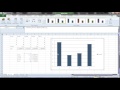
to do is go to insert and then click on the recommended chart and here it gives you the bar chart so I am going to click
OK and here we have bar chart so if you look at large number of movies are released
during normal season and the second highest is probably holiday season then we have
festive season and finally long weekend so that's the kind of distribution that we have when we look at the movie
release date so let us come up with bar chart for the movie genre so I'm going to select the
colon which has a movie genre select insert button go on click on the recommended chart it recommends a bar
chart and when you click you get the bar chart we can see that the highest number of movies belong to the genre comedy
then you have drama then Thriller then romance then action so we have the bar chart for genre of the movie and the
remaining variables are continuous variables so whenever the variable is continuous we come up with the histogram
so let me draw the histogram for some of these variables so I am going to select budget
and insert recommended chart it gives you different charts so we are interested in
histogram so this is your histogram and I can click here and you can see the histogram it
has some exponential kind of shape now the rest of the variables such as budget
box office collection and so on are the ratio scale for the ratio scale we come up with histogram so here I have
selected the budget colon and we can click on the insert button look at the recommended chart so this is
your histogram when you click on histogram you get the histogram of that particular data now I can also come up
with the cumulative plot based on this data so I can go and select
the chart which is this one see here in addition to the
histogram you also get how the cumulative probability is changing when you change the budget on the horizontal
axis now let us look at the histogram for box office collection so I have selected the colon where we have the box
office collection again go and insert recommended chart and the histogram
so I'm just going to slightly magnify this because this has an outlier so what you can see is here there is an
outlier and here it is the box office collection is between approximately 680 crores and 744 crores this is basically
the movie PK so the histogram also helps you to identify if there are outliers in the data I can go and do histogram for
the remaining variables as well we can also do the scatter plot which is very very useful suppose let us say I want to
look at the scatter plot between budget and box office collection so I can select both these columns and click on
the tab insert recommended short so here this is the scatter plot so when I click on the scatter plot so we see that here
on the x axis we have the budget or the horizontal axis we have the budget and the vertical axis we have the box office
collection and this outlier again is the movie PK the budget is about 80 crores and the box office collection is more
than 700 crores another important plot in case of numerical variable is the box plot it
can be used to again identify outliers so I am going to select box office collection and
click on the insert Tab and we can click here so this is the box and whisker plot so you can see that there are a lot of
points above your ah Q3 plus 1.5 we can now ah check how we can come up
with the box plot using Excel so I have selected the colon box office collection and we can go on click insert and you
have the recommended chart okay let me explain how we can come with the box plot select the colon for which you want
to draw the box plot here I have selected box office collection the reason why I chose box office collection
is because it has lot of outliers and it is already on insert so if you click on this tab you can see the box and whisker
plot so this is the box and whisker plot and here the bottom line
the bottom most point is the lowest budget and the lower box is the first quartile the middle line in the box is
the median or the second quartile the Top Line in the box is the third quartile
and here you have the whisker the whisker is at 1.5 interquartile distance from the Q3 any value Beyond this
whisker is a outlier so you can see there are several outliers and you can see again the movie PK which is more
than 700 crore box office collection on the Lower Side you do not have any outlier but on the higher side you have
lot of outlier there are a lot of movies which have box office collection more than Q3 plus 1.5 interquartile distance
I can also collect more variables and put a box plot for all of them in one goes so I have selected now three
variables insert here I am selecting this now the problem here is the scale is quite
different that's why you are not able to see ah the other box plot but when the scales are more or less comparable then
you will see three box plots so let me try with the box office collection and budget
so when I try with box office collection and budget and I am going to do again the box office plot for these two you
can see that this is the box plot for the budget and you have the box plot for box office collection and you can create
more variables the only problem is that if the scales are completely different then it looks odd in the chart for
example here the box office collection is in few hundreds whereas YouTube likes are in few hundred thousand so that is
why when you try to draw a box office when you try to drop box plot for both these variables it gets skewed
in this session I demonstrated how you can actually use Excel to derive measures of center tendency measures of
variation and measures of shape and I also showed you how you can get simple visuals we'll also show you using
Tableau how you can actually get visuals using the same data set [Music]
First, format your column as text by selecting it, right-clicking, choosing Format Cells, and selecting Text. Then, select the column with your nominal data, go to Insert → Recommended Charts, and choose the bar chart Excel suggests.
A histogram is ideal for ratio-scale data such as budget or box office collections. To create one, select the column of continuous data, go to Insert → Recommended Charts, and choose the Histogram option. You can also enable the cumulative plot to see how cumulative probability changes.
Use a scatter plot to explore relationships between two continuous variables. Select both columns, go to Insert → Recommended Charts, and choose Scatter Plot. This will display the data points with one variable on the x-axis and the other on the y-axis, making it easy to spot patterns or outliers.
A box plot shows the distribution of data, including the median, quartiles, and outliers. To create one, select the column of data, go to Insert → Recommended Charts, and choose Box and Whisker. The plot displays the minimum, first quartile, median, third quartile, and any points beyond the whiskers as outliers.
Histograms visually show the frequency of data points, making outliers stand out as isolated bars far from the main distribution. For example, if you create a histogram of box office collections, a movie like PK with an extremely high value will appear as a distinct bar, highlighting it as an outlier.
Yes, you can create box plots for multiple variables simultaneously. Select all the columns you want to compare, then go to Insert → Box and Whisker. However, be cautious if the scales differ drastically (e.g., crores vs. hundreds of thousands), as the plot may become skewed and less readable.
Bar charts are used for categorical (nominal) data where each bar represents a distinct category, while histograms are used for continuous (ratio-scale) data where bars represent intervals or bins. In Excel, bar charts require text-formatted columns, while histograms automatically group numerical data into bins.
Keep this summary
Save it to LunaNotes and it becomes a real note in your library — editable, searchable, and ready to turn into flashcards or a diagram. Free to start.
Save to LunaNotesOr summarise for another video.


32K+ people have turned 65K+ videos into notes
“Very useful tool. I'm using it for the last couple weeks and I'm loving it so far. Makes learning on YouTube a great experience.”
 Bhai Chrome Web Store review
This summary and transcript were automatically generated using AI with the Free YouTube transcript summary tool by LunaNotes.
Related summaries

Bollywood Movie Data Analysis: Descriptive Statistics in Excel
Learn how to calculate key descriptive statistics—mean, median, mode, variance, standard deviation, percentiles, skewness, and kurtosis—using a Bollywood movie dataset in Excel. This tutorial explains measures of central tendency, variation, and shape step-by-step with real movie budget, box office collection, and YouTube engagement data.
How to Calculate Mean, Standard Deviation, and Create Charts in Excel
Learn step-by-step how to calculate the mean and standard deviation for behavioral data in Excel and create clear, informative charts with error bars. This guide simplifies data analysis and visualization for better understanding and presentation of your results.
Mastering Descriptive Statistics in Excel: A Step-by-Step Guide
In this tutorial, learn how to analyze single variables in Microsoft Excel using pivot tables. Discover how to count responses, calculate percentages, and compute averages and medians for effective data analysis.
Analyzing Data with Cross Tabulation in Microsoft Excel
In this video, we explore how to compare two variables using cross tabulation in Microsoft Excel through pivot tables. The tutorial covers setting up pivot tables, interpreting results, and visualizing data effectively.

Comprehensive Guide to Data Analysis and Visualization in MS Excel
Explore a complete tutorial on using MS Excel for data analysis and visualization, covering essential features like Power Query, Power Pivot, formulas, conditional formatting, pivot tables, charts, and dashboard creation. Learn data cleaning, transformation, and insightful visualization techniques from basics to advanced level.
Most viewed summaries

A Comprehensive Guide to Using Stable Diffusion Forge UI
Explore the Stable Diffusion Forge UI, customizable settings, models, and more to enhance your image generation experience.

Kolonyalismo at Imperyalismo: Ang Kasaysayan ng Pagsakop sa Pilipinas
Tuklasin ang kasaysayan ng kolonyalismo at imperyalismo sa Pilipinas sa pamamagitan ni Ferdinand Magellan.

Mastering Inpainting with Stable Diffusion: Fix Mistakes and Enhance Your Images
Learn to fix mistakes and enhance images with Stable Diffusion's inpainting features effectively.

Pamamaraan at Patakarang Kolonyal ng mga Espanyol sa Pilipinas
Tuklasin ang mga pamamaraan at patakaran ng mga Espanyol sa Pilipinas, at ang epekto nito sa mga Pilipino.

How to Install and Configure Forge: A New Stable Diffusion Web UI
Learn to install and configure the new Forge web UI for Stable Diffusion, with tips on models and settings.
Found this summary useful?
Take it with you. One click puts it in your own LunaNotes library.
Save to LunaNotes