Download Subtitles for Azure AI Foundry Basic Agent Setup
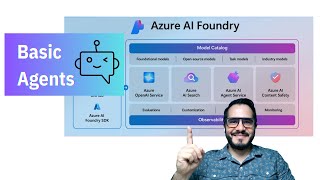
Azure Ai Foundry Basic Agent Setup 🤖
Solved Systems
SRT - Most compatible format for video players (VLC, media players, video editors)
VTT - Web Video Text Tracks for HTML5 video and browsers
TXT - Plain text with timestamps for easy reading and editing
Scroll to view all subtitles
[Music]
Do you want to create agents? Well,
we're in this video. We're going to show
you how to do that. Hi, this is Jeff
Bernard with Solve Systems, and we try
to teach people how to use these new
technologies mainly on the Microsoft
stack, but with other things as well.
And this video specifically is going to
cover a very hot topic right now, which
is agents. We're going to learn how to
deploy a model and an agent in Azure AI
Foundry and go over some of the settings
within AI Foundry. So, let's go. As
always, you kind of landed in the
control plane here to start with your
overview window. And we've gone through
a lot of these other settings from a
very high level perspective. And
subsequent videos, we're going to start
digging into them. This one specifically
pertaining to agents.
So, we're going to go into agents and we
have to deploy a model as always. So,
let's go and do that. I have been using
the nano models. They've been working
pretty well for what I've tried to do.
These are a little bit of, you know,
last generation models, but they work
pretty well.
So, it's going to pick a place to deploy
this to and a deployment name. We'll hit
deploy.
It'll take a second and then it
automatically is going to create an
agent. So, agent 272.
So, we click into there and we can see a
few things happening. Uh, one thing you
definitely need to understand is
threads. threads is pretty interesting
because it's going to really go through
the chain of what's happening with the
agent and it'll show you tool calls and
all these different steps it took which
is definitely helpful to start tuning
this. So let's take some other uh steps
here and we'll go to agent ID. Uh all of
these things are how you can create them
basically with the API and how you
identify them. You can change their
names here. You can select the
deployment that they have. You can give
instructions right here. Right? So,
agent description. You give it, you
know, basically who it is, what it does
there. And then what's very interesting
is you have the ability to add knowledge
to this. Now, this is really when it
starts tapping into all of Microsoft
services. You have local file uploads,
Azure AI search, fabric, shareepoint,
grounding with being search, grounding
with being custom, trip advisor, morning
star, right? So you got some initial
tooling that you can add to it. So if
you want to create a customer service
agent or something on specific uh data,
right? You can start doing that here.
Actions, this is where it really gets
like its arms and legs, if you will. You
have a code interpreter so you can uh
you know read and interpret information
from data sets. You can call APIs, you
can call logic apps. One of my favorite
things, Azure functions and custom
functions. The two things that make this
very compelling to me is the logic apps
and then the Azure function.
You can also add um other agents to
this. So you can start making loops of
agents, which is cool because then you
can hand off things between them. And as
you see, we don't have anything there
yet, but you could add one there if you
wanted. And then you have your model
settings down here, which allows you to
get your temperature, your randomness,
and all of these things. And then your
top P, similar to temperature, but
controls randomness using using a
different method.
So, these are all ways to control your
agent. And so, let's see. Let's try to
do something. Let's uh let's give it a
piece of data and see sort of how this
thing works. We're going to click the
local file upload and just upload a
file. So, you can create a new vector
store. And what's cool is you can create
this right from the agent. And this can
all obviously be done programmatically.
So you can run your entire backend for
your
uh product through here. If you're
wanting to build a product with agents
that are as part of it, these are all
the file types which is important,
right? You don't see like Excel here.
You could probably convert Excel to
something else text or something like
you know uh comma CSV or something like
that and get that in here. Uh, but we're
just going to upload a local file for
right now.
All right. So, I chose um basically a
real estate comparison between a few
properties in Houston, Texas. And this
used to all take quite a bit of time to
set up, right? But now you're able to
create a vector store, upload a file,
and test this out like immediately,
which is a huge efficiency gain. So,
we'll give it some instructions. Um,
analyze
this uh these
real estate comps.
Obviously, you could put a lot more
effort into the description and
instructions, etc. Uh, but you are just
make this very basic.
And
all right, so we have our instructions
and then we have our description.
Now, let's go try to try it in a
playground.
All right, so we're in our agent
playground and we see we have a few
things. Again, what I really like about
Foundry is you have these code views
which make it super helpful to start
integrating this with your services.
You have your chat window. You have
thread logs, which is cool because you
could start seeing the chain of events.
You have your agent name, model,
everything that you're using within it.
Your vector store there, right? Pretty
neat. Okay. So, let's give me some
property information.
The cheapest
property
All right. So, we can see that
it's searching for files. The cheapest
property is
the 1718 Elgen, right? So, this was the
comp. It gives you all the details.
There are also other prices
nearby, but they're larger features. So,
it's running analysis on it, which is
pretty cool. And it shows you all the
info about it, right? So it shows you
the run, the tool call, the file search,
right? So it's calling the file tool,
file search, and because it's creating
vector
data from the uploaded files
automatically, it has that information.
So it shows you the whole chain of
events, which is very nice to be able to
understand. So that when you're running
this under the hood for companies or
you're running it as a back-end service
for your product, you have the ability
to log all this data, right, and keep
track of all this stuff for
uh building out your product, which is
huge. You also have voice mode in here,
so you can like ask it information.
Hello.
We'll see if it does it.
There we go. You can see it's
responding.
And then
okay, so
it actually
you can't really like chat with it
there. But let's see if we can go to
live voice playground.
Yeah. So it just kicks you back into
that screen. So we'll stay in agents
and it's cool to kind of discover all
these things together.
I'll reload that. And sometimes the
window is a little buggy. So that's
something to consider. If it doesn't
load right away when you hit try and
playground, you might be able to see the
bug. Let's see. No, it it it goes. So
they they have your thread logs, right?
You have your chat window to start with.
You have your code view. If you want to
integrate it, you could start a new
agent from here. You can delete this.
And you can create a trigger. So, we can
go to this and kind of show you how that
sets up
and this will kick you into other um
other services which in this case is a
logic app. One thing to consider here is
that it's going to run under the
workflow plan which is not a consumption
plan which means it costs more, right?
So if you're if you're wanting to do
this in the cheapest way possible, it's
not available yet under consumption,
which is pay as you go, cheapest way
possible. You pay for workflow instance
here, which is like 150 a monthish. Um,
but you get, you know, this
connectivity, seamless connectivity
between Azure AI Foundry agents and
logic apps to be able to call other
tools and services and like anything
basically that connects to logic apps,
which is pretty sweet. So, we'll go back
into agents and you know, this just
gives you an understanding. You can add
more file search, more code interpreter,
all of your stuff here to get like build
your base
uh code output that you would need to
integrate this with another service. So,
I hope this was helpful. Uh, I'm really
looking forward to making more videos on
the actual functionality of this and how
to use this, which we're going to after
we go through each one of these things
in this series, this playlist. Then
we'll start building some very basic
things with it to get you an
understanding of how to like mess around
with it. So, hope this was helpful and
please reach out if you need anything
built. Uh, you know, feel free to drop
us a contact on the description in this
YouTube video and we'll talk to you
later.
[Music]
Full transcript without timestamps
[Music] Do you want to create agents? Well, we're in this video. We're going to show you how to do that. Hi, this is Jeff Bernard with Solve Systems, and we try to teach people how to use these new technologies mainly on the Microsoft stack, but with other things as well. And this video specifically is going to cover a very hot topic right now, which is agents. We're going to learn how to deploy a model and an agent in Azure AI Foundry and go over some of the settings within AI Foundry. So, let's go. As always, you kind of landed in the control plane here to start with your overview window. And we've gone through a lot of these other settings from a very high level perspective. And subsequent videos, we're going to start digging into them. This one specifically pertaining to agents. So, we're going to go into agents and we have to deploy a model as always. So, let's go and do that. I have been using the nano models. They've been working pretty well for what I've tried to do. These are a little bit of, you know, last generation models, but they work pretty well. So, it's going to pick a place to deploy this to and a deployment name. We'll hit deploy. It'll take a second and then it automatically is going to create an agent. So, agent 272. So, we click into there and we can see a few things happening. Uh, one thing you definitely need to understand is threads. threads is pretty interesting because it's going to really go through the chain of what's happening with the agent and it'll show you tool calls and all these different steps it took which is definitely helpful to start tuning this. So let's take some other uh steps here and we'll go to agent ID. Uh all of these things are how you can create them basically with the API and how you identify them. You can change their names here. You can select the deployment that they have. You can give instructions right here. Right? So, agent description. You give it, you know, basically who it is, what it does there. And then what's very interesting is you have the ability to add knowledge to this. Now, this is really when it starts tapping into all of Microsoft services. You have local file uploads, Azure AI search, fabric, shareepoint, grounding with being search, grounding with being custom, trip advisor, morning star, right? So you got some initial tooling that you can add to it. So if you want to create a customer service agent or something on specific uh data, right? You can start doing that here. Actions, this is where it really gets like its arms and legs, if you will. You have a code interpreter so you can uh you know read and interpret information from data sets. You can call APIs, you can call logic apps. One of my favorite things, Azure functions and custom functions. The two things that make this very compelling to me is the logic apps and then the Azure function. You can also add um other agents to this. So you can start making loops of agents, which is cool because then you can hand off things between them. And as you see, we don't have anything there yet, but you could add one there if you wanted. And then you have your model settings down here, which allows you to get your temperature, your randomness, and all of these things. And then your top P, similar to temperature, but controls randomness using using a different method. So, these are all ways to control your agent. And so, let's see. Let's try to do something. Let's uh let's give it a piece of data and see sort of how this thing works. We're going to click the local file upload and just upload a file. So, you can create a new vector store. And what's cool is you can create this right from the agent. And this can all obviously be done programmatically. So you can run your entire backend for your uh product through here. If you're wanting to build a product with agents that are as part of it, these are all the file types which is important, right? You don't see like Excel here. You could probably convert Excel to something else text or something like you know uh comma CSV or something like that and get that in here. Uh, but we're just going to upload a local file for right now. All right. So, I chose um basically a real estate comparison between a few properties in Houston, Texas. And this used to all take quite a bit of time to set up, right? But now you're able to create a vector store, upload a file, and test this out like immediately, which is a huge efficiency gain. So, we'll give it some instructions. Um, analyze this uh these real estate comps. Obviously, you could put a lot more effort into the description and instructions, etc. Uh, but you are just make this very basic. And all right, so we have our instructions and then we have our description. Now, let's go try to try it in a playground. All right, so we're in our agent playground and we see we have a few things. Again, what I really like about Foundry is you have these code views which make it super helpful to start integrating this with your services. You have your chat window. You have thread logs, which is cool because you could start seeing the chain of events. You have your agent name, model, everything that you're using within it. Your vector store there, right? Pretty neat. Okay. So, let's give me some property information. The cheapest property All right. So, we can see that it's searching for files. The cheapest property is the 1718 Elgen, right? So, this was the comp. It gives you all the details. There are also other prices nearby, but they're larger features. So, it's running analysis on it, which is pretty cool. And it shows you all the info about it, right? So it shows you the run, the tool call, the file search, right? So it's calling the file tool, file search, and because it's creating vector data from the uploaded files automatically, it has that information. So it shows you the whole chain of events, which is very nice to be able to understand. So that when you're running this under the hood for companies or you're running it as a back-end service for your product, you have the ability to log all this data, right, and keep track of all this stuff for uh building out your product, which is huge. You also have voice mode in here, so you can like ask it information. Hello. We'll see if it does it. There we go. You can see it's responding. And then okay, so it actually you can't really like chat with it there. But let's see if we can go to live voice playground. Yeah. So it just kicks you back into that screen. So we'll stay in agents and it's cool to kind of discover all these things together. I'll reload that. And sometimes the window is a little buggy. So that's something to consider. If it doesn't load right away when you hit try and playground, you might be able to see the bug. Let's see. No, it it it goes. So they they have your thread logs, right? You have your chat window to start with. You have your code view. If you want to integrate it, you could start a new agent from here. You can delete this. And you can create a trigger. So, we can go to this and kind of show you how that sets up and this will kick you into other um other services which in this case is a logic app. One thing to consider here is that it's going to run under the workflow plan which is not a consumption plan which means it costs more, right? So if you're if you're wanting to do this in the cheapest way possible, it's not available yet under consumption, which is pay as you go, cheapest way possible. You pay for workflow instance here, which is like 150 a monthish. Um, but you get, you know, this connectivity, seamless connectivity between Azure AI Foundry agents and logic apps to be able to call other tools and services and like anything basically that connects to logic apps, which is pretty sweet. So, we'll go back into agents and you know, this just gives you an understanding. You can add more file search, more code interpreter, all of your stuff here to get like build your base uh code output that you would need to integrate this with another service. So, I hope this was helpful. Uh, I'm really looking forward to making more videos on the actual functionality of this and how to use this, which we're going to after we go through each one of these things in this series, this playlist. Then we'll start building some very basic things with it to get you an understanding of how to like mess around with it. So, hope this was helpful and please reach out if you need anything built. Uh, you know, feel free to drop us a contact on the description in this YouTube video and we'll talk to you later. [Music]
Keep this transcript
Save it to LunaNotes and it becomes a real note in your library — editable, searchable, and ready to turn into flashcards or a diagram. Free to start.
Save to LunaNotesOr download subtitles for another video.
These subtitles were extracted using the Free YouTube subtitle downloader by LunaNotes.
Related videos

Download Subtitles for 3 SIMPLE Ways to Make $2000 with AI
Easily download accurate subtitles for the video '3 SIMPLE Ways to Make $2000 with AI' and enhance your understanding of powerful AI money-making strategies. Improve accessibility, follow along effortlessly, and never miss a detail with our clear captions.

Download Accurate Subtitles and Captions for Your Videos
Easily download high-quality subtitles to enhance your video viewing experience. Subtitles improve comprehension, accessibility, and engagement for diverse audiences. Get captions quickly for better understanding and enjoyment of any video content.

Download Subtitles for Adobe Illustrator Beginners FREE Course
Enhance your learning experience with accessible subtitles for the Adobe Illustrator for Beginners FREE Course. Download captions to follow along easily, improve comprehension, and master the software at your own pace.

Download Subtitles for The 2025 Guide to Rendering in Unreal Engine 5
Enhance your learning experience with downloadable subtitles for The 2025 Guide to Rendering in Unreal Engine 5 video. Accurate captions make it easier to follow complex rendering techniques and ensure accessibility for all viewers. Get your subtitles now to master Unreal Engine 5 effectively.

Download Subtitles for Introduction to DaVinci Resolve Full Course
Enhance your learning experience by downloading accurate subtitles for the Introduction to DaVinci Resolve full course. Captions help you follow along effortlessly, improve comprehension, and make the tutorial accessible anytime, anywhere.
Most viewed

Untertitel für 'Nicos Weg' Deutsch lernen A1 Film herunterladen
Laden Sie die Untertitel für den gesamten Film 'Nicos Weg' herunter, um Ihr Deutschlernen auf A1 Niveau zu unterstützen. Untertitel helfen Ihnen, Wortschatz und Aussprache besser zu verstehen und verbessern das Hörverständnis effektiv.

ดาวน์โหลดซับไตเติ้ล DMD LAND 3 The Final Land Day 1
ดาวน์โหลดซับไตเติ้ลสำหรับวิดีโอ DMD LAND 3 The Final Land Day 1 เพื่อช่วยให้เข้าใจเนื้อหาได้ง่ายขึ้น และเพิ่มความสะดวกในการติดตามทุกช่วงเวลา เหมาะสำหรับผู้ชมที่ต้องการความชัดเจนและเข้าถึงข้อมูลอย่างครบถ้วน

Subtítulos para TIPOS DE APEGO | 6 DE COPAS Episodio 56
Descarga los subtítulos para el episodio 56 de la tercera temporada de 6 DE COPAS, centrado en los tipos de apego. Mejora tu comprensión y disfruta del contenido en detalle con nuestros subtítulos precisos y accesibles.

Download Subtitles for Harvard CS50 2026 Computer Science Course
Enhance your learning experience with downloadable subtitles for the Harvard CS50 2026 full computer science course. Easily follow along with lectures, improve comprehension, and access the content offline anytime. Perfect for students and enthusiasts aiming to master computer science concepts.

Descarga Subtítulos para NARCISISMO | 6 DE COPAS - Episodio 63
Accede fácilmente a los subtítulos del episodio 63 de '6 DE COPAS', centrado en el narcisismo. Descargar estos subtítulos te ayudará a entender mejor el contenido y mejorar la experiencia de visualización.
Found this transcript useful?
Take it with you. One click puts it in your own LunaNotes library.
Save to LunaNotes