Claude Full Masterclass 2025: The Complete Guide in Tamil
Anthropic's Claude Ecosystem: A Complete Breakdown
Anthropic is the parent company of the Claude family of products. The Claude ecosystem comprises three main products:
- Claude Chat: The standard interactive chat interface for asking questions, generating documents, and creating flowcharts. Mastering this interface is the first step toward The Revolutionary Impact of Claude AI: A Game-Changer for Software Engineering.
- Claude Works: An agentic software tool that automates desktop tasks via a sandboxed VM. It allows you to schedule tasks, manage files, and use skills without coding. You can even Build Stunning AI-Powered Websites with Claude Code: No Coding Needed using this approach.
- Claude Code: An agentic coding assistant that works within your terminal to edit files, review code, and build applications. Learn How to Build a Self-Improving System with Claude Code in 5 Steps to maximize your efficiency.
- Claude API: For developers to integrate Claude's LLM into their own tools and applications.
Why This Ecosystem Matters
The creator emphasizes that understanding this ecosystem is critical for staying relevant in the AI-driven market. Skills learned now, especially in using agentic tools like Claude Works, could secure your professional future for 1-2 years. For a structured path, follow A Step-by-Step Roadmap to Mastering AI: From Beginner to Confident User.
Getting Started with Claude Works
Claude Works is a key tool for non-developers. It's a desktop-only application that acts as an isolated VM. It can create, read, and edit files on your local machine (with your permission) and perform complex, multi-step tasks autonomously by breaking them down into sub-tasks.
Installation and Setup
- Visit the official Claude website and download the desktop application for Windows or Mac.
- Sign in using your Google or preferred account.
- The free tier is good for starters, but the $20/month Pro subscription is highly recommended for accessing the full suite of agentic features.
Core Components: Skills, Connectors, and Plugins
Skills
Skills are custom instructions that tell the AI what to do. You can create your own or install pre-built ones. For example, a "Content Creator" skill can help generate marketing content, while a "Pricing Strategy" skill can analyze competitive data.
- How to Install: You can import skills from GitHub or the Skill Store. These come as
.zipfiles. Once uploaded, they become available in your Personal Skills library.
Connectors
Connectors link Claude to third-party applications like Gmail, Google Calendar, Slack, and Microsoft 365. Once connected, Claude can read your emails, manage your calendar, and perform actions across these platforms. For a productivity boost, try Connecting Claude and Obsidian: A Step-by-Step Guide for your note-taking workflow.
- How to Connect: Go to the Settings > Connectors tab. For Gmail, you'll be prompted to authorize the connection. The AI will then be able to access and interact with your Gmail account.
Plugins
Plugins are a combination of pre-configured Skills and Connectors. They are designed to solve a specific business problem. For instance, an "HR" plugin will include all the necessary Skills (e.g., Interview Preparation, Offer Drafting) and Connectors (e.g., Slack, Gmail) to function as a complete HR assistant.
Deep Dive into Claude Code
Claude Code is a powerful, agentic coding assistant that goes beyond basic code generation. Unlike a standard chat interface that only provides code snippets, Claude Code can plan, execute, and validate a project autonomously. Learn The Revolutionary Impact of Claude AI: A Game-Changer for Software Engineering to understand its full potential.
Setup in VS Code / Terminal
- Install the Claude CLI tool on your system.
- Open your project folder in Visual Studio Code (or your preferred editor).
- Open the terminal within VS Code and run
claude. - Authorize the session to allow Claude to access your project.
- Use the
Planmode first. Claude will understand your requirements and create a plan before writing any code. Follow this with How to Build a Self-Improving System with Claude Code in 5 Steps for optimal automation.
Key Features
- Slash Commands: Use commands like
/security-reviewto scan your codebase for vulnerabilities. - Model Selection: For most tasks, use the economical
Sonnetmodel. Switch toOpusfor highly complex and accurate outputs. UseHaikufor very simple, low-cost tasks. - Init File: Every project needs a
CLAUDE.mdfile. This is the project's context file, which tells Claude about the project's goals, tech stack, and structure. It ensures continuity even after long breaks.
Advanced Prompting with the CRISP Framework
To get the best results from Claude, use the CRISP framework:
- Context: Provide the full background information.
- Role: Define the role the AI should take (e.g., "Act as a Senior System Architect").
- Instruction: Give the specific, detailed task.
- Scope / Constraint: Define limitations (e.g., "Only look at data from the last 3 months").
- Purpose / Output Format: Specify exactly how you want the result (e.g., "a 10-point bullet list in a Markdown file"). For more on structured prompting, see A Step-by-Step Roadmap to Mastering AI: From Beginner to Confident User.
The Three Golden Rules for Prompting
- Be Specific: Don't ask "Write an email". Ask "Write a formal leave request email to my manager for next Monday".
- Give Context: Provide the full background to the problem, not just the query itself.
- Ask for a Format: Always define the output format (e.g., bullet points, 250 words, JSON file). Apply these rules to Build Stunning AI-Powered Websites with Claude Code: No Coding Needed for precise results.
For note-taking enthusiasts, Connecting Claude and Obsidian: A Step-by-Step Guide demonstrates how to apply these principles in practice.
ஹலோ கைஸ் எங்க பாத்தாலுமே இந்த கிளாடுடைய அப்டேட் வந்து நம்ம மண்டைக்குள்ள ஓடிக்கிட்டே இருக்கு. நிறைய டார்ச்சரும்
பண்ணிட்டு இருக்காங்க. வேலை போயிடுது. டாக் கிராஷ் ஆகுது இந்த மாதிரி நிறைய அப்டேட் கொடுத்துட்டு இருக்காங்க. ஆனா
இந்த சவுண்ட் எல்லாத்தையும் தள்ளி வச்சிட்டு நம்ம இந்த கிளாட மாஸ்டர் பண்ணனோம்ன்னா இன்னொரு ஒன் ஆர் டூ
இயர்ஸ்க்கு நீங்கதான் பாஸ் ஆகலாம். ஏன்னா இந்த கிளாடுல இருக்கற ஈக்கோ சிஸ்டம் ரொம்ப ரொம்ப முக்கியமான ஈக்கோசிஸ்டம். அந்த
ஈக்கோ சிஸ்டத்தை நீங்க கம்ப்ளீட்டா அண்டர்ஸ்டாண்ட் பண்ணி உங்களுடைய ஒொர்க்ல நீங்க அடாப்ட் பண்ணீங்கன்னா உண்மையாலுமே
உங்களோட ப்ரொடக்டிவிட்டி இன்கிரீஸ் ஆகும். உங்களுடைய இப்ப இருக்கற ஸ்டேஜ்ல இருந்து 2x ஆர் 3x வந்து நீங்க ஈஸியா போக
முடியும். ட்ரஸ்ட் மீ இந்த ஒரு வீடியோ உங்களுடைய லைஃபையே சேஞ்ச் பண்ணலாம். கடைசி வரைக்கும் வீடியோவ பாருங்க. நான் வந்து
லாங்கஸ்ட் வீடியோ போடவே மாட்டேன். பிகாஸ் நம்ம பீப்பிள் வந்து பாதியில பாத்துட்டு இந்த மோட்டிவேஷன்ல ஒரு அஞ்சு நிமிஷத்துலயே
விட்டுருவாங்க. இந்த ஒரு வீடியோவை எனக்காக ஃபுல்லா பாருங்க. கண்டிப்பா உங்களுக்கு யூஸ்ஃபுல்லா இருக்கும். பாத்தீங்கன்னா
ஆந்த்ரோபிக். ஆன்த்ரோபிக் அப்படிங்கறதுதான் வந்து, இந்த இப்போ சாட்ஜிபிடிக்கு ஓபன்ஏன்னு சொல்லுவாங்க.
ஜெமினைக்கு Googleன்னு சொல்லுவாங்க. அது மாதிரி கிளாடுக்கு பேரண்ட் கம்பெனி ஆன்ரோபிக். சோ இதுல வந்து மூணே ப்ராடக்ட்
தான் இருக்கு. ஒன்னு கிளாட் chட் கிளாட். அதோடைய நார்மல் சாட் ஓகேவா. ரெண்டாவது என்ன இருக்குன்னு பாத்தீங்கன்னா கிளாட்
கோவர்க். சோ கிளாட் கோவர்க் அப்படின்னா என்ன பைனலா இருக்கறது கிளாடு கோடு சோ இது இருக்கு. லாஸ்ட்டா இருக்கறது கிளாடுடைய
aபிஐ இருக்கும்.ஏபிஐ apபிஐ கீஃபர் டெவலப்பர்ஸ்க்கு இருக்கும். சோ அது வந்து நீங்க தெரிஞ்சுக்கங்க என்னென்ன
ப்ராடக்ட்லாம் இருக்கு அப்படின்னு. சோ இவ்வளவுதான் வச்சிருக்காங்க. பட் இப்ப இண்டஸ்ட்ரியே ரூல் பண்ணிட்டு இருக்காங்க.
நிறைய ஐடி செக்டார்டைய ஸ்டாக் எல்லாத்தையுமே கிராஷ் பண்ணிட்டு இருக்காங்க அப்டேட்டா கொடுத்து. சோ இதுல
கிளாட்ஏ பாத்தீங்கன்னா இது வந்து சாட்ஜிபிடி ஜெமினை இதோடைய ஆல்டர்நேட்டா பார்கறேன். சோ ஏன் இது கூட ஆல்டர்நேட்னா
அகைன் நீங்க வந்து இன்டராக்டிவா பேசுற ஒரு சாட் இன்டர்பேஸ்ல பிராம்ட் கொடுப்பீங்க. ஏதாவது கேள்வி கேட்பீங்க அதுக்கான
அவுட்புட் கிடைக்கும். aக்குள்ள நீங்க வேற என்ன பெட்டரா பண்ணலாம் அப்படின்னு கேட்டீங்கன்னா டாக்குமெண்டேஷன் நல்லா
பண்ணலாம். அதுக்கப்புறம் ஆர்க்கிடெக்சரல் ஃப்ளோ டயகிராம் அதாவது விஷுவலா வந்து ஒரு ஃப்ளோட் சார்ட் வந்து போடணும்
அப்படின்னாக்க இது சூப்பரா பண்ணும். சோ டாக்குமெண்ட்னா பிடிஎா இருக்கட்டும் பிpிt இருக்கட்டும் ஜேசன்ஃபைல் எக்ஸ்lஃபைல் இந்த
மாதிரி எல்லாமே உங்களால கிரியேட் பண்ணிக்க முடியும். சோ கிளாடு கோவர்க் அப்படின்னு கேட்டீங்கன்னா இப்ப ஒரு நான் டெக்
இருக்காங்க கோடிங்லாம் எனக்கு தெரியாது. ஏஜென்ட்ஸ எப்படி பில்ட் பண்ணனும்னு தெரியாது அப்படின்னு நினைச்சீங்கன்னா இந்த
கிளாடு கோவர்க் வந்து உங்களுக்காகதான். சோ உங்க கூடயே கோ வொர்க்கரா இப்ப ஒர்க் பண்ண போகுது. வித் சிம்பிள் பிராம்ட் வித்
சிம்பிள் செட்டப்போடயே அது பண்ணிடும். சோ கிளாட் கோ வொர்க்ல நீங்க தெரிஞ்சுக்க வேண்டியது என்னன்னாக்க இது வந்து ஒரு
ஏஜென்டிக் டாஸ்க் பண்ணக்கூடிய டூல். ஓகே ஏஜென்டிக் சாப்ட்வேர். சோ இதுல வந்து நம்மளுக்கு டெஸ்க்டாப் வெர்ஷன்
மட்டும்தான் இருக்கு. கிளாடு.ஏல வந்து வெப் அப்ளிகேஷனும் இருக்கு டெஸ்கடாப்பும் இருக்கு. சோ இப்ப டெஸ்க்டாப் மட்டும்தான்
இருக்கு. மூணாவது இது ரொம்ப ரொம்ப முக்கியமானது என்னன்னா உங்களுடைய டாஸ்க் எல்லாத்தையுமே ஷெடியயூல் பண்ணிடும். இது
நான் இப்ப சொன்னது எல்லாமே சிம்பிள் பிராம்ட்லயே நடந்துரும். சோ அதனாலதான் ரொம்ப ரொம்ப பவர்ஃபுல் நான் டெக்கா
இருந்தாலும் சரி நீங்க பிசினஸ் பண்ணாலும் சரி நீங்க வந்து கம்பெனில வந்து எனக்கு கோடே அடிக்க தெரியாதுனாலும் ப்ளீஸ் இதை
யூஸ் பண்ணுங்க. சோ கம்பெனில அக்செப்ட் பண்ணலையா உங்களுடைய பர்சனல் யூஸாவது பண்ணுங்க. உங்களுக்கு இந்த ஸ்கில் ரொம்ப
ரொம்ப முக்கியம். கிளாட் கோவர்க் அதாவது ஒரு ஏஜென்டிக் டூல யூஸ் பண்றது ரொம்ப ரொம்ப முக்கியம். 2022ல எப்படி சார்ஜ்
பிடியோ இப்போ கிளாட இந்த மாதிரி ப்ராடக்ட் எல்லாத்தையும் யூஸ் பண்ணிதான் ஆகணும். தலைவன் அடுத்தது மூணாவது என்னன்னு
கேட்டீங்கன்னா கிளாட் கோட். கிளாட் கோடுல எனக்கு ரொம்ப புடிச்சது என்னன்னா இது டெவலப்பருக்கான டூல்ன்னு சொல்லுவாங்க.
அப்படி எல்லாம் இல்ல. இங்க செட்டப் பண்ற வரைக்கும் தான் டெவலப்பருக்கான டூல். அதுக்கப்புறமும் பிராம்ட் கொடுத்துதான்
நம்ம பேசுவோம்.ஃபைல்ல வந்து எடிட் ஆகும். அதாவது இது என்னன்னா கிளாட் கோடு வந்துசிஐயா ஒொர்க் ஆகும்.சிlஐனா உங்களுடைய
டெர்மினல்ல ஒர்க் ஆகும். விச் இஸ் டெவலப்பர் கன்சோல் அதுல உங்களுக்கு வந்து எப்படி கோடு அடிக்கணும் என்ன டெக்ஸ்ட்
பைதானா என்ன ப்ரோக்ராமிங் லாங்குவேஜ்ல எடுக்கணும் அப்படின்னு சொல்லி இதுதான் இருக்கறதுலயே பெஸ்ட் ஏஜென்டிக் கோடிங்
அசிஸ்டன்ட் ரைட் நவ இன் த மார்கெட் சோ மத்ததெல்லாம் இருக்கும். நிறைய காம்பினேஷன் ஆப் டூல்ஸ் எல் இது
எல்லாத்தையும் ஆட் பண்ணா வேணா பெஸ்ட் வரும். பட் இங்க இருக்கற கிளாட் கோடு இப்போதைக்கு இதுதான் பெஸ்ட் ஏஜென்டிக்
கோடிங் அசிஸ்டன்ட். இதையும் இந்த இரால நீங்க பண்ணணும். ஒன்ஸ் நீங்க கிளாட் கோ வொர்க்க நல்லா சப்போர்ட் பண்ணிங்கன்னா
கிளாடு கோடுடைய மாஸ்டர் கோர்ஸ்மே நான் கண்டிப்பா உங்களுக்காக போஸ்ட் பண்றேன். சோ அடுத்தது apபிஐனா ஜஸ்ட் இப்ப ஓபன் apிi கீ
எப்படி வாங்குறீங்களோ அதே மாதிரி கிளாடுடைய apபிஐ கீய யூஸ் பண்ணி நீங்க வந்து ஜஸ்ட் உங்களுடைய எல்எம்ல யூஸ்
பண்ணலாம் இல்ல உங்களுக்குன்னு இருக்கற வாய்ஸ் ஏஜென்ட் எனிதிங் நீங்க வந்து ஒரு டூல் வந்து டெவலப் பண்றீங்கன்னா அதுக்கு
யூஸ் பண்ற எல்எம் வந்து இந்த apபிஐ கீய நீங்க யூஸ் பண்ணலாம். சோ இதுதான் வந்து ஆந்த்ரோபிக்கோட கம்ப்ளீட் ஸ்ட்ரக்சர்.
இதுல நம்ம பா்கறது இதை நீங்க ஜெனரலா எடுத்து யூஸ் பண்ணலாம். ஏன்னா நீங்க ஆல்ரெடி நிறைய சாட்ஜிபிடி இந்த மாதிரி
சாட் இன்டர்பேஸ் இருக்கற நிறைய டூல் பார்த்திருப்பீங்க. இப்போ நீங்க பார்க்க வேண்டியது கிளாட் கோ வொர்க். சோ இந்த
கிளாட் கோ வொர்க்க பத்திதான் டீடைல்டா பார்க போறோம். ஹோப் நான் சொன்னது எல்லாருக்கும் அண்டர்ஸ்டாண்ட்
ஆயிருக்கும்னு நினைக்கிறேன். இந்த ஈகோசிஸ்டம்ல நம்போ மாஸ்டர் பண்ணனும்னு நினைக்க வர அப்டேட்லாம் வந்து யாருக்கோ
வருது எதுக்கோ வருதுன்ற மாதிரில்லாம் இருக்க வேணாம். ப்ளீஸ் அண்டர்ஸ்டாண்ட் அண்ட் டூ த கிளாட் ஓவர். இந்த இடத்துல ஒரு
30 செகண்ட்ஸ் பிரேக் எடுங்க. நான் ஒரு குவிஸ் கேக்குறேன். அதுக்கு ஆன்சர் நீங்க ட்ரை பண்ணுங்க. ஓகேவா. சோ இந்த குவிஸ்
எப்படின்னா நான் கேள்வி கேப்பேன். அதுக்கு நாலு ஆப்ஷனும் தருவேன். அதை நீங்க கமெண்ட் செக்ஷன்ல சொன்னாலும் சரி நீங்க நோட்ல
எழுதினாலும் சரி. சோ இதுல ஃபர்ஸ்ட் கொஸ்டின் என்னன்னா கோடே இல்லாம ஒரு ஏஜென்டிக் டாஸ்க் பண்றதுக்கு எந்த டூல்
யூஸ் பண்ணுவீங்க? கிளாட்ஏ கிளாட் கோவர், கிளாட் கோட் இல்லனாஏபிஐ எதை யூஸ் பண்ணி நீங்க வந்து உங்களுடைய ஏஜென்டிக் டாஸ்க
பண்ணுவீங்கன்றத சொல்லுங்க. இந்த கிளாட் கோவர்கல என்னென்ன ஆப்ஷன்ஸ்லாம் இருக்குன்றதையும் முதல்லே
தெரிஞ்சுக்கலாம். அண்ட் தென் எப்ப யூஸ் பண்ணனும் எப்பல்லாம் நார்மல் சாட்ட யூஸ் பண்ணனும்ங்கறத நான் ஒரு ஒன் லைன்ல
சொல்லிறேன். அப்பறம் இன்ட்ரஸ்டிங்கான ஒரு ஃபேக்ட் என்னன்னா இந்த கிளாட் கோ வர்க்க கிளாட் கோட யூஸ் பண்ணி 10 டேஸ்ல டெவலப்
பண்ண டூல் தான் இந்த கிளாட் கோவர்க். அந்த அளவுக்கு கிளாட் கோடு வந்து ரொம்ப பவர்ஃபுல்லானது. சோ இத வந்து அவங்க
அபிஷியல் ஸ்டேட்மெண்ட்டாவே கொடுத்திருப்பாங்க. கிளாட் கோட வந்து நாங்க 10 டேஸ்ல கிளாட் கோ வர்க்க வச்சு
பண்ணனும் அப்படிங்கற மாதிரி. சோ இதுல வந்து என்னல்லாம் இருக்கும் அப்படின்னு கேட்டீங்கன்னா ஸ்கில்ஸ் இருக்கும். ஓகேவா
கனெக்டர்ஸ் இருக்கும். பிளகின்ஸ் இருக்கும். பிளகின்ஸ்னா எம்சிபி இல்லன்னா நீங்க வந்து ஒரு ஸ்கில்ஸ் இதெல்லாம் வச்சு
ஒரு பேக்கேஜா பண்றீங்க இதெல்லாமே பிளகின்ஸ்குள்ள தான் வரும். அதாவது ஒரு கம்ப்ளீட் எண்ட் டு எண்ட் ஆட்டோமேஷன நீங்க
பண்றதுதான். அடுத்தது வந்து ஷெடியயூல்ல டாஸ்க் வந்து ஷெடியயூல் பண்றது அதாவது கிரான் ஜாப்னு சொல்லுவாங்கள அத வந்து செட்
பண்றது. அடுத்தது உங்களுடைய மைக்ரோசாப்ட் கனெக்ட் பண்ணி அதுல இருக்கற எல்லா அப்ளிகேஷனையுமே நீங்க கண்ட்ரோல்
பண்ணிக்கலாம். சோ இந்த மாதிரி நிறைய ஆப்ஷன்ஸ்லாம் இருக்கு. சோ இதை பத்தி நம்ம இன்னும் டீடைல்டா பார்க்கலாம். ஃபர்ஸ்ட்
கிளாடு கோவர்க் உடைய ஆர்க்கிடெக்சர். சோ ஆர்க்கிடெக்சர் சோ இது வந்து எங்க இருக்க போகுதுன்னா ஃபர்ஸ்ட் டெஸ்கடாப் அப்ளிகேஷன்
தான். சோ இது இதோட தியரிய முடிச்சிருவேன். அதுக்கப்புறம் ஃபுல்லாவே வந்து ஆன்சானா எப்படி இன்ஸ்டால் பண்ணி எப்படி எல்லாம்
நீங்க வந்து லாகின் பண்ணி எந்த பேக்கேஜ் ஆஃப் பிரைசிங் வாங்கணும் அதுக்கப்புறம் எப்படி சூஸ் பண்ணனும்னு சொல்லிறேன். சோ
டெஸ்கடாப்ல தான் இருக்கும். டெஸ்கடாப்ல கிளாட் சோ இப்போ இங்க ஒரே ஒரு கோவர்க்ன்ற டேப் இருக்கும். சோ இந்த டேப் வந்து
என்னன்னு பாத்தீங்கன்னா ஒரு ஐசோலேட்டடானவிஎம் மெஷின் தான். ஓகேவாவிஎம் மெஷின்
ஐசோலேட்டட் சாண்ட் பாஸ்ட்விஎ மெஷின் சொல்லுவாங்க. சோ இது அப்படின்னா என்னன்னு வச்சுக்கோங்களேன் இதுவே வந்து ஒரு
சர்வர்தான். இதுல உங்களுடையஃபைல் எல்லாம் வந்து ஆக்சஸ் பண்ணி இத காப்பி எடுத்துக்கும். உங்களுடைய இன்பர்மேஷன
காப்பி பண்ணிக்கும். அந்த அளவுக்கு செக்யூரிட்டிஃளால்லாம் இருந்தது. இப்ப இல்ல லேட்டஸ்ட்டா நிறைய
வந்து ஸ்க்ரூட்டன் பண்ணிட்டாங்க. சோ இப்ப என்ன நீங்க வந்து இதுல பாரக்கணும்னா இதுவே ஒரு விஎம் மெஷின் தான்.விஎம் விஎம்
மெஷின்னா என்னன்னா ஒரு லிinuxக்ஸ் சர்வர் இல்ல வந்து உங்களுக்குன்னு ஒரு லேப்டாப் ரெடி பண்ணி வச்சு அதுல நிறைய கமண்ட்ஸ்
அண்ட் நிறைய ஏஜென்டிக் சிஸ்டம ரன் பண்ண வச்சுதான் இது எல்லாத்தையுமே அச்சீவ் பண்றாங்க. விச் மீன்ஸ் கோ வொர்க்னு
இருக்கற டேப் ஒண்ணுமே இல்லவிஎம் சாண்ட் பாக்ஸ் தான். சோ இதுல என்னல்லாம் இருக்கும் அப்படின்னு கேட்டீங்கன்னா
நம்மளுடையஃைல்ஸ் ஆக்சஸ் பண்ற மாதிரிஃபைல்ஸ் ஆக்சஸ்னா என்ன? நம்ம லோக்கல் லேப்டாப்ல இருக்கறஃபைல்ஸ ரீட்
அண்ட் ரைட் பண்றதுக்கான மவுண்ட் இருக்கும். மவுண்ட்னா இது போயிட்டு ரீட் பண்ணி ரைட் பண்ணி அங்க எடுத்துக்கிட்டு
அங்கேயே வேலை செய்யறதுக்காக ஒருஃபைல் ஆக்சஸ் கொடுத்திருப்பாங்க. அடுத்தது என்ன நம்ம ஸ்கில் ஸ்கில்ன்னு சொல்றோம்ல
ஸ்கில்ஸ் இருக்கும். அடுத்தது என்ன இருக்கும்? பிளகின்ஸ் இருக்கும். அதுக்கப்புறம் கனெக்டர்ஸ் இருக்கும்.
ஓகேவா அதாவது இந்த சாண்ட் பாக்ஸ்குள்ளதான் இது எல்லாமே இருக்கும். அதுக்கப்புறம் என்ன இருக்கும்? கிளாடுடைய கரோome கரோome
இன் கிளாடு அது இது உள்ளதான் இருக்கும். இங்க இருந்துதான் ட்ரிகர் ஆகி நம்மளுடைய கரோம்ல வந்து அது எக்ஸ்டென்ஷனா ஒர்க்
ஆகும். எனிவே வந்து இந்த சாண்ட் பாக்ஸ் வழியாதான் அது ஒொர்க்கும் ஆகும். ஓகேவா சோ அடுத்தது வந்து என்ன இருக்குன்னு
பாத்தீங்கன்னா சப் ஏஜென்ட் சப் ஏஜென்ட்ஸ்னா ஒன்னும் இல்ல இந்த ஸ்கில்ஸ் எல்லாம் வந்து எப்ப எப்ப யூஸ் பண்ணி
ஆட்டானமஸா ஒர்க் பண்ணுதோ இதெல்லாம்தான். சோ இது எல்லாத்தையுமே நம்ம ஒன் பை ஒன் பார்கதான் போறோம். எப்படி எல்லாம் செட்
பண்ணனும்ங்கறததான் பாரக்க போறோம். நீங்க உடனே இந்த ஆர்கிடெக்சர பார்த்து பயப்படலாம் வேணாம். இது ஜஸ்ட் என்னென்ன
ஆப்ஷன்ஸ்லாம் இருக்கு அது எப்படி இருக்கு அந்த டேபுக்குள்ள இதுதான் இருக்கும். அதுக்கப்புறம் உங்களுக்கு பபைனலா
அவுட்புட் வரும். ஓகேவா சோ இந்த அவுட்புட் எப்படி வரும்னா இந்த ஒர்க் எல்லாமே apபிஐ வழியா கிளாடுக்கு போயிட்டு அதாவது opஸ்
4.6சோ 6சோனட் 4.6 சோ இதுல உள்ள போயிட்டு அவுட்புட்டா வரும் ஓகேவா சோ இது எல்லாமே எப்படின்னு கேட்டீங்கன்னா பேக்கேஜா
இருக்கும். உனக்கு என்ன வேலை தேவையோ அதுக்கு தேவையான விஷயத்தை எடுத்துக்கிட்டு apபிஐ வழியா அந்த வேலையை முடிச்சிட்டு
அவுட்புட் தரும். சோ இதுதான் கோவர்க்ங்கறது நத்திங் பட் ஒரு சாண்ட்பாக்ஸ்விஎம் மெஷின். உங்களுக்கு
விண்டோஸ்னா அதுலயே இருக்கும். விண்டோஸ் கேலிக் சர்வர் இருக்கும். அதே மாதிரி Apple MacBookனா Appleக்கான சர்வர்
இருக்கும். சோ இது எல்லாத்தையுமே மவுண்ட் பண்ணி வச்சிருப்பாங்க. உங்களுடையஃபைல் ஆக்சஸ் கொடுத்துருவாங்க. ஐ மீன்
உங்களுக்கானஃபைல் ஆக்சஸ் ரீட் ரைட்டக்கு நீங்க குடுத்தீங்கன்னா அது ஆக்சஸ் பண்ணிக்கும். ஸ்கில்ஸ் இருக்கும்,
கனெக்டர் இருக்கும், பிளகின் இருக்கும், சப் ஏஜென்ஸ் இருக்கும். அதுக்கப்புறம் கிளாட் இன் கரomeன்னு சொல்லுவாங்க. அதாவது
கரோomeல போயிட்டு ஏதாவது பிளைட் டிக்கெட் புக் பண்ணு எனக்கு இத ஆர்டர் பண்ணு அப்படின்னு சொல்றது எல்லாமே we கட இட்ஃரம்
கிளாட் கோவர். சோ இது வந்து நீங்க கம்ப்ளீட் ஈகோ சிஸ்டம் தெரிஞ்சுச்சுன்னா உங்களுடைய ஒொர்க்கையும் நீங்க
பண்ணிக்கலாம். சோ நெக்ஸ்ட் நம்ம எப்படி இன்ஸ்டால் பண்ணி எப்படி லாகின் பண்ணி அதோட பிரைசிங் சூஸ் பண்ணதுக்கு அப்புறம் இத ஒன்
பை ஒன் குயிக்கா பாத்துரலாம். சோ டவுன்லோடு குள்ள போலாம். இந்த செஷனோட குவிஸ் என்னன்னு பாத்தீங்கன்னா கிளாட் கோ
வர்க் வந்து எப்படி மவுண்ட் ஆயிருக்கு? அதாவது அந்த ஆப்புக்குள்ளேயே இருக்காவிஎம் மெஷின்க்குுள்ள இருக்கா இல்ல ஜெனரல்ஏபிஐ
கால் மூலியமா நம்ம கால் பண்ணிட்டு இருக்கோமா எங்கயுமே ஸ்டோர் பண்ணாம சோ இதுல எது ரைட் ஆன்சர்ன்றத அகைன் கமெண்ட்ல
சொல்லுங்க இல்லன்னா நீங்களே எழுதி வச்சுக்கோங்க. சோ இப்ப இந்த டவுன்லோடுக்கு முன்னாடி நம்ம என்ன பாக்கணும்னா இந்த
டாஸ்க் எப்படி வந்து ஒர்க் ஆகுது கிளாட் கோவர்க்ல எப்படி வந்து இந்த டாஸ்க் ஒர்க் ஆகுது அப்படிங்கறத தெரிஞ்சுக்கலாம். இப்ப
வந்து நான் இன்புட் ரெக்வஸ்ட் கே்கறேன். இன்புட் வந்து தரேன். இதுதான் வந்து நம்பர் ஒன்னா இருக்கும். ஓகேவா இது நம்பர்
ஒன். ரெண்டாவது வந்து என்ன நடக்கும்னா கிளாடு வந்து இதுக்கு பிளான் கிரியேட் பண்ணும். ஓகேவா இதுல வந்து என்ன டாஸ்க்
கொடுத்திருக்கான் என்ன மாதிரி டூல்ஸ் எல்லாம் கால் பண்ணனும் என்ன வந்து இன்பர்மேஷன்ல்லாம் வாங்கணும் அப்படிங்கிற
பிளான்ல்லாம் பண்ணும். சோ நெக்ஸ்ட் தேர்டு வந்து என்ன நடக்கும் அப்படின்னு கேட்டீங்கன்னா இந்த பிளான் முடிஞ்சதுக்கு
அப்புறம் பிரேக்ஸ் இன்டு எ சப்டாஸ்க். ஏன்னா பெரிய பெரிய டாஸ்கா இருந்ததுன்னா இப்பஃபர் எக்ஸாம்பிள் கடைக்கு போய் ஜூஸ்
வாங்கிட்டு வர்து ஒரு டாஸ்க்னாக்க இங்க இருந்து படியில இறங்கணும். இங்க இருந்து பைக் எடுத்துட்டு கடைக்கு போகணும்.
கடைக்கு போயி இந்த இதை கே்கணும். இதுக்கு சில்டர் தரணும் இப்படி ஒவ்வொரு விஷயத்தையுமே பிரேக் டவுன் பண்ணிடுவாங்க.
கடைக்கு போய் வாங்குறதுதான் டாஸ்க். அதுக்கு என்னென்னல்லாம் பிளான் பண்ணி என்னென்ன சப்டாஸ்கோ அதுதான் பிரேக் இன்டு
சப்டாஸ்க். சோ போர்த் என்ன அப்படின்னு பாத்தீங்கன்னா இந்த இந்த சப்டாஸ்க் எல்லாமே சப் ஏஜென்ட்ஸ் வந்து பரலலா
எக்ஸிகியூட் பண்ண ஆரம்பிச்சிரும். சோ சப் ஏஜென்ட்ஸ் வந்து எக்ஸிகியூட் ஆக போறோம். சப் ஏஜென்ட்னா என்னன்னா உள்ளுக்குள்ள
நீங்க ஸ்கில்லா வச்சிருக்கறது இது எல்லாமே அங்க கிரியேட் ஆயிடும். ஓகேவா சோ அடுத்தது பைனலா ரிசல்ட்ட ப்ரொவைட் பண்றோம். ஓகேவா
இன்புட் வரும். அந்த பிளான் பண்ணும் சப்டாஸா பிரிச்சிட்டு சப் ஏஜென்ட்ஸ்லாம் எக்ஸகியூட் பண்ணிட்டு அத பைனலா ரிசல்ட்டா
தரும். ரிசல்ட்டக்கு முன்னாடி அந்த ரிசல்ட் எல்லாம் கோஆர்டினேட்ஸ் பண்ணி ஒருவாட்டி வேலிடேட் பண்ணி பாத்துக்கும்
கரெக்டா வந்துருக்கா இல்லையான்னு சோ இப்படிதான் டாஸ்க் நடக்கும். கிளாடுக்கு ஓவர்க்குல நீங்க ஒரு டாஸ்க்
கொடுத்தீங்கன்னா கிளாடு வந்து பின்னாடி பிளான் பண்ணிட்டு அதை டாஸ்கா பிரிக்கும் எந்த டூல கால் பண்ணனும் என்ன ஆக்ஷன்ு
பாத்துட்டு அந்த டூலுக்கு தேவையான சப்டாஸ்க் தேவையான விஷயத்தை எல்லாம் உங்ககிட்ட திருப்பி கேட்கும். நீங்க அதை
கொடுத்ததுக்கு அப்புறம் அந்த டாஸ்க் எல்லாத்தையுமே சப் ஏஜென்ட்ஸ் பேரலலா எக்ஸிகியூட் பண்ணி உங்களுக்கான அவுட்புட்
தரும். சோ இதுதான் வந்து கம்ப்ளீட்டா நீங்க கிளாடு கோ வொர்க்க பத்தி தெரிஞ்சுக்க வேண்டியது. நெக்ஸ்ட் இப்ப
அதோட இன்ஸ்டாலேஷன். சோ இன்ஸ்டாலேஷனுக்கு ஒன்னுமே இல்ல. நீங்க கிளாடுக்கு போயிட்டு டவுன்லோட் அப்படின்னு கொடுத்துருங்க. இது
விண்டோஸ்லயும் கோ வொர்க் இருக்கு மலையும் இருக்கு. சோவிண்டோஸ் யூசர்ஸ் எல்லாருமே இங்க போயிட்டு விண்டோஸ் மட்டும் சூஸ்
பண்ணுங்க. கீழ வந்தீங்கன்னா டவுன்லோட் கிளாட் பை ஆன்ரோபிக் அப்படின்னு இருக்கும். அதை கிளிக் பண்ணிக்கோங்க. சோ
இதுல வந்து டவுன்லோட் மosன்னு இருக்கும். நீங்க விண்டோஸ் யூசரா இருந்தீங்கன்னாக்க விண்டோஸ் டவுன்லோட் பண்ணிங்க. அதுலயே 64
பிட்னா இத டவுன்லோட் பண்ணிக்கங்க. நீங்க டவுன்லோட் பண்ணி முடிச்சதுக்கு அப்புறம், டபுள் கிளிக் பண்ணி, லாகின் மட்டும்தான்
கொடுக்கணும். ஓகேவா. சோ, இந்த லாகின் எப்படி இருக்கும்ன்னாக்க Gmail வச்சு லாகின் பண்ணுங்க. Gmaெil வச்சு லாகின்
பண்ணிட்டு, இந்த இடத்துல பிரைஸங் பாத்தீங்கன்னா, இதெல்லாம் இருக்கும். ஓகேவா நான் ஓவர்வியூன்னு கொடுத்துர்றேன்.
இந்த பிரைஸங் உங்களுக்கு கண்டிப்பா தெரியணும். பிகாஸ் நம்ம எப்போ எதை யூஸ் பண்ணனும். இப்போதைக்கு ஃப்ரீ யூஸ்
பண்ணலாமான்னு கேட்டீங்கன்னா, ஃப்ரீ யூஸ் பண்ணுங்க. நான் வேணாம் சொல்லல. ஆனா ஐ அம் சஜஸ்டிங் என்னன்னாக்க இந்த 17 அதாவது 20
பில்ட் மன்த்லினாக்க சோ 20 உண்மையாலுமே ஒர்த் தான் கைஸ். ஃப்ரீக்கும் ப்ரோக்கும் என்ன வித்தியாசம் அப்படின்னு கேட்டன்னா
இந்த ரெண்டு வித்தியாசம்தான் கைஸ். நம்ம கிளாடு கோடையும் கிளாடு கோ வரைக்கும் மாஸ்டர் பண்ணாதான் இந்த ஏஜென்டிக் டாஸ்க்
எல்லாம் நம்மளால செட் பண்ண முடியும். அதனாலதான் இதை வந்து பர்சேஸ் பண்ணுங்கன்ற நான் ஒரு சஜெஷன் தான் தரேன். இது
ப்ரொமோஷன்லாம் இல்ல உடனே கமெண்ட் செக்ஷன்ல வந்து ப்ரொமோஷன் பண்றான்னு நினைச்சுக்க வேணாம். இது உங்களுடைய நன்மைக்காக நான்
வந்து சொல்றது. சோ, இந்த கிளாடு கோட் அண்ட் கிளாட் கோ வொர்க்க நீங்க இந்த 20 சப்ஸ்கிரிப்ஷன்ல ட்ரை பண்றது பெஸ்ட். ஒன்
மந்த் ட்ரை பண்ணுங்க. பிடிக்கலையா? கேன்சல் பண்ணிட்டு எனக்கு இதெல்லாம் செட் ஆகாதுன்னு விட்டுருங்க. பட் அந்த ஒன்
மந்தத்ல உங்களுக்கு பயங்கர அடிக்ஷன் ஆகி நீங்க கண்டிப்பா ரீடைன் பண்ணிடுவீங்க. சோ அதுக்கப்புறம் வேற எக்ஸ்ட்ராவா என்ன
பீச்சர்ன்னா ப்ராஜெக்ட்ஸ் கிரியேட் பண்ணலாம் மெமரிீஸ்லாம் இருக்கும். ஆக்சுவலா இது பயங்கர ஒர்த்தான ஒரு
பிளான்தான். ஓகேவா இது எப்ப வந்து இந்த 5x 20xலாம் போகணும்னு வச்சுக்கோங்களேன் உங்களுக்கு வந்து 17ல நீங்க நினைக்கிற
மாதிரி அவுட்புட்ட வந்து எடுத்துட்டு வர முடியல ஷார்ட்டர் டைம்ல அப்படின்னாக்க 5x ஆர் 20xக்கு போவேன் இப்போதைக்கு என்ன
கேட்டீங்கன்னா உங்களுடைய ப்ரோ சப்ஸ்கிரிப்ஷனே போதும். சோ இதுதான் இன்ஸ்டால் பண்றீங்க லாகின் பண்றீங்க அந்த
லாகின் எப்படின்னா இங்க கூட லாகின் பண்ணிக்கும். அந்த டெஸ்க்டாப்ல போய் லாகின் பண்ணாம இங்கயே கண்டினியூ வித்
கூகுள்னு கொடுத்தீங்கன்னாக்க நீங்க ஜஸ்ட் லாகின் பண்ணிட்டு அந்த ஆப்ல ஓபன் பண்ணிக்கும். சோ, ஓபன் பண்ணதுக்கு
அப்புறம், இப்படித்தான் இருக்கும். பேக் அட் இட் மனோஜ். உங்களோட பேரை சொல்லி, அது எப்பயுமே வெல்கம் பண்ணும். சோ, இதுதான்
கிளாடுடைய சாட். நம்ம இப்ப கிளாடுடைய சாட்டை பார்த்தோம்ன்னா, அதுக்கே ஒரு மாஸ்டர் கிளாஸ் போகும். இந்த கிளாட்
சாட்டுக்கு மாஸ்டர் கிளாஸ் வேணும் அப்படின்னாக்க அதையும் கமெண்ட் செக்ஷன்ல சொல்லிடுங்க. சோ கிளாடு கோ வொர்க்கக்கு
போயிடலாம். சோ கிளாடு கோட் கிளாட் சாட்லாம் நெக்ஸ்ட் பாத்துக்கலாம். கிளாட் கோ வொர்க் தான் ரொம்ப ஈஸியா இருக்கும்.
ஓகேவா ஃபர்ஸ்ட் நீங்க இப்படி வரீங்க அப்படின்னாக்க ஆக்சுவலா இது வந்து நான் வந்து வேற ஒரு அக்கவுண்ட்ல யூஸ் பண்றது.
பட் இதுக்கு உங்களுக்காகவே நான் புதுசாவே கிளாட் கோ வொர்க்க வந்து இனிஷயேட் பண்ணிருக்கேன். இந்த இடத்துல
பாத்தீங்கன்னாக்க என்னென்ன இருக்கும்? அதாவது நீங்க உள்ள போறதுக்கு முன்னாடி என்னென்னல்லாம் பண்ணனும் அப்படின்னாக்க
டவுன்லோட் கோ வொர்க். நீங்க கிளாட வந்து யாராவது அப்டேட் பண்ணாம இருக்கீங்கன்னா அப்டேட் பண்ணிக்கோங்க. ஏன்னா கிளாட் கோ
வொர்க் வந்து ஒரு ஒன் மந்த் டூ மந்தாதான் வந்து நிறைய அப்டேட் கொடுத்து நிறைய இதைஃபிக்ஸ் பண்ணி இருக்காங்க. சோ அப்டேட்
வந்து நீங்க இங்க குடுத்தீங்கன்னாக்க இங்க இங்க கொடுத்தீங்கன்னாக்க ஆக்சுவலா நீங்க வந்து இப்படி பண்ணீங்கன்னா இங்கயே கே்கம்.
இதோ பாருங்க அப்டேட்டட் டு 1 பாய இந்த மாதிரி கே்கம். நீங்க வேணும்னா இங்க வச்சுக்கலாம். சோ ரீலான்ச் பண்ணனா எனக்கு
அப்ளை ஆகும். நான் ரீலான்ச் பண்ணிக்கிறேன். ஓகேவா சோ ரீலான்ச் பண்ணதுக்கு அப்புறம் இப்ப வந்து
அப்டேட்டட் வெர்ஷன் இருக்கும். அத எவ்ரி டைம் நீங்க கிளாடோட வரப்ப பண்ணுங்க. ஏன்னா அவங்க டெய்லி தர அப்டேட் எல்லாமே இந்த
இடத்துலதான் வந்து அப்கிரேட் பண்ணுங்க அப்படின்னு சொல்லி கே்கம். சோ அப்கிரேட் பண்ணிருங்க. நீங்க இப்போ அந்த டாஸ்க் ஒரு
நாலு வந்து செக் லிஸ்ட் மாதிரி இருக்கும். அதை தயவு செய்து ஃபர்ஸ்ட் டைம் முடிச்சு விட்டுருங்க. அதை முடிச்சதுக்கு அப்புறம்
இப்போ நீங்க டைரக்டா வந்துரலாம் இங்க. சோ இங்க நான் என்ன பண்ண போறேன் அப்படின்னாக்க கிளாட் கோ வொர்க்க நீங்க வந்ததுக்கு
அப்புறம் லெஃப்ட் சைடு பாத்தீங்கன்னு வச்சுக்கோங்களேன் இதுதான். சோ நியூ டாஸ்க், சர்ச், ஷெட்யூல், டிஸ்பேட்ச்,
ஐடியாஸ், கஸ்டமைஸ் இது எல்லாமே ஆப்ஷன்ஸ். அப்புறம் ப்ராஜெக்ட் கிரியேட் பண்றது இது ரீசன்ட்டான சாட்ஸ். அதாவது நீங்க கொடுத்த
டாஸ்க் எல்லாமே இங்கதான் வரும். சோ இங்க பாத்தீங்கன்னா நியூ சாட்ன்னு இருக்காது. நியூ டாஸ்க்ன்னுதான் இருக்கும். நீங்க எது
கொடுத்தாலும். இங்க நான் இப்ப என்ன பண்ண போறேனாக்க ஒரு ப்ராஜெக்ட்ட வந்து செலக்ட் பண்ண போறேன். அதாவது இங்க டெஸ்க்டாப்
இருக்கா? நான் டெஸ்க்டாப்ப வந்து சூஸ் பண்ணிட்டு அலோ ஆல்வேஸா இல்ல இந்த டைம் மட்டும் அலோவ் பண்றீங்களா இது கான்ஷயஸா
குடுங்க. டெஸ்க்டாப்ல நான் அலோ ஆல்வேஸ்ன்னு தரேன். ஏன்னா அங்க எதுவுமே நான் பண்ண போறது இல்ல. சோ டெஸ்க்டாப்ல
ஜஸ்ட் வந்து ஆப் இன்ஸ்டால் பண்ணுவேன். இல்லன்னா ஏதாவது ஒரு சின்னஃபைல்ஸ்லாம் இன்ஸ்டால் பண்ணி வைப்பேன். நீங்க
ப்ராஜெக்ட்ட ஸ்கிராட்ச்ல இருந்து கிரியேட் பண்ணா கிரியேட் நியூ ப்ராஜெக்ட் கொடுத்துக்கோங்க. அப்படி இல்லன்னா
டிஃபரண்ட் போல்டர நீங்க வந்து சூஸ் பண்ணாலும் இங்க சூஸ் பண்ணிக்கோங்க. சோ சூஸ் பண்ணீங்கன்னா உங்களுடையஃபைல் சிஸ்டம்
வரும். விண்டோஸ்னாலும் விண்டோஸ்கு மக்னாலும் மக்க ோட யூசருக்கானஃபைல் சிஸ்டம் வரும். சோ இப்போதைக்கு நான்
கேன்சல் பண்ணிட்டு டெஸ்கடாப் மட்டும் கொடுத்துக்கறேன். நான் இப்ப இங்க என்ன கொடுக்க போறேனாக்க லுக் அட் ஆல் தஃைல்ஸ்
இன் த போல்டர் அண்ட் கரியேட் எல்s ஷீட்அபௌட் த போல்டர் அண்ட்ஈச்ஃைல் சோ
எல்லாஃபைலையும் பத்தியும் எனக்கு இன்பர்மேஷன் கூட போல்டர் அப்படின்னு நான் சொல்லிறேன். இப்ப என்ன நடக்குதுங்கறத நான்
பாக்கணும்னு நினைக்கிறேன். அதனால என்ன பண்றேன் அத இப்படி போட்டு டெஸ்க்டாப்ல என்ன நடக்குது ஆல்ரெடி ஆர்கனைஸ்டாதான்
இருக்கா? இப்படி இருக்கு. ஓகேவா சோ இப்ப நம்ம கொடுத்ததுக்கு அப்புறம் அது என்ன கே்கம்னா டாஸ்க் பண்றதுக்கு ஏதாவது கே்க
போகுது. சோ இப்போதைக்கு இன்ஸ்ட்ரக்ஷன் வந்து கிரியேட் ஆகும். சோ அந்த ஸ்ட்ரக்சர் சொன்னேன்ல நான் இப்ப ஒரு டாஸ்க் கொடுத்த
உடனே இப்ப என்ன ஆகும்னா பிளானிங் நடக்கும். அந்த பிளானிங்ல என்ன கால் பண்ணனும் எல்லாமே பார்த்துட்டு இதோ இங்க
வந்துருச்சு பாருங்க இதுதான் பிளானிங் சோ அனலைஸ் தி போல்டர் ஸ்ட்ரக்சர் அதுதான் நான் வந்து பாத்துட்டு இருக்கேன்.
அடுத்தது ஆர்கனைஸ் பண்ணனும். சோ இந்த ஆர்கனைஸ் வரப்ப நான் போய் காட்டுறேன். சோ நீங்க இது வந்து எக்ஸ்ட்ராவா ஆட் பண்ணனும்
அப்படின்னாக்க நீங்க இங்க வந்து ஆட் பண்ணிக்கலாம். சோ இது வந்து ப்ராக்ரஸ் முடிஞ்சிச்சு. இப்ப போய் பாருங்க. சோ இது
எப்படி ஆர்கனைஸ் ஆகுதுன்னு சொல்லி பாக்கலாம். மோஸ்ட்லி நான் வந்து நான் ஏஜென்டிக் கோடிங் அசிஸ்டன்ட் வச்சு யூஸ்
பண்றதுனால நிறைய ஸ்கிரீன்ஷாட் எடுத்து ஜஸ்ட் வந்து நான் ஷோகேஸ் பண்ணுவேன். எப்படி ஆர்கனைஸ் பண்ணுது பாருங்க.
இதனாலதாங்க இ இந்த உண்மையாலுமே இது ஒரு சிம்பிள் டாஸ்க் தான் பட் இத நம்ம பண்ணனும்னாலுமே எவ்வளவு நேரம் எடுக்கும்.
கரெக்டா சோ இத வந்து நம்ம வந்து எல்லாத்தையுமே எடுத்து காப்பி பண்ணி பேஸ்ட் பண்ணி ஓகே இது ரொம்ப சிம்பிள்
தான். இந்த மாதிரி நிறைய டாஸ்க் எல்லாம் வந்து நீங்க ஷெட்யூல் பண்ணிக்கலாம். எனக்கு எண்ட் ஆப் தி டே இது மாதிரி பண்ணு
அப்படின்னல்லாம் நீங்க செட் பண்ணிடலாம். ஆர்கனைஸ் பண்ணிட்டு இருக்கு சப் போல்டர இப்ப வந்து கிளீனிங் அண்ட் கிரியேட் எல்s
ரிப்போர்ட் வந்து அந்த போல்டர பத்தி கம்ப்ளீட்டா எடுக்குது. ஏன்னா இது ஒரு சின்ன டாஸ்க் நான் என்ன பண்றேன்னா எல்
ஷீட் கிரியேட் பண்ணி கூட அந்த எல் ஷீட்ட வந்து நான் பண்றேன். சோ இதுதான் ஃபர்ஸ்ட் ஒரு டாஸ்க் கொடுத்து நீங்க கோ வர்க்
எல்லாமே கரெக்டா ஒொர்க் ஆகுதா அப்படின்னு பா்க்கற ஒரு டெமோ டாஸ்க் எப்படி ப்ரோக்ராமிங்ல்லாம் பண்ணா அலோ வேல்ட்
பண்ணுவோமோ அதே மாதிரிதான் இதுவும் ஓகேவா கிளியர்னு நினைக்கிறேன். சோ இங்க பாத்தீங்கன்னா பைனல்ரிோர். எxlsன்னு
சொல்லி ஒரு பபைலையும் கிரியேட் பண்ணிருச்சு. சோ இந்த டாஸ்க் ஒன் பை ஒன் அந்த பிளானிங்லஃர்ஸ்ட் ஒன் செகண்ட் ஒன்
தேர்ட் ஒன் அப்படின்னு நடந்துட்டே இருக்கும். இதுல பாத்தீங்கன்னா டெஸ்கடாப்ல clளாட். எmடிஃபைல்னு ஒன்னு கிரியேட்
ஆயிருக்கும். இது என்ன ஆயிருக்கும்னா அந்த என்ன டாஸ்க் பண்றோமோ அதை பத்தின ஃபுல் டீடைலையுமே அது தரும். இது பாத்தீங்களா
வெரிபையிங் எசெ அண்ட் பைனல் போல்டர் ஸ்ட்ரக்சர். இது வந்து எப்பயுமே ஒரு டாஸ்க் பண்ணுச்சுன்னா நான் சொன்னேன்ல
வேலிடேட் பண்ணிட்டுதான் உங்களுக்கு அவுட்புட் தரும்னு. சோ அதுதான் அதோட ஸ்ட்ரக்சர். எது படிச்சாலும் ஸ்ட்ரக்சரோட
படிங்க. ஏன்னா நீங்க ரிலேட் பண்றதுக்கு ஈஸயா இருக்கும். சோ இப்ப வந்து என்ன சொல்லிருச்சுன்னா எனக்கு வந்து
கம்ப்ளீட்டா ஸ்ட்ரக்சர் சொல்லிருக்கு. 98 ஸ்கிரீன் ஷாட் இருக்கு 22 ஓல்டர் ஸ்கிரீன் ஷாட் இருந்தது 8 ஸ்கிரீன் ரெக்கார்டிங்
இருந்தது. அதுல வந்து 31ஃபைல்ஸ் இருக்கு 2.2 GB ஸ்கிரீன் ரெக்கார்டிங் 2.4 GB இருக்கு. ஸ்கிரீன் ஷாட் அகைன் 89 MB சோ
இது எல்லாமே இருக்கு. இங்கயே நீங்க வந்து ஷோ இன் போல்டர்ன்னு கொடுத்து ஓபன் பண்ணி பாத்தரலாம். என்ன இருக்குன்னு
பாத்தீங்கன்னா அதோடைய சம்மரி வந்து வந்துருச்சு. ஜேபக் எவ்வளோ இருக்கு MP4ல எத்தனை இருக்கு இந்த மாதிரி எல்லாமே
வந்துருச்சு. இதெல்லாம் வந்து குட்டி குட்டி டாஸ்க் என்னடா இந்த டாஸ்க் எல்லாம் சொல்லி ஏஜென்டி டாஸ்க்ன்னு ஏமாத்துறான்னு
நினைக்க வேணாம். இது வந்து இருக்கறதுலயே ஒரு ஹலோ வேர்ல்ட் ப்ரோக்ராம் மாதிரிதான் இத நான் பார்கறேன். பிராம்ட் கொடுத்து
நம்மளுடைய லேப்டாப்ல இருக்கறத ரீட் பண்ற ஆக்சஸ் தரும். இங்க ஒரே ஒரு கேட்ச் இருக்கு. நீங்க உங்களுடைய கம்ப்ளீட்
லேப்டாப்புக்கு ஆக்சஸ் தரவே கூடாது. ஒரு போல்டருக்கு ஆக்சஸ் தரலாம். இப்ப நான் டெஸ்கடாப் தந்தே தரக்கூடாது. பட் நான்
இந்த லேப்டாப்ல கான்ஷயஸா சில இடத்துலதான் ஸ்டோர் பண்ணுவேன். சில இடத்துல அட்மின் ஆக்சஸ் போட்டு வச்சிருப்பேன். சோ
இதெல்லாம் வந்து செக்யூரிட்டி டிப்ஸ் நான் இப்பயே கொடுத்துடுறேன். அதுக்கப்புறம் டெஸ்க்டாப்ல நீங்க வந்து டிரான்சாக்ஷன்
டீடைலா இல்ல உங்க பர்சனல் இன்பர்மேஷன் இருக்குன்னா அத ரீட் பண்ற ஆக்சஸ் கிளாட் கோ வொர்க்க கொடுத்துட்டீங்கன்னா அதை யூஸ்
பண்ணனும் கிளாட் கோவர் ஓகேவா சோ நெக்ஸ்ட் போயிடலாம். நெக்ஸ்ட் இதுக்கு அப்புறம் பார்க்க போறதுதான் கோர் ஆப் கிளாட்
கோவர்க். இப்ப நம்ம பார்த்தது எல்லாமே பேசிக் இன்ஸ்டாலேஷன்ல இருந்து ஸ்ட்ரக்சர்ல இருந்து எல்லாமே பார்த்திருப்போம்.
இப்பதான் இதோடைய பீச்சர்ஸ்ல ஒன் பை ஒன் நம்ம போக போறோம். சோ நெக்ஸ்ட் டாபிக்குள்ள போயிடலாம். இப்ப நம்ம என்ன பாக்க போறோம்னா
ஸ்கில்ஸ். ஸ்கில்ஸ்னா என்னன்னு சொல்லி நிறைய வீடியோ போட்டாச்சு. பட் கிளாட் கோ வொர்க்லயும் அதே மாதிரிதான் ஸ்கில் ஒர்க்
ஆக போகுது. எப்படின்னா ஒரு ஏஜென்ட் வந்து எல்லா டாஸ்க்கும் பண்றதுக்கான கேப்பபிலிட்டி இருக்கும். அதாவது என்ன
டாஸ்க் கொடுத்தாலும் பண்ண முடியும் இன் சாப்ட்வேர். பட் நீங்க ஸ்கில்ல கொடுக்குறப்ப என்ன ஆகும்னா அந்த
டெடிகேட்டடான ஒர்க்கக்கு தேவையான ஸ்கில் கிடைச்சச்சுன்னா நல்லா ஒர்க் பண்ணும். நான் அகைன் சொல்றேன் இந்த ஏஜெண்டக்கு என்ன
ஸ்கில்லன்றத நம்ம கொடுத்தோம்னா இன்னும் பெட்டரா ஒர்க் ஆகும்.ஃர் ஃர் எக்ஸாம்பிள் நீங்க ஃபுல் சாப்ட்வேர டெவலப் பண்ணு
அப்படின்னு கொடுத்துட்டீங்கன்னா அது டெவலப்லாம் பண்ணும். பட் மோர் போக்கஸ் எதுக்கு தரணும்னா பேக் எண்டுக்கு கொடுத்து
அந்த லாஜிக்லாம் நல்லா பண்ணினும். இந்த UI இப்படிதான் இருக்கணும்னு சொல்லணும். கரெக்டா அந்த UI இப்படில்லாம்
இருக்கணும்னா நீங்க அத ஸ்கில் மூலியமாதான் தரணும். அகைன் ஸ்கில்னா ரொம்ப பெருசுலாம் இல்லடா எம்டிஃபைல் மார்க் டவுன்ஃபைலா
பிளைன் இங்கிலீஷ்ல நீங்க சொல்ல போறீங்க இன்ஸ்ட்ரக்ட் பண்ண போறீங்க ஏஜென்டக்கு அது ஒர்க் ஆக போகுது. சோ அந்த சாப்ட்வேர்ல
எனக்கு இந்த பிரண்ட் எண்ட் இந்த மாதிரி சுத்திக்கிட்டே இருக்கணும். அத அனிமேஷன்லாம் இருக்கணும். இதுல வந்து இந்த
நீஃிரேம்வொர்க் எல்லாம் யூஸ் பண்ணு இந்த பிளகின்ஸ் எல்லாம் யூஸ் பண்ணி நீ பண்ணு அப்படின்னு நீங்க ஸ்கில்ல
கொடுத்துட்டீங்கன்னா அது உங்களுடைய ஏஜென்டக்கு அண்டர்ஸ்டாண்ட் பண்ணிட்டு ரொம்ப சூப்பராவே ஒர்க் ஆகும். இதுதான்
ஸ்கில். கிளாட் கோவர்க்ல டீபால்ட்டாவே சில ஸ்கில்ஸ்லாம் இருக்கு. அது என்னென்ன அப்படின்னு கேட்டீங்கன்னாக்க டாக்குமெண்ட்
பிரிப்பேர் பண்ற எல்எஸ் அந்த எசெல் ஷீட் கிரியேட் பண்ணுவோம்ல அதுசிஎஸ்விஃைல் ஜேசன்ஃைல் பிpிடி சோ பிடிஎ அண்ட்
அதுக்கப்புறம் முக்கியமானது ஸ்கில் கிரியேட்டர் இத ஸ்கில் 2. சொல்லி நான் ஆல்ரெடி போட்டுருப்பேன். அந்த கிளாட்
கோடுல காமிச்சிருப்பேன். இன்னைக்கு கிளாடு கோவர்க்லயுமே நான் ஸ்கில் கிரியேட்டர பத்தி சொல்றேன். சோ இதெல்லாம் வந்து
டீபால்ட்டா இருக்கற ஸ்கில். ஓகே அந்த ஸ்கில்ல நம்ம எங்க போய் எடுக்கணும் அப்படின்னு கேட்டீங்கன்னா இந்த கஸ்டமைஸ்னு
இருக்குல்ல அதுல ஸ்கில்ஸ்ன்னு இருக்கும். ஓகேவா நம்ம வந்து ஃபர்ஸ்ட் ஸ்கில்ஸ பாத்துட்டு அப்புறம் கனெக்டர் அப்புறம்
பிளகின்ஸ் இத மூணுத்தையுமே பாத்துட்டாலே முடிஞ்சிருச்சு. நான் வந்துஃபர்ஸ்ட் என்ன பண்ண போறேன்னா ஸ்கில்ஸ்குள்ள போயிடுறேன்.
சோ ஸ்கில்லுகுள்ள போனீங்க அப்படின்னாக்க இங்க இருக்கறதுெல்லாம் வந்து ஆல்ரெடி இருக்கற எக்ஸிஸ்டிங்கான ஸ்கில்ஸ். சோ
கேன்வா டிசைன், தீம்ஃபேக்டரி, பிராண்ட் கைட்லைன், டாக்குமெண்ட், எம்சிபி பில்டர் இப்ப எம்cபி பில்டர் வந்து உங்களுடைய
கிளாடு கோடு கிளாடு கோவர்க்ல யூஸ் பண்ணனும் அப்படின்னாக்க ஜஸ்ட் எனேபிள் பண்ணா போதும். அது இந்த மாதிரி வந்து
இந்த மாதிரிஃேடா இருக்குல்ல அதுக்கு பதிலா இங்க வந்து ஆக்டிவேட் மோடுக்கு வந்துரும். இது டிசேபிள் இது எனேபிள். சோ இதெல்லாம்
வந்து ஸ்கில்ஸா இருக்கற எக்ஸாம்பிள். இப்போ நீங்க வந்து ஒரு ஸ்கில்ல வந்து ஆட் பண்ணனும் அப்படின்னாக்க அப்லோட்
ஸ்கில்ன்னு இருக்கா இந்த அப்லோட் ஸ்கில் வந்து ஜஸ்ட் ஒருஃைல எடுத்து போடுறதுதான். இத எங்க போய் எடுத்து போடணும் அப்படின்னு
கேட்டீங்கன்னா நான் ஒரு கரோமக்கு மட்டும் போய்க்கிறேன். சோ இப்ப கிளாடுடைய ஸ்கில்லை எப்படி வந்து நம்ம கிளாட் கோவர்க்ல ஆட்
பண்றதுங்கறத டீடைல்டா பார்க்கலாம். அதுக்கு நீங்க வந்து கிளாடு ஸ்கில் கிட் அப்னு வந்து சர்ச் பண்ணுங்க. இந்த
ஆந்த்ரோபிகோட ஸ்கில்ஸ் எல்லாமே நீங்க யூஸ் பண்ண தேவையில்லை. ஏன்னா அது ஆல்ரெடி கோ வர்க்ல டீபால்ட்டா இருக்கும். இப்ப நம்ம
என்ன பண்ண போறோம்னா வேற ஏதாவது கிளாட் கோட் ஸ்கில்ல வந்து நீங்க ஆட் பண்ணனும். இந்த ஆசம் கிளாட் ஸ்கில் இதெல்லாம் ஆட்
பண்ணனும் அப்படின்னு நினைச்சீங்கன்னா அதுக்குள்ள போயிடுங்க. உள்ள போனதுக்கு அப்புறம் ஒவ்வொரு ஸ்கில்லுமே இங்க
இருக்கும். நான் என்ன பண்ண போறேன்னாக்க ஒரு மார்க்கெட்டிங் ஸ்கில்ஸ மட்டும் எடுக்க போறேன். அதுல இருக்கற
எல்லாத்தையுமே நான் எடுத்து யூஸ் பண்ண போறேன். சோ இப்ப இந்த மார்க்கெட்டிங் ஸ்கில்ஸ மட்டும் நான் எடுத்து யூஸ்
பண்ணனும்னு நினைக்கிறேன் அப்படின்னாக்க ஜஸ்ட் இங்க காப்பி பண்ணி இங்க கிட்ஹப் டைரக்டரி இங்க வந்து டவுன்லோட் டைரக்டரி
கிட்ஹப்ஐஓன்னு இருக்கும். இதை கொடுத்துருங்க. சோ கொடுத்ததுக்கு அப்புறம் உங்களுக்கு 200ஃபைல்ஸதான் வந்து ஜிப்
பண்ணி வச்சிருப்பாங்க. ஏன்னா அது ஒரு கணக்கு இருக்கு. ஓகேவா இப்ப இந்த ஜிப் பைலதான் நம்ம வந்து நம்மளுடைய கோ வொர்க்ல
ஆட் பண்ண போறோம். அப்லோட் எஃபைல்ன்னு கொடுத்து கொடுத்தீங்கன்னா டவுன்லோட்ஸ்கு வரும். அங்க இந்த ஸ்கில்ல ஆட்
பண்ணிக்கோங்க. சோ இந்த வந்து ஜிப் கட் கண்டென்ஸ் நெக்ஸ்ட் ஜிப் அப்படின்னு இருக்குன்னா அதுக்குள்ளேயே ஏதோ ஒரு ஜிப்
பைல் இருக்கு. சோ அதெல்லாம் வந்து உமிட் பண்ணிட்டு நம்ம இன்ஸ்டால் பண்ணனும். இங்க ஏதாவது ஜிப் பைல் இருக்கா இங்கயே ஜிப்
பைல் இருக்கு. இங்க ஜிப் பைல் இருக்கு. சோ இந்த மாதிரி ஆல்ரெடி அங்க ஜிப் பைல் இருக்கறதுனால நம்ம டைரக்டா அதையே கூட யூஸ்
பண்ணிக்கலாம். இங்க மார்க்கெட்டிங் ஸ்ட்ரேட்டஜி பிஎம்எம் ஜிப்னு இருக்குல்ல அதை நான் வந்து கொடுத்துக்கறேன். இத நான்
வந்து டவுன்லோடும் பண்ணிக்கிறேன். ஓகேவா சோ இப்ப இந்த மார்க்கெட்டிங் ஜிப் பைலா இருக்கணும். அதான் உள்ளுக்குள்ள எந்த
ஜிப்புுமே இருக்கக்கூடாது. அத வந்து கான்ஷயஸா நீங்க வந்து பாத்துக்கோங்க ஓகேவா சோ மார்க்கெட்டிங் ஸ்கில்குள்ள வரீங்க
மார்க்கெட்டிங் ஸ்கூல்ல ஏதாவது ஒன்ன மட்டும் நான் வந்து பண்ணனும் அப்படின்னு இருக்குன்னா காண்டென்ட் ஸ்ட்ரேட்டஜி
அப்படின்னு இருக்குல்ல காண்டென்ட் கிரியேட்டர் காண்டென்ட் கிரியேட்டருக்கு இப்ப நான் வந்து ஸ்கில்ல ஆட் பண்ண
போறேன்னா நீங்க இத கொடுத்துக்கோங்க. இப்போ இந்த ஸ்கில்ல நான் ஆட் பண்ணனும்னா ஜஸ்ட் காப்பி பண்ணிக்கோங்க. காப்பி பண்ணிட்டு
டவுன்லோட் டைரக்டரி அப்படின்னு இருக்கும். டவுன்லோட் டைரக்டரி கிட் அப்னு இருக்கும். அதை பேஸ்ட் பண்ணிட்டு என்டர்
கொடுத்துருங்க. சோ இப்ப வந்து எனக்கு வந்து இந்த ஸ்கில் வந்து டவுன்லோட் ஆயிடும். இங்க வந்து பிளஸ் கொடுத்துட்டு
அப்லோட் ஸ்கில் கொடுத்து டிராக் அண்ட் டிராப்ல என்னுடைய காண்டென்ட் கிரியேட்டர் ஸ்கில்ல வந்து நான் அப்லோட் பண்ண போறேன்.
சோ இப்ப என்ன ஆயிடும்னா எனக்கு காண்டென்ட் கிரியேட்டர் உடைய ஸ்கில் வந்து அப்லோட் ஆயிடும். அது எங்க இருக்குன்னா பர்சனல்
ஸ்கில்ஸ்ல இருக்கும். நீங்க அதை கொடுத்து அதை பார்த்தீங்கன்னா அது யார் கிரியேட் பண்ணா அது என்னென்னல்லாம் இருக்கு
அப்படிங்கறது உங்களுக்கு டீடைல்டா தெரியும். சோ இப்படிதான் ஒரு ஸ்கில்ல ஆட் பண்ணனும். அகைன் நான் சொல்றேன் ஸ்கில்ல
வந்து ஒன் பை ஒன்னா ஆட் பண்றது பெட்டர். உங்களுடைய மார்க்கெட்டிங் டீம்கு என்னென்னல்லாம் தேவைஃபர் எக்ஸாம்பிள்
எனக்கு இன்னொன்னு தேவை அப்படின்னு நினைச்சேன்னா நான் இங்க போவேன் டைரக்டா மார்க்கெட்டிங் ஸ்கில்ஸ உள்ள ஒரு வேற என்ன
இருக்கு மார்க்கெட்டிங் ஐடியா வேற ஏதாவது டிஃபரண்டா பிரைசிங் ஸ்ட்ராடஜி பிரைசிங் ஸ்ட்ரேடஜினு இருக்கு. இப்ப இந்த ஸ்கில்
வந்து எனக்கு வேணும் அப்படின்னு நான் நினைக்கிறேன்னா ஜஸ்ட் இதை காப்பி பண்ணிப்பேன் இந்த டவுன்லோட் டைரக்டரில
போயிட்டு பேஸ்ட் பண்ணி என்டர் கொடுப்பேன் எனக்கு இன்ஸ்டால் ஆகிடும். அதுக்கப்புறம் டைரக்டா
அப்லோட் ஸ்கில்ல போயிட்டு டிராக் அண்ட் டிராப்ல இந்த ஸ்கில்ல ஆட் பண்ணிருவேன். சோ இந்த ஸ்கில்ல ஆட் பண்ணிட்டேனாக்க
காண்டென்ட் கிரியேட்டர்ோடதான் சூஸ் பண்ணிருக்கேன் நான் மாத்தி சூஸ் பண்றேன் கைஸ். சோ இதுல வந்து பிரைசிங் ஸ்ட்ரேடஜி
கொடுத்துட்டு ஓபன் கொடுக்கறேன். இப்ப எனக்கு பிரைசிங் ஸ்ட்ரேடஜி உடைய ஸ்கில்லுமே ஆட் ஆயிடும். சோ இப்போ நான்
இப்போஃபர் எக்ஸாம்பிள் நான் எப்படி இத வந்து இன்டராக்ட் பண்ணனும் இந்த ஸ்கில்ல யூஸ் பண்ணி நான் எப்படி ஒரு டாஸ்க்
கொடுக்கறேன்னு பாருங்க. இந்த ஸ்கில்ல வந்து நான் எத கொடுக்க போறேன்னா காண்டென்ட் கிரியேட்டர் கொடுக்க போறேன்.
சோ a clளாட்ஐ just add the contடent கரியேட்டர் ஸ்கில் கயூ மே something அப்படின்னல்லாம் இருக்கும். நான் என்ன
பண்ண போறேன்னா கிரியேட் ஹை குவாலிட்டி காண்டென்ட் ரிலேட்டட் டுஏ அண்ட் டேக் சம்திங்
இன்ட்ரஸ்டிங் அப்படின்னு நான் ஒரு டாஸ்க் சொல்லி இப்போ இந்த காண்டென்ட் கிரியேட்டர் ஸ்கில் வந்து போயிட்டு வெப் சர்ச்
பண்ணிட்டோ இல்ல தேவையான ஸ்கில்ஸ் எல்லாத்தையுமே எடுத்துட்டு வந்து நமக்கு ஸ்கில்லா பிரசென்ட் பண்ணிடும். சோ இப்ப
வந்து அந்த காண்டென்ட் கிரியேட்டர் ஸ்கில் வந்து பிஸயா இருக்கு அப்படின்னு சொல்லுதுன்னா மேபி என்ன சர்வர் யூஸ்
பண்ணிருக்காங்கன்னு தெரியல சோ பிரைசிங் ஸ்ட்ரேடஜி யூஸ் பண்ணிட்டு டிசைன் அண்ட் ஆப்டிமைஸ்
சால்விங் த ப்ராப்லம் கரியேட்டிவ்ஸ் ஆக்சுவலி இப்ப நான் ஷூட் பண்ணிட்டு இருக்கப்ப கிளாட் கோடு வந்து கொஞ்சம்
டவுன் சோ அதனாலதான் இந்த ரிட்ரைலாம் வந்துட்டு இருக்கு. சோ இப்பவாட் டைப் ஆப் கஸ்டமர் வில்யூ கரியேட் சஸ் டூல்ஸ்னாக்க
மிட் மார்க்கெட் அப்படின்னு சொல்லிறேன் செல்ப் சர்வ் அதுக்கப்புறம் சோசியல் மீடியா கண்டென்ட்ஃிரம் ஸ்கிராட்ச்
இப்படின்னு நான் சொல்லிடுறேன். எப்பயுமே என்ன பண்ணும் இந்த ஸ்கில்ல எல்லாம் நம்ம என்ன செட் பண்ணி இருப்பாங்கன்னா அத வந்து
கொஸ்டின் கேட்டு ஆன்சர் கெட் பண்ணிட்டு அதுக்கு ஏத்த மாதிரி ஸ்ட்ரேடஜி பண்றதுக்கு தான் பிளான் பண்ணும். சோ இப்ப வந்து டூடு
லிஸ்ட் வந்து பிளான் பண்ணும். சோட லிஸ்ட்ல வந்து ரிசர்ச்சிங் தி காம்படிட்டர் டிசைன் வேல்யூ மெட்ரிக்ஸ் பிரைஸ் பில்ட் கிரியேட்
பைனல் பிரைசிங் வெரிபை இந்த மாதிரி இருக்கும். இப்போ நம்ம ஆட் பண்ண ஸ்கில்ல வந்து நீங்க உங்க டாஸ்க்ல வந்து ஆட்
பண்ணனா ஸ்ஷன்னு மட்டும் கொடுங்க உங்களுடைய ஸ்கில்ஸ் எல்லாம் இருக்கும். இது கிளியரா கைஸ் இப்போ ஸ்கில் கிரியேட்டர யூஸ் பண்ணி
உங்களுக்கு ஏதாவது ஸ்கில் நீங்களே கிரியேட் பண்ணனும். அதாவது கிட்ஹப்ல இருந்து கஸ்டமா நீங்க வந்து கஸ்டம் மேடா
வந்து ஒரு இருக்குற ஸ்கில்ல வந்து டீபால்ட்டா நீங்க யூஸ் பண்ணனும்னா நீங்க டவுன்லோட் பண்ணி யூஸ் பண்ணுவீங்க. இப்ப
இந்த ஸ்கில் கிரியேட்டர யூஸ் பண்ணீங்கன்னா ஜஸ்ட் ரைட் எ ஸ்கில்ஃர் எ பிரண்ட் எண்ட் டெவலப்பர் அப்படின்னு சொன்னீங்கன்னா
அதுக்கு ஏத்த ஸ்கில்ல கிரியேட் பண்ணி உங்களுக்கு செட் பண்ணி கொடுக்கும். சோ ஸ்கில்ஸ் வந்து என்னன்னா அந்த ஒர்க்
பண்றதுக்கான இன்ஸ்ட்ரக்ஷன நம்ம கொடுக்கறதுதான் இந்த ஸ்கில். சோ ஸ்கில்ஸ் இது வந்து நடந்துகிட்டே இருக்கட்டும்.
இப்ப ஆக்சுவலா கிளாடு வந்து நான் ரெக்கார்ட் பண்றப்ப டவுன் ஆயிட்டு இருக்கு. சோ ஸ்கில்ஸ் முடிச்சதுக்கு
அப்புறம் நம்ம அடுத்தது என்ன பார்க போறோம்னா கனெக்டர்ஸ் ஓகேவா சோ ஸ்கில்ஸ் வந்து இது நடந்துகிட்டே இருக்கட்டும்.
இதோட பபைனல் அவுட்புட் நான் எடுத்துட்டு வந்து காட்டுறேன். சோ கனெக்டர்ஸ் கனெக்டர்ஸ்குள்ள வந்தீங்கன்னாக்க
உங்களுக்கு தேவையான எல்லாமே இங்கதான் இருக்க போகுது. சோ கனெக்டர்ஸ்ல இங்க பாத்தீங்கன்னா நாட் கனெக்டர்னு
சொல்லி ஒரு நாலு இருக்கு. ஓகேவா நீங்க வேணும்னா இந்த கனெக்டர்ஸ ஆட் பண்ணலாம். நான் அதுக்கு முன்னாடி இருக்கற கனெக்டர
எப்படி ஆட் பண்றது அப்படின்னு சொல்லிறேன். ஃபர்ஸ்ட் வந்து கிளாட் இன் கரome இது எல்லாமே நாட் கனெக்டட்ல இருக்கும். கிளாட்
இன் கரோome வந்து ஜஸ்ட் கனெக்ட் பண்ணி நான் வச்சிருக்கேன். இது எப்படிங்கறத டீடைலா அப்புறம் பார்கலாம். இப்ப நான்
வந்து உங்களுக்காக gிமெயில கனெக்ட் பண்றேன்னு வச்சுக்கோங்களே கனெக்ட் கொடுத்துக்கோங்க. இந்த gிமெயில நீங்க
ஆத்தரைஸ் பண்ணனும். ரீட்ரைட் என்ன ஆக்சஸ்லாம் கேக்குதோ அதை பார்த்துட்டு கண்டினியூ கொடுத்துருங்க. கண்டினியூ
கொடுத்து எஸ் மட்டும் கொடுத்துருங்க. இப்ப நம்ம என்ன பண்றோம்னா ஒரு அப்ளிகேஷன் தேர்ட் பார்ட்டி டூல கனெக்ட் பண்றதுனால
என்ன ஆகணும் இங்க பாருங்க இது என்ன கேக்குதுன்னா வியூ யுவர்ஈமெயில் மெசேஜ் அண்ட் செட்டிங் மேனேஜ் டிராப்ட் அண்ட்
சென்ட்ஈமெயில் இந்த ரெண்டுத்துக்கு மட்டும் நான் தரேன் அப்படின்னு சொல்லிட்டு செலக்ட் கொடுத்து கண்டினியூ கொடுத்துருங்க
இப்ப கிளாட் கோட யூஸ் பண்ணி இப்ப அலோன்னு கொடுத்து ஓபன் கிளாட் சோ இப்ப பாத்தீங்கன்னா உங்களுடையஜிமெயில் வந்து
கனெக்ட் ஆயிருக்கும். நீங்க வந்து ரைட் ஹண்ட் இதுக்கு வந்து நீட் அப்ரூவல் இருக்கும். மீதி வந்து gிமெயில் ப்ரொபைல்
இதெல்லாம் வந்து ஆல்வேஸ் அலோவல தான் இருக்கும். இது வந்து கனெக்டர் இந்த மாதிரி கேலண்டர், கிட்ஹப் இது மாதிரி
நீங்க ஆட் பண்ணலாம். சோ இப்ப இந்த கிளாட் கோவர் இருக்குல நான் நியூ டாஸ்க் கொடுத்துட்டு இப்ப வந்து நான் என்ன
பண்றேன்னா இது ஆல்ரெடி கிரியேட் ஆயிட்டு இருக்கட்டும். நான் வந்து கனெக்டர்ஸ்ல போயிட்டு gிமெயில் வந்து எனேபிள்
ஆயிருக்குல நான் வந்து என்ன பண்ண போறேன்னா ஸ்ஷன் கொடுத்துஜிமெயில் செக் மை gிமெயில் அண்ட் கிவ் மீ த இன்போஅபௌட்
த லேட்டஸ்ட் gிமெயில் அப்படின்னு கொடுக்கறேன். சோ இந்த மாதிரி வந்து மைக்ரோசாப்ட் ோட எதுவுமே ஆட் பண்ணலாம்.
இது எப்படிங்கறத அந்த கனெக்டர்ஸ்ல நான் சொல்லித்தரேன். இப்போதைக்கு வெரி வெரி பேசிக்கான gிமெல போயிட்டு எப்படி i don't
have a direcஸ் to the gmail accounசர் avவilable connecஸ் that கட்ஹெல்ப்னு சொல்லுது. அப்படின்னா என்னன்னா இன்னும்
இந்த இதெல்லாம் வந்து கரெக்டா ஒர்க் ஆகலன்னு அர்த்தம். இப்ப வந்து gிமெயில் வந்து இருக்கு. நான் வந்து லேட்டஸ்ட்
வந்துஃபெச் பண்ணிட்டு உனக்கு வந்து ஃபுல்லா சொல்றேன் அப்படின்னு சொல்லி சொல்லுது. சோ அது என்னன்னு சொல்லி
பார்க்கலாம். கூகல இருந்து செக்யூரிட்டி திரெட் வந்து வந்துருக்கு. இப்போ கடைசியா வந்து கிளாடுக்கு வந்து செக்யூரிட்டி
கிளாடுக்கு வந்து ஆக்சஸ் கொடுத்தேன்ல அதனால வந்திருக்க மெசேஜ் தான் இது. சோ இதுதான் கனெக்டஸ். நீங்க இந்த
கஸ்டமைஸ்குள்ள வந்தீங்கன்னா ஸ்கில்ஸ் அண்ட் கனெக்டர் வந்து ரொம்ப ரொம்ப கான்ஷயஸா இருக்கணும். இது ரெண்டுதான்
உங்களுக்கு அந்த ஏஜென்டிக் டாஸ்க் பண்ணக்கூடிய சப்போர்ட் நீங்க தர போறீங்க. ஓகேவா கனெக்டர்ஸ்குள்ள இது எல்லாமே
பண்ணிட்டோம். இந்த கிளாடின் கரோome வந்து நம்ம தனியாவே பார்க்கலாம். இப்போதைக்கு இந்த ஸ்கில்ஸ் அண்ட் கனெக்டர்ஸ யூஸ்
பண்ணியே உங்களுடைய ஏஜென்டிக் டாஸ்க்க நீங்க ஈஸியாவே பண்ண முடியும். அடுத்தது பிளகின்ஸ். பிளகின்ஸ்னா என்னன்னு
கேட்டீங்கன்னா இந்த ஸ்கில்ஸ் இந்த டூல்ஸ் தேர்ட் பார்ட்டி இருக்கற எல்லா டூல்ஸையும் எல்லா டூல்ஸையுமே இன்டகிரேட் பண்ணி நீங்க
பண்றதுதான். சோ பிரவுசர் பிளகின் அப்படின்னு கொடுத்தீங்கன்னா இங்க எல்லாமே இருக்கும். ஓகேவா எது எதுக்கெல்லாம்
தேவையோ எல்லாத்துக்குமே இருக்கும். நான் என்ன பண்றேன்னா ஹியூமன் ரிசோர்ஸ் hஆரா இருக்கீங்க அப்படின்னாக்க நீங்க அதை ஜஸ்ட்
இன்ஸ்டால் பண்ணுங்க. இதுல என்ன இருக்கும்னா நயன் ஸ்கில்ஸ் இருக்கும். நயன் ஸ்கில்ஸ்னா என்னென்ன இப்ப நான் என்ன
சொன்னேன் பிளகின்ஸ்னா ஸ்கில்ஸும் இருக்கும் கனெக்டரும் இருக்கும். அத ரெண்டுத்தையுமே சேர்க்கறது அப்படின்னு
நான் சொன்னேன். சோ இப்ப இந்த ஸ்கில்ஸ்னா என்னன்னாக்க உங்களுக்கு தேவையான ஸ்கில்ஸ் எல்லாத்தையுமே இவங்களே ஆட் பண்ணி
வச்சிருப்பாங்க. கனெக்டர்ஸ்னா ஸ்லாக்கா இருக்கட்டும் Google கலண்டரா இருக்கட்டும், gிமொ இருக்கட்டும், நோஷனா
இருக்கட்டும் அட்லாசியன் மக்ரோசாப்ட் 365 இந்த கனெக்டர்ஸும் இருக்கும். சோ, இந்த ஹியூமன் ரிசோர்ஸ் hச்ஆக்கு தேவையான
எல்லாமே இங்க கொடுத்துருவாங்க. இப்ப சொல்லுங்க அச்சார் பண்ற வேலையை இது பண்ணுமா பண்ணாதா? இது பண்ணும். பட் நீங்க
ஒரு 10 அச்சார் வச்சு பண்றத இந்த கோ வர்க்கர யூஸ் பண்ணீங்கன்னா அஞ்சு அச்சாரே போதும். அந்த அஞ்சு அச்சார் இந்த மாதிரி
டூல்ஸ யூஸ் பண்ணியே அவங்க ப்ரொடக்டிவா இருப்பாங்க. சோ இதுதான் வந்து வேலை போறதுக்கான மெயின் மெயின் ரீசன். சோ இப்ப
நான் என்ன பண்ண போறேன்னா இத இன்ஸ்டால்னு கொடுக்க போறேன். சோ இத இன்ஸ்டால் கொடுத்ததுக்கு அப்புறம் ஹியூமன் ரிசோர்ஸ்
வந்து இன்ஸ்டால் ஆயிட்டு மேனேஜ்ன்னு கொடுத்துருங்க. சோ இப்போ இந்த ஸ்கில்ஸ்லஃர்ஸ்ட் ஸ்கில்ஸ்க்கு போய்
ஒவ்வொரு ஸ்கில்லையும் பாத்துருங்க. ஓகே காம்ப் அனலைஸ்னா என்னன்னாக்க உங்களுடைய கம்பேர் வித் த மார்க்கெட் வந்து
என்னென்னல்லாம் வந்து ஸ்கில் இருக்குது அந்த மாதிரி எல்லாத்தையுமே அனலைஸ் பண்றது அதுக்கப்புறம் டிராப்ட் ஆபர் டிராப்ட்
பண்றது இன்டர்வியூ பிரிபரேஷன் ஆன் போர்டிங் ஆர்கனைசேஷன் பிளான் இந்த மாதிரி வந்து உங்களுக்கு ஒன்பது ஸ்கில்ஸ்
இருக்கும். அண்ட் தென் கனெக்டர்ஸ்குள்ள வந்தீங்கன்னா இது எல்லாத்தையுமே இன்ஸ்டால் பண்ணனும். இப்ப இன்ஸ்டால் பண்ணீங்கன்னாக்க
கனெக்ட் ஆயிக்கும். சோ உங்களுடைய ஸ்லாக்க வந்து நீங்க டைரக்டா இங்க கனெக்ட் பண்ணீங்கன்னா உங்களுடைய ஸ்லாக் கிளாடுல
வந்துரும். ஓகேவா? அண்ட் தென் வந்து வேற என்ன இருக்கு? Gmail ஆல்ரெடி கனெக்ட் பண்ணிட்டேன். நோஷன கனெக்ட் பண்ணலாம்.
அட்லான்சியாவ கனெக்ட் பண்ணலாம். MS 365 mக்ரசாப்ட் 365ய கனெக்ட் பண்ணலாம். சோ, இது எல்லாத்தையுமே கனெக்ட் பண்ணீங்கன்னா,
உங்களுக்கு ஒரு HRஆர் எம்ப்ளாயி ரெடி ஆயிடுவாங்க இந்த கோவர்க்கர்ல. சோ, இததான் நம்ம வந்து என்ன சொல்றோம் அப்படின்னு
கேட்டீங்கன்னா, கிளாட் கோவர்க்ல ஒரு கம்ப்ளீட் டீமையே நீங்க வந்து ஆர்கஸ்ட்ரேட் பண்ணி யூஸ் பண்ணலாம். ஓகேவா.
சோ, ஆல்ரெடி நம்ம பண்ண டாஸ்க் எல்லாம் முடிஞ்சுச்சான்னு சொல்லி பாப்போம்னா Gmail முடிஞ்சிருச்சு. இதுவும் முடிஞ்சிருச்சு.
சோ கிரேட் காண்டென்ட் இப்ப ஒொர்க்கிங் ஆன் த பைனல் டூடு லிஸ்ட்ல வந்து ஒொர்க் பண்ணிருக்கு. ஒொர்க் பண்ணிட்டு எனக்கு
வந்து சொல்லணும்னு வச்சுக்கோங்களேன். சோ இது முடியட்டும். நான் இப்ப வந்து என்ன பண்ண போறேன்னா இப்ப நம்ம ஃபர்ஸ்ட்
ஸ்கில்ஸ் பாத்தோம். அடுத்தது கனெக்டர்ஸ் பாத்தோம். இப்ப நம்ம பா்கறது பிளகின்ஸ். இந்த பிளகின்ஸ்க்கு நான் வந்து என்ன பண்ண
போறேன்னா டைரக்டா வந்து சொல்ல போறேன். டிராப்ட 1ஸ்ட் 2026 அப்படின்னு சொல்றேன். ஓகேவா.
சோ இப்ப இது என்ன பண்ணனும்னா என்கிட்ட வந்து பிளகின் இல்லைன்னு சொல்லிட்டு அதுவே சர்ச் பண்ணி பார்த்துட்டு கம்ப்ளீட்டா
அந்த பிளகின்க்கு இருக்கற ஸ்கில்ஸ் எல்லாமே சர்ச் பண்ணிடும். உங்களுக்கு ஸ்லாக்ல மெசேஜ் வணும்னா ஸ்லாக்க கனெக்ட்
பண்ணிக்கோங்க. gிமெயில்ல வந்து அந்த டிராப்ட்ட சென்ட் பண்ணனும்னா gிமெல கனெக்ட் பண்ணிக்கோங்க. கம்ப்ளீட்டா அது
வந்து ஆட்டோமேட்டிக்கா எல்லாமே ஒர்க் ஆக ஆரம்பிச்சிரும். சோ பிபோர்ஐ டிராப்ட் the ஆபர் லெட்டர் letட் me கேத எஃயூ மோர்
டீடெல்ஸ் to makeே இட் கம்ீட் அண்ட் ப்ரபஷனல் அப்படின்னு சொல்லும். சோ இப்ப என்னன்னா அதுக்கு தேவையான எல்லா
இன்பர்மேஷனயும் உங்ககிட்ட எப்பயுமே கேதர் பண்ணிட்டுதான் இருக்கும்.வாட் வாட் இஸ் யுவர் கம்பெனி நேம் அண்ட் எது சொல்லுதா
நான் வந்து என்ன பண்ண போறேன் சோசியல் ஈகிள்ஏ அப்படின்னு கொடுத்துறேன். பிக்ஸ்டு 30 எல்லா இதெல்லாம் கேக்குது. நான் 24
பிக்ஸ்டு பிடிஎல கொடுன்னு சொல்லிறேன். பாருங்க சிம்பிளாதான் இருக்கும். உங்களுக்கு டீடைல் கே்கம். ஒரு எம்ப்ிளாயி
உங்ககிட்ட கேள்வி கேட்டா நீங்க எப்படி ஆன்சர் பண்ணீங்களோ அது மாதிரிதான். இப்ப வந்து கிளாட் நோட்டிபிகேஷன் வந்துச்சு.
அந்த கிரியேட்ஏ அண்ட் டெக் காண்டென்ட் கிரியேட்டர் வந்து வந்துருச்சு. ஓகேவா அதை வந்து நம்ம பேரலலா பாத்துக்கலாம்.
பாத்தீங்களா பிரைஸ் இது வந்து பிரைஸங் ஸ்ட்ராட்டஜி கொடுத்ததுல அதோடைய பிரைசிங் ஸ்ட்ராட்டஜி வந்து வந்துருக்கு. நான் என்ன
சொல்லிருக்கேன்னா கிரியேட்டர் கிரியேட்டர்னு ஒரு பிரைசிங் ஸ்ட்ரேட்டஜி வைங்க ஸ்டுடியோன்னு ஒன்னு வைங்க
ஏஜென்சின்னு வைங்க சோ நம்ம வந்து ஒரு டாஸ்க் கொடுத்துருந்தோம்ல கிரியேட்டிவக்கு வந்து ஒரு சாஸ் டூல் இருக்கு அதுக்கு
வந்து பிரைசிங் ஸ்ட்ரேடஜி என்ன வைப்பீங்க அப்படின்னு சொல்லி நான் கேட்டுருந்ததுக்கு இப்ப வந்து காம்படிட்டர் அனாலிசிஸ்
பாத்துட்டு இங்க பாருங்க எது எதெல்லாம் பாத்துருக்கு கேன்வால பாத்துருக்கு பப்பர் பிரைஸங் பாத்துருக்கு லேட்டர் இந்த மாதிரி
நிறைய பாத்துட்டு இது வந்து சஜஸ்ட் பண்ணுது 100ஏ போஸ்ட் ரெடி பண்ணிக்கலாம் 5 ப்ரொபைல்ஸ் கிரியேட் பண்ணிக்கலாம் ஒரு
பிராண்ட் கிட் ரெடி பண்ணிக்கலாம்ஃபர் 29 பர் மன்த் அப்படின்னு சொல்லி கம்ப்ளீட்டா சொல்லுது. சோ இதுதான் பிரைசிங்
ஸ்ட்ரேடஜின்னு சொல்ற ஒரு ஸ்கில்ல இன்டர்நெட்ல இருந்து எடுத்த ஸ்கில்ல நமக்கு ஏத்த மாதிரி யூஸ் பண்ற அந்த
ஸ்கில்ஸ். சோ நான் அகைன் நான் வந்து அங்கங்க நான் பண்றதுக்கு ரீசன் என்னன்னா ரொம்ப டைம் அதுக்கெல்லாம் எடுத்துக்க
வேணாம். நான் சிம்பிளா சொல்றேன். பளாட் கோவர்க நீங்க எப்படில்லாம் யூஸ் பண்ணலாம் ஸ்கில்ஸ் யூஸ் பண்ணலாம் கனெக்டர்ஸ் யூஸ்
பண்ணலாம் பிளகின்ஸ் யூஸ் பண்ணலாம். ஸ்கில்ஸ்னா நீங்கடல இன்ஸ்ட்ரக்ஷன் தரதுதான். கனெக்டர்ஸ்னா
தேர்ட் பார்ட்டி அப்ளிகேஷன கனெக்ட் பண்றது. gிமொ இருக்கட்டும் ஸ்லாக்கா இருக்கட்டும் மக்ரோசாப்ட் 365
அட்லான்சியன் எல்லாத்தையுமே நீங்க கனெக்ட் பண்ணலாம். பிளகின்ஸ்ன்றது என்னன்னா இந்த ஸ்கில்ஸையும் இந்த கனெக்டர்ஸையும் வச்சு
ஒரு கம்ப்ளீட் டீமையே பில்ட் பண்றது. இல்ல கம்ப்ளீட் ஒருஏ எம்ப்ளாயிய கிரியேட் பண்றதுதான் இந்த பிளகின்ஸ். சோ இந்த
மூணுத்தையுமே நீங்க தெரிஞ்சுக்கிட்டீங்கனாலே போதும். ஓகேவா. சோ இங்க பிடிஎப் வந்து வந்துடுச்சு. அதை
மட்டும் ஒரு வாட்டி பார்த்துட்டோம்னாக்க நம்ம வந்து ஸ்கில்ஸும் கவர் பண்ணிட்டோம் கனெக்டர்ஸும் கவர் பண்ணிட்டோம். இப்ப
பிளகின்ஸயும் கவர் பண்ணிட்டோம் ஓகேவா இத நான் கக்ளோஸ் பண்ணிடுறேன். நான் ிரிவியூ கொடுத்துக்கறேன். ஹலோ அடப்பா சோசியல்
லீகல்ஏஐ ரிப்போர்டிங் டூ இதெல்லாம் நம்ம வந்து இப்ப இத பாத்துட்டு நம்ம வந்து எடிட்டும்
பண்ணலாம். 30 எல்பிஏ 24 எல்பி சிடிசி இப்படின்னு சொல்லி உங்களுக்கு ரெடி பண்ணி கீழ வந்து சைன் பண்ணி ப்ராப்பரா
உங்களுக்கு வந்து ரெடி பண்ணும். இது வந்து ஒரு எக்ஸ்பீரியன்ஸ்டுஹ்ஆர் வந்து ஒரு 5 டு 10 மினிட்ஸ்ல பண்ணலாம். ஒரு நியூவா
இருக்காங்கன்னா இதுக்கு உண்மையாலுமே டைம் எடுப்பாங்க. பெரிய பெரிய கம்பெனிலாம்னா இதுக்குன்னு ஒரு எம்ப்ளாயி கண்டிப்பா
இருப்பாங்க. சோ அவங்களுக்கு இது எல்லாமே யூஸ்ஃபுல்லா இருக்கும். சோ இந்த மாதிரி நீங்க வந்து சாப்ட்வேர் டீமையுமே ஆட்
பண்ணலாம். இந்த கஸ்டமைஸ்குள்ள போனீங்கன்னாக்க பர்சனல் பிளகின்ஸ்ல வந்து பிரவுஸ் பிளகின்ஸ்ன்னு இருக்கும். ஆட்
மார்க்கெட் பிளேஸ்ன்னு இருக்கும். நான் ஃபர்ஸ்ட் வந்து பிரவுஸ் பிளகின் மட்டும் கொடுத்துறேன். இந்த பிளகின்ஸ்குள்ள
போனீங்கன்னா இன்ஜினியரிங்னு இருக்கும். சோ இன்ஜினியரிங்குள்ள போனீங்கன்னா எல்லாமே இருக்கும். ஓகேவா கோட் ரிவியூ,
ஆர்க்கிடெக்சர், டிப்ளாய் செக்லி, டாக்குமென்டேஷன் இன்சிடன்ட் இந்த மாதிரி இருக்கும். நீங்க இன்ஸ்டால் பண்ணிட்டு
நீங்க கிளாடு கோவர்ல இதையுமே யூஸ் பண்ணிக்கலாம். சோ பர்சனல் பிளகின்ஸ் கனெக்டர் ஸ்கில்ஸ் இது எல்லாமே ரொம்ப
ரொம்ப முக்கியமானது. ஓகேவா சோ கனெக்ட் யுவர் ஆப்ஸ்ன்ற இந்த ஒரே ஒரு விஷயத்தை இப்ப பாத்துரலாம். சோ இங்க
வந்தீங்கன்னாக்க இந்த ஆப்ஸ் எல்லாம் எங்க இருக்குன்னு கேட்டீங்களா அது எல்லாமே இங்கதான் இருக்கும். சோ வந்து இந்த மாதிரி
டூல்ல்லாம் இருக்கானே தெரியல. சோ ஆட் பண்ணனும்னா பேஸ் 44 ஆட் பண்ணனும். அது ஒரு வைப் கோடிங் டூலா சோ நீங்க அதை ஆட் பண்ணி
இங்க இருந்து கோ வொர்க்கக்கு டாஸ்க் கொடுத்தீங்கன்னா அது ஃபுல்லாவே கம்ப்ளீட் பண்ணிடும். சோ கிளியரா சோ இததான் வந்து
நம்ம வந்து இப்ப பாத்துட்டு இருக்கோம். பேஸ் 44 வந்து கிளாடு கோடோட நான் வந்து கனெக்ட் பண்றேன். சோ இப்ப பாத்தீங்கன்னா
நான் பேஸ் 44 இப்ப அலோன் மட்டும் கொடுக்கறேன். இப்ப இந்த அலோன் கொடுத்ததுக்கு அப்புறம் சோ இதுதான் வந்து
ஆப்ஸ்ல நம்ம பண்றது. இப்ப நியூ டாஸ்க் குடுத்தீங்கன்னு வச்சுக்கோங்களே இந்த இடத்துல கனெக்டர்ஸ்ல பாத்தீங்கன்னா இந்த
பேஸ் 44 வந்துடும். ஓகேவா சோ இதெல்லாம்தான் வந்து தேவையான பொருட்கள் மாதிரி கிளாட் கோவர் யூஸ் பண்றதுக்கு
ஸ்கில்ல கனெக்டர்ஸ்கு கனெக்டிவ் ஆப் கனெக்டர்ஸ் ரெண்டுமே ஒன்னுதான் பிளகின்ஸ் பிளகின்ஸ்னா ஸ்கில்ஸ் அண்ட் கனெக்டர்ஸ்
ரெண்டுமே இருக்குது. சோ இது எல்லாமே பாத்துட்டோமா இப்ப வந்து நம்ம என்ன பண்ண போறோம்னா டாஸ்க வந்து ஷெடியூல் பண்ற
ஷெடியூலரதான் ஆட் பண்ண போறோம் அதுல வந்து இங்க இருக்குல்ல ஷெட்யூல்ட் அதை வந்து கிளிக் பண்ணிக்கோங்க. இந்த ஷெட்யூல்ல
பாத்தீங்கன்னா, ஆல்ரெடி டெய்லி லிங்கடின் போஸ்ட் வந்து 8:00 கிளாக் வந்து போஸ்ட் ஆகுற மாதிரி நான் செட் பண்ணிருக்கேன். அதே
மாதிரி இப்ப ஒரு நியூ ஷெட்யூல் டாஸ்க்க நீங்க ஆட் பண்ணனும் அப்படின்னாக்க நீங்க ஆட் கொடுத்துட்டு, இந்த டாஸ்க்கக்கு வந்து
டெய்லிஏ நியூஸ் அப்படின்னு நான் வந்து செட் பண்றேன். டிஸ்கிரிப்ஷன்ல வந்து சென்ட் மீ
த டெய்லிஏஐ நியூஸ் அப்படின்னு போட்டுறேன். பிராம்ட் வந்து
கெட் த லேட்டஸ்ட் ட்ரெண்ட் புல்லட் பாயிண்ட்ஸ் அப்படின்னு வச்சிட்டு சேவ் பண்ணிக்கிறேன். இப்ப
என்னன்னா டெய்லி நியூஸ் வந்து எனக்கு கிரியேட் ஆயிடும். இந்த இடத்துல நான் வந்து டைமிங்க சூஸ் பண்ணாமலே வந்துட்டேன்
ரிப்பீட்டட் மேனுவலி அப்படின்னு சொல்லிட்டேன். ரன் நவ கொடுத்துறேன். இப்ப எனக்கு வந்து டாஸ்க் வந்து ரெடியும்
ஃப்ரீகவன்சி வந்து டெய்லி டெய்லி கொடுத்துறேன் 9 am கொடுத்துறேன். இந்த இடத்துல மேனுவல் இருந்தது பல சேவ்
பண்ணீங்கன்னா, எனக்கு இப்ப என்ன ஆயிடும்ன்னா, ஷெட்யூல் வந்து 9:00 மணிக்கு டெய்லியும் வந்துஏ நியூஸ் வந்து
வந்துரும். ஓகேவா. சோ, டெய்லிஏ நியூஸ் இப்ப வந்து இப்ப ரன் பண்ணது வந்து ஆக்டிவ்ல இருக்கு. சோ, அது வந்து
லேட்டஸ்ட் ட்ரெண்ட் எடுத்துட்டு வந்து நம்மளுக்கு தரும். இது கிளியரா? சோ 27 உடைய டெய்லி நியூஸ் வந்து இப்ப ஆல்ரெடி
ஸ்டார்ட் ஆயிடுச்சு வந்துரும். சோ இப்ப பாத்தீங்கன்னா உங்களுக்கு வந்து என்ன ஆகும்னா இந்த ஷெடியூல் பண்ணத நான் இப்ப
உங்களுக்காக ரன் பண்ணி காமிச்சேன். இப்பதரீ புல்லட் பாயிண்ட்ஸ்ல ஓபன் gிpிt 5.4 4 வந்து வந்துருச்சு சோரா வந்து
சட்டவுன் ஆயிடுச்சு. ஓபன் சோர்ஸ்ஏ பசஸ் அபவ இட்ஸ் வெயிட்ஸ்ன்னு சொல்லி மிஸ்டல் ஸ்மால் 4 22 பில்லியன் பராமீட்டர்
அப்படின்னு ஒன்னு வந்துருக்கு. ஏஜென்டிக் இன்பராஸ்ட்ரக்சர் இட்ஸ் மெயின் ஸ்ட்ரீம் அடாப்ஷன் அப்படின்னு சொல்லியும்
வந்துருச்சு. சோ இந்த மாதிரி லேட்டஸ்ட்டான அப்டேட்ட நான் ஷெட்யூல் பண்ணி வச்சிட்டு எனக்கு டெய்லி மார்னிங் ரன் ஆகணும்
அப்படின்னாக்க இப்ப எனக்கு டெய்லி மார்னிங் இன்னைய டேட் போட்டு வந்துருக்கா நாளைய டேட்ல போட்டு எனக்கு வந்துரும். சோ
இதுதான் வந்து நம்மளுடைய ஷெடியூல் ஓகேவா அடுத்தது முக்கியமானது ஷெட்யூல்னா ஒண்ணுமே இல்லை கைஸ் உங்களுடைய
டாஸ்க்க ஷெட்யூல் பண்ணி வச்சிட்டு அதுக்கான ஒொர்க்க நீங்க பண்ண வைக்கிறதுதான் இந்த ஷெட்யூல். அடுத்தது
டிஸ்பேட்ச். டிஸ்பேட்ச்னா ஒண்ணுமே இல்லை இந்த கிளாடு கோவர்க்க உங்க மொபைல்ல இருந்தே நீங்க ஹேண்டில் பண்ணலாம். அதுக்கு
வந்து நீங்க ஜஸ்ட் கெட் ஸ்டார்ட்டட்ன்னு கொடுத்து ஐ அம் சைன்ட் இன் ஆன் மை போன்ன்னு சொல்லிருங்க. அந்த போன்ல இருந்தே
உங்களால கண்ட்ரோல் பண்ண முடியும். ஜஸ்ட் நீங்க இந்த சைன்ட் இன் மை போன்ன்னு கொடுத்துட்டீங்கன்னா பினிஷ் செட்டப். இதுல
வந்து உங்களோட கம்ப்யூட்டர் அவேக்கனா வச்சிருந்தீங்கன்னா உங்களுடைய கரோமையுமே நீங்க ஆக்சஸ் பண்ணலாம். அண்ட் தென் வந்து
உங்களுடைய கிளாடு வந்து கம்ப்ளீட்டா உங்களோட கம்ப்யூட்டரையும் கண்ட்ரோல் பண்ணலாம். சோ அதுக்கு வந்து என்ன
பண்ணலாம்னா நான் இதையும் கொடுத்துறேன் இதையும் கொடுத்துறேன். இதுல வந்து ரெக்வஸ்ட் ஆக்சஸபிலிட்டி ரெக்வஸ்ட் பண்ற
மாதிரியும் ஸ்கிரீன் ரெக்கார்டிங்க ரெக்வஸ்ட் பண்ற மாதிரியும் நம்ம கொடுக்கலாம். அண்ட் தென் இந்த இடத்துலதான்
முக்கியமானது. இன்ஸ்டால் கிளாட் இன் கரோome கரோomeல வந்து இப்பதான் இன்ஸ்டால் பண்ண போறோம். நம்ம கிளாட. சோ இங்க நீங்க
இன்ஸ்டால் குடுத்தீங்கன்னா இந்த மாதிரி இன்ஸ்டால் ஆகும். ஓகேவா இதுதான் வந்து கிளாட் கோட இன்ஸ்டால் பண்றது. ஆட் டு
கரome மட்டும் கொடுத்துருங்க. இப்போ அகைன் இங்க ஆட் டு கரome ஆட் எக்ஸ்டென்ஷன் இப்ப கொடுத்துட்டீங்கன்னா இந்த இடத்துல என்ன
வருதுன்னா ஆத்தரைஸ் சொல்லி கே்கம். இங்க மேல வந்து கிளாட் கோடோட எக்ஸ்டென்ஷன் மட்டும் ஆட் ஆயிருக்கான்னு சொல்லி
பாருங்க. ஓகேவா இங்க போயிட்டு எக்ஸ்டென்ஷன் மேனேஜ் எக்ஸ்டென்ஷன் கிளாட் கோடு கிளாடு வந்து வந்துருச்சு. சோ ஓகேவா
சோ இந்த எக்ஸ்டென்ஷன்ஸ்லாம் இருக்கு. சோ அவ்வளோுதான் பபினிஷ் செட்டப் கொடுத்துட்டீங்கனாக்க ஹலோ இதெல்லாம்
கே்கம். நான் இப்போதைக்கு டோன்ட் அலோ கொடுத்துறேன் டோன்ட் அலோ கொடுத்துட்டு எல்லாமே டிஸ்கனெக்ட் டிஸ்கனெக்ட் ஆல்
அப்படின்னு சொல்லிறேன் ஓகேவா அனதர் டிவைஸ் கனெக்டட் அதெல்லாம் இருக்கட்டும். சோ இப்ப என்ன பண்ண போறோம்னா நார்மல் நியூ
டாஸ்கக்கு வந்து கோ டு த கரோome அண்ட் இப்ப நம்ம வந்து என்ன பண்றோம்னா கிளாட் கோடுடைய கரோமயும் ஆட் பண்ணிட்டோம்ல
டிஸ்பேட்ச் மோடுங்கறது ஜஸ்ட் வந்து ரிமோட்ல இருந்து கண்ட்ரோல் பண்ணுது. இப்ப கரோome வந்து எப்படின்னு பாத்தீங்கன்னா
உங்களுடைய கரோம ஆட்டோமேட் பண்ணி இல்ல கரோம்ல ஏதாவது ஒரு டாஸ்க் கொடுத்தாலும் பண்ணும். நான் இப்ப வந்து சிம்பிளா
செய்றேன். கோ டு தி கரome அண்ட் செக்வென் வில் பி த ஆக்சுவலா இப்ப என்ன பண்ணிருச்சுன்னா அது அதுக்கே வந்து வெப்
சர்ச் பண்ண முடியும்ன்றதுனால அதுவே கம்ப்ளீட்டா பண்ணுச்சு. நான் என்ன பண்ண போறேன்னா கோ டு த Amazon
இந்த கரோome பிரவுசர் 1000 அப்படின்னு சொல்லி ஒரு இன்னொரு டாஸ்க் Amazonக்கு வந்து போயிட்டு எனக்கு வந்து 5000க்கு கீழ
இருக்கற மானிட்டர் லிஸ்ட்ட மட்டும் கொடு அப்படின்ற மாதிரி நான் கேட்டிருக்கேன். இந்த இது ஆக்சுவலா கரோமக்கு வந்து அது
கிடையாது. கரomeல வந்து நீங்க டெஸ்ட் பண்ணலாம். கரோomeல வந்து நீங்க என்ன வேற என்ன பண்ணலாம்ன்னா நீங்க ஏதாவது ஒரு சின்ன
சின்ன டாஸ்க் என்னுடைய அப்ளிகேஷன போய் நீ வந்துஃபார்ம்ஃபில் பண்ணு இந்த மாதிரி டாஸ்க்லாம் நீங்க கொடுக்கலாம். சோ இந்த
மாதிரி கரோomeல ஒரு பிரவுசர்ல ஆட்டோமேட் பண்ற டாஸ்க் எல்லாத்தையுமே உங்களால பண்ண முடியும். சோ இப்ப வந்து காடெக்ஸ்ட் பஸ்ட்
தட் நேவிகேட் to தி காண்டெக்ஸ்ட் வந்து என்கிட்ட இருந்து கேட்டுட்டு அப்புறமேட்டா வந்து கரோமக்கு போறேன் அப்படிங்கறத
சொல்லுது. ஸ்விட்சிங் டு பிரவுசர் அப்படின்ற மாதிரியும் நியூஸ் வந்துருக்கு. நான்தான் பா்கல இப்ப பிரவுசர் வந்ததுக்கு
அப்புறம் இங்க என்ன கே்கணும்னா நான் வந்து கிளாட் டெஸ்கடாப் வான்ட்ஸ் டு கனெக்ட் அப்படின்னு சொல்லும். இத வந்து நான்
என்னன்னு சொல்லிக்கிறேன்னா லேப்டாப்னு போட்டு கனெக்ட் கொடுத்துக்கறேன். சோ இந்த மாதிரி எப்படி வந்து கரோome வந்து உள்ள
போயிட்டு உங்களுக்கு தேவையான மானிட்டர சர்ச் பண்ணிட்டு 5,000 கீழ இருக்கறது எல்லாத்தையுமே தரும். கிளாடு கோவக்கரல
யூஸ் பண்ற மெத்தட். சோ, நம்ம இப்ப பார்த்தது எல்லாமே பேசிக்கான கோ வொர்க்ல நீங்க கண்டிப்பா தெரிஞ்சிருக்க
வேண்டியதுதான். அட்வான்ஸ் பரவான்ஃர் கிளாட் கோவர்க். நான் கிளாட் கோ வொர்க்ன்னு ஏன் சொல்றேன்னா, ரொம்ப ரொம்ப
முக்கியமா நீங்க தெரிஞ்சுக்க வேண்டிய ஒருஃிரேம்வொர்க் இது. சோ, இந்தஃிரேம்வொர்க் பேர் என்னன்னு
பாத்தீங்கன்னா, கிரிஸ்ப். நம்ம ஆல்ரெடி ஒரு ஃிரேம்வொர்க் சொல்லி இருக்கோம். கரெக்டா? rர்டிசிfr.
சோ, இது வந்து நார்மலா ஒரு டெக்ஸ்ட் இல்ல நார்மலா ஜெனரேட் பண்ணனும்னாக்க யூஸ் பண்ணிக்கோங்க. ஏஜென்ட் ஆக்டிவிட்ீஸ் இது
எல்லாத்துக்குமே கிரிஸ்பி யூஸ் பண்ணிக்கோங்க.சி ஸ்டாண்ட்ஸ்ஃர் காடெக்ஸ்ட் ஓகேவா கைஸ் யாருக்காவது ஆல்ரெடி எனக்கு
பிளான்ட்லாம் தெரியும் அப்படின்னு நினைச்சாலுமே ஜஸ்ட் அண்டர்ஸ்டாண்ட் பண்ணிக்கோங்கஏ யூஸ் பண்ணி ரிவர்ஸ்
பிராம்டிங் பண்ணி இதெல்லாம் ஜெனரேட் பண்ணிக்கலாம். சோ கான்டெக்ஸ்ட்னா என்னன்னு தெரியுமா? சோ ஏதாவது வந்து உங்களுடைய
பேக்ரவுண்ட் சொல்றது உங்களுடைய பிசினஸ் டீடெயல் அதாவது உங்களுடைய பர்சனல் பர்சனல்னா ரொம்ப என்னோட பாஸ்வேர்ட் தர்றது
அந்த மாதிரி இல்லவாட் இஸ் த ரியல் காடெக்ஸ்ட் உங்களுடைய உண்மையான நிலவரம் என்ன உண்மையான பேக்ரவுண்ட் என்ன
அப்படிங்கறதுதான் கான்டெக்ஸ்ட் ஓகேவாஆர் ஸ்டாண்ஸ் forர் ரோல் ஓகேவா ரோல் நீங்கஃபர்ஸ்ட் கொடுக்கலாம். இது கிரிஸ்ப
அப்படின்றது சொல்றதுக்காக ஃபர்ஸ்ட் காண்டெக்ஸ்ட் சொல்லிட்டு அடுத்து ரோல். சோ ரோல் isஸ் notதிங் பட்ய are அசைing the
taskய பிசினஸ் அனலிஸ்ட் இன்ஜினியர் இந்த மாதிரி நீங்க வந்து கொடுக்கறதுதான் வந்து கிரிஸ் ஐ மீன் ரோல். சோ அடுத்தது ஐன்
பாத்தீங்கன்னா இன்ஸ்ட்ரக்ஷன் இன்ஸ்ட்ரக்ஷன் சோ கையெழுத்துக்கு வந்து ஓரளவு நான் நல்லாதான் எழுதுறேன் யாரும்
கலாயிச்சிராதீங்க. சோ இன்ஸ்ட்ரக்ஷன் பாத்தீங்கன்னா நீங்க வந்து இப்படி சொல்லணும். பைண்ட் த லாஸ்ட் மந்த் சேல்ஸ்
டீடெல் அப்படின்னு சொன்னீங்கன்னா இன்ஸ்ட்ரக்ஷன் தரும். கரெக்டா? நீ அந்த சேல்ஸ் டீடையல் எல்லாத்தையுமே வந்து
எனக்காக நீ வந்து ரெடி பண்ணி கொடு அப்படிங்கறத நம்ம சொல்றோம். ஓகேவா இந்த இடத்துல ஐஃர் இன்ஸ்ட்ரக்ஷன் இது வந்து
என்னன்னா sஃர் ஸ்கோப். ஸ்கோப்போடைய இன்னொரு நேம் தான் என்ன தெரியுமா? கன்ஸ்ட்ரைன் கன்ஸ்ட்ரைன்ா நீ வந்து இந்த
இதுல இருந்து இந்த இதுக்குள்ள தான் பாக்கணும். ஃபர் எக்ஸாம்பிள் ஒரு எக்செல் ஷீட் ஆட் பண்றீங்கன்னா A1ல இருந்து F10
வரைக்கும் இருக்கற டேட்டாவை மட்டும் நீ பாரு. அப்படி இல்லையா ஷீட் ஒ மட்டும் பாரு. அப்படியும் இல்ல அப்படின்னாக்க
நீங்க என்ன சொல்லணும்னாஃபார்முலா போட்டு இந்தவி லுக்கப் இது இதுன்னு சொல்லுவாங்கள எனக்கும் அதெல்லாம் என்னன்னு அவ்வளோு
டீடைலா தெரியாது.ஏ யூஸ் பண்ணா இதெல்லாம் தெரிஞ்சுக்கலாம். ஓகேவா சோ இதெல்லாம் வந்து ஸ்கோப் கன்ஸ்ட்ரைன்லாம் என்னன்னா
இந்த லிமிட்டட் இதுல வந்து நீங்க ஒரு கன்ஸ்ட்ரைன்ட் செட் பண்றீங்க. லாஸ்ட் தரீ டேஸ்ன்னு சொன்னாக்க நம்ம லாஸ்ட் த்ரீ
டேட்டோடைய எல்லாத்தையுமே சொன்னோம்னாக்க அந்த கன்ஸ்ட்ரைன்ல ஒொர்க் பண்ணனும். அதாவது நீங்கஃபார்முலால்லாம் போட வேணாம்.
நார்மலா பிளைன் இங்கிலீஷ்ல சொன்னாலும் அது ஒர்க் ஆகும். அடுத்தது பைனலா பி பி ஸ்டாண்ட்ஸ்ஃபர் அவுட்புட்ஃார்மட் அது
வந்து நம்ம ஓன்லாம் வைக்க முடியாது. கிரிஸ்ப்னு வைக்கணும்ன்றதுக்காக அவுட்புட்ஃர்மட்னு வச்சிருப்போம். சோ பி
ஸ்டாண்ட்ஸ்ஃபர் அவுட்புட்ஃார்மட் இப்ப அவுட்புட்ஃார்மட் எப்படி இருக்கணும் ஒரு எசெல் ஷீட் பவர் பாயிண்ட்னா பவர்
பாயிண்ட்ல எப்படி இருக்கணும்னாக்க 10 டெக் இருக்கணும். எனக்கு வந்து ஒயிட் அண்ட் பிளாக் தீம்ல வேணும். அந்த மாதிரி
கேட்கலாம்ல. சோ இது எல்லாம்தான் கிரிஸ்ப். சோ அகைன் நான் சொல்றேன்.சிஆர்ஐ சிஆஐ எஸ் பி சோ கிரிஸ்ப் அப்படினாக்க கான்டெக்ஸ்ட்
சோ என்ன கான்டெக்ஸ்ட் சொல்ல போறோம் r ஸ்டாண்ட்ஸ் பார் ரோல்ஐஃர் இன்ஸ்ட்ரக்ஷன் sஃர் ஸ்கோப் ஆர் கன்ஸ்ட்ரன் பிஃர்
அவுட்புட்ஃர்மட் சோ இது எல்லாத்தையுமே சேர்த்து தரப்போறோம். இத வந்து நீங்க வந்து மனப்பாடம்ல்லாம் பண்ண வேணாம்.
டைரக்டா போய் ரிவர்ஸ் பிராம்டிங் பண்ணீங்கன்னா எல்லா இடத்துலயும் தருவாங்க. சோ நீங்க கிரிஸ்ப்ன்னு கேட்டீங்கன்னா அது
ஏதாவது அண்டர்ஸ்டாண்ட் பண்ணிக்கும். நீங்க கான்டெக்ஸ்ட் ரோல் இன்ஸ்ட்ரக்ஷன் ஸ்கோப் கன்ஸ்ட்ரன்ஸ்ஃர்மட்
பன்னு சொன்னீங்கன்னாக்க உங்களுக்கு அவுட்புட் வந்துரும். ஓகே, இந்த செக்ஷன் ஒன்னுடைய குவிஸ். ஏன்னா இந்த குவிஸ்க்கு
வந்து நிறைய பேர் எல்லாரும் வரவேற்பு தந்ததுனால, சோ, இந்த செஷனுடைய குவிஸ் என்னன்னாக்க இந்த கிரிஸ்பிரேம்வர்க்ல எஸ்
ஸ்டாண்ட்ஸ்ஃபார் என்ன? ஆப்ஷன் A ஸ்கேல், ஆப்ஷன் பி செல், ஆப்ஷன் சி சூப்பர், ஆப்ஷன் டி ஸ்கோ. சோ இதுல எதுன்றத கமெண்ட்
செக்ஷன்ல நீங்க ஆன்சரா சொல்லுங்க. சோ இப்போ செக்ஷன் 2க்குள்ள போயிடலாம். சோ செக்ஷன் ஒன் கிளியர்னு நினைக்கிறேன். சோ
நெக்ஸ்ட் செஷன் வில் பி கிளாட் கோவர்க் இன் கரோome அப்படின்னா என்னன்னா பிரவுசர் ஏஜென்ட் உங்க பிரவுசர கம்ப்ளீட்டா கிளாட்
கோ வர்க் எடுத்துக்க போகுது. சோ இதுக்கு வந்து சில கன்ஸ்ட்ரைன்ட் மட்டும் இருக்கு. ரெண்டு கன்ஸ்ட்ரைன் சொல்லிறேன். கேப்சாவ
கிளாடு வந்து பைபாஸ்லாம் பண்ண மாட்டாங்க. அதுக்கு மட்டும் நம்ம மேனுவலா ஆதென்டிகேட் பண்ணனும் இல்ல நம்ம மேனுவலா போய் கிளிக்
பண்ணனும். சோ பேவால்ஸ்லாம் இருக்கும். அதையுமே இந்த வந்து கிளாடு வந்து பைபாஸ் பண்ணாது. சோ இந்த மாதிரி வந்து ரெண்டு
மூணு கன்ஸ்ட்ரைன் மட்டும் இருக்கு. பட் அதர் தன் தட் உங்களுடைய பிரவுசர் ஏஜென்ட் மாதிரி இது சூப்பரா இருக்கும். டிக்கெட்
புக் பண்றது இந்த மாதிரி நிறைய யூஸ் கேஸ் இருக்கு. நான் இப்ப ஒரு ரியல் யூஸ் கேஸ் எடுத்து உங்களுக்காக பண்ண போறேன்.
ஃபர்ஸ்ட் கிளாட் கோவக்க போயிட்டு கரோம கனெக்ட் பண்ணிக்கலாம். ஓகேவா. சோ கிளாட் கோவர்க்ல பாத்தீங்கன்னா நம்ம லாஸ்ட் டைம்
என்னல்லாம் வந்து பாத்துருந்தோமோ அது எல்லாமே இருக்கு. இப்ப பாத்தீங்கன்னா டெய்லிஏ நியூஸ் வந்து இன்னைக்கானது
வந்துருக்கு பாருங்க.ஏ ஏஜென்ட்ஸ் ஆர் மூவிங் பைலட் இதெல்லாம் வந்துருக்காலிங்கடின் போஸ்டக்கு டெய்லி
எனக்கு காலையில வந்துருது. பயங்கரமா வந்து நடந்துட்டு இருக்கு. நான்தான் பாக்கல ஆக்சுவலி. சோ, அந்த ப்ளூ ஐகான்
இருக்குன்னா, நீங்க இன்னும் அந்த நோட்டிபிகேஷன பாக்கலன்னு அர்த்தம். சோ, அகைன் நான் கிளாட் கோவர்க அழுத்தி, நியூ
டாஸ்க்கு போயிடுறேன். சோ, இது எல்லாத்துலயும் பாத்தீங்கன்னா எல்லாமே இருக்கும். டெய்லி வந்து அதை ஷெட்யூல்
பண்ணி விட்டீங்கன்னாக்க உங்களுடைய ஒர்க் எல்லாமே நடந்துரும். சோ இப்ப பிரவுசர் ஏன் என்ஜின் பண்றதுக்கு கரோome வந்து கிளாட்ல
கனெக்ட் பண்ணனும். அது எப்படி பண்ணும்னா கோ வொர்க் உடைய செட்டிங்ஸ் கிடையாது. இது கம்ப்ளீட்டா கிளாடுடைய செட்டிங். இதுக்கு
நீங்க இந்த செட்டிங்ஸ் வந்துட்டு டைரக்டா போனீங்கன்னா கனெக்டர்ஸ்னு இருக்கும். சோ கனெக்டர்ஸ்னு ஒன்னு இருக்கும். கிளாடின்
கரோome வந்து பீட்டா ஸ்டேட்ல இருக்கும். நீங்க வந்து கனெக்டர்ஸ்ல போய் ஃபர்ஸ்ட் கனெக்ட் பண்ணிட்டு அதுக்கப்புறம்தான்
நீங்க உங்களுடைய பிரவுசர் ஏஜெண்ட்டா யூஸ் பண்ணனும். இங்க டைரக்டா கனெக்டர்ஸ்னு இருக்கும். இந்த இடத்துல கீழ வந்தீங்கன்னா
கிளாட் இன் கரோome இன்குளூடட்னு இருக்கும். சோ இது வந்து எங்க இருக்கும்னா இந்த இடத்துல இருக்கும். நீங்க கனெக்ட்
கொடுத்ததுக்கு அப்புறம் கான்பிகர்னு மாறிடும். நீங்க இங்க கான்ஃபிகர்ன்னு குடுத்தீங்கன்னா டிசேபிள் பண்ணிடுறேன்.
ஓகேவா இப்போ நான் பேக் வந்தேனா எனக்கு வந்து என்ன இருக்கும்னா எதுவுமே இருக்காது. ஓகேவா அத நான் யூஸே பண்ண
முடியாது. இப்ப நான் கான்பிகர் கொடுத்துட்டு எனேபிள் கொடுத்தேனாக்க இது வந்து கிளாடுல இருக்கற எல்லாத்தையுமே
பண்ணும். ஓகேவா சோ உங்களுடைய பிரவுசர் பண்ணும்னா பிரவுசர் பண்ணும். இப்போ ரைட் நவ் இந்த வீடியோ எடுக்கறப்ப இன்னொரு
பீச்சரும் இருக்கு. சோ அதையுமே நான் இதுல ஆட் ஆன் பண்ணிடுறேன். இது என்னன்னு கேட்டீங்கன்னா கிளாட் இன் கரோomeன்னு
ஒன்னு இருக்கா சோ இது வந்து கரோomeல இருக்கறதுதான் பண்ணும். ஆனா இப்ப கிளாட்லயே வந்து டெஸ்கடாப்லாம் வந்து யூஸ்
பண்ற மாதிரி இருக்கும். அதுக்கு நீங்க வந்து இந்த ஜெனரலுக்கு வந்தீங்கன்னா இங்க பாத்தீங்கன்னா ஹலோ ஆல் ப்ரவசர் ஆக்சன்ு
இருக்கும். நீங்க அதை மட்டும் எக்ஸ்டென்ட் பண்ணிடுங்க. அண்ட் இந்த கம்ப்யூட்டர் யூஸ்ன்னு இருக்கும். அதையுமே எனேபிள்
பண்ணிருங்க. நான் திருப்பி சொல்றேன். செட்டிங்ஸ் வருவீங்க. கனெக்டர்ஸ் வருவீங்க. அதுல கிளாட் இன் கரோome வந்து
கனெக்ட் ஆகலன்னா கனெக்ட் கொடுத்துருங்க. ஜஸ்ட் அது கனெக்ட் தான் கொடுப்போம். எக்ஸ்டென்ஷன் இன்ஸ்டால் ஆகும்.
அதுக்கப்புறம் கான்ஃபிகர்ல போயிட்டு எனேபிள் ஆயிருக்கா அப்படின்றத மட்டும் பாருங்க. டூல் பெர்மிஷன்லாம் அதுவே
பாத்துக்கும். ரெண்டாவது விஷயம் என்னன்னா இந்த ஜெனரல் வந்தீங்கன்னா பிரவுசர் யூஸ் கம்ப்யூட்டர் யூஸ்னு ரெண்டு இருக்கும். அத
ரெண்டுத்தையும் எனேபிள் பண்ணி விட்டுருங்க. சோ இதுதான் உங்களுடைய கிளாட கம்ப்ளீட்டா ஒரு எம்ப்ளாயிய யூஸ்
பண்றதுக்கான செட்டிங்ஸ். ஒன்ஸ் இத நீங்க செட் பண்ணிட்டீங்கன்னா இப்ப நான் கிளாட் கோ வொர்க்கக்கு போயிடுறேன். ஓகேவா நான்
போயிட்டு நியூ டாஸ்க் கொடுத்துட்டு இந்த இடத்துல பிளஸ் ஐகான் இருக்குல்ல அதை கிளிக் பண்ணி கனெக்டர்ஸ்ல போனும்னா
என்னுடைய கிளாட் இன் கரோome வந்து எனேபிள் ஆகிருக்கணும். நான் மீதி எல்லாத்தையுமே டிசேபிள் பண்ணிடுறேன். கிளாட் இன் கரோome
மட்டும் எனேபிள் பண்ணி வச்சிருக்கேன். இந்த இடத்துல ஒொர்க்கிங் ப்ராஜெக்ட்க்கு என்ன பண்றேன்னா ஒரு ப்ராஜெக்ட்ட
சூஸ் எ டிஃபரண்ட் ப்ராஜெக்ட்ன்னு சொல்லி இங்க ஒரு போல்டர் கிரியேட் பண்ணிக்கிறேன். YouTube கண்டென்ட்ஃர்
லேர்னிங் அப்படின்னு நான் வச்சிக்கிறேன். ஓகேவா. சோ நான் என்னன்னா இப்ப வந்து நான் லேர்ன் பண்றதுக்கு எனக்கு வந்து சர்ச்
பண்ணிட்டு வரணும். வென் நான் வந்து லேட்டஸ்ட் என்னென்னல்லாம் இருக்கோ அத எல்லாத்தையுமே லேர்ன் பண்றதுக்காக ரிசர்ச்
பண்ணி எடுத்துட்டு வரணும். நாட் ஒன்லி சும்மா டைட்டில் மட்டும் சொல்லாம எடுத்துரணும். இப்ப வந்து இந்த
போல்டருக்கு மட்டும்தான் தரணும். எப்பயுமே கிளாட் கோவருக்கு கம்ப்ளீட்டா உங்க சிஸ்டத்தை கொடுத்துராதீங்க. இந்த
போல்டருக்கு ஸ்பெசிபிக்கா கொடுங்க. இது செக்யூரிட்டி டிப் நம்பர் ஒன். சோ இந்த லேர்னிங்கு முன்னாடி ஒரு சின்னதா வந்துஏ
டூட் சேனல்ல லாஸ்ட் வீடியோவுக்கு என்னல்லாம் வந்து கமண்ட் வந்துருக்கு அப்படிங்கறத புல் அவுட் பண்ணி அதை எனக்கு
வந்து சம்மரியா டெக்ஸ்ட்ஃபைலா ஸ்டோர் பண்ணு அப்படின்னு நான் சொல்ல போறேன். சோ நான் என்ன பண்ண போறேன்னா கோ டு த இது
வந்து கிரிஸ் பிரேம்வொர்க்ல தான் தரணும். நான் இப்ப டைரக்டா கொடுக்கறேன். நீங்க வேணும்னா கிரிஸ் பிரேம்வொர்க்ல யூஸ்
பண்ணுங்க. கோ டு YouTube அண்ட் சர்ச் திஏடுூட் தமிழ் இப்போ இது என்ன நடக்க போகுதுன்னு
சொல்றேன் Googleூக ஹிட் ஆக போகுது YouTube கிரியேட் பண்ண போதுஏ தமிழ் சேனல் போகுது லேட்டஸ்ட் வீடியோ எடுத்து அதுல இருக்க
கமண்ட்ல்லாம் டெக்ஸ்ட்ஃபைலா கன்வர்ட் பண்ண போகுது. இவ்வளவுதான் இது பண்ண போகுது. அண்ட் மீன்வைல் இந்த பிரவுசர் ஏஜெண்டக்கு
என்னென்னல்லாம் பீச்சர்ஸ் கேப்பபிலிட்ீஸ் இருக்குன்றத நான் ஒன் பை ஒன் சொல்லிறேன். இங்க நான் ஒரு லிஸ்ட் போட்டு
வச்சிருக்கேன். பேஜ் கண்டென்ட் கம்ப்ளீட்டா ரீட் பண்ணும். நீங்க வந்து, ஃபர் எக்ஸாம்பிள் ஏதோ ஒரு வெப்சைட்ல ஒரு
ரிசர்ச் பேப்பர் இருக்குன்னா, ஃபுல்லா அதை ஸ்கிராப் பண்ணி, அதை ரீட் பண்ணி, உங்களுக்கு புல்லெட் பாயிண்ட்டா தர்றது,
நார்மலா பண்ணும். ஓகேவா? நம்ம ஏன் அது வந்து apபிஐ வழியா கால் பண்ணி, கெட் பண்ணலாமா? சில சைட்ஸ் எல்லாம் பிளாக்
பண்ணி இருப்பாங்க. நேரா பிரவுசர்ல ஹீட் பண்ணி ஸ்கிராப் பண்ணி உங்களுக்கு தந்துரும். பாயிண்ட் நம்பர் ஒன். பாயிண்ட்
நம்பர் டூ வந்து ஆன்லைன்ல வந்து நீங்க வந்துஃபார்ம் ஃபில் பண்ணனும்னு நினைக்கிறேன். ஃபர் எக்ஸாம்பிள் இப்ப நான்
கார் வாங்கணும்னு நினைக்கிறேன்னா நான் வந்து ஒரு 10 ஷோரூம்ல வந்துஃபார்மஃபில் பண்ணி வைக்க
போறேன். அதாவது இந்த இன்ட்ரஸ்ட் காட்ட போறோம்னா அது நீங்க பண்ண வேணாம் கிளாடே பண்ணிடும். சோ இது ஒரு பிரவுசர் ஏஜென்ட்
அட்வான்டேஜ். சோ தேர்ட் என்னன்னு பாத்தீங்கன்னா டேட்டா எக்ஸ்ட்ராக்ஷன். சோ டேட்டா எக்ஸ்ட்ராக்ஷன் என்னன்னு
கேட்டீங்கன்னா உங்களுக்கு இன்டர்நெட்ல இருக்கற டேட்டா செட்ட கிரியேட் பண்றதுக்கோ இல்ல உங்களுக்கான ரிசர்ச் டேட்டாவை நீங்க
ஈஸியா இந்த பிரவுசர் ஏஜென்ட்ட யூஸ் பண்ணி பண்ணிரலாம். அடுத்தது மல்டி டேப் சர்ச். நம்ம வந்து இதுக்கு முன்னாடி என்ன
பண்ணுவோம் ஒரு டேப்ல வந்து சர்ச் பண்ணுவோம். இப்ப இதையே நான் சொல்றேன் பாருங்களே கோ டு பிரவுசர் அண்ட் சர்ச்
பார்டாப் 3ஏ ஏஜென்சி இன் இந்தியா அண்ட் கிவ் மீ த லிஸ்ட் அப்படின்னு சொல்லலாம். எதுக்கு இன்னொரு ஏஜென்சிக்கு நான்
ப்ரொமோட் பண்ணனும். பட் அந்த மாதிரி சொன்னேன்னா மூணு மூணு டேப்லையுமே உங்களுக்கு வந்து இந்த இது கிரியேட்
ஆயிடும். அடுத்தது ஸ்க்ரால் அண்ட் பேஜ் நேட் ஸ்கிரால்னா என்னன்னா அப்பயும் கீழையும் ஃபுல்லாவே ஸ்கிரால் பண்ணும்.
பேஜ் நேட்னா மல்டிபிள் பேஜ்யும் போகும். சோ இதுதான் இந்த பீச்சர். பபைனலா வந்து கிளிக் அண்ட் நேவிகேட் இந்த பட்டன கிளிக்
பண்றது நேவிகேட் பண்றது அது எல்லாமே பண்ணிடும். ஓகேவா. இங்க பாத்தீங்கன்னா இருக்கும் கரோome லேப்டாப் ஐ கன் சீன் தி
சேனல் அண்ட் இதை நீங்க ஓபன் பண்ணி பாத்தீங்கன்னா இங்க இங்க வந்து பண்ணிட்டு இருக்கும். ஓகேவா இதுதான் நம்ம போட்ட
மாஸ்டர் கிளாஸ் அத பத்திதான் அது எடுத்துட்டு இருக்கு ஆட்டோமேட் எனிதிங். சோஏடூட்னு ஃபர்ஸ்ட் போட்டுருக்கு.
அடுத்தது எடுட தமிழ்ன்னு போயிட்டு சோ லோட் ஆகுறதுக்கு ரொம்ப நேரம் ஆயிருக்கு. சோ அதுக்கப்புறம் அத கிளிக் பண்ணிருக்கு சோ
இங்க இருந்து சோ நேவிகேட் பண்ணிருக்கு YouTubeக்கு அப்புறம் ஒன் பை ஒன்னா போயிருக்குஏ டியூட் தமிழ் சேனல் கிரியேட்
பண்ணிருக்கு. சோ இதுதான் லேட்டஸ்ட் வீடியோ எப்படி அக்யூரேட்டா கிரியேட் பண்ணிருக்கு பாத்தீங்களா லேட்டஸ்ட் வீடியோவை. சோ நான்
கூட என்ன நினைச்சட்டேன் கிளாடுடைய கோவர்க்க ஒரு எடுத்துட்டு வந்துரும் அப்படின்னு நினைச்சேன். பட் நோ இது வந்து
கரெக்டாதான் எடுத்துட்டு வந்துருக்கு. சோ இப்ப வந்து பைனலா எனக்கு அவுட்புட் என்ன வருது அப்படின்னு கமண்ட்ஸ் ஆர் லோடிங்
லெட் மீ வெயிட்ஃர் எ மமண்ட் சோ இந்த மாதிரி உங்களுடைய எல்லா ஒொர்க்கையுமே ஈஸியா பிரவுசர் ஏஜென்ட்ல பண்ணலாம். இது
வந்து எக்ஸ்ட்ராவா போய் பிரவுசர பண்ணல. இந்த இடத்துல நம்ம என்ன கொடுத்துட்டோம்னா கம்ப்யூட்டர் யூஸ் அண்ட் பிரவுசர் யூஸ்
கொடுத்ததுனால அதுல எப்படி கம்ப்யூட்டர்ல எப்படி நம்ம யூஸ் பண்ணுவோமோ அதே மாதிரிதான் யூஸ் பண்ணும். நான் வேணா
இன்னொரு கம்ப்யூட்டர் யூஸ்க்கு ஒரு எக்ஸாம்பிள் சொல்றேன். அதுவுமே இன்னும் உங்களுக்கு யூஸ்ஃபுல்லா இருக்கும். நாட்
ஒன்லி கரோomeல மட்டும் நம்ம யூஸ் பண்ண போறது இல்ல. உங்களோட கம்ப்யூட்டர்ல ஏதோ ஒருஃபைல ஓபன் பண்ணி அந்தஃைல்ல ஏதாவது
வந்து கிரியேட் பண்ணனும்னாலும் நம்மளால கிரியேட் பண்ண முடியும். சோ அது எப்படிங்கறதெல்லாம் போக போக உங்களுக்கே
தெரியும். சோ இதுதான் செக்ஷன் நம்பர் 2. சோ இதுல என்ன பண்ணி இருக்கோம்னாக்க கரோம வந்து கிளாட் கோவர்ோட கனெக்ட் பண்ணிட்டு
அதுக்கு நம்ம ஒரு டாஸ்க் தரும். அதை ரைட் சைடுல பாத்தீங்கன்னா எல்லாமே இருக்கும். இதுல நம்ம முக்கியமா என்ன பார்த்தோம்னாக்க
அஞ்சு முக்கியமானஃபீச்சர் பார்த்தோம். நான் ரிப்பீட் பண்றேன். பேஜ் ரீட் பண்ணனும் ஃபார்ம ஃபில் பண்ணலாம். டேட்டா
எக்ஸ்ட்ராக்ட் பண்ணலாம் மல்டிபிள் டேப் சர்ச் பண்ணலாம் ஸ்க்ரால் பேஜ்நைட் கிளிக் நேவிகேட் இது எல்லாத்தையுமே பண்ண
வைக்கலாம். இதுல பண்ண முடியாத ரெண்டே விஷயம் கேப்சா பண்ணாது பேவால் பண்ணாது மத்தபடி எல்லா விஷயமும் அது பண்ணிடும். சோ
பாஸ்வேர்ட் தரவே தராதீங்க. முக்கியமான பேங்கிங் விஷயம்ல்லாம் இதுல பண்ணவே பண்ணாதீங்க. குவிஸ்ஃர் த செக்ஷன் 2க்கு
என்ன அப்படின்னு கேட்டீங்கன்னாக்க இந்த பிரவுசர் ஏஜென்ட் அதாவது கிளாட் கரோome ஏஜென்ட்ட யூஸ் பண்ணி உங்களால கேப்சாவை
பைபாஸ் பண்ண முடியுமா முடியாதா சோ நெக்ஸ்ட் செஷன் போறதுக்கு முன்னாடி இதோ அவுட்புட்ட பாத்துட்டு அப்படியே ஜம்ப்
பண்ணிடலாம். லெட்ஸ் வெயிட் கய்ஸ் ஆஃப்டர் ஒருடூ தரீ மினிட்ஸ்கு அப்புறம் ஒரு அவுட்புட் வந்துருக்கு. அது எல்லாத்தையும்
வந்து ஓபன் பண்ணி பாத்துருவோமா ஓபன் பண்ணாக்க ஒவ்வொரு கமெண்ட் நம்பர் ஒன்
அழக உண்மையாலுமே சூப்பரா இருக்குங்க ஓகேவா சோ இதுதான் வந்து பிரவுசர் ஏஜென்ட் நான் கொடுத்த ஒரு டாஸ்கக்கு பண்ணுச்சு. ட்ரஸ்ட்
மீ உங்களுடைய ஒொர்க்கக்கு இதே மாதிரி பிராம்ட் கொடுத்து ஒரு போல்டர்ல ஒருஃபைலா கிரியேட் பண்ண சொல்லுங்க இல்ல வந்து ஒரு
எக்செல் ஷீட்ல கிரியேட் பண்ண சொல்றதுல்லாம் ஈஸி. சோ இப்ப நான் எக்செல்ல சொல்லி கொடுத்தேன்னா அந்த யூஸ் கேஸும்
பண்ணிரலாம். சோ பயங்கரமா இருக்கு. ஒவ்வொரு யூசர் நீ ஆத்தர் யாரு? எவ்வளவு நேரத்துக்கு முன்னாடி போருக்காரு? சோ
கிளாட் மேங் தி ஒஸ்ட் பார்ட் இன் குளோபல் மார்கெட் மேபிஏ டிப்ளாய்மெண்ட் போட்டுருக்குமோ அப்படின்ற மாதிரி நிறைய
கமெண்ட் நான் மோஸ்ட்லி என்னோட கமெண்ட் எல்லாமே பாப்பேன். சோ YouTube கமண்ட்ஸ் வீடியோ இதெல்லாமே சொல்லி இருக்கு. சோ
இட்ஸ் கிவிங் தி அவுட்புட் ஹை அக்யூரேட் ஓபனா சொல்லணும்னா ரொம்ப ரொம்ப அக்யூரேட்டா கொடுத்திருக்கு. சோ நெக்ஸ்ட் செஷன் இப்ப
போயிடலாம். கய்ஸ் இப்ப வந்து கிளாட் கோவர்க்ல நீங்க வந்து மைக்ரோசாப்ட் உடைய ப்ராடக்ட்லாம் யூஸ் பண்ணனும்னா நீங்க
வந்து டீம் ஆர் என்டர்பிரைஸ் பிளான்ல இருக்கணும். ஓகேவா இந்த ப்ரோ பிளானோ மக்ஸ் பிளானோ இருந்தீங்கன்னா உங்களால யூஸ் பண்ண
முடியாது. பட் அந்த ஒொர்க்கர் ஒன்னுதான் நான் இப்ப இந்த அட்வான்ஸ் மாஸ்டர் கிளாஸ்ல சொல்ல போறேன். சோ இது வந்து நான் வந்து
மக்ஸ் யூசர் மோஸ்ட்லி நீங்க ப்ரோ யூசர் நிறைய பேர் இருக்கலாம். சோ அப்படி இருக்கிறீங்கன்னா இந்த ஹேக் உங்களுக்கு
யூஸ்ஃபுல்லா இருக்கும். எப்படி வந்து எசெ யூஸ் பண்ணனும்? கிளாட் கோவ இருக்குல அதை எப்படி நம்ம செட் பண்றது இதெல்லாம் நாம
வந்து நான் சொல்றேன். பிகாஸ் விஹவ எ டெஸ்கடாப் வந்து கம்ப்யூட்டர் யூஸ் இருக்கறதுனால நம்மளால ஈஸியா பண்ண
முடியும். நான் அதை எப்படி பண்ணனும்ங்கறதையுமே நான் சொல்றேன். ஆனா mக்ரசாப்ட் 365 டைரக்டா கனெக்ட்
பண்ணனும்னா நீங்க கிளாட் டீம் ஆர் என்டர்பிரைஸ் இருக்கணும். அதுக்கு நீங்க ஒன்னும் இல்ல டைரக்டா போய் இந்த கனெக்டர்ல
மைக்ரோசாப்ட் 365 அப்படின்னு கொடுத்தீங்கன்னாக்க வந்துரும். பட் நம்மளுக்கு அது இல்ல
இன்பில்ட்டா வந்து இருக்கற ஆந்த்ரோபிக்ோட பிpிடி வர்டு பவர்பாயிண்ட் டாக்குமெண்ட் எசெல் இது எல்லாத்தையுமே பண்ற மாதிரி
அவங்களே வச்சிருக்காங்க appிள் ஸ்கிரிப்ட்விண்டோஸ்க்கும் விண்டோ ஸ்கிரிப்ட்டம் இருக்கு. சோ அதனால ஒன்னும்
நீங்க வந்து அத பயப்பட வேணாம். நம்ம யூஸ் பண்ற மெத்தட யூஸ் பண்ணியே நம்ம பண்ணிட முடியும். சோ அத எப்படி பண்ணனும்ன்றத நான்
சொல்றேன். ஃபர்ஸ்ட் வந்து உங்களுக்கு வந்து எதர் வந்து எசெல் ஆர் பர்பாயிண்ட் ஏதாவது இருக்கணும். அதுக்கு வந்து நான்
ஃபர்ஸ்ட் இப்ப எசெக்கு போயிடுறேன். சோ மக்ரோசாப்ட் எசெல் சோ இப்போ இந்த இடத்துல வந்து இப்படிதான் இருக்குன்னு
வச்சுக்கோங்க விண்டோஸ்னாலும் நீங்க இப்படிதான் இருப்பீங்க பிளாங்க் வொர்க் புக் கிரியேட் பண்ணிடுறேன். ஓகேவா சோ
கிரியேட் பண்ணிட்டு ஓபன் பண்ணிக்கிறேன் ஓபன் பண்ணிட்டு இந்த இடத்துல ஹோம்ல டைரக்டா வந்தீங்கன்னா ரைட் சைடுல ஆட்
இன்ஸ் அப்படின்னு இருக்கும். சோ ஆட் இன்ஸ் கொடுத்தீங்கன்னாக்க நீங்க வந்து சர்ச் பண்ணீங்கன்னா வந்துரும். கிளாட்
அப்படின்னு சர்ச் பண்ணுங்க. ஓகேவா இங்க இருக்கும் ஆட்ன்னு மட்டும் கொடுத்துருங்க. ஓகேவா சோ இப்போ நீங்க வந்து ஆட் பண்ணது
வந்து இந்த சைடுல ஆக்சுவலி வரணும். ஏன் இன்னும் வந்துருச்சு. கொஞ்சம் லேட் ஆகுது. வந்ததுக்கு அப்புறம் நீங்க லாகின் டு
கிளாடுன்னு இருக்கும். நீங்கஏஎஸ்ல ஒொர்க் பண்றீங்க அதாவது Amazonல ஒொர்க் பண்றீங்க இல்ல Google ஏதாவது வந்து இருக்கற
கம்பெனில ஒர்க் பண்றீங்கன்னா உங்களுக்கு வெர்டக்ஸ் பெட்ரா கேட்வே இது எல்லாமே வந்துரும். மோஸ்ட் ஆப் தி கம்பெனி அதாவது
கார்ப்பரேட் இதெல்லாம் சப்போர்ட் பண்றாங்க. எடுத்து யூஸ் பண்ணிக்கோங்க. அப்படி இல்லன்னா பர்சனலா நீங்க பிசினஸ்
பண்றீங்கன்னா லாகின் டு கிளாடுன்னு கொடுத்துருங்க. உங்களுடைய கிளாட ஆத்தரைஸ் பண்ணாலே போதும். இந்த இடத்துல ஆத்தரைஸ்
மட்டும் கொடுத்துருங்க. இப்ப நம்ம என்ன பண்ண போறோம்ங்கறத மட்டும் வெயிட் பண்ணி பாருங்க. பயங்கரமா இருந்தது. சோ காப்பி
சைன் இன் கோட் ஓபன் மக்ரசாப்ட் எசெல் சோ இந்த கோட நான் இங்க பேஸ்ட் பண்ணி சைன் இன்
பண்ணிக்கறேன்.வ டு வர்க்வித் கிளாட்செலக்ட் சல்ஸ் அண்ட் அஸ் கொஸ்டின் பில்ட் பனன்சியல் மாடல்ஸ் கிளீன்அப்
டேட்டா அண்ட் டிபக் எரர்ஸ் சோ நான் நெக்ஸ்ட் கொடுத்துறேன். இதெல்லாம் வந்து ஸ்கிப் கொடுத்துறேன். சோ பிரவுசர் கனெக்ட்
இது வந்து கே்கம். இது வந்து நீங்க குடுங்க. ஏன்னா வந்து அது போயிட்டு டேட்டாவ புல் பண்ணிட்டு வரணும். அதெல்லாம்
கொடுக்காம விட்டறாதீங்க. பிரவுசர் மட்டும் கனெக்ட் பண்ணிக்கோங்க. கிளாடுடைய அகைன் வந்து பிரவுசர் எக்ஸ்டன்ஷன் இத வந்து
நீங்க குடுக்கறதுனால என்ன வரும்னா எக்செல்ல உங்களுக்கு டேட்டா ரிசர்ச் பண்ணி எடுத்துட்டு வரணும். இப்ப நான் கேட்க
போறது உண்மையாலுமே தமிழ்நாட்டுக்கு ரொம்ப ரொம்ப முக்கியமான டேட்டாவ நான் வந்து கேட்கலாம்னு இருக்கேன். எலக்ஷன் சோ அதை
பத்தி நம்ம வந்து கேட்டுரலாம். சோ இப்ப நீங்க வந்து எல்லாத்தையும் செட் பண்ணதுக்கு அப்புறம் இந்த இடத்துல
பாத்தீங்கன்னா கண்ட்ரோல் ஆப்ஷன்சி சோ ஓபன் கிளாட் எனிடைம் கண்ட்ரோல் ஆப்ஷன்சி ய கொடுத்தீங்கன்னாக்க எல்லா இடத்துலயும்
ஓபன் ஆயிடும் அப்படின்னு சொல்லுது. சோ இது பீச்சர் இஸ் இன் பீட்டா இதெல்லாம் கொடுத்துரும். சோ ஐ அண்டர்ஸ்டாண்ட்
குயக் கொஸ்டின் இதெல்லாம் கே்கம். சோ இதுதான் கைஸ். சோ இப்ப வந்து என்ன ஆயிடும்னா நம்மளுடைய கிளாட் வந்து இந்த
எக்செல்ல வந்துரும். சோ இந்த இடத்துல நான் வந்து கனெக்டர்ஸ்ல போயிட்டு சர்ச் வெப் இருந்தாலும் gிமெயில் பிரவுசர் கனெக்டர்
வந்து என்னென்ன கனெக்டர்லாம் இருக்குன்னு பாத்துக்கறேன். சோ கிளாட் இன் கரோome வந்து ஹலோ எக்ஸ்டென்ஷன் இருக்கும்.
கனெக்டர்ஸ்ல கரோomeல கண்ட்ரோல் கரோம்னு ஒன்னு இருக்கும். சோ அத மட்டும் டவுன்லோட் பண்ணி வச்சுக்கலாம். ஓகே இப்ப வந்து நம்ம
என்ன பண்றோம்னா நம்மளுக்கு இந்த கிளாடு வந்து இங்க வந்துரும். சோ கிளாடு வந்தாலே மோஸ்ட் ஆப் த கோவர்க்ல இருக்கற டாஸ்க்
எல்லாமே பண்ணும். ஏன்னா இங்க நீங்க பிளஸ் கொடுத்தீங்கன்னா கனெக்டர்ஸும் வந்துரும். அண்ட் தென் வந்து உங்களுடைய ஸ்கில்ஸும்
வந்துரும். சோ அதனால என்னென்ன ஸ்கில்ஸ்லாம் இருக்கோ அது எல்லாமே வந்துரும். வேணும்னா நீங்க எக்செலுக்கு
இருக்கற ஸ்கில்ஸ் ஏதாவது நீங்க இன்டர்நெட்ல பாக்குறீங்கன்னா ஸ்கில்ஸ்லாம் எப்படி டவுன்லோட் பண்ணனும்னு லாஸ்ட்
வீடியோல சொல்லி இருப்பேன். அதை இன்ஸ்டால் பண்ணி அந்த ஸ்கில்ல யூஸ் பண்ணிக்கோங்க. சோ இப்ப நான் இப்ப என்ன பண்ண போறேன்னா இங்க
இதெல்லாம் செலக்ட் ஆயிருக்கும். அதெல்லாம் கிளோஸ் பண்ணிட்டு கிரியேட்ஃுல் டீடெல்ட் கேண்டிடேட் டீடெல்ஸ் ஆப் ஆல் த
பார்ட்ீஸ் லைக்டிஎம் கேஏடிஎம் கே என்டிகேடிவிகே இன் 234 சீட்ஸ் கான்ஸ்டியூட் அதுல்லாம்
உடாந்து எழுத வேணாம். சோ நான் இப்படி சொல்லிடுறேன். டீடைல்ட் கேண்டிடேட்டோடைய விச் எலக்சன்
ஆர் யூ ரெபரிங் டு இது எல்லாமே கே்கம். நான் வந்து என்ன பண்ண போறேன்னாஃியூச்சர் எலக்ஷன் எஸ் சோ இப்போ இந்த கிளாட் கோ
வொர்க்கக்கும் இந்த கிளாடுக்கும் ஒரு சின்ன வித்தியாசம்தான். இங்கேயே கிளாட வச்சு நம்ம டைரக்டா டெஸ்ட் பண்ணி எல்லாமே
கிரியேட் பண்ணுவோம். இது ஒன்னு. இப்ப கிளாட் கோ வொர்க்ல நீங்க டைரக்டா ஓபன் மை எசெல் ஷீட்ஃரம் திஸ் போல்டர் அண்ட் எடிட்
பண்ணு அப்படின்னு சொன்னாக்க அங்க அந்த டாஸ்கையும் பண்ண வைக்கலாம். சோ, நீங்க வந்து ரெண்டு விதமா பண்ணலாம். ஒண்ணு
வந்து, கிளாட வந்து டைரக்டா வந்து உங்களுடைய எக்செல்ல கனெக்ட் பண்ணிட்டு, நீங்க டைரக்டா பேசுனீங்கன்னா, உங்க
எக்செல் எல்லாமே அதை எடுத்துக்கும். இது பாயிண்ட் நம்பர் ஒன். பாயிண்ட் நம்பர் டூ என்னன்னு கேட்டீங்கன்னா, கிளாட் கோ
வொர்க்ல உங்களுடைய டெஸ்க்டாப்பயே ஃபுல்லா நீங்க ஆட்டோமேட் பண்ணலாம்ன்றதுனால, இந்த எசெல்ஃபைல நீங்க சொல்லி, சர்ச் பண்ண
சொல்லி ஓபன் பண்ணி, இதுல இருக்கற டேட்டாவை எனக்கு ஃபுல்லா வந்து அனலைஸ் பண்ணி சொல்லு அப்படின்னு ரெண்டு மெத்தட்ல சொல்லலாம்.
இது ஏன் ரெண்டு மெத்தட்ல பண்றோம் அப்படின்னு கேட்டீங்கன்னா சோ இந்த மைக்ரோசாப்ட் 365 கிளாட் கோவர்க்ல யூஸ்
பண்ணும்னா நம்மளுக்கு டீம் ஆர் என்டர்பிரைஸ் பிளான் வேணும். சோ அதனால அது வந்து நம்மகிட்ட இல்லாதனால நம்ம இத யூஸ்
பண்றோம். சோ இது முடியற வரைக்கும் லெட்ஸ் வெயிட். கான்ஸ்டிடியூஷன் எல்லாத்தையுமே எழுதிட்டு பார்மட் ஸ்டைல் எல்லாம் இதுக்கு
அப்புறம் பண்ண ஆரம்பிச்சிரும். சோ இப்ப பாத்தீங்கன்னா வேற லெவல்ல பண்ணிட்டு இருக்கு. எக்ஸ்செல்ல வந்து கிளாடு. நான்
என்ன கேட்டிருந்தேன்னா 234 கான்ஸ்டிடியூஷனுக்கும் இருக்கிற எல்லா கேண்டிடேட்டோடைய டீடைலும் கொடுன்னு
சொல்லிருந்தேன். இன்னும் ஏடிஎம் கேல இன்னும் நிறைய இடத்துல தராததுனால அதெல்லாம் பிளாங்க்ல விட்டுட்டு என்டிகே
அண்ட் டிவிகே இது எல்லாமே ஃபுல்லா கொடுத்துட்டாங்கள. சோ அதனால அதெல்லாம் வந்து ஃபுல்லா ஆட் பண்ணிட்டாங்க. இருக்கற
எல்லா டீடைலும் ஆட் பண்ணிட்டாங்க. எந்தெந்த இடத்துல எல்லாம் எடுக்க முல்லையோ அதெல்லாம் கேப்பா விட்டுருக்கு. சோ, எந்த
இடம்ன்னா, சோலிங்கநல்லூர், ஆலந்தூர் இது எல்லாத்துலயுமே வந்து இது. சோ, ஆக்சுவலா உங்களுக்கு எல்லாம் தெரிஞ்சதுனால நான் இதை
சொல்றேன். ரெண்டு இருக்குல்ல பெரம்பூர் தொகுதியும் திருச்சின்னு ஒன்னு இருக்குல்ல அதை மட்டும் நம்ம சர்ச் பண்ணி
பார்க்கலாம். பெரம்பூருக்கு வந்து சி. ஜோசப் விஜய் அண்ட் தென் வந்து வேற என்ன திருச்சி தான
நான் இதுலயே கே்கறேன் ஏன் செலக்ட் பண்ணிட்டு இப்ப என்ன எனக்கு தெரியுதுன்னா எக்செல்ல இவ்வளவு அழகா பண்ண முடியும்னு
ஆக்சுவலா இந்த வீடியோ பண்றப்பதான் எனக்கும் தெரியும். ஏன்னா நான் ஆக்சுவலா எக்செல் மோஸ்ட்லி யூஸ் பண்ண மாட்டேன்.
அப்படியே ஜெனரேட் பண்ணாலுமே நான் வந்து டேபிள் ஃபார்மட்ல இங்க நம்பர்ஸ் இந்த மாதிரி மேக்ல இருக்கும் நான் அதைதான் யூஸ்
பண்ணுவேன். பட் எனக்கு இதை பார்த்த உடனே பயங்கரமா இருக்கு. சோ ரொம்ப யூஸ்ஃபுல்லா இருக்கு. சோ சொல்லிருச்சுங்க
பெரம்பூர்லயும் திருச்சிராப்பள்ளி ஈஸ்ட்லயும் வந்து ஜோசப் விஜய் நிக்கிறாரு. அண்ட் தென் வந்துவி கன் ஆஸ்க வேற ஏதாவது
கேண்டிடேட் வந்து கேட்கலாமா? இந்த எலக்ஷனுக்கும் எனக்கு சம்பந்தம் இல்ல. யாரெல்லாம் வந்து ஸ்டார் கேண்டிடேட்
இருக்காங்களோ அவங்கள பத்தி சும்மா கேட்கலாம். அந்த அளவுக்கு அது சொல்லுதான்னு பா்க காரைக்குடியில
நிக்கிறாரு. சோ சூப்பர். சோ இந்த அளவுக்கு டேட்டாவைஏ யூஸ் பண்ணி நம்மளால ஐடென்டிபை பண்ண முடியும். இதை நம்ம இன்னுமே டீப் டை
பண்ணலாம். சோ லெக்ஷன்ல வந்து எவ்வளோு ஏஜ் குரூப்ல இருக்காங்க இந்த எல்லா டேட்டா அனாலிசிஸுமே நம்ம இந்த எக்செல யூஸ் பண்ணி
பண்ணலாம். சோ இதுதான் வந்து எசெல் உடைய கம்ப்ளீட் யூசிங் கிளாட வச்சு நம்ம இன்னும் நிறைய பண்ணலாம். சோ இந்த மாஸ்டர்
கிளாஸ்ன்றதுனால நான் எல்லாத்தையுமே கொஞ்சம் கொஞ்சமா இத எப்படி இம்ப்ளிமெண்ட் பண்றது அந்த அளவுக்கு சொல்றேன். உங்களோட
யூஸ் கேஸ்க்கு நீங்க எடுத்து இம்ப்ளிமென்ட் பண்ணுங்க. ஓகேவா. செக்ஷன் 3 ோட கொஸ்டின் என்னன்னு கேட்டீங்கன்னாக்க
உங்களோட கிளாட் கோவர்க்ல மக்ரோசாப்ட் 365 கனெக்ட் பண்ணனும் கனெக்டரா கனெக்ட் பண்ணனும்னா எந்த சப்ஸ்கிரிப்ஷன் பிளான்
வேணும்? ஆப்ஷன்ஏ ப்ரோ ஆப்ஷன் பி மக்ஸ் ஆப்ஷன் சி டீம் ஆப்ஷன் டி என்டர்பிரைஸ் பிளான். சோ இந்த இதுல எந்த பிளான் வந்து
நீங்க சூஸ் பண்ணாக்க டைரக்டா உங்களுடைய கோ வொர்க்ல கிளாடுலயே மக்ரோசாஃப்ட்ட கனெக்ட் பண்ண முடியும்ன்றத சொல்லுங்க. பட் நம்ம
யூஸ் பண்ண மெத்தட் எசெல்ல போய் கிளாடா யூஸ் பண்ணனும். சோ, ரெண்டுமே சிமிலர்தான். சோ நெக்ஸ்ட் செஷன்க்குுள்ள போயிடலாம்.
மைக்ரோசாப்ட் பவர் பாயிண்ட்ட ஓபன் பண்ணிக்கிறேன். ஓபன் பண்ணிக்கிறேன். சோ பவர் பாயிண்ட் ஓபன் பண்ணிங்கன்னா
இப்படிதான் இருக்கும். இதுலயும் அதே மாதிரி ஹோம்குள்ள போயிட்டு ஆட்ின்ல போயிட்டு கிளாட மட்டும்
கொடுத்துட்டீங்கன்னா இப்ப இந்த கிளாட் கனெக்ட் ஆயிக்கும். சோ கிளாட கனெக்ட் பண்ணதுக்கு அப்புறம் இந்த இடத்துல இதே
மாதிரியே நீங்க லாகின் செட்டப் எல்லாம் பண்ணிட்டு உங்களுக்கு அந்த சைன் இன் கோடு கே்கம்.ஈச் ஈச் மைக்ரோசாப்ட் அப்ளிகேஷன்
ஆஸ்க எவரி டைம் ஆத்தரைசேஷன் அதுக்கப்புறம் அதோடைய கோடுமே கே்கம். அதை எடுத்து நீங்க யூஸ் பண்ற மாதிரி இருக்கும். காப்பி சைன்
இன் கோட் பேஸ்ட் கொடுத்தீங்கன்னா சைன் இன் ஆயிடும். சோ நெக்ஸ்ட் கொடுத்துருங்க ஸ்கிப் கொடுத்துருங்க. சோ இப்ப இந்த பவர்
பாயிண்ட்லயும் நம்மளுடைய கிளாட் வந்துருச்சு அதே மாதிரி கிளாடு கோவர்ல இருக்க எல்லா பீச்சரும் வந்துருச்சு. இந்த
இடத்துல ஏதாவது வந்து எடிட்டுக்கு முன்னாடி கே்கணும் அப்படிங்கறத சொல்றோம். இல்லன்னா அக்செப்ட் ஆல் எடிட்ஸ் அத
கொடுத்தீங்கனாக்க அது மட்டும் எடிட் பண்ணனும். எனக்கு பிபிடிக்குல்லாம் வந்து என்ிட்ட எதுவும் கேட்க வேணாம். சோ நான்
வந்து இப்ப என்ன பண்ண போறேன்னா இந்த ஸ்லைடு ஒன்லாம் செலக்ட் ஆயிருக்கும். இதுக்கு பதிலா என்ன பண்ண போறேன்னா
கிரியேட் டெக்ஃர் தி இவ்ளோதான் சொல்றேன் வேற எதுவுமே சொல்லல. என்டர் மட்டும்
கொடுக்கறேன். இன்னும் டீடைலா கிரிஸ் பிரேம்வொர்க்ல கொடுத்தீங்கன்னாக்க இன்னுமே நல்லா ஒொர்க் ஆகும். சோ கிரிஸ்
பிரேம்வொர்க் என்ன பண்ணனும்னா சாட் ஜிபிட்ல போயிட்டு இந்த கான்டெக்ஸ்டக்கு எனக்கு கிரிஸ் பிரேம்வொர்க் வந்து ரெடி
பண்ணு அப்படின்னு சொன்னீங்கன்னா ரெடி பண்ணிடும். இந்த இடத்துல அலோ ஆல் எடிட்ஸ் கொடுத்துருக்கேன். அதனால என்கிட்ட எந்த
கேள்வியும் கேட்காது அது மட்டே பண்ணிடும். சோ இது வந்து நம்மளுடைய பவர் பாயிண்ட் வந்து அதாவது ஸ்லைடு நீங்க ரெடி
பண்ணனும்னா இப்படிதான் ரெடி பண்ணனும். ஓகேவா. சோ இப்ப பாத்தீங்கன்னா நம்ம பிபிடி டிசைன் கொடுத்துருந்தோம்ல அதுல வந்து
நிறைய வந்து இது சொல்லுது. டேஞ்சரஸ்லி அலோஸ் ஆல்வேஸ் அலோனே நான் கொடுக்கறேன். எனக்கு ஒன்னும் பிரச்சனை இல்லை மோர்
அக்சஸபில் இம்ப்ரூவ் அப்படின்னு கொடுக்கறேன். சோ இப்ப வரைக்கும் மொத்தம் எனக்கு வந்து 11 ஸ்டெப் கொடுத்துச்சு.
அதுல வந்து ஃபர்ஸ்ட் செட்டப் பண்ணிடுச்சு டைட்டில் வந்து கிரியேட் பண்ணிட்டு இருக்கு. அண்ட் ப்ராப்ளம் ஸ்லைட்ஸ் பில்ட்
சொல்யூஷன் ஸ்லைட்ஸ் இது எல்லாத்தையுமே கிரியேட் பண்ணும். இந்த 11 டாஸ்கமே கம்ப்ளீட் பண்ணதுக்கு அப்புறம் நம்மளுடைய
பிபிடி வந்து பார்க்கலாம். இதுல வந்து நான் என்ன கொடுத்துருக்கேன்னா டேஞ்சரஸ்லி அலோன்னு கொடுத்துருக்கேன். தயவு செய்து
கொடுக்காதீங்க. அது வந்து என்ன பண்ணும்னா உங்க கம்ப்ளீட்டா உங்களுடைய போல்டரோ இல்ல உங்களுடைய கம்ப்யூட்டரோட ஆக்சஸ்
எடுத்துட்டு தான் இது எல்லாத்தையுமே பண்ணும். சோ இத வந்து அவாய்ட் பண்ணிக்கோங்க. நான் இது முடிஞ்ச உடனே நான்
டெலீட் பண்ணிடுவேன். சோ அதனால எனக்கு ஒன்னும் பிரச்சனை இல்லை. இது வந்து ஜெனரேட் ஆகிருக்கறத நீங்களே பார்க்கலாம்.
சோ இப்ப பாத்தீங்கன்னா எனக்கு வந்து இந்த டெக் வந்து ரெடி ஆயிடுச்சு. ஓகேவா சோ நான் வந்து உங்களுக்கு பிரசென்ட் மோடுல வந்து
போட்டு காட்டுறேன். இதுல வந்து நீங்க கலர் மாத்துறது இத எல்லாமே நான் இப்ப சொல்றேன். சோ இப்ப பாத்தீங்கன்னா சொல்யூஷன் ஹவ இட்
வரஸ் கீ பீச்சர்ஸ் பிளாட்பார்ம் இட்ஹூ இட்ஸ் பார்சோலோ பவண்டர் ப்ராடக்ட் மேனேஜர் இன்ஜினியர்ஸ் இது எல்லாருக்கும் அண்ட்
தென்வாட் யூசர் சஸ் அத இது சிம்பிள் டிரான்ஸ்பரண்ட் பிரைசிங் 929 யவர் நெக்ஸ்ட் ப்ராடக்ட் க ப லைவ் டுடே நான்
என்ன பண்றேன்னா சோ இப்ப மேக் பிடில நான் வந்து என்ன சொல்லி இருந்தேன்னா பிளாக் பான்ட்ல ஒயிட்
கலர் பேக்ரவுண்ட்ல வந்து குடுன்னதும் பயங்கரமா பட்ட பட்டாசா கொடுத்துருச்சு. சோ இதுதான். இதெல்லாம் வந்து ஜஸ்ட் லைக் தட்
இனிமே பண்ணிடலாம். இந்தஏ எல்லாம் யூஸ் பண்ணி. சோ சாட்ஜிபிடி இதெல்லாமே இன்குலூட் பண்ணலாம். பட் கிளாட் வந்து இதுல இன்னும்
பெட்டரா ஒர்க் பண்ற மாதிரி ஐஃபீல் ஏன் நான் அப்படி சொல்றேன்னா மத்த எல்எம் விட ஏஜென்டிக் டாஸ்க் அண்ட் டெஸ்க்டாப்
டாஸ்க்லாம் வந்து கிளாட் சூப்பராவே பண்ணுது. சோ இதுதான் கலர மாத்துனா டப்புன்னு மாத்திடுது. ஸ்லைடு ஆட்
பண்ணும்னா டக்குன்னு மாத்திடுது. சோ செக்ஷன் 4 வந்து நம்ம இப்ப பார்த்து முடிச்சிட்டோம். அந்த அவுட்புட் பயங்கரமா
இருந்தது. அந்த ஸ்லைடுலாம் வந்து நம்ம கலர் எல்லாம் சேஞ்ச் பண்ண முடிஞ்சது. இது எல்லாமே பார்த்தோம். இப்பஃைனலா நம்ம
பார்க்க போறது கிளாட் கோவர்க்ல டிஸ்பேட்ச் அப்படிங்கற ஒரு பீச்சர் இருக்கும். அந்த டிஸ்பேட்ச் பீச்சர மட்டும் நீங்க தெரிஞ்சு
வச்சுக்கோங்க. டிஸ்பேட்ச் பீச்சர் எப்படி போகணும்னா கோவர்குள்ள டிஸ்பேட்ச்னு இருக்கும். அதுல கீப் அவேக்னு இருக்கும்.
அண்ட் கம்ப்யூட்டர் யூஸ் கோட் பர்மிஷன் இந்த மூணுமே எனேபிள் பண்ணிக்கோங்க. அண்ட் தென் இந்த மூணுமே எனேபிள் பண்றப்ப ஒரே ஒரு
வாட்டி என்ன பண்ணும்னாக்க கோடு எல்லாம் கே்கம். அந்த கோடே தராம நீங்க டைரக்டா ஆப்பிள்லயுமே ரெடி பண்ணிக்கலாம். சோ
உங்களுடைய ஆண்ட்ராய்ட் ஆர் iOS வெர்ஷன்ல கிளாடு வச்சிருந்தீங்கன்னாக்க உங்களுக்கு ஈஸியா இருக்கும். சோ நான் வந்து
கிளாடுக்கு போயிடுறேன். சோ கிளாட்ல வந்து நான் டிஸ்பேட்ச்ன்னு இருக்குல அங்க போயிட்டு நான் என்ன பண்றேன்னா ஓபன் கரோome
அண்ட்ஏ நியூஸ் சோ இப்ப கரோome வந்து அதுவே ஓபன் பண்ணிட்டு என்டி கார்டியன் இந்த மாதிரி
வந்து நியூஸ்லாம் வந்து அதுவே எடுத்துட்டு வந்து சொல்லிருக்கு. நம்ம வேற ஏதாவது ஒரு சின்ன சரி ஓகே. ஓபன் ஓபன் கால்குலேட்டர்
அப்ளிகேஷன் நான் சொல்லிருவோம் ஓபன் சோ இந்த மாதிரிதான் கே்கம். நான் வந்து இங்க டைப் பண்ணிட்டேன். இங்க டைப் பண்றதுக்கு
பதிலா சோ போன்ல டைப் பண்ணி இப்ப அலோ ஒன்ஸ்ு சொல்றேன். சோ இங்க இங்க டைப் பண்ணிருந்தாலும் இதான் நடந்திருக்கும்.
என்னன்னா ஓபன் கால்குலேட்டர் அண்ட் கிவ் தி ஆன்சர்னதும் இதோ பாருங்க இப்ப கிரியேட் ஆகுதா? கிளாட் இஸ் யூசிங் யவர்
கம்ப்யூட்டர்ன்னு சொல்லி வரும். இந்த பாப்அப் தான் ஃபர்ஸ்ட் கேட்டுருந்தது. நான் அலோன்னு கொடுத்துறேன் இப்போ.
இதெல்லாம் ஃபர்ஸ்ட் டைம் மட்டும் கே்கணும். அதாவது உங்களுக்கு என்னென்ன டூல்ஸ்லாம் யூஸ் பண்ணனுமோ இதெல்லாம் நீங்க
ஒரு ஒரு டைமும் நீங்க பண்ணி வச்சிக்கிட்டீங்கனாக்க அது வந்து பண்ணிக்கும். சோ கிளாட் யூஸ் பண்றப்ப
உங்களோட ஸ்கிரீனே வந்து அவங்களுடைய அந்த கலர் அதாவது ஆரஞ்ச கலர் ஒன்னு இருக்குல அது வந்துரும். சோ the கால்குலேட்டர் இஸ்
ஓபன் அண்ட் ஷோ தி ரிசல்ட் அப்படின்ற மாதிரி சொல்லும். நீங்க ஓபன் பண்ணி பாத்தீங்கன்னா அந்த ரிசல்ட்ட சொல்லும். சோ
இதுதான் டிஸ்பேட்ச் பீச்சர். இதுல வந்து கிளாட் சாட்ட பத்திதான் பாக்க போறோம் கரெக்டா? சோ இப்ப கிளாட் சாட்ட
கம்ப்ளீட்டா முடிச்சிரலாம். இதுல என்னென்ன பீச்சர்ஸ்லாம் இருக்கோ அது எல்லாத்தையும் பண்ணிரலாம். சோ இன்ட்ரோ இன்ட்ரோ
எப்படின்னா அதுல என்னென்னல்லாம் இருக்கு? வெப் டெஸ்க்டாப், மொபைல் சோ எல்லாம் ரொம்ப சிம்பிளா டக்குன்னு முடிச்சிறேன்.
இதுக்கெல்லாம் நான் டைம் வேஸ்ட் பண்ணல. சோ இதுல என்னென்னல்லாம் இருக்கு? பிரைசிங் என்ன அப்படிங்கறதையும் கம்ப்ளீட்டா
சொல்லிடுறேன். சோ ரெண்டாவது மாடியூல் என்னன்னு பாத்தீங்கன்னாக்க கிளாடுக்கு பிராம்ட் பண்றதுக்கு எல்லாம் சில டெக்னிக்
இருக்கு. சேம் பிராம்ட் தான சார்ஜிப்ல குடுக்கறது குடுத்தா கிடையாது. இதுல சில விஷயம் நீங்க எக்ஸ்ட்ராவா சொல்றப்போ
உங்களுக்கு பெட்டர் ஆன்சர் கிடைக்கும். அதை பத்தி நான் டிப்ஸ் அண்ட் ட்ரிக்ஸா வந்து சொல்றேன். என்னென்னல்லாம் கோல்டன்
ரூல்ஸ் வல் ப்ராம்டிங் இன் கிளாடுங்கறதையுமே நான் டீடைல்டா சொல்றேன். சோ ப்ராம்ட் ஓகேவா. சோ அடுத்தது என்னன்னு
பாத்தீங்கன்னா மெமரி. சோ எல்லாரும் சொல்லுவாங்களா என்னன்னு தெரியல. இதுல ரொம்ப ரொம்ப கிளாட்ல முக்கியம் வந்து
மெமரியாதான் நான் பார்கறேன். சோ அதை பத்தி நம்ம டீடைலா தெரிஞ்சுப்போம். அண்ட்ஃபோர்த் என்னன்னு கேட்டீங்கன்னா ஆர்டிபேக்ட்ஸ்.
ஆர்டிபக்ட்ஸ்னா என்னன்னு தெரிஞ்சுக்கோங்க. ரொம்ப ரொம்ப சூப்பரா இருக்கும். உங்களுக்கு புரியும். சோ ஆர்டிபேக்ட்ஸ்னா
என்ன? சோஃபிப்த் ப்ராஜெக்ட்ஸ்னா என்ன?ஃபைனல் சிக்ஸ்த் வந்து வாய்ஸ் மோடும் சம் அடிஷனல் டிப்ஸும் தரேன். ஓகேவா. சோ
இதுதான் இந்த வீடியோ ஃபுல்லா இருக்க போகுது. ஆல்ரெடி எனக்கு தெரியும் அப்படில்லாம் நினைக்க வேணாம். ஒரே ஒரு
வாட்டி இந்த வீடியோவை கம்ப்ளீட்டா பண்ணி இம்ப்ளிமெண்ட் பண்ணி பாருங்க. உங்களுக்கே தெரியும். ஏன்னா நான் இதை டெஸ்ட் பண்ணி
பார்கறப்போ இந்த வீடியோக்கு நான் ஸ்கிரிப்ட் எழுதுறப்ப எனக்கு நிறைய விஷயம் நான் தெரிஞ்சுக்கிட்டேன். சோ, அத
எல்லாத்தையுமேதான் அட்வான்ஸ் லெவலாவும் இங்க கவர் பண்ண போறேன். சோ இப்ப நம்ம இன்ட்ரோக்குள்ள போயிடலாம். இன்ட்ரோக்கு
என்னன்னா கிளாட வந்து நம்ம எப்படி எல்லாம் ஆக்சஸ் பண்ணலாம். சோ கிளாட் ஆக்சஸ் பண்றதுக்கு நீங்க டைரக்டா கிளாட்ஏ
அப்படின்னு கொடுத்தீங்கன்னாக்க இங்கஃர்ஸ்ட் வருதுல்ல இதுதான் அதோடைய வெப் அப்ளிகேஷன் கிளாட்.ஏன்னு இருக்கும். ஜஸ்ட்
கொடுத்துக்கோங்க. இதுல நீங்க இப்போ லாக் அவுட் பண்ணி இருப்பீங்க. சோ லாகின் பண்ணீங்கனாக்க உங்களுக்கான லாகின் இங்க
வந்துரும். ஓகேவா சோ லாகின் பண்றது gிமெயில் வச்சே லாகின் பண்ணிக்கோங்க. அது ஒன்னும் பெரிய இது இல்லை நீங்க இங்க
எக்ஸ்பாண்ட் பண்ணீங்கன்னா இங்க இருக்கறது எல்லாமே வந்துரும். ஓகேவா சோ இதுதான் வந்து உங்களுடைய லாகின். சோ இதுல வந்து
ப்ரோ பிளான்ல இருக்கும். ஏதாவது ஒரு ஃப்ரீ பிளான்ல இருக்கறத ஃபர்ஸ்ட் நான் சொல்லிடுறேன். அது எப்படி இருக்கும்? இது
எப்படி இருக்குன்றதையுமே உங்களுக்கு தெரிஞ்சிரும். ஓகேவா. இங்க நான் போயிட்டு கிளாட்ஏ அப்படின்னு கொடுத்துறேன். எனக்கு
தெரிஞ்சு ப்ரோ பிளான் அதை மட்டுமாவது சூஸ் பண்றது பெட்டரான ஆப்ஷன். பட் சைன் இன் வித் Google கொடுத்துக்கறேன். Googleல
சைன் இன் பண்ணிடுறேன். சோ லெட்ஸ் கிரியேட் யுவர் அக்கவுண்ட்ன்னு கே்கம். ஐ அக்ரி ஐ கன்சன் இது எல்லாத்தையுமே கொடுத்து
கிரியேட் அக்கவுண்ட் கொடுத்துக்கோங்க. இதுதான் சோ வெரிபை பண்றதுக்கு நம்பர இந்தியன் நம்பர் கொடுத்துக்கோங்க. சோ
நீங்க லாகின் பண்ணதுக்கு அப்புறம் இந்த ஸ்கிரீன் தான் வரும். இதுல வந்து ஃப்ரீன்னு இருக்கும் ப்ரோ பிளான்ு
இருக்கும் மேக்ஸ் பிளான் இருக்கும். சோ இது நான் மூணுத்தையுமே நான் வந்து ஒரு லாஸ்ட் ஒரு ஒன் இயராவே நான் வந்து கிளாட
யூஸ் பண்ணிட்டு இருக்கேன். அதுல வந்து இப்போதைக்கு நீங்க ஸ்டார்ட் பண்ண போறீங்கன்னா இதையே ஸ்டார்ட் பண்ணுங்க.
உங்களுக்கு வந்து ரொம்ப அதிகமான ஒொர்க் தேவைப்படுறப்ப ப்ரோ பிளான் போங்க. அதுல இருந்து நிறைய ஒொர்க் தேவைப்படுறப்ப
மேக்ஸ்ஸ்க்கு போங்க. நான் என்ன பண்றேன்னா யூஸ் கிளாட்ஃர் ஃப்ரீனே கொடுக்குறேன். சோ கெட் தி மோஸ்ட் அவுட் ஆப் கிளாட் ஆன் யவர்
டெஸ்கடாப்னு இங்கேயே சொல்லும். ஓகேவா இந்த டெஸ்கடாப் இது எல்லாத்தையுமே நான் பபைனலா சொல்றேன். இதுதான் கிளாட் சாட்ட பத்தி
பார்கறோம். கிளாட் கோவ ஆல்ரெடி வீடியோ போட்டுருக்கோம். கிளாட் கோட பத்தி நம்மஃியூச்சர்ல பார்க்கலாம். சோ
இப்போதைக்கு டவுன்லோட் எலாம் பண்ணாம ஸ்கிப் பண்ணிடுறேன். ஏன்னா ஃபர்ஸ்ட் வெப் அப்ளிகேஷன் முடிச்சிடலாம். சோ ஹெல்ப்ப
வந்து இந்த மாதிரி உங்களுக்கு வந்து ஏதாவது இஸ்யூ வந்தாக்க சென்ட் பண்றதுக்கு கே்கம். அது வேணும்னா கொடுத்துக்கோங்க.
நான் கண்டினியூ கொடுத்துறேன். என்னன்னு சொல்லி உங்கள கூப்பிடுறதுன்னு சொல்லி கே்கம். அதனால மனோஜ்ன்னு மட்டும்
கூப்பிட்டு சோ நீங்க எதுக்காக பண்ண போறீங்கன்னாக்க லைப் ஸ்டப் கோடிங் அண்ட் டெவலப்மெண்ட் லேர்னிங் அண்ட் ஸ்டடி இந்த
மாதிரி போட்டு லெட்ஸ் கோன்னு கொடுத்துறேன். சோ இப்ப நம்மளுக்காக பிரிப்பேர் ஆகும். இன்ஸ்டால் கிளாட் கோடு
இன்ஸ்டால் லேட்டர்ன்னு சொல்லிறேன். பேஸ்ட் ஆன் உங்களோட நீஷ்கக்கு அது நிறைய இது சொல்லும். ஐ ஹவ ஓன் டாபிக் எல்லாத்தையுமே
கொடுத்துறேன். சோ இப்படி கொடுத்ததுக்கு அப்புறம் வர்துதான் உங்களுடைய கம்ப்ளீட் ui சோ இந்த ui வர்துக்கு நீங்க லாகின்
பண்ணனும். உங்களுடைய மொபைல் நம்பர வெரிபிகேஷன் பண்ணனும். அண்ட் தென் உங்களுக்கு சில பேசிக் கேள்வில்லாம்
கே்கம். கேட்டதுக்கு அப்புறம் இங்க வந்துருவீங்க. கெட் செட்டப் வித கிளாடு பிரிங் கிளாட் இன்டு கரோome செட்டப்
ப்ராஜெக்ட் அண்ட்ஃிளைர் இது எல்லாமே நம்ம பார்க்க போறோம். இதை கக்ளோஸ் பண்ணி விட்டுருங்க. சோ இதுதான் உங்களுடைய ui
நான் இப்ப சொல்றது வெறும் பேசிக் பிளான்ல சொல்லுவேன். ஒன்ஸ் எங்கயாவது ஸ்டக் ஆயிட்டேன்னா நான் ப்ரோ பிளானுக்கு போறேன்.
எந்தெந்த இடத்துல எல்லாம் ப்ரோ பிளான் போடனும் அதையுமே சொல்லிடுறேன். சோ இது வெப் அப்ளிகேஷன் நான் ஆல்ரெடி
சொல்லிட்டேன். ஃப்ரீயா இருக்கறதுலயே யூஸ் பண்ணுங்க. உங்களுக்கு தேவைப்படுறப்ப 17 போங்க. அதுக்கப்புறம் 100 போங்க. மோஸ்ட்லி
நீங்க யூஸ் பண்ண ஆரம்பிச்சிட்டீங்கன்னா அடிச்சு சொல்றேன். 17க்கு நீங்க போயிடுவீங்க. அந்த அளவுக்கு ஒர்த்தான
டூல். ஓகேவா சோ அந்த அளவுக்கு இத யூஸ் பண்றதுக்கும் உங்களுக்கு யூஸ்ஃபுல்லா இருக்கும். அடுத்தது என்ன அப்படின்னு
கேட்டீங்கன்னாக்க நம்மளுடைய கிளாடுடைய டெஸ்க்டாப் வெர்ஷன். ஓகேவா கிளாடு டெஸ்க்டாப்னு இருக்கும். நீங்க அப்படியே
டெஸ்கடாப் ஆப்னு குடுத்தீங்கன்னா இங்க ஃபர்ஸ்ட் வருது பாரு டவுன்லோட் கிளாடுன்னு அதை நீங்க கொடுத்தீங்கன்னாக்க இங்க
உங்களுக்கு டவுன்லோட்ஃர் மேக் விண்டோஸ் அதுக்கப்புறம் வந்து இந்த ரெண்டுத்துக்கு தான் சப்போர்ட்டட் நீங்க இந்த
ரெண்டுத்தையும் கொடுத்தீங்கன்னா உங்களுக்குஃபைலா டவுன்லோட் ஆயிடும். ஓபன் பண்ணி லாகின் பண்ணீங்கன்னா இதே மாதிரி
அங்கேயும் வந்துரும். அவ்வளவுதான். சோ ஃபர்ஸ்ட் என்ன சொன்னே வெப் அப்ளிகேஷன் ரெண்டாவது வந்து டெஸ்கடாப். மூணாவது
மொபைல். சோ மொபைலுக்கு நீங்க ஒன்னும் பண்ண வேணாம். அதே மாதிரி பளே ஸ்டோர்ல போயிட்டு சர்ச்ல நீங்க வந்து கிளாட்ஏ அப்படின்னு
கொடுத்தீங்கன்னாக்க இங்க வருது பாருங்க நான் ஆல்ரெடி இன்ஸ்டால் பண்ணி வச்சிருக்கேன். சோ இங்க இன்ஸ்டால் பண்ணி
கிளாட் பை ஆன்தரோபிக்னு இருக்கும். அதை ஜஸ்ட் ஓபன் பண்ணீங்கன்னாக்க இங்க அதே மாதிரி வரும். இங்க சைன் இன்ஃபர்ஸ்ட்
கே்கம் அதே மெத்தட்தான். வாட்டவர் நீங்க வந்து வெப் அப்ளிகேஷன் பண்றத மொபைல்லயும் பண்ணிக்கலாம். உங்களுடைய டெஸ்க்டாப்உடைய
ஆப்பாவும் பண்ணிக்கலாம் மொபைல்லயும் பண்ணலாம். சோ இந்த மூணு வெர்ஷன்ல தான் இருக்கவே செய்யுது இந்த கிளாடு. சோ இதுல
வந்து இந்த கிளாடோட UI பாத்தீங்கன்னா நார்மலாவே இப்படிதான் இருக்கும். நம்ம உங்களுடைய நேம வச்சு கிரீட்டிங் பண்ணும்.
அண்ட் தென் இந்த இடத்துல சோ இதுதான் கிளாட்ல இருக்க பேசிக்ஃபங்கஷனாலிட்டி என்னன்னாஃபைல்ஸ் ஆட் பண்ணி கண்டிப்பா
கேட்கலாம். பிடிஎா இருக்கட்டும் டாக்குமெண்ட்டா இருக்கட்டும் ஒரு பிpிடியா இருக்கட்டும் எனிஃபைல் எக்ஸலா
இருக்கட்டும் எல்லாத்தையுமே கொடுத்து நீங்க அனலைஸ் பண்ணலாம். கேட்கலாம். அண்ட் தென் வந்து ஒரு போட்டோவ கொடுத்து கூட
நீங்க கேட்கலாம். சோ இதுக்கு ஆட் ஃபைல் இதெல்லாம் நம்ம பின்னாடி நம்ம பார்க்கலாம். அண்ட் டேக் எ ஸ்கிரீன்ஷாட்
அப்படின்னு சொன்னீங்கன்னாக்க ஸ்கிரீன்ஷாட் வந்து நீங்க சூஸ்வான்ட் டு ஷேர் இது நீங்க வந்து என்ன வந்து ஸ்கிரீன்
கொடுக்குறீங்களோ அதுக்கு வந்து அது ஸ்கிரீன்ஷாட் எடுக்கும். நான் இப்போதைக்கு கேன்சல் பண்ணிடுறேன். சோ ஸ்கிரீன்ஷாட்னா
அந்த ஸ்கிரீன்ஷாட்ட எடுத்து நம்ம இந்த இந்த கிளாடு கிட்ட டவுட் கே்கற மாதிரி ஆட் அ ப்ராஜெக்ட் ஸ்கில்ல ஆட் கனெக்டர்
இதெல்லாம் வந்து நம்ம டீடைல்டா பார்க்கலாம். இது எல்லாமே நம்மளுடைய சாட்டுக்கு ஹெல்ப் பண்ண போற முக்கியமான
கேப்பபிலிட்ீஸ் அது எல்லாமே தெரிஞ்சுக்கலாம். வெப் சர்ச் டீபால்ட்டாவே எனேபிளா இருக்கும். நீங்க அதை டிசேபிள்
பண்ணிட்டு கூட நீங்க அது கூட ஒர்க் பண்ணலாம். அண்ட் பபைனலா பாத்தீங்கன்னா யூஸ் ஸ்டைல் எப்படி வந்துஃபார்மட்
அவுட்புட் நம்மளுக்கு வேணும்ன்றத ப்ரீடிபைன்டா நார்மல் லேர்னிங் கான்சைஸ் எக்ஸ்பிளனேஷன் இந்த மாதிரி நிறைய
இருக்கும். இதையுமே நம்ம சூஸ் பண்ணிக்கலாம். சோ இதுதான் வந்து நம்மளுடைய கேப்பபிலிட்ீஸ்ன்னு சொல்லுவாங்க. ஒரு சாட்
பண்றதுக்கான கேப்பபிலிட்ீஸ் என்னென்ன இருக்கு. அண்ட் தென் மாடல்ஸ் சூஸ் பண்ணீங்கன்னாக்க ஓபஸ் வந்து ப்ரோ மாடல்
தான் யூஸ் பண்ண முடியும். சோனட் யூஸ் பண்ணலாம். ஹைக் யூஸ் பண்ணலாம்.ஐ 4.5 வந்துசனட்ட விட கொஞ்சம் கம்மியானது. மோர்
மாடல் போனீங்கன்னா இங்க இருக்கும் பாருங்க. 4.5ன்னு ஒன்னு இருக்கும். சோனட்டோடது அதை யூஸ் பண்ணலாம். எஸ்டர்ட்
திங்கிங் வந்து நீங்க யூஸ் பண்ணிங்கனாக்க ரொம்பவே ஒரே பிராம்ட்லயே உங்களுக்கு வேலைய முடிச்சு விட்டுரும். சோ எக்ஸ்டண்டட்
திங்கிங்ன்னா ரொம்ப காம்ப்ளக்ஸான டாஸ்க ஒன் பை ஒன்னா அதுவே சர்ச் பண்ணி கம்ப்ளீட்டா முடிக்கும். சோ அதையுமே
அவாய்ட் பண்ணிடுங்க. ஃப்ரீ பிளான்ல இருக்கீங்கன்னா அண்ட் தென் வாய்ஸ் மோடு நீங்க வாய்ஸ்ல கே்கறது. இது நம்ம வந்து
பைனலா இருக்குல்ல அந்த மாடியூல் அப்ப பார்கலாம். இது இன்ட்ரோ மாடியூல்ன்றதுனால இதெல்லாம் நான் வந்து கவர் பண்றேன். அண்ட்
லெஃப்ட் சைடு பாத்தீங்கன்னாக்க கஸ்டமைஸ்னு ஒன்னு இருக்கும். கஸ்டமைஸ்ன்னு ஒரு உள்ளுக்குள்ள போனீங்கன்னாக்க ஸ்கில் அண்ட்
கனெக்டர்ன்னு இருக்கும். இதை பத்தி என்னன்றத நம்ம டீடைல்டா பார்க்க போறோம். அண்ட் தென் சாட்ஸ் சாட்ஸ் ஒரு நியூ சாட்ஸ்
கொடுத்தீங்கன்னா எல்லா சாட்டுமே இங்கதான் இருக்கும். உங்களுடைய எல்லா சாட்டுமே நீங்க இந்த இடத்துல பாத்தீங்கன்னா
இருக்கும். யுவர் சாட் வித் கிளாட் வந்து செலக்ட் பண்ணீங்கன்னாக்க அது என்னென்ன சாட்லாம் இருக்கோ அது எல்லாமே வந்துரும்.
அடுத்தது ப்ராஜெக்ட்ஸ் அடுத்தது ஆர்டிஃபேக்ட்ஸ் இது எல்லாத்தையுமே டீடைல்டா பார்க்க போறோம்.ஃபைனலா இங்க
இருக்கறதுல வந்தீங்கன்னா செட்டிங்ஸ் வந்தீங்கன்னாக்க உங்களுக்கு ஃபுல் டீடெயல்ஸ் இருக்கும். அதாவது உங்களுடைய
ப்ரொபைல் என்ன உங்களுடைய பர்சனல் பிரிபரன்ஸ் என்ன கைஸ் இத மட்டும் நீங்க நல்லா நோட் பண்ணிக்கோங்க இந்த இடத்துல
நான் வந்து பிகினரா நான் வந்து பிசினஸ் பண்றேனா நான் வந்து சாப்ட்வேர் டெவலப்பரா நான் வந்து யூூபரா நான் வந்து டெக்
இன்ப்ளுவன்சரா அப்படி இப்படின்ற இந்த யுவர் பிரிபரன்ஸ் நீங்க அப்ளை பண்ணீங்கன்னு வச்சுக்கோங்களே அந்த
கான்வர்சேஷன் உங்களுடைய நீஷ்கக்கு ஏத்த மாதிரி உங்களோட பர்சனாலிட்டிக்கு ஏத்த மாதிரி அது ரொம்பவே
நேரோ டவுன் பண்ணி உங்களுக்கு கஸ்டமைஸ்டான ஆன்சர்ஸ்லாம் தரும் சோ அது அதுதான். சோ எப்பயுமே ரெஸ்பான்ஸ் கம்ப்ளீஷன் ஆனதுக்கு
அப்புறம் நோட்டிபிகேஷன் வர மாதிரி செட் பண்ணிக்கோங்க. அப்பதான் நம்ம வந்து ஒொர்க்ல பிஸியா இருந்தாலும் அது ஜெனரேட்
பண்ணி முடிக்கிற வரைக்கும் நம்மளுக்கு வந்து எந்த இஸ்ூவும் வராது. ஓகேவா. சோ இதை எனேபிள் பண்ணிக்கோங்க. சோ டிஸ்பேட்ச்
மெசேஜும் கடைசில நம்ம பார்கலாம். இது கிளாட் கோ வொர்க்கோட இன்டகிரேட் ஆனது. சோ இதுல வந்து என்ன மோட் அப்படில்லாம்
இருக்கும். நான் எப்பயுமே ஒயிட் மோடுக்கு மாத்திருவேன். நீங்க அதையும் மாத்திக்கோங்க. சோ பேக்ரவுண்ட் அனிமேஷன்
என்ன இருக்கணும் அப்படின்னு கே்கம். நான் வந்து எப்பயுமே எனேபிள்ல வச்சிருப்பேன். சோ பான்ட் வந்து சான்ஸ் யூஸ்
பண்ணிக்கோங்க. இதெல்லாம் நான் யூஸ் பண்றது வாய்ஸ் செட்டிங் வந்து உங்களுக்கு என்ன வாய்ஸ் வேணுமோ கொடுத்துக்கோங்க. சோ
இதெல்லாம்தான் வந்து டீடைல்வாட் பெஸ்ட் டிஸ்கரைப்ஸ் யவர் ஒர்க் அப்படின்னு கேட்டீங்கன்னாக்க நீங்க என்ன ஒர்க்
பண்றீங்களோ அதை கொடுத்துக்கலாம். நான் வந்து என்ன சொல்ல போறேன்னா இன்ஜினியரிங் அப்படின்னு கொடுத்துட்டு சோ சேவ் சேஞ்சஸ்
அப்படின்னு சொல்லிடுறேன். இது எல்லாமே ஜெனரல்ல வரது. மீதி அக்கவுண்ட் இதெல்லாம் வந்து நீங்க எந்த அக்கவுண்ட் வந்து எதுல
வந்து கனெக்ட் பண்ணிருக்கீங்க இது எல்லாமே டீடைலா தெரியும். சோ ஓகே இதுதான் கம்ப்ளீட் கிளாடு உடைய இன்ட்ரோ. இதேதான்
அப்ளிகேஷன்லயும் இருக்கும். இதேதான் வந்து உங்களுடைய மொபைல்லயும் இருக்கும். நீங்க ஒன்னே ஒன்னு நீங்க பார்க்க வேண்டியது
என்னன்னா வெப் அப்ளிகேஷன் பண்றப்ப நீங்க பாத்தீங்கன்னா உங்களுக்கு வந்து என்னென்ன இருக்கும்னாக்க கிளாடுடைய சாட்
மட்டும்தான் இருக்கும். வேர்ஸ் வேற எந்த பீச்சருமே இருக்காது. நீங்க ப்ரோ பிளான் போனீங்கன்னா உங்களுக்கு எல்லாமே
வந்துடும். ஓகேவா சோ இப்போதைக்கு நீங்க ஃப்ரீ பிளான் இருக்கறதுனால உங்களுக்கு வெறும் கிளாடு மட்டும்தான் இருக்கும். ஓகே
டெஸ்க்டாப்ல எப்படி இருக்கும் அப்படின்னு கேட்டீங்கன்னா நான் இப்ப டெஸ்க்டாப் ஓபன் பண்ணி காட்டுறேன். சோ இப்படிதான்
டெஸ்க்டாப் இருக்கும். ஓகேவா சோ டெஸ்க்டாப்ல பாத்தீங்கன்னா சோ லெஃப்ட் சைடுல சாட் இருக்கும். சென்டர்ல கோ வர்க்
இருக்கும். ரைட் சைடுல கோடுன்ற ஒரு ஆப்ஷன் இருக்கும். சோ இந்த மாதிரி மூணுமே இருக்கறது டெஸ்க்டாப்ல இருக்கும். சோ
இன்னும் நான் ஜூம் பண்ணி காட்டுறேன். சாட் கோ வர்க் கோடு சோ இது எல்லாமே இருக்கும். இந்த மூணுத்தையுமே நீங்க டெஸ்க்டாப்
அப்ளிகேஷன்ல ஸ்ட்ரைட்ஃபார்வர்டாவே யூஸ் பண்ணிக்கலாம். வேர்ஸ் நீங்க வந்து உங்களுடைய பிரவுசர் இதே அக்கவுண்ட்டயே
நான் ஓபன் பண்றேன் பாருங்க. இப்போ நீங்க ப்ரோ சப்ஸ்கிரிப்ஷனா இருந்தா கோட மட்டும் யூஸ் பண்ணலாம். சோ, வேற எதுவுமே உங்களால
யூஸ் பண்ண முடியாது. நான் அதான் சொல்லிருந்தேன்ல ஃப்ரீல வந்து எதுவுமே தெரியாது. கோவருக்கு சுத்தமா வெப்
அப்ளிகேஷன்ல கிடையவே கிடையாது. டெஸ்க்டாப்ல மட்டும்தான் இருக்கு. ஓகேவா சோ இது இதுதான் வந்து இதோடைய இன்ட்ரோ.
இப்ப டீடைல்டா இத எப்படில்லாம் யூஸ் பண்ணலாம் எந்த மாதிரி இடத்துல எல்லாம் யூஸ் பண்ணா பெட்டரா இருக்கும்னு சொல்லி
பார்க்கலாம். சோ நான் ஃப்ரீ வெர்ஷனுக்கே போயிடுறேன். ஃப்ரீ வெர்ஷன்ல ஹாய் ஐம் நியூ டு கிளாட்ஹெல்ப் மீட
செட்டப் லைக் ப்ரோ. இந்த ஒரு பிளான்ட் போதும் நீங்க ப்ரோவா இருக்கற செட்டிங்ஸ் எல்லாத்தையும் வைக்கறதுக்கு சோ இது வந்து
ஐம்நியூ டு கிளாட்ஹப் மீஹடுசெஅப் லைக் எரோ அப்படின்ற மாதிரி நான் சொல்லிருக்கேன். நான் இங்க சொல்லி இருக்கறது ஒரு நார்மல்
ப்ராம்ட் கரெக்டாலட் me புட் toகதர்விஷவல் கை டுஹயூசெப்லை proரோ இப்ப என்ன பண்ணுதுன்னா அது விஷுவலாவே கிரியேட் பண்ணி
விஷுவலா சொல்லுது சோ இது கிளாட்ல வந்து பயங்கரமான ஒரு விஷயம் விஷுவலாதான் எல்லாத்தையுமே பண்ணோம். சோ, ஃபர்ஸ்ட்
வந்து செட்டிங்ஸ் வந்து என்னன்னா, கேஷுவல்ஃபார்மல் இது எல்லாமே நம்ம ஆல்ரெடி சொன்னது. டர்ன் ஆன் மெமரி அது என்னன்றத
டீடைலா பார்க்கலாம். வெப் சர்ச் நான் ஆல்ரெடி சொல்லிட்டேன். ப்ராஜெக்ட்ட நம்ம பாக்க போறோம். அப்லோட் ஃபைல்ஸும் நம்ம
பார்க்க போறோம். சோ, ரைட் எ பெட்டர் ப்ராம்ட் அதையுமே நம்ம பார்க்க போறோம். ஆப்ஸ். நம்ம என்ன பாக்க போறோமோ அதுதான்
அது சொல்லி இருக்கு. நான் வந்து இத வந்து உங்களுக்கு டைரக்டா டைரக்டா காட்டணும்ன்றதுக்காக தான் நான் சொன்னேன்.
நீங்க ஒரு கேள்வியை எப்படி கேக்கணும். அதுக்கான ஆன்சர் எப்படி வருதுன்னு பாருங்க. சோ இப்ப நான் வந்து நெக்ஸ்ட்
டைரக்டா என்ன பண்ண போறேன்னா பிராம்ட் சோ இதுல ஏன் பிராம்ட் வந்து நான் ரொம்ப இதா சொல்றேன் அப்படிங்கறது உங்களுக்கு இப்பயே
புரிஞ்சிரும். மத்த சார்ஜிபிட்டி யூஸ் பண்றவங்களா இருந்தாலுமே நீங்க கிளாடுக்கு ஈஸியா சுவிட்ச் ஆயிடுவீங்க. ஏன்னா இது
கம்ப்ளீட்டா அண்டர்ஸ்டாண்ட் பண்ணிடும். ஓகே சோ இப்படிதான் யூசர் யூஸ் பண்றான் அப்படின்னு சொல்லி கம்ப்ளீட்டா
அண்டர்ஸ்டாண்ட் பண்ணிடும். இப்ப பிராம்ட்ல வாட் இஸ் கால்ட் பேட் பிராம்ட் வெசஸ் goodுட் பிராம்ட் நீங்க உடனே என்னடா
இதெல்லாம் சொல்லி தரேன்னு நினைக்க வேணாம். பேட் பிராம்ட்னா என்ன தெரியுமா? நம்ம டைரக்டா போயிட்டு டைரக்ட் இன்ஸ்ட்ரக்ஷனா
சொல்லுவோம். அதை தயவு செய்து கிளாடு கிட்ட சொல்லாதீங்க. ஏன்னா அது ரீசனிங் கேப்பபிலிட்டி இருக்கறதுனால உங்களோட பாதி
டோக்கன் அதுலயே போயிடும். அதை அண்டர்ஸ்டாண்ட் பண்றதுலயே தயவு செய்து உங்களுடைய பிராம்ட்ட குட்டா மாத்துங்க.
பேட் குட்டுக்கும் ஒரே ஒரு டிஃபரன்ஸ் தான். என்னன்னா டீடைல்டா தரப்போறோம். சோ பேட்னா என்னன்னு வச்சுக்கோங்களேன். ரைட்
அஈமெயில் இப்படின்னு சொல்றது. ஓகேவா சோ இது வந்து பேட் பிராம்ட். சோ ஒரு குட் ப்ராம்ட் எப்படி இருக்கணும் அப்படின்னு
கேட்டீங்கன்னா ரைட் அஃார்மல் லீவ்ஈமெயில் டு மை மேனேஜர் டு கமிங் மண்டே இதுவே
கொஞ்சம் இன்னும் டீடைலா எழுதலாம்ு வச்சுக்கோங்க. சோ இப்படி எழுதாம இப்படி எழுத கத்துக்கோங்க. கொஞ்சம் டீடைல்டா
உங்களுக்கு ரொம்ப வந்து தங்கிலீஷ்ல கூட எழுதுங்க. எனக்கு வந்து சொல்றப்பஈமெயில் எழுது அப்படின்னு சொல்றதுக்கும், எனக்கு
நாலனைக்கு லீவ் போடணும், என் மேனேஜருக்குஈமெயில் எழுதணும் அப்படின்னு சொல்லி, நீங்க கொஞ்சம் டீடைலா சொல்லுங்க.
அது குட் ப்ராம்குள்ள வந்துரும். உங்களுக்கு பெட்டரான ஆன்சர் வரும். சோ, இதுதான் பிராம்ட் உடைய கோல்டன் ரூல். இதை
நீங்க வந்து தெரிஞ்சோ தெரியாமலோ கத்துக்கோங்க. ஏன்னா நியூ கோடிங் வந்து என்னன்னு பாத்தீங்கன்னா இங்கிலீஷ்
லாங்குவேஜ் தான். அண்ட் நீங்க தமிழ்ல சொன்னாலும் அது இங்கிலீஷ்ல ஈஸியா கன்வெர்ட் பண்ணி தரப்போகுது. ஆனா சொல்றப்ப
கொஞ்சம் டீடைலா சொல்லுங்க. அதுவா கேட்கட்டும். அதுவா கேட்க கேட்க நான் பண்றேன் அப்படினீங்கனாக்க அதெல்லாம் வந்து
தேவையில்லாம டோக்கன் தான் வந்து வேஸ்ட் ஆகும். ஓகேவா இதுக்கு ஒரு தரீ டிப்ஸ் இருக்கு. அத தயவு செய்துஃபாலோ பண்ணுங்க.
இந்த த்ரீ டிப்ஸ் என்னென்ன அப்படின்னு கேட்டீங்கன்னாக்க பி ஸ்பெசிபிக் பி ஸ்பெசிபிக்னா என்னன்னு வச்சுக்கோங்களே ஒரு
விஷயத்தை சொல்றீங்கன்னா ரொம்ப ஸ்பெசிஃபிக்கா சொல்லணும். ஏன் மேனேஜருக்கு நான் எழுத போறேன் அப்படிங்கறதுதான் அது
ஸ்பெசிபிக். சோ அந்த ஸ்பெசிபிக்னஸ் இல்லனாலே அதுக்கு வந்து அலுசினேஷன் பண்றதுக்கான நிறைய விஷயத்தை நீங்க
சொல்லுவீங்க. சோ இப்ப இது ஸ்பெசிபிக் அப்படின்னா என்னன்னாக்க நான் வந்து ஒரு ரெசிபிய கேக்குறேன்னு வச்சுக்கோங்க கிவ்
மீ எ ரெசிபி அப்படின்னு சொல்றேன்ஃபர் பிரியாணி அப்படின்னு கேக்குறதுக்கும் நான் இப்படி கேக்குறேன். கிவ் மீ எ ரெசிபிஃர் எ
பிரியாணிட பீப்பிள் ஒரு 30 மினிட்ஸ்தான் எனக்கு டைம் இருக்கு பை இன்கிரிடியன்ட்ஸ்தான் இருக்கு அப்படின்னு
சொல்லி ஒரு ஸ்பெசிபிக்கா நம்ம வீட்ல என்ன இருக்கோ அதை சொல்றப்பதான் அந்த பிராம்ட் பெட்டரா ஒர்க் ஆகும். டைரக்டா நீங்க
போயிட்டு எனக்கு அதை கொடு இத கொடுன்னீங்கன்னா அகைன் அது பேட் பிராம்ட்ல தான் போகும். சோ ரெண்டாவது என்ன
அப்படின்னு கேட்டீங்கன்னா கிவ் கான்டெக்ஸ்ட் கான்டெக்ஸ்ட் தரணும் தரணும்னு சொல்லி ரொம்ப நாளா நான் வந்து இத
வந்து ரொம்ப ஸ்பெசிஃபிக்கா சொல்லிக்கிட்டே இருப்பேன். இந்த கான்டெக்ஸ்ட்ங்கறது என்னன்னாஏ அண்ட் பிக்கு ஒரு சண்டை
நடந்துட்டு இருக்கு. யாராவது ஒருத்தவங்கள வந்து கட்ட பஞ்சாயத்து பண்ண சொல்றான்னாஏக்கும் பிக்கும் நடுவுல என்ன
நடந்ததுன்னு தெரிஞ்சாதான் அவங்களால இதை சால்வ் பண்ண முடியும். கரெக்டா அதே மாதிரிதான்ஏக்கும். இப்ப ரெண்டு
ப்ராப்ளத்தோட நீங்க போறீங்கன்னா அதோடைய ஃபுல் பேக்ரவுண்ட் அதோடைய ஃுல் குவாலிட்டி ஆஃப் இன்பர்மேஷன் எல்லாத்தையுமே நீங்க
கான்டெக்ஸ்டா கொடுத்தாதான் அது பெட்டரா ஒர்க் ஆகும். கான்டெக்ஸ்ட்னா உங்களுடைய சொந்த கதை சோக கதைல்லாம் இல்லாம அந்த
ப்ராப்ளத்துக்கு தேவையான பேக்ரவுண்ட் எல்லாத்தையுமே நீங்க தெளிவா கொடுத்தணும். சோ தேர்டு வந்து என்ன அப்படின்னு
கேட்டீங்கன்னா ஆஸ்கஃர் எஃர்மட் நீங்க நார்மலா வந்து கிளாடு கிட்ட கேட்டீங்கன்னு வச்சுக்கோங்க டீடைல்டா சொல்றதுக்காக
எப்பயுமே வந்து இமேஜ்கக்கு போயிடும் இல்லன்னா வந்து பிடிஎ ஜெனரேட் பண்ண ஆரம்பிச்சிரும் ஃபைல ஜெனரேட் பண்ண
ஆரம்பிச்சிரும். இந்த மாதிரி டீடைல்டா அது வந்து எது பண்ணாலும் ஸ்மார்ட்டா பண்றேன்ற பேர்ல அதிக பிரசங்கித்தனமா நிறைய
பண்ணினும். சோ இந்த இடத்துல நீங்க என்ன பண்ண போறீங்க அப்படின்னா கிவ் மீ இன் 250 வர்ட்ஸ் புல்லட் பாயிண்ட் பாயிண்ட்ஸ் 5
லிஸ்ட் சோ இந்த மாதிரி நீங்க வந்து இத கொஞ்சம் கண்ட்ரோல் பண்ணிஃார்மட் கே்கறப்பதான் இந்த கிளாடுல உங்களுக்கு
பெட்டரா இருக்கும். நான் என்ன திருப்பி சொல்றேன் பி ஸ்பெசிபிக் கிவ் காடெக்ஸ்ட் பைனலா ஆஸ்கஃர்ஃர்மட் சோ இந்தஃார்மட் இது
எல்லாமே எப்படி இருக்கணும்ன்றத நீங்க பபைனலா கேட்க போறீங்க சோ இது வந்து உங்களுடைய பிராம்ட்ல ஆட் பண்ணிக்கோங்க
இப்படிதான் ஆட் பண்ணலாம் கிடையாது ஸ்பெசிபிக்கா இருக்கற இன்பர்மேஷன் கான்டெக்ஸ்ட்ஃபைனலா வந்துஃார்மட் கே்கறது
மேண்டட்டரியா இருக்கணும்ங்கறதுதான் இங்க நம்ம சொல்றது ஓகேவா சோ இப்ப நீங்க பிராம்ட்னா என்ன அப்படின்னல்லாம்
தெரிஞ்சுப்பீங்க இப்ப நான் என்ன பண்ண போறேன்னா ஒருஃைல அப்லோட் பண்ணி அதை பத்தி டீடைல் எப்படி கே்கறது அப்படிங்கறததான்
இப்ப நான் சொல்லி தரப்போறேன் இது ரொம்ப பேசிக்கா இருந்தாலும் இது பிகினர் பிரெண்ட்லியா யாரெல்லாம் இதுவரைக்கும்
கிளாட் யூஸ் பண்ணலையோ அது அவங்களுக்கான டுட்டோரியல் தான் இந்த டுட்டோரியல். சோ நான் இங்க வந்து என்ன பண்றேன்னா ஃப்ரீ
வெர்ஷனுக்கே வரேன். ோ ஃப்ரீ வெர்ஷன்ல வந்து நான் ஒருஃைல அப்லோட் பண்றேன். ஆட் பைல் ஆர் போட்டோன்னு இருக்கு. நான் இது
ஜஸ்ட் சோ இப்ப நான் என்ன பண்ண போறேன்னா இந்த ஓபன் கிளாசிஓ டேஷ்போர்டுன்ற ஒருஃைல வந்து ஆட் பண்ணி இத பத்தி ஃபுல்லாவே கேட்க
போறேன். சோ எனக்கு வந்து என்ன பண்ண போறேன்னா இந்த பிடிஎ கொடுத்துட்டு கன் யூ எளன்
திஸ் பயர் இன் 5 புல்லட் பாயண்ட்ஸ் நான் வேற எதுவுமே தரல கைஸ் பிகாஸ் ஒருஃைலை எப்படி கொடுத்து அனலைஸ்
பண்ணனும்ங்கறதுதான் நான் இங்க கேட்டிருக்கேன். இதுதான் வந்து உங்களுடையஃைல் அனாலிசிஸ் ஆர் இந்த இடத்துல
நீங்க எந்த ஃபைல் வேணாலும் அப்லோட் பண்ணலாம். நீங்க ஆட்ஃபைல்ன்னு கொடுத்துட்டு உங்கள்ிட்ட இருக்கற
எந்தஃபைல் வேணாலும் நீங்க ஆட் பண்ணி அதுகிட்ட கேட்கலாம். அதால ஆன்சர் பண்ண முடியும். இது என்ன பண்ணுதுன்னா 5 புல்லட்
பாயிண்ட்ஸ்ல எனக்கு இந்த pdஎல இருக்கற எல்லாத்தையுமே சொல்லுது.வாட் இட் isஸ் how இட் works what youநீட் to set it up கீ
காம்பனன்ஸ்ய பிilட் the எ கோல் அப்படின்னு சொல்லி ஒரு அஞ்சு புல்லட் பாயிண்ட்டா எனக்கு அந்த படிஎ தருது. இதேதான் ஒரு
எசெல்ல நீங்க வந்து செக் பண்ணாலும் எனிதிங் யூ ஆர் செக்கிங் எல்லாமே இதுக்குள்ள வந்துரும். நான் இப்ப வந்து
ஒரே ஒரு போட்டோவ கொடுத்து அந்த போட்டோவை செக் பண்ண சொல்றேன். எக்ஸ்பிளைன் திஸ் இமேஜ் அப்படின்னு நான்
கேக்குறேன். இதால இமேஜ டிஸ்கிரைப் பண்ண முடியுமா அப்படின்றதை பார்க்கலாம்.தி is a YouTube தம்nல் for a tutorial வீடியோ பை
திஏதமிழ் தமிழ் டெக்ஸ்ட் எனக்கு என்ன புரியலன்னா இதுல வந்து எங்கயுமே a தமிழ்னு இல்ல அது
எப்படி a தமிழ் எடுத்ததுன்னு சத்தியமா எனக்கு புரியலங்க ஏன்னா இங்க பாருங்க இது நியூ அக்கவுண்ட் புதுசா கிரியேட் பண்ணி
இருக்கேன். இந்த the பர்சன் பிராண்டிங் எலைட் பப்ளூ ஷர்ட் இஸ் ஸ்மைலிங் போஸ்டிங் அது எல்லாமே ஓகே. எனக்கு எப்படி இது
மட்டும் தெரியல இது எப்படி அது கண்டுபிடிச்சது ஈவன்தோ வெப் சர்ச் பண்ணிருக்கனே வச்சுக்கோங்களேன் பயங்கரங்க
எனக்கு எனக்கு வந்து ஏன்னா நான் இந்த இடத்துல பாருங்க எந்த இடத்துலயும் இந்த ரூட்ல்லாம் இல்லவே இல்லை இது எப்படி இத
அண்டர்ஸ்டாண்ட் பண்ணுச்சு எனக்கு தெரிஞ்சே ஆகணும். சோ நான் அத வந்து கேட்க போறேன் லைட்டா கியூரியாசிட்டியா இருக்கு.ஹவ யோ
YouTube சேனல் வெப்சர்ch அப்படின்னு கே்கறேன். ஜஸ்ட் நான் இது இது aவேஃரம் the டாபிக் அதனால கொஞ்சம் இன்ட்ரஸ்டிங்கான i
filled outவு direcly fromர the image இட்sல்f to visual cls the தமிழ் டெக்ஸ்ட் தமிழ்விசிபில
the pdf you shர் eயர்திலா பேஜ்ல கடிட்டed ப மனோஜிஏடு அதான பாத்தேன் என்னடா இந்த அளவுக்கு முன்னாடி கொடுத்த பிடிஎப் பைல்ல
பாத்தீங்களா எவ்வளவு கிளவர் பாருங்க சோ அது கேட்டதுக்கு அப்புறம் அதுவே சொல்லுதுஏடு தமிழ்னு அந்த டாக்குமெண்ட்ல
இருந்ததுனால அதையும் இதையும் சேர்த்து ஓகே டியூட் தமிழ் சேனலுக்கு தான் அப்படின்றத எடுத்துக்கிச்சு. சூப்பர் ஓகேவா இது
இப்படிதான் நீங்க வந்து ஒரு ஃபைல் அப்லோட் பண்ணி நீங்க என்ன வேணாலும் கேட்கலாம். இங்க பாருங்க ரொம்ப நாளா உங்களுக்கு
புரியாத உங்களுடைய சேல்ஸ் டாக்குமெண்ட்டா இருக்கட்டும், உங்களோட ரெவென்யூ சிஸ்டமா இருக்கட்டும். இது எல்லாத்தையுமே
நீங்கஃபைலா அப்லோட் பண்ணி சூப்பரா கே்கலாம். சோ, அதுதான்ஃபைல் அப்லோட்ஃபங்கஷனாலிட்டி. சோ, இதுவரைக்கும்
நம்ம பார்த்தது, பிராம்ட் மாடியூல் அதுக்குள்ளயே ஃபைல்ன்னு பார்த்துருக்கோம். சோ, இப்ப வந்து நான் ஒரு குவிஸ் மட்டும்
இந்த இடத்துல வச்சிட்டு, நம்ம நெக்ஸ்ட் மூவ் ஆன் ஆயிடலாம். சோ ஒரு சின்ன குவிஸ்ோட இந்த செஷன முடிச்சுக்கலாம். சோ, பிராம்ட்ல
நம்ம பார்த்த கோல்டன் ரூல்ஸ் எதுன்னு சொல்லி இந்த கீழ இருக்கற ஆப்ஷன்ல சொல்லுங்க. பி ஸ்பெசிபிக் கிவ் காடக்ஸ்ட்
ஆஸ்க forர் a forர்மட் ஆல் திஅபவ சோ இது எதுன்னு சொல்லி நீங்க சூஸ் பண்ணுங்க. நான் அகைன் சொல்றேன். நீங்க வந்து கிளாடுல
ப்ராவன் பண்றதுக்கு கோல்டன் ரூல்ஸ் என்னென்ன பீ ஸ்பெசிபிக் கிவ் காடக்ஸ்ட் ஆஸ்கஃர்ஃர்மட் பைனலா ஆல் தி எபவ சோ
எதுன்றத கீழ கமெண்ட் செக்ஷன்ல ஆன்சரா சொல்லுங்க. நெக்ஸ்ட் மெமரினா என்ன அப்படிங்கிற செஷன்க்குள்ள போயிடலாம். சோ
மெமரினா ஒன்னுமே இல்லைங்க நீங்க ஒரு ஆபீஸ்ல ஒர்க் பண்றீங்க டெய்லியுமே போயிட்டு நான் மனோஜ் மனோஜ்ன்னு சொல்லி
எல்லாருட்டையும் சொல்லிட்டா இருக்கீங்க ஒரு முதல் நாள் இன்ட்ரடியூஸ் ஆயிருப்பீங்க அதுக்கப்புறம் அவங்க உங்கள கம்ப்ளீட்டா
வந்து அண்டர்ஸ்டாண்ட் பண்ணிருப்பாங்க போக போக உங்க கூட பழகி பழகி நிறைய விஷயம் உங்கள பத்தி தெரிஞ்சிருப்பாங்க முதல் நாள்
ரொம்ப பிரெண்டா இருந்திருப்பாங்க நடுவுல போறப்ப கொஞ்சம் உங்களுக்குள்ள பிரேக் ஆயிருக்கும் அப்புறம் திருப்பி பிரண்ட்
ஆவீங்க பேஸ்ட் ஆன் தி சிச்சுவேஷன் பேஸ்ட் ஆன் நீங்க பழகுறத வச்சு அது எப்படி வந்து ரியாக்ட் ஆகுறாங்களோ பீப்பிள் அதே
மாதிரியே கிளாடும் ரியாக்ட் ஆகும். சோ கிளாடுல இந்த மெயின்ஃபங்கஷனாலிட்டி தெரிஞ்சாலே போதும். நீங்க கம்ப்ளீட்டா
ஒவ்வொரு வாட்டியும் ஒவ்வொரு ஃபைலையும் அப்லோட் பண்ண வேணாம். ஒவ்வொரு வாட்டியும் நீங்க இன்ட்ரடியூஸ் பண்ண வேணாம். இது
எல்லாத்தையுமே இந்த மெமரின்னு ஒன்னு தெரிஞ்சதுன்னா உங்களால எல்லாமே ஈஸியா பண்ணிட முடியும். மெமரிங்கறது என்னன்னா
எவ்ரி டைம் நீங்க இன்ட்ரடியூஸ் பண்ண வேணாம். ஒரு வாட்டி இன்ட்ரடியூஸ் பண்ணாலே உங்களை பத்தி நல்லா தெரிஞ்சுக்கும். நீங்க
பண்ற சாட்ட எல்லாத்தையுமே அத அனலைஸ் பண்ணி ஓகே இந்த இவனுக்கு இதுதான் கரெக்ட் அப்படின்னு சொல்லி ஒரு கம்ப்ளீட்டா
செட்டப் பண்ணி வச்சிக்கும். சோ மெமரிங்கறது இதுதான் கிளாடு. சோ மெமரிய வந்து எப்படி நம்ம வந்து எனேபிள்
பண்ணோம்னா கோ டு தி செட்டிங்ஸ் இதுல வந்து கேப்பபிலிட்ீஸ்னு ஒன்னு இருக்கும். அத குடுத்தீங்கன்னாக்க இந்த இடத்துல
பாத்தீங்கன்னா ஜெனரேட் மெமரிஃிரம் chட் ஹிஸ்டரி அப்படின்னு சொல்லி இருக்கும். அதை மட்டும் ஜஸ்ட் எனேபிள் மட்டும்
பண்ணிடுங்க. சோ இது வந்து நீங்க வந்து நாட் மச் எட் இது வந்து ஒர்க் பண்ற ஏதாவது ஒரு கிளாட்ல காமிச்சனா இன்னும் புரியும்.
ஆனா கேப்பபிலிட்ீஸ்ல போயிட்டு ஜெனரேட் மெமரிஃிரம் சாட் ஹிஸ்டரி வந்து எப்பயுமே எனேபிள் பண்ணிக்கோங்க. இது வந்து மத்தஏ
டூல்ஸ் யூஸ் பண்ணிட்டு இருக்கீங்க அப்படின்னாக்க அதுல இருந்து எப்படி இம்போர்ட் பண்ணனும்ன்றத நான் சொல்றேன். சோ
இந்த இங்க இருக்குல ஜஸ்ட் காப்பி மட்டும் பண்ணிக்கோங்க. நான் சாட்ஜிபிடி ஓபன் பண்ணிக்கிறேன். இந்த சாட்ஜிபிடி ஓபன்
பண்ணி ஒரு நியூ சாட்ட கொடுத்துட்டு இங்க நான் வந்து பேஸ்ட் பண்ணிறேன். சோ இப்ப வந்து என்னன்னா எல்லாமே என்ன பத்தின எல்லா
இன்பர்மேஷனையும் அது வந்து தரும். நீங்க அந்த பிராம்ட்ட ஜஸ்ட் நீங்க பேஸ்ட் பண்ணாலே போதும். அது வந்து உங்களுக்கு
கம்ப்ளீட்டா தரும். என்னன்றத நான் திருப்பி சொல்றேன். இங்க வந்து செட்டிங்ஸ் கேப்பபிலிட்ீஸ் ஜெனரேட் மெமரிஃிரம் சாட்
ஹிஸ்டரி அதை எனேபிள் பண்ணிக்கோங்க. இம்போர்ட் மெமரி டு கிளாடுன்னு ஒன்னு இருக்கும். அது வந்து பழைய ஏதாவது ஜெமினை
யூஸ் பண்றீங்க ஆர்லஸ் சாட்ஜிபிட் யூஸ் பண்றீங்க அது எல்லாத்தையுமே நீங்க இங்க டைரக்டா இம்போர்ட் பண்ணிக்கலாம். சோ
அதுதான் நான் இங்க பண்ணிட்டு இருக்கேன். ஜஸ்ட் இங்க காப்பி பண்ணிக்கிறேன். இங்க காப்பி பண்ண வேணாம். இதுல காப்பி
பண்ணிக்கிறேன். பண்ணிட்டு இங்க பேஸ்ட் பண்ணிக்கிறேன். ஆட் டு மெமரி அப்படின்னு கொடுத்தோனாக்க வித்தின் மினிட்ல உங்களுடைய
பழையஏ டூல்ஸ்ல இருக்கற எல்லா மெமரியுமே இங்க வந்துரும். சார்ஜ் எப்படி 2022ல இருந்தே நான்ல்லாம் யூஸ் பண்ணிட்டு
இருக்கேன். சோ அப்படின்னா அங்க இருக்கற மெமரில இருந்து இங்க எல்லாமே இம்போர்ட் ஆகுறதுனால நீங்க பயப்பட வேணாம் கிளாட்
வந்து என்னை பத்தி ஃபுல்லா தெரிஞ்சுக்கவே இல்ல அப்படின்ற மாதிரில்லாம் பயப்பட வேணாம். சோ இப்ப பாத்தீங்கன்னா ஃபுல்லாவே
இம்போர்ட் ஆயிடும். மனோஜ் குமார் அப்படின்னு சொல்லிட்டு ஃபுல்லாவே பண்ணும். சி வாட் கிளாட் லேர்ன்ட்அபட் யூ அப்படின்ற
மாதிரி நீங்க இன்னொரு வாட்டி கேட்டீங்கன்னா அது உங்கள பத்தி கம்ப்ளீட்டா சொல்லும். மெமரிக்கு போயிட்டு
மெமரில இருந்து எடுத்துட்டு வந்து சொல்லும். சோ இதுதான் மெமரி டைரக்டா போயிட்டு செட்டிங்ஸ் கேப்பபிலிட்ீஸ்
உங்களுக்கு புரியுதா? இதை எனேபிள் பண்றோம். அண்ட் இங்க வந்து சாட் ஹிஸ்டரி இப்ப ஸ்டார்ட் இம்போர்ட் குடுத்தீங்கன்னா
திருப்பி காப்பி பண்ணி ஜெமினில கொடுத்தீங்கன்னாக்க ஜெமினி ஒரு ரிசல்ட் தரும். அதை எடுத்துட்டு வந்து இங்க
குடுத்தீங்கன்னாக்க அந்த ஃபுல் மெமரியும் லோட் ஆயிடும். சோ இதுதான் மெமரி. ஓகேவா இந்த மெமரியதான் இப்போ எப்பயுமே எனேபிளா
வச்சிருக்கணும். இது ரொம்ப ரொம்ப முக்கியமானது. சோ நான் ஆல்ரெடி ஒொர்க் பண்ணிட்டு இருக்கேன் அதாவதுஃபர்ஸ்ட்ல
இருந்து ஒர்க் பண்ணிட்டு இருக்கறதுல நான் போய் இப்ப கே்கறேன். செட்டிங்ஸ் கேப்பபிலிட்ீஸ் மெமரி எனேபிள் இங்க
இருக்குல்ல இதுல வந்து அது என்ன சொல்லுது அப்படின்னு பாப்போம். மனோஜ பர்சனாலிட்டி கான்சர் அது இவ்ளவு தெரிஞ்சு
வச்சிருக்காங்க என்னை பத்தி tவிட்டர் சீட்ஷீட் படிஎ மனோஜஸ் கோ பவண்டர் ஆப் சோசியல் சூப்பர் சூப்பர் எல்லாத்தையுமே
பயங்கரமா சொல்லுது. சோ இதுதான் இந்த மெமரி வந்து ரொம்ப ரொம்ப முக்கியம். இதுல வந்து நீங்க என்னன்னா உங்களை பத்தி கரெக்டா
சொல்லுதான்னு அடிக்கடி செக் பண்ணிக்கோங்க. மெமரி ஃிரம் சாட்ன்னு இருக்குல்ல இது. இங்க வந்து பாத்தீங்கன்னா மெமரி அப்டேட்
ரிவ்யூன்னு இருக்குல இதுல வந்து இது கரெக்டா சொல்லி இருக்கா அப்படின்றத கிளியரா செக் பண்ணிக்கோங்க. ஏன்னா உங்கள
தப்பா புரிஞ்சுக்கிட்டு உங்களுக்கான இன்டெலிஜென்ட் தப்பாதான் ஒர்க் ஆகும். ஒரு பிசினஸ் பண்றீங்க இல்ல நீங்க வந்து
கரியர்ல நெக்ஸ்ட் லெவல் போகணும்ன்னா இதெல்லாம் வந்து சின்ன சின்ன செட்டிங்ஸ் மாத்தி வச்சுக்கோங்க. உங்களுக்கு பெட்டரா
ஒர்க் ஆகும். ஓகேவா சோ இப்ப என்னன்னா மெமரி இருக்கறதுனால நீங்க அது ரிலேட்டடா என்னன்னா ஐ அம் கோயிங் ஓகேவா நான் வந்து
என்ன கேட்டுருக்கேன்னா இப்ப என்ன பத்தி தெரிஞ்சிருச்சு கரெக்டா? எஸ்ன்னு சொல்லிருச்சுங்க ஈரோடஸ் லிட்டர் இஸ் ஒன்
ஆப் தி பெஸ்ட் பிளேஸ் அப்படி வச்சு சொல்லுது. பேஸ்ட் ஆன் என்னுடைய ரிவ்யூ வச்சு சொல்லுச்சான்னு கேட்டீங்கன்னா
அப்படி சொல்லாம ஜெனரலா சொல்லிருக்கு. சோ இப்ப இந்த இடத்துல என்னன்னா உங்களை பத்தி தெரிஞ்சதுக்கு அப்புறம் நீங்க வந்து
உங்களுக்கு ஒரு நாளைக்கு நிறைய பிசினஸ் ஐடியா தோணும். உங்க பிரண்ட்ஸோட நீங்க டிஸ்கஸ் பண்றப்ப நிறைய பிசினஸ் ஐடியா
தோணும்ல அதெல்லாம் ஈஸியா இதுல வந்து கேட்டீங்கன்னாக்க உங்களுடைய பாஸ்ட் ஹிஸ்டரிய வச்சு இது வந்து பெட்டரா
சொல்லும். ஓகே இது வந்து தப்பா சொல்லுது இல்ல உங்களுடைய மெமரிலாம் தப்பா இருக்கு அப்படின்னு கேப்பபிலிட்ீஸ்ல வந்து இத
டெலீட் பண்ணி விட்டுரு. ஓகேவா ரீசெட் மெமரி கொடுத்துட்டீங்கன்னாக்க உங்களுக்கு வந்து மெமரி வந்து இல்லவே இல்லை ஓகேவா
புதுசா ஸ்டார்ட் ஆயிடும். சோ நீங்க வாழ்க்கைய புதுசா ஸ்டார்ட் பண்ணனும்னா ஃபர்ஸ்ட் கிளாடுல வந்து இந்த மெமரிய வந்து
புதுசா ஸ்டார்ட் பண்ணுங்க. அப்பதான் உங்களுடைய சாட்டுமே ரொம்ப ரொம்ப புதுசா இருக்கும். இதுதான் மெமரி மாடியூல். சோ
ஒரு குவிஸ் மட்டும் இந்த செஷன்ல கேட்டுரலாம். வேற ஒரு டூல் அதாவது சார்ஜிபிட் நான் யூஸ் பண்ணிருக்கேன்.
ஜெமினி யூஸ் பண்ணிட்டு இருக்கேன்னா அதோடைய மெமரிய கிளாடுல நம்மளால இம்போர்ட் பண்ண முடியுமா முடியாதா? எஸ் ஆர் நோ இத மட்டும்
கொடுங்க. இத வந்து கமெண்ட் செக்ஷன்ல நீங்க உங்களுடைய ஆன்சர் சொல்லுங்க. சோ நெக்ஸ்ட் இருக்கற முக்கியமான மாடியூல்ஸ் என்னன்னு
பாத்தீங்கன்னா ப்ராஜெக்ட்ஸ். சோ இந்த ப்ராஜெக்ட்ஸ நம்ம டீடைல்டா எப்படி அதை கிரியேட் பண்ணி எப்படி இன்ஸ்ட்ரக்ஷன்
கொடுக்கணும் எப்படி நாலேட்ஜ் பேஸ் கொடுக்கணும்ன்றத டீடைல்டா நான் உங்களுக்கு இப்ப சொல்லி தர போறேன். இது இருக்கறதுல
இந்த கிளாட்லயே ரொம்ப முக்கியமானது இந்த ப்ராஜெக்ட்ஸ்தான். சோ டைரக்டா இந்த ப்ராஜெக்ட்ஸ்குள்ள போயிடலாம். ஓகேவா இங்க
ப்ராஜெக்ட்ஸ்குள்ள போனீங்கன்னா நியூ ப்ராஜெக்ட் கீழயும் இருக்கும் மேலயும் இருக்கும். நீங்க எது வேணாலும்
கொடுத்துக்கோங்க. நியூ ப்ராஜெக்ட். ப்ராஜெக்ட் நேம் என்ன அப்படின்னு கேட்டீங்கன்னா n10 ப்ராஜெக்ட்ஸ்ன்னு நான்
கொடுத்துக்கறேன். ஓகேவா 10 ப்ராஜெக்ட்வாட்யஆர் ட்ரைங் டு கரியேட் ஜேசன் அப்படின்னு சொல்லிட்டு கிரியேட்
ப்ராஜெக்ட் கொடுத்துறேன். இந்த இடத்துல இன்னொன்னு இருக்கும். இந்த மெமரி வந்து ஒன்லி யூ இது வந்து ஏன்னா நம்ம
பப்ளிஷ்லாம் பண்றதுனால இது இன்ஸ்ட்ரக்ஷன் வந்து என்ன கொடுக்கணும் அப்படின்னு கேட்டீங்கன்னாக்க சேவ் இன்ஸ்ட்ரக்ஷன்
எப்பவுமே ரெபர் பண்ணே அப்படின்னு சொல்லேன். இப்பஃபைலுமே எப்படினாக்க அப்லோட் டிவைஸ் ஆட் டெக்ஸ்ட் கான்டெக்ஸ்ட்
இருக்கும். நான் டெக்ஸ்ட் காண்டெக்ஸ்ட் மட்டும் கண்டென்ட் மட்டும் சொல்றேன் n10 டாக்ஸ் டாக்ஸ் இத இன்னும் டீடைலா நீங்க
தரலாம்ஃபைல்ல்லாம் ஆட் பண்ணி நான் வந்து இப்போதைக்கு வெறும் டெக்ஸ்ட் கண்டென்ட் மட்டும்
போட்டுருக்கேன் அந்த கண்டென்ட்ட ஆட் பண்ணிக்கோங்க ஓகேவா சோ இப்போதைக்கு நான் என்ன பண்றேன்னா கிவ் மீ த அப்படின்னு
கொடுக்கறேன் இப்ப என்ன ஆயினா இந்த ப்ராஜெக்டக்கு எ10 ப்ராஜெக்ட்ஸ்ன்னு இருக்குல்ல அது வந்து நீங்க எங்க போய்
பாக்கணும் அப்படின்னு கேட்டீங்கன்னா இங்க ப்ராஜெக்ட்ஸ்ன்னு ஒன்னு இருக்கும். இத வந்து நான் எப்படி பின் பண்ணனும்
அப்படின்றதையும் சொல்லி தரேன்.ஜெனரேட் ஜெனரேட்டர் கிவ் me the work ஒர்க் flow for the பேசிக் டெலகராம்னு வருல இங்க
பாருங்க நான் என்ன சொல்லிருந்தேன்ட.n10.io பச் பண்ணு அப்படின்னு சொல்றதுனால இத டைரக்டா போயிட்டு அந்த டாக்குமெண்டேஷன்ல
இருந்து எடுத்துட்டு வரும். எதுவுமே கண்டென்ட்டா கொடுக்கல அதுவே வந்து அதை அண்டர்ஸ்டாண்ட் பண்ணிட்டு இந்த
பேசிக்டலகramாம் பாட் ஆட்டோமேஷன் இன் எடன்னு சொல்லிட்டு உங்களுக்கு ஸ்டெப் பை ஸ்டெப் தரும். ஓகேவா சோ பைனலா உங்களுக்கு
ஒரு ஒொர்க்ஃப்ளோவையும் தரும்.டெலகராம் டலகramாம் சாட், ஸ்விட்ச் நோடு, டெக்ஸ்ட், போட்டோ ஃபைல், சென்ட்ஃபைல் அப்படின்னு
சொல்லி சொல்லுவோம். உங்களுக்கு வந்து ஜேசான்ஃபார்மட்டா வேணுமா அப்படில்லாம் கே்கம். வேணும்னா கொடுத்துக்கலாம். இப்ப
இந்த மாதிரி இருக்குல்ல இத வந்து நான் பின் பண்ணி வைக்கணும் அப்படின்னாக்க ஸ்டார் அப்படின்னு கொடுத்துட்டாக்க இது
ஸ்டார்டுல இருக்கும். எப்பயுமே ப்ராஜெக்ட்ஸ் எல்லாத்தையுமே ஸ்டார்ஸ்ல கொடுங்க. ஓகேவா சோ இதுதான் பேசிக் லெவல்
ஆப் பேசிக் லெவல் ஆப் ஒரு ப்ராஜெக்ட்ட கிரியேட் பண்ணி அந்த ப்ராஜெக்ட்ட உங்களுக்கு எப்பயுமே கஸ்டமைஸ்டா யூஸ்
பண்றதுக்கு சோ இங்க டைரக்டா போறேன் இது எல்லாமே இருக்கு. இப்ப நான் ப்ராஜெக்ட்ஸ்குள்ள போனேனா என்னுடைய எ1டன்
ப்ராஜெக்ட் இருக்கும். எவ்ரி டைம் நான் அது உள்ள கிளிக் பண்ணேனாக்க இதுல என்னென்னல்லாம் சாட் இருக்கோ அது
எல்லாத்தையுமே ஓபன் பண்ணிக்கலாம். நான் நியூ சாட் இங்க இருந்து கிரியேட் பண்ணிக்கலாம். எப்படி வந்து நம்ம
எல்லாத்தையும் இங்கயும் யூஸ் பண்ணலாம். எப்படி நம்ம வந்து நார்மலா கிளாட் சாட் யூஸ் பண்ணுவோமோ அதே மாதிரி இங்கயுமே யூஸ்
பண்ணிக்கலாம். சோ இதுதான் ப்ராஜெக்ட்ஸ். சோ நான் இன்னொரு யூஸ் கேஸ்ும் உங்களுக்காக பண்றேன். சோ யார் யாரெல்லாம் பிகினர்
பிரெண்ட்லியா இப்போ கிளாட கத்துக்கணும்னு நினைக்கிறீங்களோ அவங்களுக்கு இந்த யூஸ் கேஸும் ரொம்ப யூஸ்ஃபுல்லா இருக்கும்.
ப்ராஜெக்ட்ஸ் வந்து ஒரே யூஸ் கேஸ் ரிப்பீட்டடா போயிட்டு சாட்ல பண்ணாம ஒரே டைம்ல எல்லா செட்டிங்ஸையும் செட்
பண்ணிட்டு எப்ப எப்பல்லாம் தேவையோ அப்ப போய் நீங்க யூஸ் பண்ணாக்க யூஸ்ஃபுல்லா இருக்கும். சோ அதுக்கான ஒரு யூஸ் கேஸ்
வந்து இப்ப நான் பண்ணி காட்டுறேன். இப்ப வந்து நான் என்ன பண்ண போறேன்னா ஒரு நியூ ப்ராஜெக்ட் கிரியேட் பண்ண போறேன். அதுக்கு
வந்து நான் அகைன் இங்க ப்ராஜெக்ட்ஸ்ன்னு கிளிக் பண்ணிட்டு நியூ ப்ராஜெக்ட்னு கொடுத்துறேன். மை பிசினஸ் அசிஸ்டன்ட்
இங்க வாட் ஆர் யூ ட்ரையிங் டு அச்சவ் இப்படி நான் வந்து கொடுத்துட்டு கிரியேட் ப்ராஜெக்ட்ன்னு சொல்லிறேன். இப்ப நான்
வந்து என் பிசினஸ் அசிஸ்டன்ட் இது கரெக்டா கிவ் மீ த கஸ்டமர் ரிப்ளேஃர் த இப்படி நம்ம சொல்றப்போ இந்த
ப்ராஜெக்ட் என்ன பண்ணும்னா அதுக்கானஐவட்லைக் toஹரப்ட் கஸ்டமர் repளை for கோர்ஸ்வாட்
கர்ஸ் isஸ் என்ரிங்வாட்ஸ்பெசிபிக் இபர்மேஷ ஸ்கபெசிபிக் டீடல்அபட் இப்ப என்னன்னா இத
நீங்க திருப்பி திருப்பி பேசி பேசி எப்பயுமே நீங்க இத கொடுத்தீங்கனாக்க உங்களுக்குன்னு ஒரு பார்மட் வந்துரும்
இந்த ஃபார்மட்ட எடுத்து, நீங்க எப்படி வேணாலும் யூஸ் பண்ணலாம். இப்பயுமே பாத்தீங்கன்னா, இது எங்க இருக்கும்
அப்படின்னு கேட்டீங்கன்னா, ப்ராஜெக்ட்ஸ்ல போனீங்கன்னா, உங்களுடைய ப்ராஜெக்ட்ஸ் ஆட் ஆயிட்டே வரும். சோ, இப்ப நீங்க வந்து ஒரு
ஒரு கஸ்டமருக்கு வந்து இன்வாய்ஸ் ரெடி பண்ணனும் இல்ல கொட்டேஷன் ரெடி பண்ணனும்னா, நீங்க இந்த மாதிரி ப்ராஜெக்ட்ஸா கிரியேட்
பண்ணிட்டு, அந்த ப்ராஜெக்ட்ஸ்குள்ள இது எல்லாமே பண்ணலாம். சோ, இப்படிதான் ப்ராஜெக்ட்ஸ யூஸ் பண்ணனும். சோ,
ப்ராஜெக்ட்ஸ்ல ப்ரோ டிப் அப்படின்னு என்ன கொடுக்கலாம் அப்படின்னு பாத்தீங்கன்னாக்க இதுல வந்து ரியல்ஃபைல்ஸ்லாம் வந்து நீங்க
அப்லோட் பண்ணுங்க. அதாவது உங்களை பத்தின பிசினஸ் இன்பர்மேஷன் இருக்கற ரியல்ஃபைல்ஸ ப்ராஜெக்ட்ல பண்ணுங்க. ஏன்னா இது
பிரைவேட்டான இதுதான். இது வந்து வெளியில எங்கயுமே போகாது ப்ராஜெக்ட்ல இருக்கறது. நான் அது கூட இங்க காட்டிருந்தேன்
பாத்தீங்களா ஒன்லி யூ இந்த மெமரி வில்ஷோஹியர் ஆஃடர் எஃயூ ஷட்ஸ்ஃயூ சாட்ஸ் இது இப்போதைக்கு உங்கள்ட்ட மட்டும்தான்
இருக்கும். நீங்கஃபைல்ஸ் ஆட் பண்ணாலுமே இன்டர்நெட்ல எங்கயுமே ஸ்டோர் ஆகாது. நெக்ஸ்ட் வந்து ரொம்ப ரொம்ப முக்கியம்
வந்து உங்களுடைய லாங்குவேஜ் உங்களுக்கு ஏத்த அவுட்புட்ஃபார்மட் இது எல்லாமே நீங்க இதுல கொடுத்துக்கோங்க. அதே மாதிரி
பிசினஸ்க்கு தனி ப்ராஜெக்ட், பர்சனலுக்கு தனி ப்ராஜெக்ட் இந்த மாதிரில்லாம் நீங்க கொடுத்துக்கோங்க. சோ இதுதான் வந்து
ப்ராஜெக்ட் மாடியூல். சோ, இதோடைய குவிஸ் அப்படி என்னன்னு கேட்டீங்கன்னாக்க நீங்க எத்தனை ப்ராஜெக்ட்ட கிரியேட் பண்ண
முடியும்? ஒன் ஆர் டூ ஆர் மல்டிபிள் ப்ராஜெக்ட்ஸ் கிரியேட் பண்ண முடியுமா? அப்படிங்கறத நீங்க கமெண்ட் செக்ஷன்ல
சொல்லுங்க. எத்தனை ப்ராஜெக்ட்ஸ் கிரியேட் பண்ண முடியும். ஒன் டூ ஆர் மல்டிபிள் ப்ராஜெக்ட்ஸ் கிரியேட் பண்ண முடியுமா
அப்படின்றத மட்டும் கமெண்ட் செக்ஷன்ல சொல்லுங்க. சோ நெக்ஸ்ட் ஆர்டிபேக்ட்ஸ் சோ இந்த ஆர்டிபேக்ட்ஸ்ங்கற பங்கஷனாலிட்டி
மட்டும் பாத்துட்டு சோ அதுக்கப்புறம் இருக்கற சின்ன சின்ன பீச்சர்ஸ் அதாவது ப்ரோ டிப்ஸ் மட்டும் கொடுத்துட்டு இந்த
செஷன வைண்ட் ஆஃப் பண்ணிக்கலாம். சோ ஆர்டிபேக்ட்ஸ்ல என்ன அப்படின்னா என்ன ஆர்டிபாக்ஸ்னா என்ன அப்படிங்கறத ஃபர்ஸ்ட்
தெரிஞ்சுக்கலாம். ஆர்டிபாக்ஸ்னா நீங்க என்னதான் இங்க சாட் எல்லாம் யூஸ் பண்ணலாம். சாட், ப்ராஜெக்ட் இது எல்லாமே
யூஸ் பண்ணாலுமே இந்த இடத்துல ஒன்லி சாட் மட்டும் இல்லாம உங்களால ஒரு ஆப்ஸ் கேம் டெம்ப்லேட் டூல்ஸ் எல்லாமே ரெடி பண்ண
முடியும். என்னுடைய இடாகரா அண்ட் YouTube டெம்ப்லேட்ஸ் எல்லாமே ஆர்டிபேக்ட்ஸ் மூலியமாதான் நான் கிரியேட் பண்ணி
இருப்பேன். சோ இது எப்படி கிரியேட் பண்ணலாம்? அதாவது ஒரு சின்னதா ஒரு ஒரு ஐடியா இருக்கு. உடனே ஒரு ஆப் ரெடி
பண்ணனும். உடனே ஒரு டெம்ப்லேட்டா கிரியேட் பண்ணனும் அப்படின்னு நினைச்சீங்கன்னாக்க ஆர்டிபேக்ட்ஸ்தான் தி பெஸ்ட் பிளேஸ் டு டூ
இட் ஓகேவா. சோ இப்ப நான் என்ன பண்ண போறேன்னா இந்த ஆர்டிபேக்ட்ஸ்ல ஒரு பட்ஜெட் ட்ராக்கர வந்து கிரியேட் பண்ண போறேன்.
இங்க பாத்தீங்கன்னா எல்லாமே இருக்கும். ஆப் வெப்சைட் டாக்குமெண்ட் டெம்ப்லேட் கேம் ப்ரொடக்டிவிட்டி டூல் குவிஸ் சர்வே
நம்ம வந்து ஒரு ரெண்டு ரெடி பண்ணலாம். சோ ஆப் அண்ட் வெப்சைட் அப்படின்னு சொல்லிட்டு கிரேட் சாய்ஸ் நான் என்ன பண்ண
போறேன்னாவாட் கைண்ட் ஆப் ஆர் வெப்சைட்ஆர்யூ இன் மைண்ட் அப்படின்னு கேக்குது. நான்
என்ன சொல்ல போறேன்னா அத நான் கொடுத்துறேன். சோ எஸ் ஐ நோ எக்ஸாக்ட்லி வாட் ஐ வான்ட். சோ அப்படின்ற மாதிரி
சொல்லிட்டு இப்ப இந்த பட்ஜெட் ட்ராக்கர் ஆப்புக்கு நான் எதுவுமே குடுக்கல கரெக்டா ஆர்டிபேக்ட்ஸ்ன்னு சொல்லிட்டு அப்ளிகேஷன்
ரெடி பண்ண சொன்னேன் ரெடி பண்ணியாச்சு. இந்த இடத்துல உங்களுக்கு பிசினஸ் போர்ட்போலியோ ரெடி பண்றதுக்கு பிசினஸ்
எல்லாமே பண்ணிக்கலாம். எண்ட் டு எண்ட் உங்களால என்னென்ன பண்ண முடியுமோ எல்லாமே உங்களால பண்ண முடியும். சோ வாட் பீச்சர்
யூ ஒரே ஒரு ஃபீச்சர் மட்டும் இப்போதைக்கு போடுறேன். ஏன்னா இது ஃப்ரீன்றதுனால இதெல்லாம் வந்து நான் எல்லாத்தையுமே
ஸ்கிப் பண்ணிட்டு அதுவே வந்து பண்ண சொல்லிடுறேன். பிகாஸ், இதுல பாதியிலயே நின்னுட்டாலும்,
இப்ப வரைக்குமே நம்ம ஃப்ரீ பிளான்தான் யூஸ் பண்ணிட்டு இருக்கோம். எப்ப அது கக்ளோஸ் ஆகுதோ, அப்ப யோசிச்சு பாருங்க.
ஓகே ப்ரோ பிளான் போலாமா வேணாமான்றது மட்டும் அப்ப மட்டும் பாருங்க. சோ இப்ப எல்லாத்தையுமே இந்த இந்த ஃபீச்சர் எல்லாம்
பண்ண போறேன்னு சொல்லுது. நான் பில்ட் இட் அப்படின்ற ஒரே ஒரு இன்பர்மேஷன் ஒரு இன்ஸ்ட்ரக்ஷன் மட்டும் நான் சென்ட்
பண்றேன். சோ இப்போ ஒரு அப்ளிகேஷன் அது கம்ப்ளீட்டா ரெடி பண்ணிடும். உங்களுக்கு பாத்தீங்கன்னா சைடுல அதுக்கான கோடு
எல்லாம் எழுதிட்டு அதை கம்ப்ளீட்டா ரன் பண்ணி உங்களுக்குஃபைனலா அவுட்புட்டா தரும். சோ இப்ப பாத்தீங்கன்னா உங்களுக்கு
வந்து கம்ப்ளீட்டா வந்து இந்த ஆர்டிகா ஆர்டிபேக்ட்ஸ்ல ஒரு ஆப்பாவும் ரெடி ஆயிருக்கும். இதுல டேஷ்போர்டுனு ஒன்னு
இருக்கும். ஆட்ன்னு ஒன்னு இருக்கும். ஆட்னா ஒரு டிரான்சாக்ஷன் ஒரு 10,000 நான் வந்து இப்ப வந்து இன்னைய டேட்ல ஆட்
பண்றேன்னா ஆட் டிரான்சாக்ஷன் கொடுத்தனாக்க இங்க பாத்தீங்கன்னா ஒலட்சத்த3000 அகைன் நான் திருப்பி கொடுக்கறேன். 10,000 இங்க
வந்து நோட் வந்து என்னன்னாக்க கேட்டகிரி வந்து ஷாப்பிங்ன்னு கொடுத்து அகைன் கொடுக்கறேன்னா, இங்க பாத்தீங்கன்னா,
போய்கிட்டே இருக்கு பாருங்க. பேலன்ஸ் குறைஞ்சுகிட்டே இருக்கு. சோ, ஷாப்பிங் அப்படின்னு எல்லாத்தையுமே ஆட்
பண்ணிட்டேன். இப்போ இந்த இது பாத்தீங்கன்னா உங்களுடைய பட்ஜெட் ட்ராக்கர் இது எப்பயுமே இங்கதான் இருக்க
போகுது. நீங்க பண்ணிக்கலாம். இந்த இடத்துல பப்ளிஷ்ன்னு கொடுத்தீங்கன்னாக்க நீங்க பப்ளிஷ் அண்ட் காப்பி லிங்க்
குடுத்தீங்கன்னா எப்பயுமே அவைலபிலா இருக்க போகுது. பப்ளிஷ் அண்ட் காப்பி லிங்க் அதை மட்டும் கொடுத்துக்கோங்க. எப்பயுமே
உங்களோட டீமோ இல்ல யாராவது யூஸ் பண்றாங்க அப்படின்னாக்க நீங்க டைரக்டா அவங்கிட்ட கொடுத்து யூஸ் பண்ணிக்கலாம். இந்த லிங்க
மட்டும் கொடுத்தா போதும். பண்ணிக்கலாம். நான் இப்ப அன்பப்ளிஷ் பண்ணிறேன். ஏன்னா இது அவ்வளவா எல்லாரும் யூஸ் பண்றதுதான்.
அடுத்து நம்ம முன்னாடி கேட்டப்போ சோ இந்த இதெல்லாம் இருக்குல்ல இதுல வந்து நான் என்ன பண்ண போறேன்னா இன்னொரு ஆர்டிபேக்ட்ஸ்
போயிட்டு நியூ ஆர்டிபேக்ட்ஸ் கிரியேட் பண்ணிட்டு குவிஸ் கிரியேட் பண்றேன். ஒரு ஸ்டுூடன்ட்ஸ்க்கு நான் ஒரு குவிஸ் ரெடி
பண்ணனும் அப்படின்னு நினைக்கிறேன்னு வச்சுக்கோங்களே. சோ இதுல வந்து வாட் யுவர் குவிஸ் ஆர் சர்வே ஐடியா அப்படின்னு ஒன்னு
நான் வந்து பர்சனாலிட்டி குவிஸ் மட்டும் வைக்கிறேன். சோ ஜஸ்ட்ஃபர் ஃபன் அண்ட் பர்சனல் யூஸ்ஃபன் அண்ட் பிளேஃபுல்
இப்படின்னு மட்டும் கொடுக்குறேன். சோ இதுக்கு ஒரு ஆப் இது எல்லாருமே இதோடைய லிங்க நான் கீழயும் தரேன். எல்லாருமே யூஸ்
பண்ணி பாருங்க. ஏன்னா இதெல்லாம் வந்து ஒரு 10 வருஷத்துக்கு முன்னாடி கிரியேட் பண்ணனும்னா இதுக்கு உக்காந்து நம்ம
வந்துவிச் அனிமல் ஆர் யூவாட் ஆர் தி தீம்ஸ் of திவாட் கைண்ட் ஆப் ட்ராவலர்யஆர்வி
பிக்ஷனல் கேரக்டர் நான் வந்துவி அனிமல்ஆர்யூ ரெப்ரசென்டிங் ஷார்ட் அண்ட் ஸ்வீட் அஞ்சே கொஸ்டின் மட்டும் கேளு
அப்படின்ற மாதிரி சொல்லிறேன். இதுக்கு ஒரு ஆப்ப ரெடி பண்ணி தரப்போது நம்மளுடைய ஆர்டிபேக்ட் பில்ட் இட் ரிவியூ பண்ணிட்டு
இத வந்து பில் மட்டும் பண்ண சொல்லி கொடுத்துருங்க. சோ வந்து நம்மளுடைய குவிஸ் வந்து ரெடி ஆயிடுச்சு.
அடேயப்பா தி லயன் சிஎ கே மாதிரி ஒரு லயன்ங்க நானு சிங்கமாங்க நாங்க நேச்சுரல் பான்
[தொண்டையைச் சரிசெய்தல்] லீடர் சும்மா சொல்லுதா அடிச்சு விடுதானு தெரியல சோ நேச்சுரல் பான் leீடர்யடா இடு room and
peopleநோஸ் போல்ட் கரேஜஸ்அஸ்யவஜ is magnetic andய he is evன் பிதன்யவரே ஓகேவா சோ இது எனக்கு எனக்கு பர்சனலா
பிடிச்சிருந்ததுப்பா. யாருக்கெல்லாம் பிடிச்சிருந்தோ சேவ் அஸ் ஆர்டிகாராப்ட்ன்னு நான் சொல்லிடுறேன். சோ
இப்ப என்னன்னா இத வந்து நான் உங்களுக்காக இதை டெஸ்ட் பண்ணி பா்கறதுக்காக பப்ளிஷ் பண்ணிட்டு இந்த லிங்க கீழ கொடுக்கறேன்.
இந்த லிங்க யூஸ் பண்ணிட்டு நீங்க எந்த அனிமல் கேட்டகிரிக்குள்ள வரீங்க அப்படிங்கறத எனக்கு சொல்லுங்க. நான் இத
அப்படியே காப்பி லிங்க் பண்ணிட்டு உங்களுக்கு இப்பயே நான் வந்து ஸ்டோர் பண்ணி வச்சிக்கிறேன். இத நம்மளுடைய
YouTube டிஸ்கிரிப்ஷன்லயும் தரேன். சோ இதுதான் வந்து நம்மளோட ஆர்டிபாக்ஸ். இந்த மாதிரி ஃபன்னா சின்ன சின்ன
ஆக்டிவிட்டீஸ்க்கல்லாம் ஒரு அப்ளிகேஷன் பண்றதா இருக்கட்டும். உங்க டீமோட இன்டராக்ட் பண்றது இந்த மாதிரி நிறைய
கேட்டகிரிஸ் இருக்குல்ல ஒரு இஎம்ஐ டூல் கால்குலேட்டர் உங்களுடைய எக்ஸ்பன்ஸ் ட்ராக் பண்றது உங்களுடைய டைம் மேனேஜ்
பண்றதுக்கு இது எல்லாத்துக்குமே கிளாட் சார்ட்ட வச்சு நீங்க சூப்பரா பண்ணலாம். சோ பைனலா இருக்கற நம்மளுடைய வாய்ஸ் எனேபிள்
மோட மட்டும் பார்த்துட்டு இந்த செஷன கம்ப்ளீட் பண்ணிடலாம். ஓகேவா சோ அதுக்கு நான் என்ன பண்றேன்னா ஒரு மொபைல்ல போயிட்டு
நான் மொபைல்ல ரெக்கார்ட் பண்றதுதான் பிரபர் பண்ணுவேன் ரதர் தன் நீங்க லேப்டாப் யூஸ் பண்றதுக்கு கிளாட ஓபன் பண்ணிக்கோங்க
கிளாட ஓபன் பண்ணிட்டு நான் வாய்ஸ் மோட எனேபிள் பண்றேன். ஹே கிளாட் ஹவ ஆர் youூ >> செம ஆக்சுவலி செம மொக்கையான ஒரு விஷயம்
நடந்துட்டு இருக்கு என்ன நடந்துட்டு இருக்குன்னா அது அவுட்புட் வருதுல்ல அதையுமே லிசன் பண்ணி அது பேசுது பிகாஸ்
வந்து அது அந்த மாதிரி பேசக்கூடாதுல்ல சோ இத ஸ்டாப் பண்றேன் அது ரொம்ப ஒஸ்டான ஒன்னு நான் திருப்பி அகைன் ட்ரை பண்றேன் வாய்ஸ்
ஹலோ >> like that is
[மூச்சு வாங்குதல்] >> ஆக்சுவலா தப்பா ஒர்க் ஆகுதுங்க good what can I help you ind
>> நான் வந்து ஒரு YouTube ஸ்கிரிப்ட் ரெடி பண்ண போறேன். எனக்கு வந்து அதுக்கு ஹெல்ப் பண்றியா?
working on content ready to help >> இந்த மோடு வந்து புஷ to hold to speக் ரிலீஸ் toசெட் அதை மட்டும் நான்
அனுப்புறேன். பிகாஸ் இந்த ஆன் ஃப்ரீல இருக்கறப்ப என்ன ஆச்சுன்னா அது வந்து அதோடைய வாய்ஸ் எடுத்துக்குது நான் அதனால
அதை மட்டும் மாத்திக்கிட்டு ஹலோ ஹூ ஆர் you assistant we chatted before about your
youtube content social eagle ai and all your projects what can help you with >> நான் வந்து இப்ப ஒரு YouTube வீடியோ மேக்
பண்ண போறேன் அந்த வீடியோவுக்கு எனக்கு வந்து ஹெல்ப் பண்றியா அந்த வீடியோக்கான ஸ்கிரிப்ட் ரெடி பண்ணி தரியா
>> think there might be a little transcription makes over here just clarify
you say you can you tell me a bit more about videos are about what you
>> பஸ்ட் உனக்கு தமிழ்ல பேச முடியுமா இல்ல இங்கிலீஷ் மட்டும்தான் உனக்கு தெரியுமா
>> சோ இந்த தமிழ் சேனலுக்கு ஒருஏஜென்ட் பத்தி ஒரு வீடியோ போடுறதுக்கான காண்டென்ட் வேணும்
ai project like paper clap ai or something else you builing >> நான் வந்து அவ்வளவோ சாட்டிஸ்பை கிடையாது
வாய்ஸ் சாட்டுக்கு ஏன்னா இப்பதான் வந்து கிளாடு வந்து வாய்ஸ் கொண்டுட்டு வந்தாங்க இதுல ட்ரான்ஸ்கிரிப்ட்ோடைய தப்பு இருக்கு
அண்ட் உங்களுக்கு வந்து கம்ப்ளீட்டா வந்து அந்த கான்வர்சேஷன்ல்லாம் கிடையாது புஷ் டு டாக் பட்டன் தான் இருக்கு சோ இதெல்லாம்
வந்து நம்ம கிளாடுக்கு நம்ம மெயில அனுப்பலாம் இதெல்லாம் வந்து அவாய்ட் பண்ணுங்க இந்த மாதிரி இஸ்யூஸ்லாம்
இருக்குன்னு சொல்லி பட் வாய்ஸ்ல எப்ப தேவைப்படும் அப்படின்னா பிராம்ட் ரெடி பண்றதுக்கு கிளாட் கோடுக்கு எல்லாம்
தேவைப்படும் அத நம்ம அப்ப பாத்துக்கலாம் இப்போதைக்கு தேவை தேவையில்லை சோ மத்தஏ டூல்ஸ் கம்பேர் பண்றப்ப இது வந்து வாய்ஸ்
வந்து நான் வந்து ஒரு அவுட் ஆப் 10க்கு லெஸ் தன் 5 தான் வந்து ரேட் பண்ணுவேன் பிகாஸ் ட்ரான்ஸ்கிரிப்ஷன் எரர் வருது.
அண்ட் தென் வந்து நம்ம பேசுறதையே அதால கண்ட்ரோல் பண்ணிக்க முடியல. சோ இந்த அளவுக்கு ஒரு ஒஸ்டானஃீச்சர்தான் இந்த
வாய்ஸ் பீச்சர். சோ வாய்ஸ் பீச்சர் இருக்குன்னு தெரிஞ்சுக்கோங்க. இது கீப் ஆன் அப்கிரேட் பண்ணிட்டு இருப்பாங்க.
ஒன்ஸ் அதெல்லாம் கம்ப்ளீட் ஆனதுக்கு அப்புறம் மேபி நம்ம இன்னொரு வீடியோவ மேக் பண்ணிக்கலாம். சோ இதுதான் கம்ப்ளீட்
நம்மளுடைய கிளாட் சாட்ல நீங்க தெரிஞ்சுக்க வேண்டிய முக்கியமானஃபங்கஷனாலிட்ீஸ். சோ, இப்ப வந்து எதுக்கு வந்து கிளாட் கோடு
போகணும் அப்படிங்கறத பார்த்துட்டு அதுக்கப்புறம் அத எப்படி இன்ஸ்டால் பண்றது எப்படி யூஸ் பண்றது அது எல்லாத்தையுமே
பார்க்கலாம். ஃபர்ஸ்ட் வந்து கிளாட் கோடு. கிளாட் கோடுங்கிறது என்ன நம்மளுடைய கோடு எழுதுற ஏஜென்டிக் சிஸ்டம் ஓகேவா இது
நார்மலாவே கிளாட் கோடு வந்து என்னன்னு சொல்லுவாங்கன்னா ஒரு ஏஜென்டிக் கோடிங் அசிஸ்டன்ட்ன்னு சொல்லுவாங்க. ஓகேவா
ஏஜென்டி கோடிங் அசிஸ்டன்ட் ஓகே இது இதேதான கிளாட் அப்ப என்ன பண்ணுது கிளாடும் என்ன பண்ணுது இந்த கிளாட் கோ வர்க் அதெல்லாம்
கூட ஒர்க் சோ கிளாட் கோட் அண்ட் கிளாடுக்கும் உள்ள சின்ன வித்தியாசம் என்னன்னா இப்ப நீங்க ஒரு சாப்ட்வேர்
பில்ட் பண்ணனும் இல்லன்னா நீங்க வந்து கோடிங்க வச்சு ஏதோ ஒரு விஷயம் பண்ண போறீங்க ஒரு லேண்டிங் பேஜ் இருக்கட்டும்.
ஒரு சிம்ப்ளிபைடா ஏதோ ஒரு UI UXல ஒரு பேஜ் ரெடி பண்ண போறீங்கனாலே என்ன பண்ணனும்னாக்க நீங்க ஜஸ்ட் இன்புட் கொடுப்பீங்க இன்புட்
கொடுப்பீங்க அது வந்து கிளாடு வந்து ஒரு ப்ராசஸ் பண்ணிட்டு அது அவுட்புட்டா தரும் கரெக்டா சோ அவுட்புட் வந்து கோடாதான்
இருக்கும் இங்க அதாவது நீங்க என்ன கேக்குறீங்கன்னா கிவ் மீ எ லேண்டிங் பேஜ் அப்படின்னு கேக்குறீங்க எக்ஸாம்பிளாவே
சொல்றேன். கிவ் மீ எ லேண்டிங் பேஜ் அது ப்ராசஸ் ஆயிட்டு அவுட்புட்டா என்ன வருதுன்னா நம்மளுக்கு கோடு கிடைக்குது. சோ
இதை வந்து நம்ம எக்ஸகியூட் பண்றதுக்கு நம்ம காப்பி பண்ணுவோம். கண்ட்ரோல்சி கொடுப்போம். அண்ட் இதை காப்பி பண்ணி நம்ம
வேலிடேட் பண்ணுவோம். அங்க இஸ்யூ வந்ததுன்னா திருப்பி இஸ்யூவ இங்க போடுவோம். அதுக்கப்புறம் அது ஒரு திருப்பி
ஒரு கோடு தரும். அதை திருப்பி காப்பி பேஸ்ட் பண்ணுவோம். அப்படியே லூப்ல இருப்போம். இதுக்கு பேர் என்ன
சொல்லுவாங்கன்னாஏ அசிஸ்டட் கோடிங்.ஏ வந்து கோடிங்குதான் அசிஸ்ட் பண்ணுது. அந்த எக்ஸிகயூஷனா இருக்கட்டும் அது இஸ்யூ
இல்லாம வருதுங்கறது எல்லாமே ஹியூமன் தான் என்சூர் பண்ணுவாங்க. இதுல தப்பு நடக்க நிறைய வாய்ப்பு இருக்கு. ஏன்னா அதோடைய
கான்டெக்ஸ்ட் அதுக்கு புரியாம இருக்கலாம். நம்ம சொல்றதே மிஸ் ஆகலாம். அதனால மோஸ்ட் ஆப் த வைப் கோடிங்லாம் நம்ம வைப்
கோடிங்ன்னு சொல்ல மாட்டோம்.ஏ அசிஸ்டட் கோடிங் போறோம்னாலே 100% நம்மளால கம்ப்ளீட் பண்ண முடியாது. நிறைய டைம் ஸ்டக் ஆகி
இருந்துருவோம். பட் ஏஜென்டிக் கோடிங் சிஸ்டம்ல போறோம் அப்படின்னாக்க நீங்க எதுவுமே பண்ண தேவையில்லை ஜஸ்ட் வந்து
இன்புட் கொடுத்தீங்கன்னா அதுவேஃைல கிரியேட் பண்ணும்.ஃைல் பபைல் கிரியேட் பண்றதுனா என்னன்னா இங்க நீங்க போய் காப்பி
பேஸ்ட் பண்றீங்கள அதுக்கு பதிலா அதுவே கிரியேட் பண்ணும் அண்ட் அதுவே வேலிடேட் ஆர் எக்ஸிகியூட் பண்ணும் வேலிடேட் ஆர்
எக்ஸிகியூட் பண்ணி அதை என்சூர் பண்ணும் ஓகே நம்ம எழுதி இருக்கறது கரெக்டா இருக்கா நம்ம பாஸ் கேட்ட கொஸ்டினுக்கு வந்து
இதுக்கு ரைட்டா நம்ம வந்து கிரியேட் பண்ணி இருக்கோமா அப்படின்னு சொல்லி கம்ப்ளீட்டா அது எக்ஸிகியூட் பண்ணிட்டுஃபைனலாதான்
அவுட்புட் தரும். சோ இதுவரைக்கும் கிளியரா இப்ப என்ன ஆயிருக்கு கிளாட் கோடுங்கறது இதே ஒரே இடத்துலயே இருக்கும். அதாவது ஒன்
பிளேஸ்ன்னு வச்சுக்குவோம். ஒன் பிளேஸ். இங்க வந்து அப்படி கிடையாது. நீங்க ஏதாவது கேள்வி கேக்குறீங்கன்னா, அது கோடுதான்
தரும். நீங்க எடுத்துட்டு போய் வேலிடேட் பண்ணனும். எங்க ஏதாவது கோடு எடிட்டர்ல வேலிடேட் பண்ணலாம். இல்லன்னா நீங்க
உங்களுக்கு தெரிஞ்ச டெர்மினல் இல்ல உங்களுக்கான ஸ்கிரிப்ட் வேலிடேட் பண்ற இடம் ஏதாவது இருந்ததுன்னா நீங்க இதை
பண்ணலாம். உடனே நான் இப்ப அந்த கோட பத்தி எல்லாம் பேசுறதுனால இது வந்து டெக்குக்கானது அப்படின்னு
நினைச்சுக்காதீங்க. ஆக்சுவலா இந்த மாதிரி பண்றீங்கனாக்க டெக்ன்னு தான் சொல்லுவேன். இது நான் டெக்கும் பண்ண முடியும்.
ப்ரொவைடட் கொஞ்சம் இன்பர்மேஷனாவது தெரியணும். இது வைப் கோடிங்கா கிடையாது. இது வைப் கோடிங் கிடையாது. இதுல ஃுல்
அண்டர்ஸ்டாண்டிங்ோட உங்களோட கண்ட்ரோல்ல தான் நீங்க பண்ண போறீங்க. வேர்ஸ் இந்த வைப் கோடிங்லாம் என்னன்னா ஒன்லி
பிராம்ட்தான் கோடு இருக்கா இல்லையா எதுவுமே தெரியாது. அவுட்புட் ஓரியன்டடா இருப்பீங்க. அது வேற இது வேற. சோ இதுல
வந்து நீங்க என்னென்ன பண்ணனும்ன்றத லேர்ன் பண்ணி ஏஜென்டிக் அசிஸ்டன்ட் யூஸ் பண்ணி நீங்க இதை பண்ண போறீங்க. ஓகேவா. இது
ஏஜென்டிக்ன்றதுனால என்னன்னா ஒன் பிளேஸ்ல இருக்கும். டாஸ்க் ஓரியன்டடா கம்ப்ளீட்டா அதுவே எல்லா டாஸ்கையுமே ஏஜென்ட் மூலியமா
பண்ணி முடிச்சிடும். சோ, இதுதான் வந்து கிளாட் கோடுடைய மெயின் மெயின் அட்வான்டேஜ். வேர் அஸ் கிளாட்ல கிளாடா
இருக்கட்டும், சாட்ஜிபிடியா இருக்கட்டும் எந்த டூல எடுத்தீங்கனாலும், அதுக்கு வந்து என்ன பண்ணனும் அப்படின்னு பாத்தீங்கன்னா,
இந்த மாதிரி வந்து நம்ம ஒரு கேள்வி கேட்போம். அத அவுட்புட் தரும். அதை எடுத்துட்டு போய் நம்ம கோடு எடிட்டர்ல
போட்டு இந்த மாதிரியே பண்ணிட்டு இருப்போம். சோ இது ரெண்டும்தான் மெயின் டிஃபரன்ஸ் ஆப் நார்மலா கிளாட் கோடு அண்ட்
கிளாட யூஸ் பண்றதுக்கான முக்கியமான டிஃபரன்ஸ். ஓகே இந்த பார்ட்ல நான் ஒரு கேள்வி கே்கறேன். அதுக்கு ஆன்சர்
பண்ணுங்க. சோ கிளாடுடைய எந்த டூல யூஸ் பண்ணா நம்ம ஒரே இடத்துலயே எண்ட் டு எண்ட் பண்ண முடியும்? கிளாட்ஏ ஆர் கிளாட் கோட்
நான் இப்ப ஒரு அப்ளிகேஷன் டெவலப் பண்ணனும் இல்ல ஒரு லேண்டிங் பேஜ் ரெடி பண்ணனும்னா நான் எந்த டூல யூஸ் பண்ணனும்ஏ கிளாட் கோட்
ஆர் கிளாட்ஏ சோ இதை மட்டும் நீங்க சொல்லுங்க. சோ நெக்ஸ்ட் என்ன பண்ணிடலாம்னா இதை எப்படி நம்ம ஆக்சஸ் பண்ணனும்
அப்படிங்கறத சொல்லிடுறேன். ஃர்ஸ்ட் வந்து உங்களுடைய கிளாட லாகின் பண்ணிக்கோங்க. கிளாடு வந்து லாகின் பண்றது இன்ஸ்டால்
பண்றது இது எல்லாமே நம்மளோட பழைய மாஸ்டர் கிளாஸ்ல இருக்கும். இந்த மாஸ்டர் கிளாஸ்ல நீங்க என்ன பண்ண போறீங்கன்னா
ஸ்ட்ரைட்ஃபார்வர்டா கிளாடு கோடுக்கே ஸ்ட்ரைட்டா வந்துருங்க. சோ இதுக்கு வந்து பிரைசிங் ஸ்ட்ரேட்டஜில 20 அந்த பேக்கேஜ்
எடுத்துக்கோங்க. அதுவே போதும். என்னதான் இருந்தாலும்ஃபாஸ்ட்டா போயிடும். சோனட் யூஸ் பண்ணி பண்ணுங்க. சோனட்னா மாடல்
அதெல்லாம் எப்படி சூஸ் பண்ணனும்னு சொல்றேன். சோ கிளாட் கோட நம்ம ஃபர்ஸ்ட் எதுல வந்து ஆக்சஸ் பண்ண போறோம்னு
பாத்தீங்கன்னா கிளாடுடைய டெஸ்க்டாப்ல. சோ டெஸ்க்டாப் ஆப்பை இன்ஸ்டால் பண்ணிட்டு நீங்க லெப்ட் சைடு பாத்தீங்கன்னா இந்த
மூணுமே இருக்கும். ஏன் இப்படி இருக்குன்னாக்க டெய்லி ஒரு அப்டேட் தந்துட்டு இருக்காங்க கைஸ். சீரியஸ்லி
கிளாடுடைய டெய்லி அப்டேட்ட நீங்க ஃபாலோ பண்ணனும்னா கிளாடுடைய Twitter பேஜ் போனீங்கன்னா டெய்லி அதோடைய அப்டேட் அவங்க
ரிலீஸ் நோட்டாவே தருவாங்க. அதை எடுத்தே உங்களால புரிஞ்சுக்க முடியும். சோ அப்படிதான் நான் வந்து அண்டர்ஸ்டாண்ட்
பண்ணிப்பேன். ஓகே கிளாட்ல இன்னைக்கு இந்த அப்டேட் வந்திருக்கு அப்படின்னு சொல்லி சோ அதை நீங்களும்ஃபாலோ பண்ணீங்கன்னா
உங்களுக்கு லேட்டஸ்ட் இன்பர்மேஷன் உடனே தெரிஞ்சிரும். இப்ப இது வந்து சாட் இது கோ வர்க் இதுதான் கிளாட் கோட் ஓகேவா இந்த
கிளாட் கோடுல நியூ செஷன் ரொட்டீன் கஸ்டமைஸ்ட் அண்ட் வந்து டிஸ்பேட்ச்ன்னு ஒரு பீச்சர் இருக்கு இது எல்லாமே நம்ம
சொல்லி இருக்கோம். இப்ப நான் என்ன பண்ண போறேன்னா ஒரு நியூ செஷன் மட்டும் கிரியேட் பண்ணிக்கிறேன். ஓகேவா சோ நியூ செஷன்
கொடுத்தாக்க இந்த இதுதான் இருக்கும்வாட் மனோஜ் அப்படின்னு சொல்லிட்டு ஓவரால் இது இருக்கும். சோ மாடல்ஸ்லாம் வந்து நான்
எவ்வளோு யூஸ் பண்ணி இருக்கேன் என்ன அப்படிங்கறத எல்லாம் ஒரு ஃுல் டீடைல்டா சொல்லும். இங்க நீங்க என்ன பண்ணனும்
அப்படின்னு பாத்தீங்கன்னா உங்களுடைய ஃபர்ஸ்ட் வந்து மாடல சூஸ் பண்ண கத்துக்கோங்க. மாடல் வந்து sonனர்ட் 4.6
தான் இப்ப டீபால்ட் உங்களுக்கு 4.7 வேணும்னா 2 4.7 1 மில்லியன் காண்டெக்ஸ்ட் வேணும்னா 3 ஐகவோட 4.5 இருக்கறதுலயே
லோவஸ்ட் அதுதான். சோ இது என்ன அப்படின்னு கேட்டீங்கன்னாக்க எந்த யூஸ் கேஸ்க்கு எதை யூஸ் பண்ணனும் அப்படிங்கறத தெரியணும்.
இந்த மாடல்ல எப்பயுமே நான் இத மட்டும் ஒரு ஒரு தியரியா சொல்லிறேன். ஏன்னா நிறைய பேர் இதுல வந்து ஸ்டக் ஆகி நிக்கறீங்க. காச
வேஸ்ட் பண்ணிட்டு இருக்கீங்க. ஓகேவா நான் இப்படி வச்சுக்கிறேன். opஸ், sonனட், ஐq ஓகேவா? ஏதாவது ஒரு டாஸ்க்க முடிக்க
முடியலன்னா, ஒரு ஸ்கேல் வச்சுக்கோங்க. எப்பயுமே நீங்க சோனட்ல தான் இருக்கணும். சோனட் தான் நம்ம யூஸ் பண்ண போறோம். எப்ப
ஓபஸ் யூஸ் பண்ணனும்? எப்ப ஹைக்கு யூஸ் பண்ணனும்னா ஓபஸ் எப்ப யூஸ் பண்ணனும்ன்றதுன்னா ஹை காம்ப்ளக்ஸ்
உங்களுக்கு வந்து இஸ்யூ வந்து ரொம்ப காம்ப்ளக்ஸா இருக்கு. சோனட்லயும் முடிக்க முடியல. ஹைக்குள்ளயும் முடிக்க முடியல.
அண்ட் ஹை அக்யூரசியா வந்து ரொம்ப ஹை குவாலிட்டி அவுட்புட் வேணும்னாக்க நீங்க ஓபஸ் சூஸ் பண்ணுங்க. பட் இது வந்து காஸ்ட்
வந்து கொஞ்சம் அதிகம். இதுக்கு அப்பப்ப வந்தா போதும். ஏன்னா 20ல இருக்குறப்போ ஒரு ஒரு நாலஞ்சு பப்ராமிட்லயே இது
முடிஞ்சிரும். ஓகேவா அதனால அதெல்லாம் யூஸ் பண்ணாதீங்க. எப்ப தேவைப்படுதோ அப்ப யூஸ் பண்ணுங்க. சோட்தான் வந்து காஸ்ட்டம்
எஃபெக்டிவா இருக்கும். அண்ட் ரொம்ப பயங்கர இன்டெலிஜென்ட் இல்லனாலுமே பேலன்ஸ்டு இன்டெலிஜென்ட் இருக்கும். அதாவது வந்து
ஓபஸ் பண்ண முடியறது பண்ணும். பட் ஒரு ரெண்டாவது இட்டரேஷன், மூணாவது இட்டரேஷன்ல அது அச்சீவ் ஆயிடும். பட் நம்மளுக்கு
வந்து காஸ்ட் எஃபெக்டிவ்ன்றதுனால சோனட் பக்கம் போறதுதான் பெஸ்ட். ஐக்யூ வந்து என்னன்னாக்க லோ காஸ்ட் லோ இன்டெலிஜன்ட் லோ
காஸ்ட் லோ இன்டெலிஜன்ட் அப்படின்னா என்ன அர்த்தம்னா இன்டெலிஜன்ட் கம்மியாதான் இருக்கும். அதாவது நீங்க எதிர்பார்க்கற
அவுட்புட் வந்து ஒரே ஹிட்ல எல்லாம் வராது. அந்த அளவுக்குதான் இருக்கும் இந்த ஹைக்கு. சோ இந்த மாடல எப்பயுமே நீங்க சோனட்லயே
இருங்க. ஓபஸ் எப்பல்லாம் காம்ப்ளக்ஸா இருக்கு. எனக்கு வந்து காசு போனாலும் பரவாில்லை. எனக்கு வந்து ஹை அக்யூரசி
அண்ட் ஹை இன்டெலிஜென்ட் அவுட்புட்லாம் எனக்கு வேணும் அப்படின்னாக்க டைரக்டா opஸ் போங்க. ஐகக்கு எப்ப போகணும்ன்னு
பாத்தீங்கன்னாக்க உங்களுக்கு இது இது எல்லாம் வந்து எனக்கு காசுதான் பிரச்சனை. அதனால நான் வந்து லோ இன்டெலிஜென்ட்
இருந்தாலும் பரவாயில்ல நான் அப்ளை பண்ணி யூஸ் பண்ணிக்கிறேன்னாக்க இந்த இது போயிடுங்க. இப்போ இந்த மாடல அதுக்கு ஏத்த
மாதிரி சூஸ் பண்ணுங்க. இப்போ ஒவ்வொரு மாடலுக்கும் அந்த நான் சொன்னேன்ல யோசிக்கிற எஃபர்ட்ன்னு ஒன்னு இருக்கு.
அதுவுமே நீங்க லோல வைக்கலாம் அண்ட் மீடியம் வைக்கலாம் ஹை வைக்கலாம். இதுல இருக்கற ஒரு காம்பினேஷன் நான்
சொல்றேன்.சனட் 4.6ல இருக்கற ஹை ரொம்ப நல்லா ஒொர்க் ஆகும். அதே மாதிரி opபஸ் 4.7ல இருக்கற மீடியம் எபர்ட் எல்லாமே
சூப்பரா ஒர்க் ஆகும். நம்மளுக்கு அவ்வளோ சீக்கிரமா வந்து லிமிட் ரீச் ஆயிடாது. சோ இதுதான் மாடல் சூசிங். லோக்கல் அண்ட்
செலக்ட் போல்டர் இந்த மாதிரி இருக்கும். அதாவது என்னன்னா வேர் கிளாட் ரன்ஸ் அப்படின்னு கேட்டீங்கன்னா லோக்கலா இப்ப
ரன் ஆகுது. இப்போ ரிமோட் கண்ட்ரோல் ஏதாவது ஒரு வேற எங்கயோ விபிஎஸ்ல வந்து ரன் பண்றீங்கனாக்க இந்த இடத்துல அந்த ஆக்டிவ்
செஷன் எல்லாமே வந்துடும். சோ அதை வந்து நீங்க இங்க ஆட் பண்ணிக்கலாம். இப்போதைக்கு நம்மளுக்கு லோக்கல்லதான் ரன் ஆகுது.
அடுத்து செலக்ட்ஃபோல்டர். செலக்ட்ஃபோல்டர்ங்கிறது எந்த போல்டரை நீங்க இப்போ இந்த ப்ராஜெக்ட்
பண்றதுக்கு ரெடி பண்ண போறீங்க. சோ ஃபர்ஸ்ட் என்ன பண்ணனும் டெஸ்க்டாப் இன்ஸ்டால் பண்ணி இதெல்லாம் செக்
பண்ணிடுவீங்க. மாடல சூஸ் பண்ணிடுவீங்க. லோக்கல்ல ரன் ஆகுதான்னு பாத்துட்டு இந்த இடத்துல செலக்ட் போல்டர்ல நியூ போல்டர்
கிரியேட் பண்ணுங்க. நான் என்ன பண்ண போறேன்னா நியூ போல்டர்ஏடுூட் பிளாட் கோட் டெமோ அப்படின்னு
வச்சிக்கிறேன். ஓகேவா. கொடுத்துட்டு கிரியேட்ன்னு கொடுத்துட்டு ஓபன் கொடுக்கறேன். இப்போ எனக்கு அந்த
போல்டர்லதான் எல்லா ஃபைலும் கிரியேட் ஆக போகுது. சோ இதுவரைக்கும் கிளியரா நீங்க இன்னொரு ஃபோல்டர் கூட கிரியேட்
பண்ணிக்கலாம். எது எது எப்ப எப்ப கிரியேட் பண்ணனும்ங்கறதெல்லாம் உங்களுக்கு போக போக தெரியும். சோ நான் மாடல சூஸ் பண்ணிட்டேன்.
லோக்கல் கிரியேட் பண்ணிட்டேன் அதாவது இங்க என்னோட மெஷின்ல மட்டும்தான் இருக்க போகுது. அண்ட் என்ன போல்டர்ல நம்ம இதை
ஆக்சஸ் பண்ண போறோம். இது எல்லாமே கொடுத்துட்டோம். அடுத்து ஒன்னு என்ன பண்ணனும்னா இந்த இடத்துல அக்செப்ட்
எடிட்ஸ்ன்னு இருக்கும். இதுல எடுத்த உடனே எடிட்ஸ்கு போகக்கூடாது. ஃபர்ஸ்ட் எப்பயுமே பிளான் மோட்ல தான் இருக்கணும். ஏன் பிளான்
மோட்னா நீங்க சொல்றது கரெக்டா சொல்லிட்டா ஓகே உடனே எடிட் பண்ண ஸ்டார்ட் பண்ணிடலாம். பட் நீங்க என்ன சொல்றீங்கன்றத கிளாட் கோடு
அண்டர்ஸ்டாண்ட் பண்ணிட்டு பிளான் மோடுல எல்லாத்தையுமே பிளான் பண்ணி உங்களுக்கு லிஸ்ட் ஆஃப் என்ன பண்ண போறேங்கிற ஒரு
ரெக்வர்மென்ட்ஸ கொடுத்ததுக்கு அப்புறம்தான் எடிட் பண்ணனும். சோ இங்க என்ன பண்ண போறோம் மூணாவதா ஃபர்ஸ்ட் என்ன
பண்ணனும் மாடல் சூஸ் பண்ணனும். ரெண்டாவதுஃபைல் ஐ மீன் போல்டர் சூஸ் பண்ணும் ப்ராஜெக்ட்ஃபோல்டர் மூணாவது வந்து
என்ன மோடு அப்படின்றது. சோ இதுல வந்து பிளான் மோட்ல தான் ஸ்டார்ட் பண்ணனும். நீங்க ஃபர்ஸ்ட் ஸ்டார்ட் பண்ண போறீங்க
இல்ல ஏதாவது வந்து இன்டராக்ட் பண்ணி கிளாடோடைய பேசி கன்ஃபார்ம் ஆனதுக்கு அப்புறம்தான் எடிட் பண்ணனும். ஃபைல்
எல்லாம் கை வைக்கணும் அப்படின்னாக்க பிளான் மோட்ல இருக்கணும். அது என்னப்பா கீழ இந்த பைபாஸ் பெர்மிஷனும் ஆட்டோ மோடும்
டிசேபிள்ல இருக்குன்னாக்க அது டீபால்ட்டா டிசேபிள்ல தான் இருக்கும். பைபாஸ் பெர்மிஷன்னா என்னன்னா நீங்க இப்ப பண்றப்ப
ஒவ்வொரு வாட்டியும் அது பெர்மிஷன் கேட்டதுன்னு வச்சுக்கோங்களேன் லேப்டாப் முன்னாடி உட்காந்துகிட்டு நீங்க டொக்கு
டொக்குன்னு தட்டிக்கிட்டே இருக்கற மாதிரி இருக்கும். பட் இட்ஸ் வெரி டேஞ்சர் பைபாஸ் பெர்மிஷன் கொடுக்கக்கூடாது. ஆனா இந்த
ஆட்டோ மோடு வந்து கொடுக்கலாம் ஆக்சுவலி என்னன்னா ஸ்லாட் கோடுடைய எது எதுக்கெல்லாம் தேவையோ அதுவே
பாத்துக்குவோம். ரொம்ப கிரிட்டிகல் சென்சிடிவ் அப்படின்னா மட்டும் உங்ககிட்ட ஒரு ஆக்ஸஸ் கே்கம். அதுக்கு நான் இப்ப
என்ன பண்ண போறேன் அப்படின்னாக்க இத எப்படி பண்ணனும் அப்படின்றத சொல்றேன். லெஃப்ட் சைடுல செட்டிங்ஸ்ன்னு இருக்கும். இந்த
செட்டிங்ஸ்ல டைரக்டா போயிட்டீங்கன்னா கிளாட் கோடுன்னு இருக்கும். அதுலஃர்ஸ்ட் ரெண்டு ஆப்ஷன் இதுதான். சோ அலோ பைபாஸ்
பெர்மிஷன் மோட், அலோ ஆட்டோ பெர்மிஷன் மோட் அப்படின்னு சொல்லி ரெண்டு இருக்கும். அதை எனேபிள் பண்ணி வச்சுக்கோங்க. அத எனேபிள்
பண்ணி வச்சிட்டோம்னாக்க சோ உங்கள்ிட்ட எப்பயுமே அடிக்கடி பெர்மிஷன் கேட்காது. இங்க வந்தீங்கன்னாக்க இப்ப ரெண்டுமே
இருக்கும். சோ பபிப்தான் இருக்கறதே டேஞ்சர் அத சூஸ் பண்ணிடாதீங்க. ஆட்டோ மோட் சூஸ் பண்ணலாம். விச் இஸ் ஓகே ஆட்டோ
மோட்லாம் அதுவே பிளான் பண்ணிட்டு அதுவே எடிட் பண்ணிட்டு எல்லாமே பண்ணும். சோ இதுதான் செட்டிங்ஸ் இது மோட் ஆப் கிளாட
எப்படி ஒர்க் பண்றது அடுத்து இந்த ட்ரான்ஸ்கிரிப்ட் வந்து நம்ம அப்புறம் பார்க்கலாம். என்னன்னாக்க இப்ப நம்ம நம்ம
வந்து சாட் பண்ணிட்டு இருக்கோம்ல அது நார்மலா இருக்கணுமா திங்கிங் எல்லாம் வேணுமா அண்ட் வெர்போஸா இருக்கணுமா இல்ல
சம்மரியா வேணுமான்றது நம்ம கொடுப்போம். இது மோஸ்ட்லி நார்மலா இருக்கட்டும். ஏன்னா நீங்க நிறைய டூல் யூஸ் பண்ணீங்கன்னா
நார்மல் வியூல தான் இருக்கும். அதனால நார்மல் வியூவே யூஸ் பண்ணிக்கோங்க. அடுத்து இந்த பிளஸ் தான் ரொம்ப ரொம்ப
முக்கியம் கைஸ். இந்த பிளஸ்ல இருக்கறதுதான் கிளாட் கோடுல அந்த டெர்மினல்ல இருக்கற எல்லாஃீச்சரும். இதுல
வந்து ஃபர்ஸ்ட் நீங்க ஒரு ஸ்கிரீன்ஷாட் எடுக்குறீங்க. நீங்க ஒருஃைல் ஆட் பண்ணனும் அப்படின்னாக்க ஆட்ஃபைல்னு இருக்கும். அத
ஜஸ்ட் கொடுத்துட்டு உங்களோட ஸ்கிரீன் ஷாட் இருந்தா அட்டாச் பண்ணலாம்.ஃபர் எக்ஸாம்பிள் டெஸ்கடாப் இருக்குன்னு
வச்சுக்கோங்களேன். நான் இன்னைக்கு என்னோட ஸ்கிரீன் ஷாட் ஆட் பண்ணனும்னா நான் சும்மா ஆட் பண்ணலாம். கரெக்டா என்னோட ஸ்கிரீன்
ஷாட் ஆட் பண்ணி இதை பத்தி நான் கேட்கலாம். எனக்கு என்னமோ இஸ்யூ இருக்கு அப்படின்னு சொல்லிட்டு நான் கொடுக்கலாம். இல்ல எனக்கு
இந்த மாதிரி ஒரு பேஜ் வந்து நான் கிரியேட் பண்ணனும் அப்படின்னு சொல்லி உங்களுக்கு ரெஃபரன்ஸ் கொடுக்கறதுக்கு எல்லாம் ஈஸியா
இருக்கும். ஒரு போல்டரயே கொடுக்கலாம். அப்படி இத கொடுத்து ஓபன் குடுத்தீங்கன்னாக்க அந்த போல்டரே ஓபன்
ஆயி. இது எதுக்கு அப்படின்னு கேட்டீங்கன்னா இப்ப புதுசாதான் ப்ராஜெக்ட் கிரியேட் பண்ணனும்லாம் இல்ல எக்ஸிஸ்டிங்கா
இருக்கற ப்ராஜெக்ட்ட கிளாட் கோட வச்சு நீங்க கம்ப்ளீட்டா வந்து பண்ண போறீங்கனாக்க நீங்க போல்டர்ல ஆட் போல்டர்
கொடுத்துட்டீங்கன்னாக்க அந்த போல்டர கம்ப்ளீட்டா ரீட் பண்ணிட்டு அதுக்கு மேல எல்லாமே பண்ணும். சோ அதுக்கு வந்து என்ன
பண்ண போறோம் ஆட் போல்டர் கொடுக்க போறோம். இதுக்கு அடுத்து இந்த மூணும்தான் இருக்கறதுல ரொம்ப ரொம்ப ரொம்ப
முக்கியமானது. ஃபர்ஸ்ட் ஸ்ஷ கமண்ட் இந்த ஸ்ஷ கமண்ட்ல என்னென்ன இருக்கு அப்படின்னு பாத்தீங்கன்னா ஸ்ஷன்னு கொடுத்தீங்கன்னா
எல்லாமே வந்துரும். ஓகேவா இதுதான் இப்ப வரைக்கும் இருக்குற ஸ்ஷ கமண்ட் இன் கிளாட் கோட். சோ இதுல ஆர்க்கிடெக்சர் நீங்க டிரா
பண்ணனுமா நீங்க ஸ்ஷ ஆர்கிடெக்சர்னு குடுத்தீங்கன்னா ஆர்க்கிடெக்சர் வந்துரும். பேட்ச்ஃபைல் அதாவது வந்து
என்னன்னா ஒரு ரிசர்ச் அண்ட் பிளான் வந்து லார்ஜ் ஸ்கேல்ல பண்ண போறீங்க அப்படின்னாக்க இந்த பேட்ச யூஸ் பண்ணலாம்.
பிராண்ட் ரிவியூவா இது எல்லாமே பாத்தீங்கன்னா நம்மகிட்ட இருக்கற ஆல்ரெடி இருக்கற ஸ்ஷ கமண்ட். கோடு ரிவ்யூன்னு
ஒன்னு இருக்கும். சோ, ஃபுல்லா கம்ப்ளீட்டா கோட ரிவ்யூ பண்றது கிளாட் AP இது எல்லாமே நான் எங்க இருந்து எடுத்தேன் அப்படின்னு
பாத்தீங்கன்னா, எங்கேயும் இல்ல நம்மளுடைய கனெக்டர்ஸ்ல எடுத்து பண்ணதுதான். சோ, அது எப்படி பண்ணனுங்கறத சொல்றேன்.ஃபர்
எக்ஸாம்பிள் உங்களுக்கு வந்து ஒரு ஸ்ஷ கமண்ட் ஆட் பண்ணனும் அப்படின்னு நினைச்சீங்கன்னா கஸ்டமைஸ் போயிடுங்க.
பர்சனல் பிளகின் அப்படின்னு சொல்லி இருக்கும். இங்க பாருங்க இதுக்கு வந்து நீங்க ஒரு கனெக்டர்ஸ் வந்து ஆட் பண்ண
போறீங்க இல்ல வந்து ஒரு ஸ்ஷ கமண்ட் ஆட் பண்ண போறீங்கன்னா கஸ்டமைஸ்குள்ள போயிட்டு இந்த பர்சனல் பிளகின்ஸ்ன்னு இருக்கும்.
இதுல வந்து பிரவுஸ் பிளகின்ஸ் அப்படின்னு கொடுத்தீங்கன்னா உங்களுக்கு எல்லா பிளகினுமே இருக்கும். அதுல எது வந்து
முக்கியமா ஆட் பண்ணனும் அப்படின்னு பாத்தீங்கன்னாக்க நம்மளுடைய இன்ஜினியரிங்ன்னு இருக்கும். அதை மட்டும்
ஆட் பண்ணிக்கோங்க. இப் யூ ஆர் டூயிங் டெவலப்மெண்ட் இல்ல மார்க்கெட்டிங் ரிலேட்டடா பண்றீங்க படிஎ வியூவர் இந்த
மாதிரி நீங்க வந்து எல்லாத்தையுமே ஆட் பண்ணி வச்சுக்கலாம். இது இது வந்து நம்ம வந்து ஜஸ்ட் வந்து யூஸ் பண்ண போறோம்.
என்டர்பிரைஸ் சர்ச் அண்ட் வேற என்ன இருக்கு இப்ப நம்ம பார்த்தோம்ல கிளாடுடைய டிசைன் இருக்குல்ல சோ அந்த டிசைனையுமே
இங்க ஆட் பண்ணிக்கலாம். சோ இந்த மாதிரி கம்ப்ளீட்டா உங்களுக்கு வந்து எல்லாத்தோடைய பிளகின்ஸுமே வந்துரும். இங்க
பிளகின்ஸ் வந்துருச்சுனாலே ஸ்லாஷ் கமண்டா அங்க வந்துரும். சோ அதுதான் நம்ம வந்து பண்ணிருக்கோம். இது இந்த போல்டருக்கான
எல்லாமே வந்துரும். ஓகேவா சோ இங்க நீங்க ஸ்ஷனு குடுத்தீங்கன்னா எல்லா கமண்டுமே இங்க வந்துரும். கிளியரா? ஓகே இப்ப நம்ம
என்ன பண்ண போறோம் ஓகேவா இந்த ஸ்ஷ கமண்ட் பத்தில்லாம் இன்னும் டீடைல்டா நம்ம வந்து டெர்மினல் இன்ஸ்டால் பண்ணி பா்கறப்ப
பார்கலாம். நெக்ஸ்ட் வந்து கனெக்டர்ஸ் கனெக்டர்ஸ் பாத்தீங்கன்னாக்க எக்ஸ்டர்னல் தேர்ட் பார்ட்டி டூல்ஸ் எல்லாம் என்னென்ன
ஆட் பண்ணலாம் அப்படின்னு பாத்தீங்கன்னா மேனேஜ் கனெக்டர்ஸ்ன்னு போனீங்கன்னாக்க இந்த இடத்துல பிளஸ்ன்னு கொடுத்து பிரவஸ்
கனெக்டர்ஸ் அப்படின்னு கொடுத்தீங்கன்னா எக்ஸ்டர்னல் இப்ப shoppிபை ஆட் பண்ணனுமா ஆட் பண்ணிக்கலாம். புக்கிங்.comஃோம்
ஃேத்தோம் அப்புறம் வந்து ட்ரிப் அட்வைசர் உபர்ஈட்ஸ் உபர் கேன்வா இது எல்லாத்தையுமே நம்மளால ஆட் பண்ணிக்க முடியும்.
இதுலஃபில்டர்ல போயிட்டு என்ன பண்றீங்கன்னாக்க கோடு ரிலேட்டடா ஏதாவது வேணும் அப்படின்னு கேட்டீங்கன்னாக்க இது
கோடு ரிலேட்டடா சொல்லும். வெர்சல் சென்ட்ரி, சூப்பர் பேஸ், போஸ்ட்மேன், காடக்ட் 7, எக்ஸா வெப்ளோ இது எல்லாமே கோடு
ரிலேட்டடா வெப் டெவலப்மெண்டக்கு ஆர் ப்ராடக்ட் டெவலப்மெண்டக்கு தேவையான கனெக்டர்ஸ். சோ இதை இங்க வந்து
நீங்கஃபில்டர் பண்ணி யூஸ் பண்ணிக்கலாம். ஓகேவா. சோ இது வேணும்னா ஜஸ்ட் ஒரு பிளஸ் ஐகான் கிளிக் பண்ணீங்கன்னா ஆதென்டிகேஷன்
கே்கம். சோ இந்த எாலி ட்ரா இருக்குல்ல இதுதான் நான் மோஸ்ட்லி யூஸ் பண்ணுவேன். சோ அதான் நான் வந்து கிரியேட் பண்ணிருக்கேன்.
சோ அதுல வந்து ஒரு டயக்ிராம் கிரியேட் பண்றது இதெல்லாம் வந்து நம்ம யூஸ் பண்ணிக்கலாம் அந்த கனெக்ட்ரா சோ அதுக்கு
வந்து இங்க திருப்பி நீங்க வந்தீங்கன்னாக்க கனெக்டர்ஸ்னு வந்தீங்கன்னாக்க எக்ஸ் காலி ட்ரா அது
வந்து வந்துரும். எக்ஸ் காலி ட்ராங்கறது ஒன்னும் இல்ல நான் ஏதோ புரியாத வேர்ட் பேசுறேன்னு நினைக்க வேணாம். என்னுடைய
டிராயிங் பேட் தான் ஓகேவா அங்க வந்து எனக்கு ஒரு இங்க இருக்கற ஆர்க்கிடெக்சர் அங்க வரணும்னு சொல்லி நான் சொன்னேனாலே
போதும். அடுத்தது பிளகின். பிளகின்ல பாத்தீங்கன்னா இப்ப நாங்க இன்ஸ்டால் பண்ண எல்லா பிளகினுமே இங்க வந்துரும். சோ இந்த
பிளகின்ல ஒன் பை ஒன்னா என்னென்ன ஸ்கில்ஸ்லாம் இருக்கோ அது எல்லாமே நம்ம டைரக்டா யூஸ் பண்ணிக்கலாம். ஹச்ஆா
இருக்கட்டும் இன்ஜினியரிங்கா இருக்கட்டும், மார்க்கெட்டிங்கா இருக்கட்டும் இதுல வந்து
இன்ஜினியரிங்குள்ளல்லாம் பாத்தீங்கன்னா டெஸ்ட் ஸ்ட்ரேடஜி, ஆர்க்கிடெக்சர், கோடு ரிவியூ, டிப்ளாய் செக்லிஸ்ட் அந்த மாதிரி
இருக்கும். சோ நான் வந்து கம்ப்ளீட்டா ஜெனரேட்டர் ஸ்டாண்ட்அப் அப்டேட் இது மாதிரி எல்லாமே இருக்கும். நான் சிஸ்டம்
டிசைன சூஸ் பண்ணிட்டு இப்போ என்னுடைய சிஸ்டம டெவலப் பண்றப்ப ஸ்ஷ சிஸ்டம் டிசைன்னு கொடுத்துட்டு நான் பண்ணேனாக்க
பயங்கரமா ஒர்க் ஆகும். இந்த டூல் ஓகேவா சோ இதுதான். இப்ப வந்து இங்க வந்து நீங்க தெரிஞ்சுக்க வேண்டியது என்ன அப்படின்னு
கேட்டீங்கன்னா இந்த மூணுதான் ஸ்ஷ கமண்ட்ஸ் கனெக்டர்ஸ் பிளகின்ஸ் ஓகேவா இதுதான். சோ இதுல நீங்க ஒரு கஸ்டம் மேட் பண்ணனும்
அப்படின்னாக்க ஆட் கனெக்டர்ஸ் இருக்கும் பிளகின்ஸ்க்கு ஆட் பிளகின் இருக்கும். ஸ்கில் கிரியேட்டர்னா நீங்களே ஒரு ஸ்கில்ல
கிரியேட் பண்ணலாம். சோ இதெல்லாம்தான் இருக்கும். இதுல ஃியூ லிமிடேஷன்ஸ்லாம் இருக்கும். அந்த லிமிடேஷன்ஸ்லாம்
என்னன்னாக்க நீங்க எம்cபி சர்வர் ஒரு ப்ராஜெக்ட் ஸ்பெசிபிக்கா ஆட் பண்றதுக்கு பதில நீங்க ஆல்ரெடி எக்ஸிஸ்டிங்கா
என்னென்ன எம்cபி சர்வர் இருக்கோ அதை டீபால்ட்டா ஆட் பண்ணி யூஸ் பண்ணலாம். இப்ப நம்ம என்ன பண்ண போறோம் அப்படின்னு
பாத்தீங்கன்னா இந்த அப்ளிகேஷன் அதாவது கிளாட் கோடுல ஒரு சின்ன லேண்டிங் பேஜ் பண்ண போறோம். அதுக்கு என்ன பண்ண போறோம்னா
கிரியேட் லேண்டிங் நான் என்ன பண்றேன்னா என்னுடைய YouTube சேனலோடைய லிங்க் எடுக்கறேன்னு வச்சுக்கோங்க.
>> [செறுமுதல்] >> நான் கிவ் மீ தி பைனல் லேண்டிங் பேஜ்ன்னு சொல்றேன். அதனால பிளான் மோட்ல இருக்கறப்ப
பிளான் என்னனே தெரியாது. இப்ப லேண்டிங் பேஜ் தான் பண்ணனும் அது எப்படி பண்ணனும் அதெல்லாம் தெரியலன்னா பிளான் மோடு. நான்
என்ன பண்றேன்னா இத ஆட்டோ மோட்ல வச்சிட்டு எனேபிள் ஆட்டோ மோட் இதுல வந்து என்டர் கொடுத்துக்கறேன். ஓகேவா ட்ரஸ்ட் பண்ணிட்டு
இந்த ஒொர்க் ஸ்பேஸ் வந்து ட்ரஸ்ட் பண்ணிட்டு நீங்க கொடுத்தீங்கன்னாக்க இப்ப என்ன ஆகும் அப்படின்னாக்க நம்மளுடைய
ரெக்வர்மெண்ட் அண்டர்ஸ்டாண்ட் பண்ணிக்கிட்டு இந்த இதுலஃைல கிரியேட் பண்ணும். அந்தஃபைல கிரியேட் பண்ணிட்டு
அதுல இருந்து உங்களுக்கு ஒரு லேண்டிங் பேஜ் கிரியேட் பண்ணும். இதுல வந்துஃெச் பண்றதுக்கு நம்ம அலோ கொடுத்துரலாம். I
have the channel nameேம் the தமிழ் let me know buil a professional விஷுவallyி ஸ்டன்னிங் லேண்டிங் பேஜ் பேஸ்ட் ஆன்வாட் i
knowோ about திஸ் chேனல் அப்படின்ற மாதிரி நான் போட்டுருக்கது. சோ இது கிரியேட் ஆகட்டும். இது கிரியேட் ஆக மேபி ஒரு ஒன்
ஆர் டூ மினிட்ஸ் ஆகும். இந்த மாதிரி நீங்க பிராக்டீஸ் பண்ண பண்ணவே உங்களுக்கு நிறைய தெரிஞ்சிரும். சோ எல்லாத்தையும்
தெரிஞ்சுகிட்டு எல்லாம் பிராக்டீஸ் பண்ண முடியாது. நீங்க கீப் ஆன் பிராக்டீஸ் பண்ணிட்டே இருந்தீங்கன்னா உங்களுக்கு
பபைனலா தெரிஞ்சிரும். சோ இப்ப பாத்தீங்கன்னா இந்த மாதிரி வந்து ஹலோ கிளாட் டு ரைட் இன்டக்ஸ் hடிml அப்படின்ற
மாதிரி கே்கம். நீங்க அலோ குடுக்குறதுக்கு முன்னாடி நான் உங்களுக்கு சொல்றேன் இந்த மாதிரி இருந்தாக்க உங்களுக்கு என்ன
நடக்குதுன்னே தெரியல நார்மல் அப்படின்னாக்க நீங்க இந்த வெர்போஸ்ன்னு இருக்குல்ல இதை கொடுத்தீங்கன்னாக்க
என்னென்ன நடந்திருக்கோ இத கம்ப்ளீட்டா உங்களுக்கு தெரியும். ஓகே ஃபர்ஸ்ட் என்ன நடந்திருக்கு எப்படி எடுத்துருக்கு எல்லா
டீடைலையும் எடுத்துட்டு அதுக்கு அப்புறமேட்டாதான் உங்களுக்கு சொல்லும். நான் ஆல்வேஸ் அலோன்னு கொடுத்துறேன். இப்ப
பாத்தீங்கன்னா லேண்டிங் பேஜ் வந்து ரெடி ஆயிடுச்சு. தமிழ் சப்ஸ்கிரைப் ஆன் YouTube ரிவியூ ஒன்லி சப்போர்ட் லோக்கல் url
வாட்ச் வீடியோஸ் பிளாக் அந்த மோடுல்லாம் மாறல லைட் மோட் டார்க் மோடு போன் போன்ல இருக்கறதுக்கு எப்படி சோ இதெல்லாம் நீங்க
வந்து இங்கயே டெஸ்ட் பண்ணிக்கலாம். செலக்ட் பண்ணலாம் என்ன இது எல்லாமே நீங்க செலக்ட் பண்ணிட்டு நீங்க வந்து இப்ப இந்த
ஒரு எலமெண்ட்ட வந்து நீங்க மாத்தணும் அப்படின்னு நினைக்கிறீங்கன்னா இதுக்கு வந்து நான் என்ன பண்றேன்னா இந்த ஐகானுக்கு
பதிலா வந்து சேஞ் திஸ் ஐகான் இன்டு த சோ இத சொல்லிட்டு நான் என்டர் போட்டேன். சோ இந்த இதுல ஆட் பண்ணி மாத்தனால ஐ வில்
ரீப்ளோஸ் இமோஜி ஐகான் இன் த நேம் லோகோவித் அந்த மாதிரி சொல்லிடும். சோ அது வந்து ஒரிஜினல் YouTube ோட இதே வச்சிருச்சு. சோ
100% ஃப்ரீ காண்டென்ட்ஏ போகஸ்ட் சேனல் வீக்லி நியூ வீடியோஸ் அது இது கிளாட் கோடு எல்லாத்தையுமே ரெடி பண்ணிச்சுன்னு
வச்சுக்கோங்க வீடியோஸ்ன்னு நான் போறேன். Y வாட்ச் டெர்மினல விட இது கொஞ்சம் நல்லா இருக்குன்னு நினைக்கிறேன். சோ டன் நான்
என்ன பண்றேன்னா இதை பிரவுசர்ல ஹிட் பண்ண போறேன். ஓகேவா இங்க இருக்கறது எஸ்டிகே டைரக்டா போயிட்டு பிரவுசர்ல ஹிட் பண்றேன்.
இப்போ YouTubeக்கு போனாக்க என்னோட YouTubeக்கு டைரக்டா போகுது. வாட்ச் வீடியோஸ்னாக்க என்னோட பாப்புலர் வீடியோஸ்
எல்லாத்தையுமே வருது. ஆனா தம்னைல் வராம வருது. எப்படி கிளாட் கோடை எப்படி பயன் இன்னும் நான் போடவே இல்லை இப்ப பழைய
வீடியோ நினைக்கிறேன் இது. சாட்ஜிபட்டி இது மாதிரி வந்துருக்கு. சோ ஓகே இது வந்து கீப் ஆன் நம்ம வந்து பைன் டியூன்
பண்ணிக்கலாம். பண்றதுக்கான எல்லா வேலைப்பாடுகளும் நம்மதான் பண்ணனும். பட் இங்க நம்ம என்ன தெரிஞ்சுக்க போறோம்
அப்படின்னாக்க இதுல இருக்கற பீச்சர்ஸ் எல்லாம் தெரிஞ்சுக்க போறோம். ஒவ்வொருத்தவங்களுக்கும் ஒவ்வொரு யூஸ் கேஸ்
இருக்கும். அதெல்லாம் எடுத்து ட்ரை பண்ணி பாருங்க. ட்ரை பண்ணிங்கன்னா உங்களுக்கே தெரியும். இந்தஏடு தமிழ் எல்லாமே
வந்துருச்சா? நான் இத என்ன பண்றேன்னா கக்ளோஸ் பண்ணிட்டு இந்த வியூல இருந்து மொபைல் வியூ இது எல்லாமே பார்கலாம். இது
எதுக்கு இப்ப ஓபன் பண்ணேன் அப்படின்னன்னா உங்களுக்கு இது தெரியணும். என்ன கோடு வந்து டிப் இருக்கு அப்படின்றது. இப்ப
வந்து நோ சேஞ்சஸ் இப்ப வரைக்கும் நம்ம பண்ணல. ஏன்னாஃர்ஸ்ட் [செறுமுதல்] என்ன பண்றோம் அடுத்த வெர்ஷன் என்ன பண்றோம்
அப்படிங்கறத நம்ம அங்க டிப்ல தெரிஞ்சுக்கறதுக்காக அந்த டிப் சோ டிப் த தூக்கி விட்டுருங்க. அடுத்தது டெர்மினல்
டெர்மினல் நீங்க ஓபன் பண்ணீங்கன்னு வச்சுக்கோங்களே இந்த இடத்துல என்ன வரும்னா இந்த கிளாட் கோட இங்கயே நீங்க டெர்மினல்ல
யூஸ் பண்ண முடியும். இல்ல இங்கயே நீங்க ரன் பண்ணி பார்கலாம் அப்படின்னு வச்சுக்கோங்களே நான் சும்மா எஸ்ன்னு
கொடுத்தேன்னா இdeக்ஸ் hடிmlன்ற ஒரே ஒரு லேண்டிங் பேஜ் தான் வந்து கிரியேட் ஆயிருக்கு. hடிmlஃபைல் அது மட்டும் நீங்க
இங்கேயே பார்த்துக்கலாம். சோ இதுதான் டெர்மினல். அடுத்து இங்க நீங்க டிராப் டவுன் பண்ணீங்கன்னாஃபைல்ஸ்ன்னு இருக்கும்.
இதுல என்னென்னஃபைல்ஸ்லாம் இருக்கோ அது எல்லாமே இங்க வந்துரும். நீங்க இங்கேயே சர்ச் பண்ணிக்கலாம். அடுத்து இங்க டிராப்
டவுன் பண்ணிங்கனாக்க டாஸ்க்ஸ்லாம் இருக்கும். என்னென்ன டாஸ்க்லாம் நம்ம அசைன் பண்ணி விடுறோம். அதாவது சப்
ஏஜென்ட்ஸ்லாம் நம்ம டிப்ளாய் பண்ணி இதெல்லாம் ஒர்க் பண்ணி வைங்க. நான் போயிட்டு வெளியில போயிட்டு வரேன்.
அதுக்குள்ள ஒர்க் பண்ணி வைங்கன்னா இந்த டாஸ்க்லாம் அதோடைய அப்டேட் எல்லாம் இங்கதான் இருக்கும்.ஃபைனலா வந்து இதுல
என்ன இருக்கும்னாக்க பிளான்ஸ் என்னென்ன பிளான்ஸ்லாம் வந்து நம்ம இன்னும் முடிக்கணும்.ஃபர் எக்ஸாம்பிள் உங்களுடைய
யூசேஜ் வந்து முடிஞ்சதுக்கு அப்புறம் அந்த பிளான்ல இருந்து கண்டினியூ பண்ணனும்னா இந்த பிளான் பேஜ் தான் வந்து ஹெல்ப்
பண்ணும். சோ இதுதான் வந்து கம்ப்ளீட்டா ஓகே இதுவரைக்கும் நம்ம பண்ணது டெவலப்மெண்ட் ஓகேவா எனிதிங் நீங்க எது
வேணாலும் அதே மாதிரியே பிராம்ட் கொடுத்து பண்ணிக்கலாம். ஓகேவா சோ இதுதான் வந்து பேசிக் யூசேஜ் ஆப் கிளாட் கோட் இன் கிளாட்
டெஸ்கடாப் சோ கிளாட் கோட யூஸ் பண்ணி ஒரு அப்ளிகேஷன் பில் பண்ணலாமா பண்ணலாம். தெரியலனாலுமே
பண்ணலாம். இன்னும் கொஞ்சம் தெரிஞ்சுக்கிட்டு பண்ணீங்கன்னா பெட்டரா இருக்கும். ஏன்னா வந்து இஸ்யூ வந்தா எங்க
எப்படிஏ கிட்ட கேட்டு பண்றதுன்றதுமே உங்களுக்கு தெரிஞ்சிருக்கணும். சோ அதுல அடுத்து முக்கியமானது இந்த வாய்ஸ் சோ
வாய்ஸ்ல வந்து நான் என்ன சொல்றேன்னா சும்மா வந்து சொல்லி பார்கறேன். சோ இதோடைய கலர் வந்து எனக்கு பிடிக்கல. இந்த கலர
வந்து கன் யூ சேஞ் இட் இன்டு கிரீன் கிளாடு வந்து ஒரே ஒரு விஷயத்துல வந்து ட்ராபேக்னா இந்த தமிழ் டிடிஎஸ் வந்து
எஸ்டிடி அதாவது ஸ்பீச் டு டெக்ஸ்ட் வந்து அவ்வளோ மாசால்லாம் பண்ணாது. ஒரு லெவல்ல வரைக்கும் தான் பண்ணனும். சோ லுக்கிங் அட்
தி நேவ லோகோ அது வந்து கிரீன் கலர்ல மாறிடுச்சு. சோ ஏன்னா கான்டெக்ஸ்ட் வந்து முன்னாடி நம்ம அதை பத்தி பேசி இருந்தோம்.
அதனால ஃபுல்லா பண்ணிச்சு. நான் என்ன பண்றேன்னா சேஞ் தஃுல் கலர் கோடு இன்டு கிரீன் அண்ட் ஒயட் சோ நம்ம இப்படி
சொல்லிட்டு சேஞ் தஃபுல் கலர் கோடு இன்டு கிரீன் அண்ட் ஒயிட் அப்படின்னு சொல்லிட்டோம்னாக்க என்டயராவே அப்டேட்
பண்ணிட்டு இங்க வந்து கிரீன் அண்ட் ஒயிட்டா வந்துரும். நீங்க சைடுல பார்க்கலாம். அப்படியே கொஞ்சம் இது
பண்ணிக்கிறேன் ஸ்பிளிட் பண்ணிக்கிறேன் உங்களுக்கு நடக்க நடக்க உங்களுக்கே தெரியும். ஓகேவா சோ இந்த மாதிரி
இருக்கும். நீங்க ஜஸ்ட் ஒரு வாய்ஸ் நோட் கொடுத்தாலே உங்களால பண்ண முடியும். சோ இதுதான் வந்து நம்ம டெஸ்க்டாப்ல பண்ற
கிளாட் கோடுடைய ஒரு ஒரு அப்ளிகேஷன் டெவலப்மென்ட் அந்த மாதிரி. சோ இது அப்படியே நடந்தாலுமே நான் எதுல சஜெஸ்ட்
பண்ணுவேன் ஒரு நான் டெக்கா இருக்கீங்க ஃபர்ஸ்ட் டைம் பண்றீங்கன்னா இது ஓகே. ஒரு டெவலப்மெண்ட்ல இருக்கீங்க காலேஜ்
படிக்கிறீங்க உங்களுக்கு வந்து ஒரு ப்ராடக்ட் டெவலப் பண்றது இந்த மாதிரி விஷயத்துல எல்லாம் ரொம்ப வந்து உங்களுக்கு
வந்து இன்ட்ரஸ்ட் இருக்குன்னா இப்ப நான் சொல்றேன்ல அதை தயவு செய்து பண்ணுங்க. அதுதான் வந்து லாங் டெர்ம்க்கு உங்களுக்கு
ஹெல்ப் பண்ணும். அது என்னன்னாக்க உங்களுடைய கோடு எடிட்டர்ல கிளாட வர வச்சு அந்த கிளாட யூஸ் பண்றது அது எப்படிங்கறத
ஸ்டெப் பை ஸ்டெப் சொல்றேன். உங்களுக்கு அந்த இது தெரிஞ்சாலே போதும். நீங்க ஆக்சுவலா 2027 எண்டு வரைக்குமே நீங்கதான்
வந்து எனிதிங் நீங்க வந்து பில்ட் பண்ணிக்கிட்டே இருக்கலாம் அதை யூஸ் பண்ணி ஓகேவா இது நடந்துட்டு இருக்கு. இது
எடிட்டிங் எல்லாம் முடிஞ்சிருச்சு இதுதான் ஃபுல் கலர் நீங்க பாத்தீங்கன்னா தெரியும். எல்லாத்தையுமே கிரீன்ல மாத்தி
விட்டுருச்சு கிரீன் மாத்த சொன்னதுனால சோ இப்ப நெக்ஸ்ட் கிளாட் கோட எப்படி உங்களுடைய லேப்டாப்ல கிளாட் கோட மட்டும்
டெர்மினல்ல இன்ஸ்டால் பண்ணி எப்படி யூஸ் பண்ணனுங்கறத டீடைல்டா சொல்றேன். அதுக்கு ஒன்னும் இல்ல நீங்க வந்து இந்த கிளாட்
கோடு இன்ஸ்டாலேஷன் ஸ்டெப்ஸ் ஆர் கைடுன்னு இருக்கும் அதை மட்டும் கொடுத்தீங்கன்னாக்க இந்த இடத்துல
கிளாட் கோடுன்னு இருக்கும். இதுல வந்து என்ன பண்றீங்கன்னா கீழ வந்தீங்கன்னா இந்த இடத்துல இருக்கும்.
மலிinuxக்கு இந்த கமண்ட்விண்டோஸ் பவர் ஷெல் யூஸ் பண்றவங்க இந்த கமண்ட் விண்டோஸ் cm யூஸ் பண்றவங்களுக்கு இந்த கமண்ட் நீங்க
வந்து இத எதுவுமே பண்ண போறதுல்ல உங்களுடைய கமண்ட் பிராம்ட் ஆர் டெர்மினல் அதை வந்து ஓபன் பண்ணி கொடுத்தா போதும். நான் இப்ப
வந்து மேக் யூஸ் பண்றதுனால இதை காப்பி பண்ணி என்னுடைய டெர்மினல் ஓபன் பண்ணிக்கிறேன். என்னோட டெர்மினல ஓபன்
பண்ணி நியூ விண்டோன்னு கொடுத்துக்கறேன். சோ நியூ விண்டோல ஜஸ்ட் இதை பேஸ்ட் பண்ணி என்டர் பண்ணேனா இன்ஸ்டால் ஆகிடும்.
இன்ஸ்டால் ஆனதுக்கு அப்புறம் என்ன பண்ணனுங்கறத நான் சொல்றேன். இது இது வந்து யாருக்கு மேக்குவிண்டோஸ் யூசருக்கு பவர்
ஷேல் பண்ணாதீங்க. விண்டோஸ் cmdடி மட்டும் பண்ணுங்க. அவங்களும் இத அப்படியே காப்பி பண்ணி உங்களுடைய லேப்டாப்ல
சர்ச்லசிmடின்னு டைப் பண்ணுங்க. கமண்ட் பிராம்ட்ன்னு வரும். அதை கிளிக் பண்ணி இதை குடுங்க
இன்ஸ்டால் ஆயிடும். இதுதான் கிளாட் கோட தனியா ஸ்டாண்ட் அலோனா இன்ஸ்டால் பண்றதுக்கான கமண்ட். ஓகே இன்ஸ்டால்
பண்ணிட்டோம். இத எப்படி நம்ம யூஸ் பண்றது அப்படிங்கறத தெரிஞ்சுக்கோங்க. நான் எந்த கோடு எடிட்டர் யூஸ் பண்ணுவேன்னா கர்சர்
யூஸ் பண்ணுவேன். விஷுவல் ஸ்டுடியோ யூஸ் பண்ணுவேன். நான் மோஸ்ட்லி விஷுவல் ஸ்டுடியோல சொல்லி தரேன். ஏன்னா அதுதான்
வந்து எந்த ஏஜென்டிக் லேயரும் மேல இருக்காது. கிளாட் கோடு வந்து இப்ப விஷுவல் ஸ்டுடியோக்கு மேல வந்துச்சுன்னா
அதுவே ஒரு ஏஜென்டிக் கோடா ஆகிடும். ஓகேவா சோ நான் கமண்ட் சர்ச் கொடுத்துட்டு இந்த இடத்துல விஷுவல் ஸ்டுடியோ கோடு அப்படின்றத
ஓபன் பண்ணிக்கிறேன். ஓகேவா இப்ப எனக்கு ஓபன் ஆயிடுச்சு நான் கண்ட்ரோல் ஷப்ட் n கொடுத்துட்டு
ஓபன் அப்படின்னு கொடுத்துறேன் இதுல நியூ போல்டர் இந்த இடத்துல என்ன பண்ண போறோம்னாஏடுூட் கிளாட் கோட் செஷன்
டெர்மினல் டெர்மினல் கொடுத்துறேன் கிரியேட் பண்ணிட்டு ஓபன் சோ இப்ப அந்தஏடுசி
டெர்மினல ஓபன் பண்ணிட்டேன் இப்படிதான் இருக்கும் இதெல்லாம் கக்ளோஸ் பண்ணிக்கோங்க இப்ப இப்படி இருக்குல்ல இதுல டாப் இந்த
போர் ஐகான்ல இந்த ஐகான கிளிக் பண்ணீங்கன்னா உங்களுக்கு டெர்மினல் ஓபன் ஆயிடும் சோ டெர்மினல் ஓபன் ஆயிட்டா நீங்க
விண்டோஸ் யூசரா இருந்தாலும் இதேதான் சோ இங்க இருக்குல்ல இதுதான் அந்த டெர்மினல் இத ஜஸ்ட் டிராக் அண்ட் டிராப் பண்ணி ஃபுல்
ஸ்கிரீனுக்கு கொண்டு வந்துருங்க இதுதான் அந்த ஸ்டெப் இங்க என்ன பண்ணனும் அப்படின்னு கேட்டீங்கன்னா கிளாட்
அப்படின்னு கொடுத்து என்டர் கொடுங்க என்டர் கொடுத்த உடனே அது என்ன கே்கணும்னாஏசிசி
டெர்மினல வந்து ட்ரஸ் பண்ணலாமா இந்த போல்டர அப்படின்னு கே்கம் நான் ஜஸ்ட் என்டர் கொடுத்துறேன் இப்போ எனக்கு ஓபன்
ஆயிடும் ஓகேவா சோ இதுல இதுல இப்ப வந்ததுக்கு அப்புறம் நான் என்ன பண்றதுன்னே தெரி தெரியல அப்படின்னல்லாம் நினைக்க
வேணாம். சோ இதுவரைக்கும் வர வச்சிட்டீங்கனாலே இப்ப எப்படி நீங்க இந்த இடத்துல பிராம்ட் கொடுத்தீங்க இருங்க
உங்களுக்கு வர வச்சு உங்களுக்கு வந்து பக்கத்து பக்கத்துல காமிச்சிட்டேனா இன்னும் உங்களுக்கு புரியும். இப்போ
இதுதான் பிராம்ட் அடிக்கிற இடம். அதே மாதிரிதான் இங்க என்ன பிராம்ட் அடிச்சீங்களோ அதேதான். வாட் இங்க இங்க
எக்ஸாக்ட்டா நீங்க என்னெல்லாம் பிராம்ட் கொடுத்தீங்களோ அதேதான் இங்கேயும் தர போறீங்க. இந்த பிராம்ட் எல்லாமே இருக்க
போகுது. இந்த இடத்துல ஒரு குவிஸ் கிளாட் கோட எந்த இடத்துலல்லாம் யூஸ் பண்ண முடியும் அது கிளாட் கோட் டெஸ்கடாப்பா
இல்ல டெர்மினலா டெர்மினல்னா உங்களுடைய லேப்டாப்ல இருக்கற ஒரு கமண்ட் பிராம்ட். அடுத்தது எனி கோடு எடிட்டர் அதுல யூஸ்
பண்ண முடியுமா? இல்ல மூணுத்துலயுமே யூஸ் பண்ணுமா ஆல் தி அபவ். சோ இது என்னங்கிறத கமெண்ட் செக்ஷன்ல சொல்லுங்க. உங்களுக்கு
கண்டிப்பா வந்து இது தெரிஞ்சிருக்கணும். கிளாட் கோட வந்து எப்படி யூஸ் பண்ணனுங்கறது இந்த விஷயம் தெரிஞ்சாலே
போதும் உங்களுக்கு தெரிஞ்சிரும். ஓகே இப்ப இதுவரைக்கும் வந்துட்டோம். இங்க எப்படி நீங்க UIல பண்ணீங்களோ அதேதான் பண்ண
போறீங்க. உங்களுக்கு அவுட்புட் வந்து தெரியாது. இங்க எப்படி இது சைடுல வந்துச்சோ அது மாதிரி இங்க வராது.
நீங்கதான் ரன் பண்ணு இதெல்லாம் பண்ணுன்னு சொல்லணும். சோ இங்க லெஃப்ட் சைடுல இருக்கறதுஃபைல் இங்க இருக்கறது எல்லாமே
இந்த நம்ம கொடுக்க போற ப்ராம்ட். இங்க எப்படி இதோடைய பீச்சர்ஸ் எல்லாம் தெரிஞ்சுக்கலாம்னா நீங்க ஸ்ஷன்னு
கொடுத்தீங்கன்னா உங்களுக்கு இதுல இருக்கற எல்லாஃீச்சருமே தெரிய ஆரம்பிச்சிரும். ஓகேவா கீழ இருந்து வரேன். இதுல வந்து
ஃபர்ஸ்ட் நான் பா்கறது செக்யூரிட்டி ரிவ்யூ ஏதாவது ஒரு ஒரு கெட்டப் ரெப்போவோ இல்ல போல்டரோ எடுக்குறீங்கன்னா ஃபர்ஸ்ட்
செக்யூரிட்டி ரிவ்யூ வந்து கொடுத்து அந்த போல்டரயே ஜஸ்ட் கிளீன் பண்ண சொல்லுங்க. போல்டர கிளீன் பண்ணாதான் உங்களுக்கு
கம்ப்ளீட்டா ஒரு கம்ப்ளீட்டா அந்த போல்டர வந்து யூஸ் பண்றதுக்கு அலோவே பண்ணும் இந்த கிளாட். சோ அதை வந்து ஃபர்ஸ்ட்
பண்ணிக்கோங்க. நெக்ஸ்ட் வந்து நீங்க இப்ப வந்து ஒரு மாடல் என்ன யூஸ் பண்றதுன்னு தெரியலனாக்க அந்த மாடல்ன்னு
குடுத்தீங்கன்னாக்க என்ன மாடல் இருக்கு? டீபால்ட் என்ன இருக்கு? சோனட் என்ன இருக்கு ஐq நான் வந்து கிளாட் கோட வந்து
அப்டேட் பண்ணல. அதனாலதான் OPS 4.7லாம் 7ாம் இன்னும் காட்டல இது நார்மலாவே opஸ் 4.7 ஆட்டோமேட்டிக்கா இது டீபால்ட்ல
வந்துரும். ஒன்ஸ் நான் அப்கிரேட் பண்ணிட்டேனாக்க உங்களுக்கு வேற மாடல சூஸ் பண்ணனா ஹைக்ன்னு சூஸ் பண்ணுங்க
அவ்வளவுதான். சோ மாடல நீங்க கொடுத்ததுக்கு அப்புறம் வெளியில இதுக்கு வரணும்னா எஸ்கேப் கொடுத்துக்கங்க. அண்ட் யூசேஜ்
அப்படி கொடுத்தீங்கன்னாக்க இது எவ்வளோு யூஸ் பண்ணிட்டு இருக்கேன் என்னோட யூசேஜ் டேட்டா என்ன அப்படிங்கறதெல்லாம் வந்து
நான் வந்து ஈஸியா பாத்துக்கலாம். ஓகேவா. சோ நான் வந்து கிளாட வந்து இப்ப அப்கிரேட் பண்ணிக்கிறேன். அதுக்கு என்னன்னா ப்ரூ
அப்கிரேட் கிளாட் கோடு. விண்டோஸக்கும் அதேதான். கிளாட் கோடு அப்டேட்ன்னு ஏதோ ஒன்னுதான் இருக்கும். அதை டைரக்டா
குடுத்தீங்கன்னாக்க ஆட்டோமேட்டிக்கா கிளாட் வந்து அப்டேட் ஆயிடும். இப்ப வந்து நான் வந்து லேட்டஸ்ட் கிளாடுடைய வெர்ஷன
வந்து அப்டேட் பண்ண போறேன். 29 அவுட்டேட்டட்ஃபார்ம்ல டோ அவுட்டேட்டட் கஸ இன்ஸ்டால்ட் சோ ரொம்ப
அவுட்டேட்டடா இருந்துருக்கேன். சோ இப்ப ஜஸ்ட் வந்து அது அப்டேட் பண்ணிடும். ஆமா டெய்லி ஒரு அப்டேட் தந்துருவாங்க. டெய்லி
ஒரு அப்டேட்டமே பாத்தீங்கன்னா கிளாட் கோடு ரிலேட்டடா இருக்கும். இப்படி கொடுத்தாங்கன்னாக்க ஒரு 10 நாள் யூஸ்
பண்ணனாலே இது ஆயிடுச்சு பாத்தீங்களா சோ நான் வந்து என்ன பண்றேன்னா இப்ப கிளாடுன்னு கொடுத்துறேன். இப்ப
பாத்தீங்கன்னா அந்த அப்டேட் பண்றது எல்லாம் காட்டாது. நான் இப்போ ஸ்ஷ கமண்ட் கொடுத்தேனா எனக்கு இருக்கற எல்லா ஸ்ஷ
கமண்டுமே இங்க வந்துரும். சோ இந்த ஸ்ஷ கமண்ட் எல்லாமேதான் அதோடைய பீச்சர். நீங்கஃபர் எக்ஸாம்பிள் மொபைல் வந்து யூஸ்
பண்ணனும் அப்படின்னாக்க இந்த கயூஆர் கோட வச்சே கூட நீங்க மொபைல் பண்ணிக்கலாம். மாடல்ஸ் நான் அத சொன்னேன்ல இப்ப யூசேஜ்
போறேன். இப்ப யூசேஜ் போனோம்னாக்க எனக்கு வந்து இந்த கான்பிக்லாம் காட்டும். ஒவ்வொரு கான்பிக் பத்தியும் காட்டும்.
ஸ்கிப் நீங்க என்ன வேணாலும் திங்கிங் மோடு இது எல்லாத்தையுமே பண்ணிக்கலாம். அடுத்தது ஸ்டேட்டஸ் சோ ஸ்டேட்டஸ் யூஸ் பண்ணாக்க
ஸ்டேட்டஸ் இது எல்லாத்துக்குமே போயிடலாம். இப்போதைக்கு எம்சிபி சர்வர்ஸ்லாம் நம்ம ஆட் பண்ணல. அண்ட் யூசேஜ்லாம் எதுவுமே இங்க
காட்டல. இப்ப நீங்க வந்து மாடல்ல்லாம் சூஸ் பண்ணிட்டோம். இப்ப நம்ம என்ன சூஸ் பண்ண போறோம்னா என்ன மோட்ல ஆபரேட் ஆகணும்.
சோ கிளாட் கோடு என்ன மோடுல ஆபரேட் ஆகணும் அப்படின்னு கேட்டீங்கன்னா ஷப்ட் டேப் அப்படின்னு குடுத்தீங்கன்னாக்க இது
எடிட்ஸ்லாம் அக்செப்ட் பண்ணிக்கும். இன்னொரு ஷப்ட் டேப் கொடுத்தீங்கன்னா பிளான் மோடுல்லாம் எனேபிள் ஆயிடும்.
இன்னொரு ஷப்ட் கொடுத்தீங்கன்னா ஜெனரல் மோட். இப்போ நம்ம வேற அடுத்து என்ன நம்ம வந்து பிளான் மோட் ஆர் எடிட் மோடு
இதெல்லாமே பண்ணிடுவோம். சோ மோஸ்ட்லி நம்மளுக்கு பிளான் மோடு தான் இருக்கும். இங்க வேற என்ன நீங்க தெரிஞ்சுக்கலாம்
அப்படின்னு பாத்தீங்கன்னாக்க இங்க வந்தீங்கன்னா பிளகின்ஸ்ன்னு ஒன்னு இருக்கும். சோ இது வந்து ரொம்ப ரொம்ப
முக்கியம். சோ பிளகின்ஸ்குள்ள போனீங்கன்னாக்க உங்களுக்கு எல்லா பிளகின்ஸுமே வந்துரும். பிரண்ட் எண்ட்
டிசைனா இருக்கட்டும் சூப்பர் பவரா இருக்கட்டும் காண்டெக்ஸ்ட் 7ல இருக்கற எல்லா எம்சிபி சர்வர்ஸுமே வந்துரும்.
அண்ட் கோட் ரிவியூ கோட் சிம்ப்ளிபையர் கிட் பிளே ரைட் பீச்சர் டெவ் இது மாதிரி எல்லாமே வந்துரும். அடுத்தது உங்களுக்கு
வந்து 159 டிஸ்கவர்டு பிளகின்ஸ் எல்லாமே இங்க வந்துரும். இது வந்து அங்க இல்லையான்னாக்க இதுதான் அங்கேயும்
இருந்தது. அது எல்லாம் UI ோட இருந்தது. இது வந்து இங்க டெவலப்மெண்டக்கு தேவையானதா இருக்கும். அடுத்தது இன்ஸ்டால்டு என்னன்னு
பாத்தீங்கன்னா நம்மளுடைய ஸ்கில் கிரியேட்டர். இதை யூஸ் பண்ணி நம்மளால டைரக்டா ஒரு ஸ்கில்லையே கிரியேட் பண்ண
முடியும். இது பத்தி நான் வந்து ஆல்ரெடி ஸ்கில் 2.0ன்ற ன்ற ஒரு வீடியோல போட்டுருக்கேன் இத டீடைல்டா
தெரிஞ்சுக்கோங்க. அடுத்தது மார்க்கெட் பிளேஸ் போனீங்கன்னாக்க இது அபிஷயல் பிளகின் வேற ஏதாவது நிறைய தேர்ட் பார்ட்டி
மார்க்கெட் பிளேஸ் இப்ப வந்துருச்சு பிளகின்க்கு நீங்க அதை ஜஸ்ட் ஆட் பண்ணீங்கனாலே போதும். சோ எரர்ஸ்லாம்
எதுவுமே கிடையாது. சோ இதுதான் பிளகின்ஸ். சோ பிளகின்ஸ் வந்து ரொம்ப ரொம்ப ரொம்ப முக்கியமான ஒரு விஷயம். ஓகேவா சோ இது
வந்து அடுத்த முக்கியமான விஷயம். இந்த அட்வைசர் மோடு வந்து நான் இப்ப கூட ஒரு வீடியோ போட்டுருப்பேன். என்னன்னா எப்பயுமே
வந்து கிளாடு sonனட் அண்ட் ஐq யூஸ் பண்ணிட்டு எப்ப எப்பப்பல்லாம் தேவையோ அப்ப ஆட்டோமேட்டிக்கா ஓபஸ் அதுவே சூஸ்
பண்ணிக்கும். இதுதான் வந்து அட்வைசர் மோடுன்னு ஒன்னு சொல்லிருந்தேன். சோ இது வேணா யூஸ் பண்ணி பாருங்க. ஏஜென்ட்ஸ்
பிரான்சஸ் கரோome வந்து நீங்க ஏதாவது டெஸ்ட் பண்ணனும். ஒரு UI அப்ளிகேஷன் டெஸ்ட் பண்ணனும்னா நீங்க கரோome லான்ச்
பண்ணி கரோomeல டெஸ்ட் பண்ணிக்கலாம். அண்ட் தென் வந்து கான்டெக்ஸ்டா இருக்கட்டும், டேஷ்போர்டு இது எல்லாமே நீங்க ஜஸ்ட்
கொடுத்து யூஸ் பண்ணி பார்த்தாலே தெரிஞ்சிரும். இது வந்து கடல் மாதிரி இருக்கு. எனக்கு தெரிஞ்சு கமெண்ட்ஸ் வந்து
50 பிளஸ் கமெண்ட்ஸ் வந்துடுச்சு. டெய்லி ஒரு கமெண்ட்ஸ் வந்து ரிலீஸ் பண்ணிட்டு இருக்காங்க. இது எப்படி தெரியும்னா இப்ப
கிளாட் கோடு வந்து லீக் ஆச்சுல்ல அப்ப வந்து போட்டுருந்தாங்க. ஒரு 150 கமெண்ட்ஸ் வந்து ஆல்ரெடி ரெடி பண்ணி வச்சிட்டு
டெய்லி ஒரு ஒரு அப்டேட்டா கொடுத்துட்டு இருக்காங்க. 150ம் ஒரே நாள்ல கொடுக்கலாம்ல அதை விட்டுட்டு அவங்க என்ன
பண்றாங்கன்னாக்க இப்ப வரைக்கும் ஒரு 60டு 70 கொடுத்துருக்காங்க. அதாவது இத இம்ப்ரோவைஸ் பண்ணிட்டு இருக்காங்க. கிளாடு
கோட இம்ப்ரோவைஸ் பண்றதும் கிளாட் கோடுதான். கிளாடு கோவர்க்க இம்ப்ரோவைஸ் பண்றதும் கிளாட் கோடுதான். கிளாட் ai
இம்ப்ரோவைஸ் பண்றதும் கிளாட் கோடு தான். சோ இப்ப இது எல்லாத்தையுமே aai தான் வந்து இம்ப்ரோவைஸ் பண்ணிட்டு இருக்கு
அப்படிங்கறது இவங்களுடைய கிளாட் கோடுடைய ரிலீஸ் பேஜ்லயே ஒன்னு போட்டுருந்தாங்க. அந்த அளவுக்கு பவர்ஃபுல்லானது. ஓகே இப்ப
நம்ம இதையும் செட் பண்ணிட்டோம். டெஸ்க்டாப்பயும் செட் பண்ணிட்டோம். இந்த இடத்துல நம்ம என்ன பண்ண போறோம்னா கிரியேட்
இவ்ளோதான் நான் போடுறேன் நான் வேற எதுவுமே போடல. இப்ப வந்து பிளான் மோட்ல இருக்கறப்ப என்ன நடக்குதுன்னு மட்டும் பாருங்க. ஓகே
எனக்கு வந்து என்ன வருதுன்னா இந்த மாதிரி எரர் வருது. ஆக்சுவலா இந்த எரர் வந்து நல்லதுன்னு நினைச்சுக்கோங்க. நான் என்ன
பண்ண போறேன்னா எப்படி லாகின் பண்ணனும் அப்படின்றத நான் சொல்லி தரேன். ஓகேவா நான் அப்படியே வந்துட்டேன். ஆக்சுவலா வந்து இது
நல்லதா போச்சு. நான் என்டர் கொடுக்கறேன். டார்க் மோடா என்ன மோடுன்னு கே்கம். என்டர் கொடுத்துக்கோங்க. கிளாடு அக்கவுண்ட் வித்
சப்ஸ்கிரிப்ஷன் கொடுத்துக்கோங்க. இது இந்த இடத்துக்கு வரப்போ நீங்க ஜஸ்ட் காப்பி பண்ணி எந்த அக்கவுண்ட் உங்கள்ட்ட இருக்கோ
அதை கொடுத்து ஆத்தரைஸ் பண்ணுங்க. உங்களோட எந்த அக்கவுண்ட் இப்ப இந்த அக்கவுண்ட்ல தான் எனக்கு கிளாட் இருக்கு. அதாவது
என்னோட மெயின் அக்கவுண்ட்ல தான் கிளாடு இருக்கு. அந்த பிரவுசர்ல போயிட்டு நீங்க ஆத்தரைஸ்ன்னு கொடுத்துட்டீங்கன்னா இங்க
வந்து உங்களுக்கு லாகின் சக்சஸ்ஃபுல்னு வரும். அதாவது நீங்க கிளாடு லாகின்ு கொடுத்தாலே அதுவே ஆட்டோமேட்டிக்கா
போயிடும். என்டர் கொடுத்துக்கோங்க. என்டர் டு கண்டினியூ ரெக்கமெண்டட் செட்டிங்கே இருக்கட்டும். இதெல்லாம் நீங்க சூஸ் பண்ண
வேணாம். இப்ப நீங்க என்ன பண்ண போறீங்கன்னா அதே கமண்ட தூக்கி சரி ஓகே இந்த மாதிரி வந்து நீங்க வரப்ப
ஏதோ ஒன்னு பிரேக் ஆயிடுச்சுன்னா ஸ்ஷ ரெஸ்யூம்னு கொடுத்தீங்கன்னாக்க உங்களுடைய செஷன் எல்லாமே ரெஸ்யூம் ஆயிடும். சோ இப்ப
நான் பபைனலா இருந்த செஷன் இதுதானே சோ அதை வந்து கொடுத்தேனாக்க இப்ப வந்துரும். நான் என்ன சொல்றேன்னா கண்டினியூ அப்படின்னு
சொன்னாக்க அது பிரீவியஸா இருக்கற மெசேஜ் எல்லாம் ரீட் பண்ணிட்டு வந்து உங்களுக்கு கம்ப்ளீட்டா பண்ணும். ஓகேவா சோ இது என்ன
பண்ணும் அப்படின்னு கேட்டீங்கன்னா ஜெனரலா இப்படி நம்ம சின்ன சின்ன விஷயம்ல்லாம் சொல்றப்போ சோ இப்ப பாருங்க நம்மட்ட வந்து
எல்லாமே கே்கம். நம்ம எஸ்ன்னு நீங்க கொடுத்த உடனே எனக்கு ஒரு டாட் கிளாட்ஃபைல் ஒன்னு கிரியேட் ஆகும். அதுதான் இந்த
ப்ராஜெக்டக்கான செட்டிங்ஃைல்ஸ் ஓகேவா இப்போ நான் வந்து ஒயிட் போர்டுக்கு போயிட்டு ஒரு சின்ன பேசிக்ஸ் மட்டும்
உங்களுக்கு சொல்லித்தரேன். இத வந்து ஞாபகம் வச்சுக்கோங்க ஓகேவா கிளாடுல வந்து ஸ்ஷ கிளாட்ல
ஏதாவது ஒரு செட்டிங்ஸ் அதாவது ஒரு கஸ்டமைசேஷன் பண்றீங்கன்னாக்க இது உங்க அக்கவுண்ட் ரிலேட்டடா இருக்கிற எல்லா எந்த
இடத்துல நீங்க போயிட்டு உங்க அக்கவுண்ட்ட யூஸ் பண்ணாலும் அதுக்கு இந்த செட்டிங்ஸ் தான் யூஸ் ஆகும். அதாவது இந்த செட்டிங்ஸ்
எல்லாமே ஆட்டோமேட்டிக்கா அதுவே சேவ் பண்ணிக்கும். நீங்க சொல்றத வச்சு அதுவே சேவ் பண்ணிக்கும். இந்தஃபர் எக்ஸாம்பிள்
எனக்கு லைட் மோட் டார்க் மோட்லாம் சொல்றேன்ல இது எல்லாமே ப்ராஜெக்ட் செட்டிங்ஸ் கிடையாது. அக்கவுண்ட் யூசர்
செட்டிங்ஸ். இது வந்து எந்த இடத்துல கிளாட் யூஸ் பண்ணலாம். ஆனா டாட் கிளாடுன்னு சொல்லிட்டு போட்டு
அதுக்கப்புறம் செட்டிங்ஸ் வருதுன்னு வச்சுக்கோங்களேன். இது எல்லாமே ப்ராஜெக்ட் அந்த பர்டிகுலர் ப்ராஜெக்ட்டக்கான
செட்டிங்ஸ் மட்டும்தான் வரும். ஓகேவா. இந்த ப்ராஜெக்ட் செட்டிங் எதுக்கு அவ்வளோு இவ்வளோு ஏன் டீடைலா சொல்றேன்னாக்க ஒவ்வொரு
ப்ராஜெக்ட்க்கும் டிஃபரண்ட் செட்டிங்ஸ் இருக்கும். ஏன்னா ஒருத்தவங்க அவங்க மொபைல் ஆப் பண்ணுவாங்க. ஒருத்தவங்க வெப் ஆப்
பண்ணுவாங்க. சில பேர் வந்து ஆப்பே பண்ணாம சும்மா ஏதோ ஒரு ஏஜெண்ட்ட டிப்ளாய் பண்றாங்கன்னா இது எல்லாத்துக்குமே இந்த
செட்டிங்ஸே போதும். பட் என்னோட கிளாடு வந்து எனக்கு வந்து இந்த இந்த எம்சிபி சர்வர்ஸ் வேணும். இந்த லைட் மோட்ல
இருக்கணும். எப்பயுமே வந்து ஆட்டோ மோட்ல ரன் ஆகணும். பிளான்ல்லாம் பண்ண தேவையில்லை இந்த சிஸ்டம் ஆர்க்கிடெக்சர் தான் யூஸ்
பண்ணனும். இந்த டெக்ஸ்ட் டாக் தான் யூஸ் பண்ணனும்னு சொல்லி நீங்க அக்கவுண்ட்ல யூசர் லெவல் செட்டிங்ஸ்மே
கொடுத்துக்கலாம். சோ தர் இஸ் அட லெவல் ஆப் செட்டிங்ஸ் ஒன்னு வந்து யூசர் லெவல் செட்டிங்ஸ் இன்னொன்னு வந்து ப்ராஜெக்ட்
லெவல் செட்டிங்ஸ் இதெல்லாம் கண்டிப்பா உங்களுக்கு தெரிஞ்சிருக்க வேண்டியது நீங்க ப்ராஜெக்ட் பண்ணிக்கலாம். அடுத்து இப்போ
ஒரு ஏஜென்டிக் கோடிங் அசிஸ்டன்ட் யூஸ் பண்றீங்க அப்படின்னாக்க ஏஜென்டிக் கோடிங் அசிஸ்டன்ட் யூஸ் பண்றீங்கன்னா உங்களுக்கு
முக்கியமா இந்த விஷயம் தெரியணும் அதாவது இனிஷயல்ஃைல் இனிஷயல்ஃைல்ஃர் னி ஏஜென்டி கோடிங்
சிஸ்டம். ஏஜென்டி கோடிங் சிஸ்டம்ல என்னென்ன இருக்குன்னு ஃபர்ஸ்ட் சொல்லிட்டு அதை சொல்லிடுறேன். கிளாட் கோட், ஆன்டி
கிராவிட்டி, கர்சர், கிட்ப் கோ பைலட் இது மாதிரி வந்து ஜெமினி சிலைஐ இந்த மாதிரி நிறைய இருக்கு. ஆன்டி கிராவிட்டி ஜெமினி
சிலை இது எல்லாத்துக்குமே இனிஷயல்ஃபைல் சொல்லுவாங்க. அதாவது அந்த ப்ராஜெக்ட்ல என்ன பண்ண போறோம்ன்றஃபைல சொல்லி
இருப்பாங்க. அது வந்து நான் வீடியோ ஆல்ரெடி போட்டுருக்கேன். எம்டி பைல்னு சொல்லிட்டு ஓகேவா வாட் இஸ் எmடி பைல்
அப்படின்னா என்ன அப்படின்னு சொல்லி நான் ஒரு வீடியோ போட்டுருப்பேன் அத பாருங்க அதுல வந்து என்னன்னா கிளாடுக்கு என்னட
பைல் அப்படின்னு கேட்டீங்கன்னாக்க clளாad.md தான் வந்து அதோடைய இனிஷயல்ஃைல். அடுத்தது
கர்சருக்கு கர்சர். எம்dயா இல்ல ரூல். எம்dன்னு தெரியல. அதை பாத்துக்கோங்க. அடுத்தது
ஆன்டி கிராவிட்டிக்கு வந்து ஆர்டிபக்ட் ஆர்டிபக்ட்ஸ் இம்ளிமென்டஷன்
பிளான். இந்த மாதிரி மூணு பபைலா கிரியேட் ஆகும். அடுத்தது கிட்ப் கோபைலட்டுக்கு வந்து என்னன்னு பாத்தீங்கன்னா
இன்ஸ்ட்ரக்ஷன். எம்டி சோ இப்ப இந்த மாதிரிஃபைல்ல்லாம் இருக்குல்ல இது எதுக்கு அப்படின்னு
கேட்டீங்கன்னா இப்ப நீங்க ஒரு ப்ராஜெக்ட்ட ஒன் மந்தத் பண்றீங்கனாக்க இப்போ ஒரு அஞ்சு நாள் நல்லா பண்ணிடுவீங்க அதுக்கப்புறம்
அது செஷன்ல்லாம் விட்டுடுவீங்க திருப்பி வந்து ஏதோ ஒரு சேஞ்சஸ் பண்ண போறீங்க திருப்பி வந்து ஏதோ ஒருஃபைல வந்து நீங்க
வேலிடேட் பண்ண போறீங்கன்னா அப்ப இந்த இனிஷயல்ஃபைல ரீட் பண்ணிதான் இந்த ப்ராஜெக்ட் இதுக்கானன்ற ஒரு கான்டெக்ஸ்ட்ட
அது ரெடி பண்ணி வச்சிக்கும். சோ ரொம்ப ரொம்ப முக்கியமானது இனிஷயல்ஃபைல் ரெடி பண்றது. சோ அது ஜஸ்ட் எம்டிஃபைல் தான்.
அது ஆட்டோமேட்டிக்கா கிரியேட் ஆயிடும். பட் இந்த கிளாட் கோடுல அது ரொம்ப ரொம்ப முக்கியமானது.வாட் டெக்ஸ்டாக் இங்க
பாத்தீங்கன்னா அங்க அங்க டெஸ்க்டாப்ல யூஸ் பண்றதுக்கும் இங்கயும் இதுதான் வித்தியாசம். இது வந்து கம்ப்ளீட்டா
உங்ககிட்ட ரீசனிங் பண்ணி கேள்வி கேட்டுதான் பண்ணனும். நான் என்ன சொல்றேன்னா hடிml அண்ட் css வச்சே பண்ணு
அப்படின்னு நான் சொல்ல போறேன். அடுத்தது வாட் செக்ஷன் shouldுட் பி லேண்டிங் பேஜ் இன்cளூடட்னாஹரோ அண்ட் சப்ஸ்கிரைப் இது
இருக்கணும். அபௌட் சேனல் பீச்சர்டு வீடியோ சோசியல் லிங்க் எல்லாமே வேணும். அதுதான்
போட்டுருக்கேன். நீஷ் வந்துஏ டூல்ஸ் அண்ட் டுட்டோரியல்ஸ் கோடிங் மிக்ஸ் போத்ஏ டூல்ஸ் அண்ட் ரெக்கமெண்டட் இது அதுவே சொல்லி
இருக்கு அதனால அதையே போட்டுக்கறேன். சோ இந்த மாதிரி இப்போ நீங்க என்ன பண்ணாலும் உங்ககிட்ட என்ன வேணும்ங்கிறத கேட்கும்.
இப்ப எதுவுமே தெரியலன்னா நீங்க அங்கேயே ஏதாவது ரைட் பண்ணீங்கனாலே போதும். அது தெரியலன்னா அதுவே உங்களுக்கு அதை பத்தி
சொல்லும். இப்ப என்ன பண்ணனும்ன்னா ஃபுல் பிளான பத்தி எக்ஸ்பிளைன் பண்ணும். சோ இப்ப என்ன கேக்குதுன்னா பிளான் இஸ் ரெடிஹர் இஸ்
சம்மரி ஐ வில் பில்ட்ன்னு சொல்லிட்டு எல்லாத்தையுமே சொல்லிருக்கு. எஸ் கண்டினியூன்னு கொடுக்குறேன். சோ இப்ப நான்
இப்படி கொடுக்கறதுனால என்ன ஆகும் அப்படின்னு பாத்தீங்கன்னா எனக்கு வந்து இத ஃபுல்லா ரீட் பண்ணிட்டுஃபைல் எல்லாமே
கிரியேட் பண்ணும். இங்க பாருங்க லேண்டிங் பேஜ்ன்ற ஒரு ஃபைல கிரியேட் பண்ணிட்டு சோ அது உள்ள லேண்டிங் பேஜ் உள்ளசிsஸ்ஃபைல்
hடிmlஃபைல் அப்படின்ற எல்லா ஃபைலையுமே கிரியேட் பண்ணி உங்களுக்குஃபைனல் அவுட்புட்ட ரெடி பண்ணி தரும். இந்த
இடத்துல நீங்க சொன்னால் மட்டும் போதும். அதுவேஃபைல் கிரியேட் பண்ணும். அதுவே ரிசர்ச் பண்ணும் அதுவே டெஸ்ட் பண்ணும்
அதுவே உங்களுக்குஃைனலா எல்லாத்தையுமே ரெடி பண்ணி தரும். சோ இதனாலதான் ஏஜென்டி கோடிங் அசிஸ்டன்ட்ன்ற ஒரு ஸ்கில் வந்து எந்த இறால
முக்கியமா உங்களுக்கு எல்லாருக்குமே தெரிஞ்சிருக்க வேண்டியது. சோ இதை பத்தி அவுட்புட் வர வரைக்கும் வெயிட் பண்ணலாம்.
இது நடுவுல வந்து நிறைய கேட்கம் அக்செப்ட் பண்ணு அதை பண்ணு இதை பண்ணுன்னு சோ இதுக்குதான் நம்ம வந்து ஆட்டோ மோட் அண்ட்
டேஞ்சரஸ்லி ஸ்கிப் பர்மிஷன்ற ரெண்டு மெத்தட் தருவோம். அதை எடுத்த உடனே பண்ணாதீங்க. கொஞ்சம் கொஞ்சம் யூஸ் பண்ணி
பாத்துட்டு உங்களுக்கு என்ன நடக்குதுன்னு தெரிஞ்சதுக்கு அப்புறம் நீங்க ட்ரை பண்ணுங்க. ஓகேவா. சோ பபைனலா வந்து
டெஸ்க்டாப்ல பண்ணதுக்கும் இதுக்கும் உள்ள வித்தியாசத்தை பாருங்க. சோ இது வந்து எப்படி வந்துருக்கு பாருங்க. ஏதோ
கண்ராவியான தம்னைல்ல்லாம் வச்சு வந்திருக்கு. சோ இமோஜிஸ் இருக்கு இது எல்லாமே இருக்கு. நான் வந்து இன்ஸ்பெக்ட்
பண்ணி மொபைல் வியூவையும் பார்த்துக்கிறேன். சோ மொபைல் வியூவும் இப்படித்தான் இருக்கு. சோ எல்லாத்தையுமே
கக்ளோஸ் பண்ணிட்டு நான் வந்து அபௌட் வீடியோ ஓகே போகுது. சோ சப்ஸ்கிரைப் ஓ என்னோட சப்ஸ்கிரைப்
பேஜ்க்கே போதா சேனல யாராவது சப்ஸ்கிரைப் பண்ணல உங்களுக்கு வந்து மெம்பர்ஸ் ஆகலன்னா இந்த லிங்க யூஸ் பண்ணி சப்ஸ்கிரைப் ஆகி
மெம்பர்ஸ் ஆகுங்க உங்களுக்கு மன்த்லி ஒரு எக்ஸ்குலூசிவ் வீடியோஸ் வந்து நான் போஸ்ட் பண்ணுவேன். அது ரொம்பவே சீப்பானதுதான் ஒரு
ஒரு ஜூஸ் குடிக்கிற காசுதான் அது. அது எதுக்கு எக்ஸ்ட்ராவா தரோம்னாக்க மெம்பர்ஸ்னு ஒரு ஆப்ஷன் இருக்கு. அதனால அத
எக்ஸ்ட்ராவா நம்ம பண்ணிட்டு இருக்கோம். சோ இந்த வீடியோக்கு தயவு செய்து போன வீடியோக்கு எப்படி சப்போர்ட் பண்ணீங்களோ
அதே மாதிரி சப்போர்ட் பண்ணுங்க. கண்டிப்பா இது யூஸ்ஃபுல்லா இருக்கும்னு நம்புறேன். தேங்க்யூ. அடுத்த வீடியோல பாக்கலாம்.
The Claude ecosystem includes four key products: Claude Chat (a standard interactive interface for asking questions and generating documents), Claude Works (an agentic desktop tool that automates tasks like scheduling and file management without coding), Claude Code (an agentic coding assistant that operates in your terminal for code editing and project building), and the Claude API (for developers to integrate Claude into custom applications). Understanding this ecosystem is crucial for staying relevant in the AI-driven market.
To get started with Claude Works, visit the official Claude website, download the desktop app for Windows or Mac, sign in, and consider a $20/month Pro subscription for full agentic features. Its core components include Skills (custom instructions you can create or import from GitHub/Skill Store), Connectors (linking to apps like Gmail and Slack for automation), and Plugins (pre-configured combinations of Skills and Connectors for specific business problems, like an HR assistant). Each component helps non-developers automate complex, multi-step tasks.
The CRISP framework is a structured prompting method that stands for Context, Role, Instruction, Scope/Constraint, and Purpose/Output Format. It helps you get the best results from Claude by providing clear background, defining the AI's role, giving specific tasks, setting limitations, and specifying the desired output format. This approach ensures precise and actionable responses, especially for complex tasks.
To use Claude Code, install the Claude CLI tool on your system, open your project folder in a code editor like VS Code, run claude in the terminal, and authorize session access to your project. Key features include the Plan mode for requirement understanding before coding, slash commands like /security-review for vulnerability scanning, and using a CLAUDE.md file for project context. This agentic tool autonomously plans, executes, and validates projects, going beyond basic code generation.
The three golden rules are: (1) Be specific, e.g., ask for 'a formal leave request email to your manager for next Monday' instead of 'write an email'; (2) Give context, providing the full background rather than just the query; and (3) Ask for a format, specifying outputs like bullet points, 250 words, or JSON. These rules ensure Claude generates precise, relevant, and usable responses, reducing ambiguity.
The $20/month Pro subscription is highly recommended for accessing the full suite of agentic features in Claude Works, including advanced skills, connectors, and plugins for complex automation tasks. While the free tier is good for starters, the Pro plan unlocks capabilities like scheduling, file management, and cross-platform actions that can significantly boost productivity.
To install a pre-built skill in Claude Works, download the skill as a .zip file from resources like GitHub or the Skill Store. Then, in the Skills section of the application, upload the file to add it to your Personal Skills library. Once installed, you can activate it to automate tasks, such as a 'Content Creator' skill for marketing content generation or a 'Pricing Strategy' skill for competitive data analysis.
Keep this summary
Save it to LunaNotes and it becomes a real note in your library — editable, searchable, and ready to turn into flashcards or a diagram. Free to start.
Save to LunaNotesOr summarise for another video.


32K+ people have turned 65K+ videos into notes
“Very useful tool. I'm using it for the last couple weeks and I'm loving it so far. Makes learning on YouTube a great experience.”
 Bhai Chrome Web Store review
This summary and transcript were automatically generated using AI with the Free YouTube transcript summary tool by LunaNotes.
Related summaries
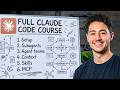
Claude Code Complete Beginner Course: Set Up, Build & Deploy
Master Claude Code from scratch in this comprehensive beginner course. Learn to set up the AI coding assistant, build a live web app, manage context, use advanced modes like plan mode, and deploy automations—all without requiring prior technical expertise.

How to Use Claude ai Step by Step for Beginners (2025 Guide)
Learn how to use Claude.ai from start to finish. This tutorial covers basics like writing emails and summarizing documents, then dives into advanced features like artifacts, projects, connectors, and skills to boost your productivity.
How to Build a Self-Improving System with Claude Code in 5 Steps
Learn a proven five-step framework to create your own self-improving system using Claude Code. This guide covers project setup, data ingestion, automated improvement loops, and best practices to continuously enhance your AI-driven workflow efficiently.
Connecting Claude and Obsidian: A Step-by-Step Guide
Learn how to integrate Claude with Obsidian to enhance your note-taking and idea generation. This guide walks you through the setup process, including installing necessary software and configuring settings for optimal use.
Prompt Engineering 101: Best Practices for Analyzing Car Accident Claims
Learn prompt engineering best practices from Anthropic's applied AI team. This tutorial demonstrates building a detailed prompt for analyzing Swedish car accident claim forms and sketches, using real-world examples to improve Claude's accuracy and structured output.
Most viewed summaries

A Comprehensive Guide to Using Stable Diffusion Forge UI
Explore the Stable Diffusion Forge UI, customizable settings, models, and more to enhance your image generation experience.

Kolonyalismo at Imperyalismo: Ang Kasaysayan ng Pagsakop sa Pilipinas
Tuklasin ang kasaysayan ng kolonyalismo at imperyalismo sa Pilipinas sa pamamagitan ni Ferdinand Magellan.

Mastering Inpainting with Stable Diffusion: Fix Mistakes and Enhance Your Images
Learn to fix mistakes and enhance images with Stable Diffusion's inpainting features effectively.

Pamamaraan at Patakarang Kolonyal ng mga Espanyol sa Pilipinas
Tuklasin ang mga pamamaraan at patakaran ng mga Espanyol sa Pilipinas, at ang epekto nito sa mga Pilipino.

How to Install and Configure Forge: A New Stable Diffusion Web UI
Learn to install and configure the new Forge web UI for Stable Diffusion, with tips on models and settings.
Found this summary useful?
Take it with you. One click puts it in your own LunaNotes library.
Save to LunaNotes