Download Subtitles for Unreal to DaVinci Resolve Workflow Video
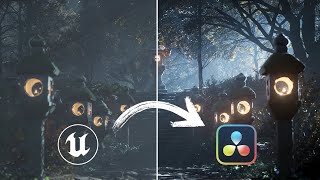
Unreal to Davinci Resolve Workflow - ACES & sRGB
William Faucher
SRT - Most compatible format for video players (VLC, media players, video editors)
VTT - Web Video Text Tracks for HTML5 video and browsers
TXT - Plain text with timestamps for easy reading and editing
Scroll to view all subtitles
Hey, welcome back. William Foscher here.
Now, I talk a lot about the importance
of color grading your renders. So, now
comes the time to show you how I do
things and what my workflow is for
getting my renders out of Unreal and
into Da Vinci Resolve for color grading.
I'm going to show you two ways of doing
things in this video. We've got the easy
idiot proof way and the ASUS workflow
which is actually a whole lot easier to
use than you might think. Now, for the
record, I do not claim to be the leading
expert in color science. In fact, in my
experience, the deeper I dive into color
science, the less I understand. We got
IDTS and ODTs. Then there's the color
primary, then there the linear workflow.
What I'll be showing you in this video
is what's worked for me for both
personal projects and production work,
but definitely take it with a grain of
salt. If some of you watching do happen
to be very well-versed in color science
and I made a mistake, do let me know in
the comments below. I will gladly stand
corrected on the matter. So, let's get
started with the important render
settings in Unreal before we get started
in Da Vinci Resolve right after a
message from my sponsor. So, a big thank
you to Skillshare for sponsoring this
video. You guys know what Skillshare is
by now, but for those of you who don't,
it's an online learning platform you can
use to find thousands of inspiring
classes on just about any topic you
want. Whether you're thinking of a
career change, or you just want to pick
up a new hobby. If you're new to Unreal
Engine and you want to make films and
want to learn more on a topic,
Skillshare had you covered with
cinematic captures intro to virtual film
making in Unreal Engine. As for myself,
prior to starting this channel, I had no
idea how to use Da Vinci Resolve. And
Audi Singh's class on video editing in
Da Vinci Resolve really helped me hit
the ground running and get these videos
out. Skillshare's classes are curated.
They're adree. New classes come out
every week. And even if English is not
your first language, subtitles in
Spanish, French, Portuguese, and German
are available. So, the first 1,000 of my
subscribers to click the link down below
will get a 1 month free trial, so you
can start learning right now. And with
that out of the way, let's jump into
Unreal and set up what we call OCIO. So,
here I am back in Unreal. You'll see I'm
using Unreal Engine 5 preview 1. But
don't worry, you can use absolutely any
version of Unreal, whether it's UE5
early access or UE4. The process here is
exactly the same. And before we get
started, I'm going to assume that you
have an understanding of how the movie
render key works. If you don't know how,
I already have a tutorial on that right
here. So, go check that out when it
comes to time to render. Now, in this
tutorial, I'm going to show you both the
ASUS workflow and the non-ASES workflow.
And for those of you who don't know what
ASES is, it is the Academy color
encoding system, which is basically the
industry standard color space workflow
that we use in film, VFX, and animation.
Even if you don't want to use aces, the
process is pretty much the same. This is
not an ASUS specific workflow. The first
thing we need to do before doing
anything at all is we need to download
an OCIO config. And so OCIO is open
color IO, which is an open- source color
pipeline, which is really focused
towards film, VFX, and animation usage.
OCIO is where we get all of that aces
information that we need to render
correctly. So, I've included a link down
below where you can find all of the ASUS
config that you may need for your own
production. But don't go ahead and
download this whole thing. This is like
5 GB. It is a huge file. We don't need
all this. In this video, we're going to
be using the ASUS 1.2 config. You can
find it right here on the right hand
side. I'll also have a link directly to
this if you want it down below. At the
bottom here, you'll find the open color
IO config as 1.2. download that and
extract the zip file. You're going to
see why this is very important in the
next step. So, back in Unreal, we're
going to go to our content browser and
I'm going to make a new folder right
here, call this OCIO_configs,
and in this folder, we're going to go
rightclick again, go to miscellaneous,
and we're going to create an open color
IO configuration. We're going to call
this OCIO config01.
We're going to save that. We are going
to open up this asset by double clicking
on it right here. And you'll see we need
to load in a configuration file. We're
going to click the three dots here. And
we're going to open up the config.io
file right here that we just downloaded.
Again, you can find a link to download
this in the description below. And now
we're going to add the desired color
spaces right here. So I'm going to go
ahead and click on plus twice. The first
one is going to be utility. Scroll all
the way down until we see linear sRGB.
Linear sRGB is the default color space
of Unreal. All conversions are going to
be either from or to linear sRGB. Next
one we want to load here is aces and
we're going to load in asc. We're going
to hit save. And now we're done with
that part of the process. Once this is
done, you're done. You don't need to do
this ever again for the rest of your
project because it's an asset file. This
was probably the most complicated part
of the process. Once you've done this,
you're good to go. So now we're ready to
render our shot here. So we're going to
go to our sequencer. We're going to
click on the render this movie to video.
And that is going to open up the movie
render queue. If you haven't already
seen my tutorial on the movie render
queue, I suggest you go watch it. It'll
make your life in Unreal a whole lot
easier. So, we're going to go ahead and
add our level sequence that we have
here, and we're going to start setting
up our important render settings in the
movie render queue. These settings are
absolutely critical. So, we're going to
click on unsafe config here, and these
are the default settings. I'm going to
delete JPEG sequence, and I'm going to
add three more tabs. The important ones
here are anti-aliasing,
color output,
and EXR sequence 16 bit. So EXR sequence
is going to be your file format. EXR is
pretty much the best file format for
rendering in. It is a container for data
that can hold 32-bit float data. It's
fantastic. So we can leave the EXR
settings to default. Anti-aliasing. I'm
going to set the temporal count to 16.
Set the override the anti-aliasing to
none. And the important one here is
color output. I see this one forgotten
all the time, but it is the most
important one. So, in the color output
tab, we have MISK. We're going to click
on this OCIO configuration. And here I'm
going to show you both the ACES approach
and the non-ASES approach. So, if you
don't want to use ACES, that's okay. The
process here is almost the same. So,
starting off with the ACES workflow,
we're going to click on OCIO
configuration is enabled. We're going to
load in the config file that we just
made and we're going to add OCIO
config01.
And now in the source color space, we're
going to set this to utility linear
sRGB. And the destination color space is
going to be ASUS CG. This is the very
important part of the process when it
comes to rendering your shots in aces.
If you don't want to use aces, we're
going to uncheck is enabled here, but
you really need to make sure you disable
tone curve right here. Make sure this is
turned on. You'll be getting the full
range of data, which means you can have
pixels that are brighter than one and
it's overall going to look a whole lot
better. You're going to have way more
data to work with in the color grading
part of the process. This is what you
want. Again, super important. So,
whichever one you use here, whether you
use aces or no aces, that is totally up
to you. That's fine. But this here is
the important step of this entire
process. If you don't do this right,
you're not going to be getting the most
out of your renders. For now, I'm going
to be using aces, but you don't have to.
Lastly, in the output tab, where it says
file name format, I usually like to
write what the color space I'm rendering
in is, so that is baked into the name of
my file. That way it is easy to tell
which file is using which color space.
So I'm going to write aces CG right
here. Hit accept. And then we're going
to hit render local. And with our images
rendered, we're going to jump into Da
Vinci Resolve where we're going to bring
in our renders and set up our project
settings correctly in order to get
started with the fun stuff. So here we
are in Da Vinci Resolve. And for those
of you who don't know what this is, Da
Vinci Resolve is a one-stop shop for
everything related to video editing,
color grading, sound editing, all sorts
of stuff. Da Vinci Resolve is absolutely
a fantastic tool. And the reason I'm
using this over any other package is
because it's free. I've included a link
to Da Vinci Resolve install page down in
the description below. So, you can go
ahead and find it right there. Now, Da
Vinci Resolve does have a paid studio
version of it, which does have a few
extra bells and whistles, but for the
most part, most of what you'll be
learning about today can be done with
the free version. Now, guys, one thing I
want to be clear about is this is not
intended to be an all-encompassing
bible of Da Vinci Resolve color grading.
There are entire YouTube channels
dedicated to only color grading in Da
Vinci Resolve. So, bear with me. This is
more intended to be a quick long tip
video. All right. So, this is what you
see when you load Da Vinci Resolve for
the first time. You'll see at the
bottom, the important thing here, we
have a whole bunch of menus. We've got
the media tab here. We've got the cut
page. We have the edit page. Then, we
have the fusion page, color, fair light,
and the delivery page. Now, don't worry.
We don't need to use most of these. The
ones we're going to be using is the edit
page here, the color page right here,
and the delivery page right here. So,
only three of them. We're going to start
off in the edit page right here. The
first thing we want to do with Da Vinci
Resolve open is we need to correctly set
up our project for AC as usage. And even
if you're not using ACES, you still want
to set up Da Vinci Resolve this way. I'm
going to say this again because it's
really important. Even if you're not
using aces, you still should do this.
Okay, so with that said, we're going to
click on the file button up top here. Go
to project settings,
and this is where you're going to set up
your entire project settings. Now, by
default, the resolution is in HD. For my
own sake, I'll be using 4K, but this is
going to depend on your project. Of
course, the timeline frame rate is going
to be in 24 fps. If you're using another
frame rate, you can choose it here. But
the important setting here is the color
management tab over here on the lefth
hand side. We're going to set the color
science to ASUS CCT.
We're going to choose ASUS version 1.2
because that is a config file that we
downloaded. I think 1.3 seems to be the
latest, but I have not found a config
file for ASUS 1.3. Next, we're going to
set our ASUS output transform to recx
709. And that's all we need to do. We're
going to hit the save button and we'll
be ready to go. So now the next part of
the process is to import our renders.
You'll see on the left hand side of our
edit page we have the media pool and
this is where we're going to import our
shots. So I'm going to rightclick
import media. And this is where I'm
going to import the image sequence that
we rendered out of the movie render
queue. For those of you wondering how do
we convert image sequences into a video
file, this is how. So, I'm going to
click on one,
shiftclick to get them all in here, and
hit open. And Da Vinci Resolve is going
to understand that this is a sequence,
so it's not going to import every single
frame independently. So now we can drag
and drop our shot into our timeline like
this. And now you'll see we have our
entire animated shot in here. So now
I'll be color grading my nighttime scene
that we saw in my previous video right
here. But you'll notice that the colors
feel totally wrong. Like they're
completely off. This is not what we
want. And that's normal. Okay. Now, the
next part of the process is to tell Da
Vinci Resolve how to read our images.
Okay. So, we need to right click on our
clip here,
go to ASUS input transform, go to color
space conversion, and we're going to
convert this to ASUS CG. And now the
colors feel a bit more right. Now, I've
also brought in two other clips here for
those of you who didn't use ACES. So, if
you didn't use OCIO and you only
disabled the tone curve in the color
output settings of the movie render
queue, this is how you need to tell Da
Vinci Resolve to correctly transform
your renders. And you'll see here, this
is why it's really handy to name your
files correctly. So, here I have no tone
curve and here I have ASUS CG. So, I can
clearly tell them apart. I don't need to
rack my brain trying to figure out which
one is which. So here you'll see if I
just bring in these clips into the
timeline, the colors are obviously
completely wrong. They are
oversaturated. They look like crap. What
do we need to do? So I'm going to
rightclick here, go to ASUS input
transform, color space conversion, but
we're not going to set this to ASUS CG
because we didn't export it in ASUS CG.
I see a lot of people doing this and
it's wrong because if I do that, it got
a bit better, but it still looks
completely wrong. Your colors are going
to be oversaturated and crappy. We need
to rightclick ASUS input transform color
space conversion and set it to sRGB
linear. And now this looks correct. This
should match what you had in your Unreal
Engine viewport. Pretty much this render
here was rendered in asc. So, I'm going
to rightclick ASUS input transform color
space conversion ASUS CG. And now you'll
see these two renders match pretty
closely. But you might notice that the
ASUS one has a bit more yellow in the
brightest parts of the green wall.
Notice if I toggle between the two, ACG
has way more yellow in it. And from what
I understand, that would probably have
to do with the fact that ACCG has a much
wider color gamut than sRGB. Taking a
look at this diagram right here, you'll
see that ACG encompasses a much broader
range of colors than the limited sRGB
space, especially in the greens. Notice
how there's way more range of greens in
the ASUS CG1. That would account for the
difference in greens that we're getting
here on the wall in the ASUS render and
the non-ASUS render. So, I know that
seemed like a lot of steps, but trust
me, this is the absolute best way to get
your renders out of Unreal and into Da
Vinci Resolve. Regardless of whether
you're using aces or not, as you've
seen, whether you use aces or no aces,
there's not very many extra steps you
need to do, it's all pretty much the
same. So, with that done, we're going to
be ready to jump into the color page and
start color grading this shot right
here. This is where the fun part begins.
So, let's get started. And we're going
to go into the color page right here at
the bottom where it says color. Now,
this part here can seem a little bit
intimidating sometimes because there is
a whole lot happening here. Like so many
buttons, so many nodes. The beauty of
working in Da Vinci Resolve is that it
is a node-based system. So, you'll see
here we have our main node and
everything happens from left to right.
You'll see we have these spaghetti
noodles here. Every node is
non-destructive. So, we can go ahead and
add another node by doing the Alt F
shortcut to make another corrector node.
So, I can go ahead and just change the
white balance, for example, make this
crazy warm or something. And if I
realize that I don't like it, I can just
delete it. It's a non-destructive
process. It's kind of like layer based
editing, but better. So, we're going to
get into these a little bit later. Next,
here we have our timeline right here.
So, this is how we can kind of cycle
through our shot.
At the bottom here, we have the color
wheel. And in the color wheels here, you
might be a little bit intimidated
because now we have like lift, gamma,
gain, offset. What does that mean? It
sounds really scary, but don't worry,
it's very simple to understand. Lift
will adjust mainly your shadows. Gamma
will affect mainly your midtones. Gain
will affect mainly your highlights. An
offset is kind of going to shift
everything evenly. In the middle here we
have a histogram where we can adjust our
image with the help of curves like this.
And on the right we have the waveform.
And you might it depending on your
version of Resolve. It might be parade,
it might be vectors scope, it might be
something else histogram like that. Um,
personally I love leaving it at waveform
because this is really going to help us
visualize if we are clipping highlights
or clipping blacks. Overall, the
waveform is a fantastic tool. And on the
right hand side here, we have the effect
library. And this is where we have a
whole bunch of effects we can add like
radial blur and glow and halation and
all sorts of stuff. For the sake of this
tutorial, I'm not going to dive into all
of these, but do feel free to experiment
with some of these. So, now that we have
a brief explanation of the UI out of the
way, let's get started with our first
grade. And so by selecting my node right
here, I'm going to hit the alts shortcut
and I'm going to right click on it and
add a node label. And I'm going to call
this tone because my first adjustment is
I usually like to adjust the tones of
the image to make it a little bit less
flat because we're straight out of
Unreal. Uh it often looks a little bit
too flat for my taste. So I'm going to
go ahead and boost that a little bit
higher. So, in the curves in the middle,
I'm going to adjust this like that just
a little bit because you can go really
overboard and you don't want to do that.
I'm just going to give it a subtle boost
here. And I'm going to crank down the
shadows over here. So, just a subtle
scurve like this can give it some much
needed contrast. So, now if you select
your node and you hit Ctrl D, you can
disable it and reenable it to toggle it
on and off to get a better visualization
of what exactly is happening. Next, I'm
going to hit the Alt F shortcut one more
time, and I'm going to add a node label
again and call this color correct. And
now, once the tones have been adjusted,
I usually like to add a bit of color
correction in here because in this case,
I feel like the blue is way too strong.
It's much too dominant, way too present.
And I'm going to tone that down a little
bit. So, I'm going to go to the
saturation bar at the bottom here and
turn it down from 50 to 40, maybe even
35, just to kind of ease down the blue a
little bit. And the cool thing in here
is we can also change the color
temperature a little bit. So, if for
whatever reason in Unreal you went way
too far, we can kind of fix that in
Resolve and make it much more neutral
again. So, here in temp, I'm going to
adjust it and make it a little bit
warmer maybe.
So, I can make it much colder or much
warmer if I wanted to. So, before and
after. Before and after. It's subtle,
but toning down that strong
oversaturated blues helps the image in
my opinion. Again, everything I do here
is entirely subjective because, you
know, art is subjective. So, you may not
even like the grading I'm doing here,
but that's not the point. And honestly,
just these nodes account for 75% of what
I do in Da Vinci Resolve when it comes
to tweaking my renders a little bit
because if we go back to the tone node
here, we can really fine-tune individual
parts of the image very easily, right?
It's really awesome to have that level
of minute control over each part of your
shot. But now I'm going to go ahead and
add what we call the glow node. So in
the library here where you see effects,
if you don't see this library on the
side, make sure that effects is toggled
here on the top right. If your UI looks
a little bit different than mine, just
check to see if like clips is not
disabled, nodes is not disabled, you can
adjust all of that up here. So in the
library of the effects tab here by
clicking on the magnifying glass over
here, I'm going to search for glow.
We're going to drag and drop this in
here and drag and drop that onto our
node graph. And you might see that
nothing happened. You may need to adjust
the shine threshold like that. And
notice now,
whoa. Like this adds a really cool
effect to our shot. I think it's
obviously overkill. It's way over the
top, but you get the point. So, the
result I'm going for here, I just want
to add a bit of a warm glow. So, I'm
going to need to make sure that I adjust
the shine threshold
and adjust the
spread.
Turn on saturation opacity like that.
I often like setting it from add to
screen.
Increase the gamma. There we go.
Something like that.
Change the threshold. There we go.
Something like that. And then turn down
the opacity.
If I toggle it on and off, you'll see
it's just a subtle glow here that does
add a nice little effect. And you can
add multiple glows, too. We can have
another glow glow node that will
actually affect the um nice blue
moonlight shining in from the top here.
So, if I do this, something like that,
it definitely feels much more magical.
But
turn down the saturation a little bit.
So, with just these two glow nodes, if I
select them both and hide them, it's a
pretty drastic difference. And of
course, you need to art direct this for
your own shot. It's obviously overkill,
but I just want to demonstrate the
effect. Whatever. It looks cool. Now,
another node that I love to use is the
aperture defraction, but you can only
use this in the paid version of Da Vinci
Resolve. You may get watermarks if you
try to use this. So, obviously I don't
want that kind of glow here, but I can
adjust it like that. Tweak it a little
bit like that. Opacity, tone it down a
little bit.
And if I toggle this on and off, you'll
see it does add a bit of a nice warmish
vibe to it. In some cases, I actually
prefer the way that aperture defraction
looks as opposed to glow, but the choice
is yours.
Next up, I like adding a little bit of a
vignetting effect to my shot. And the
way we're going to do that is I'm going
to select my last node in my node tree.
I'm going to move this down here like
that. There we go. And we're going to
click on the little button right here.
And we're going to click on the radial
mask right there. And we're also going
to click on this right here. And you'll
see why. Now, we can change the shape of
this. And I'm going to go back to my
curves adjustment right here. And I'm
going to grab the top point here and
bring it down. And you'll see this is
kind of what we're doing here. We're
adding a subtle vignetting effect. Just
be careful not to go overboard with
that. And you don't need to grab just
this point here. You can also grab one
in the middle. It's going to change how
the midtones or highlights are affected.
So, I'm just going to do a very subtle
effect like that. And if I toggle it on
and off, you'll see it's a pretty
dramatic impact on the scene. It helps
us focus on the center of the shot a
little bit. It helps frame the image
just a little bit. Vignetting is one of
my favorite things. I add it to most of
my renders and most of my photographs
actually. But, you know, some people
hate it, some people love it.
Do whatever you like. We can go back
here and change the shape of it if we
want to. Like that. So, really, all
we're doing here is just some kind of
mask to shape the light a little bit in
our scene. I could also make another
node here where I wanted to do this like
that and add let's say I want to fake a
kind of god ray shining through. Well,
we can absolutely do that. I'm going to
rotate it like this. Go back here and I
can go Whoops. I need to do the
opposite.
There we go. And now I can kind of just
paint light that way if I want to by
placing this wherever I want it to be.
These outer dots here are going to
mainly be adjusting the fall-off or the
feathering of the mask here. If I go
here and toggle it on and off, it's a
pretty cool way to manually control and
paint light wherever you want it to be.
That's why I like color grading in Da
Vinci Resolve because we have so much
more control over the final look of our
shot as opposed to trying to do this in
Unreal. It's a it's a pain in the butt.
So, I hope you're starting to understand
the power of color grading in post as
opposed to trying to do everything in
the engine. Now, obviously, I don't want
this. This is way too much over the top,
but you get the idea. Now, in most
renders, I often go ahead and add a
little bit of chromatic aberration. And
I've talked a lot about chromatic
aberration in depth in this video right
here. I even talk about why we add it
and where it should be added. And in a
nighttime shot like this, I typically
wouldn't add chromatic aberration, but I
got a lot of questions about how to add
chromatic aberration and how to mask it
out by high contrast areas. So, I'm
going to show you my process for adding
chromatic aberration, even though I
wouldn't need it in this shot here. So,
we're going to go ahead and add the
chromatic aberration node here.
Next, we're going to rightclick, add
node, add layer mixer.
Like that.
And we're going to rightclick again, add
node, add a corrector. And a corrector
is really just another default standard
color grading node. We're going to plug
this one here.
We're going to place it underneath the
chromatic aberration. And we're going to
plug this one into the bottom one of the
layer mixer.
And so what's happening now is if I
crank up the chromatic aberration like
crazy,
you'll see that the chromatic aberration
is appearing everywhere in the frame,
like absolutely everywhere. Uh even over
here, and I don't want that. It's it's
showing up in the grass. I only want it
to show up in the high contrast areas
because that's how chromatic aberration
works in real life with real lenses. So,
what we're going to do, we're going to
use this node here to mask out only the
bright areas. And that way, chromatic
aberration will only be applied there.
So, you're going to want to make sure
you have the eyropper tool selected
here, which is called the qualifier.
And we're going to click on some place
in the sky like this. And you'll see
something happened. We had some
chromatic aberration showing up in the
frame here. But why? We can't. How do we
visualize that mask? We're going to
click on the magic wand button here. And
now you'll see everything that's gray is
where chromatic aberration will show up.
And so at the bottom here, we can adjust
the luminance and adjust that gray mask
as we see fit. But I only want to adjust
it based on luminance, not saturation
and hue. So I'm going to uncheck hue and
saturation. And I'm only going to play
with my luminance values here
like that. So I got to lower it like
this. And now you'll see all the bright
areas
are kind of gray now. And the gray areas
are where chromatic aberration will show
up. So now if I click on my chromatic
aberration node again. So I'm going to
uncheck the magic wand here. You'll see
it only showed up there in those spots.
See there's no more chromatic aberration
anywhere else in the frame. Only up
here. Now of course I've exaggerated
that for effect. You're going to have to
art direct that the way you see fit, but
that is how you can mask out certain
effects using the layer mixer node right
here. I don't really want it in this
shot, but now you know how to set it up.
So, the last thing I'm going to add here
is film grain because I'm a sucker for
good film grain. But, uh, the film grain
node is only available to those with the
paid version of Da Vinci Resolve. You
can still preview it, but you won't be
able to use it yourself. I'm going to
zoom in a little bit and you may need to
adjust the film grain presets. I'm going
to set the preset to 35mm 400T. And I
may increase the opacity of it just to
make it a little bit stronger just for
effect. And in fact, I'm not even sure
if you are going to be able to see the
film grain on YouTube because of
YouTube's compression and noise
reduction. So again, I'm just showing
you what my process is, not necessarily
for the final result. And that's pretty
much it. If I select all my notes here
and I hit control D. This is before and
this is after. Before. After. It was a
pretty simple process, but we really
managed to push our shot to the next
level with just a few nodes like this in
a completely non-destructive way. So, I
know this was a lot to unpack here, but
hopefully it made sense and you're able
to push your own renders to the next
level yourself. And now the last thing
we need to do is render this video out.
So what we're going to do now is we're
going to go to the bottom here and where
there's like a rocket ship, that's the
deliver page and that is where we're
going to render out this video. So for
those of you wondering how we convert a
image sequence into a video, this is
how. So click on the rocket ship down
here and you're going to find a whole
bunch of settings. So here you can
choose your file name and the location
of your video. So, I'm going to call
this forest_grade_v001.
[Music]
Next, you can choose the format you
want, the codec you want, the
resolution, your frame rate, and the
quality. For the most part, you can
leave this at default, and it's going to
work pretty well. Next, the last thing
you need to do is hit the add to render
queue button and hit render all. And
that's it. You've rendered out your
video. Everything is done and you now
have a video that you can play, upload
to YouTube, Art Station, share it to
your friends and family. Thank you so
much for watching. I hope you found this
video helpful. If you did, do consider
subscribing and leaving a comment down
below. And as always, happy rendering.
Full transcript without timestamps
Hey, welcome back. William Foscher here. Now, I talk a lot about the importance of color grading your renders. So, now comes the time to show you how I do things and what my workflow is for getting my renders out of Unreal and into Da Vinci Resolve for color grading. I'm going to show you two ways of doing things in this video. We've got the easy idiot proof way and the ASUS workflow which is actually a whole lot easier to use than you might think. Now, for the record, I do not claim to be the leading expert in color science. In fact, in my experience, the deeper I dive into color science, the less I understand. We got IDTS and ODTs. Then there's the color primary, then there the linear workflow. What I'll be showing you in this video is what's worked for me for both personal projects and production work, but definitely take it with a grain of salt. If some of you watching do happen to be very well-versed in color science and I made a mistake, do let me know in the comments below. I will gladly stand corrected on the matter. So, let's get started with the important render settings in Unreal before we get started in Da Vinci Resolve right after a message from my sponsor. So, a big thank you to Skillshare for sponsoring this video. You guys know what Skillshare is by now, but for those of you who don't, it's an online learning platform you can use to find thousands of inspiring classes on just about any topic you want. Whether you're thinking of a career change, or you just want to pick up a new hobby. If you're new to Unreal Engine and you want to make films and want to learn more on a topic, Skillshare had you covered with cinematic captures intro to virtual film making in Unreal Engine. As for myself, prior to starting this channel, I had no idea how to use Da Vinci Resolve. And Audi Singh's class on video editing in Da Vinci Resolve really helped me hit the ground running and get these videos out. Skillshare's classes are curated. They're adree. New classes come out every week. And even if English is not your first language, subtitles in Spanish, French, Portuguese, and German are available. So, the first 1,000 of my subscribers to click the link down below will get a 1 month free trial, so you can start learning right now. And with that out of the way, let's jump into Unreal and set up what we call OCIO. So, here I am back in Unreal. You'll see I'm using Unreal Engine 5 preview 1. But don't worry, you can use absolutely any version of Unreal, whether it's UE5 early access or UE4. The process here is exactly the same. And before we get started, I'm going to assume that you have an understanding of how the movie render key works. If you don't know how, I already have a tutorial on that right here. So, go check that out when it comes to time to render. Now, in this tutorial, I'm going to show you both the ASUS workflow and the non-ASES workflow. And for those of you who don't know what ASES is, it is the Academy color encoding system, which is basically the industry standard color space workflow that we use in film, VFX, and animation. Even if you don't want to use aces, the process is pretty much the same. This is not an ASUS specific workflow. The first thing we need to do before doing anything at all is we need to download an OCIO config. And so OCIO is open color IO, which is an open- source color pipeline, which is really focused towards film, VFX, and animation usage. OCIO is where we get all of that aces information that we need to render correctly. So, I've included a link down below where you can find all of the ASUS config that you may need for your own production. But don't go ahead and download this whole thing. This is like 5 GB. It is a huge file. We don't need all this. In this video, we're going to be using the ASUS 1.2 config. You can find it right here on the right hand side. I'll also have a link directly to this if you want it down below. At the bottom here, you'll find the open color IO config as 1.2. download that and extract the zip file. You're going to see why this is very important in the next step. So, back in Unreal, we're going to go to our content browser and I'm going to make a new folder right here, call this OCIO_configs, and in this folder, we're going to go rightclick again, go to miscellaneous, and we're going to create an open color IO configuration. We're going to call this OCIO config01. We're going to save that. We are going to open up this asset by double clicking on it right here. And you'll see we need to load in a configuration file. We're going to click the three dots here. And we're going to open up the config.io file right here that we just downloaded. Again, you can find a link to download this in the description below. And now we're going to add the desired color spaces right here. So I'm going to go ahead and click on plus twice. The first one is going to be utility. Scroll all the way down until we see linear sRGB. Linear sRGB is the default color space of Unreal. All conversions are going to be either from or to linear sRGB. Next one we want to load here is aces and we're going to load in asc. We're going to hit save. And now we're done with that part of the process. Once this is done, you're done. You don't need to do this ever again for the rest of your project because it's an asset file. This was probably the most complicated part of the process. Once you've done this, you're good to go. So now we're ready to render our shot here. So we're going to go to our sequencer. We're going to click on the render this movie to video. And that is going to open up the movie render queue. If you haven't already seen my tutorial on the movie render queue, I suggest you go watch it. It'll make your life in Unreal a whole lot easier. So, we're going to go ahead and add our level sequence that we have here, and we're going to start setting up our important render settings in the movie render queue. These settings are absolutely critical. So, we're going to click on unsafe config here, and these are the default settings. I'm going to delete JPEG sequence, and I'm going to add three more tabs. The important ones here are anti-aliasing, color output, and EXR sequence 16 bit. So EXR sequence is going to be your file format. EXR is pretty much the best file format for rendering in. It is a container for data that can hold 32-bit float data. It's fantastic. So we can leave the EXR settings to default. Anti-aliasing. I'm going to set the temporal count to 16. Set the override the anti-aliasing to none. And the important one here is color output. I see this one forgotten all the time, but it is the most important one. So, in the color output tab, we have MISK. We're going to click on this OCIO configuration. And here I'm going to show you both the ACES approach and the non-ASES approach. So, if you don't want to use ACES, that's okay. The process here is almost the same. So, starting off with the ACES workflow, we're going to click on OCIO configuration is enabled. We're going to load in the config file that we just made and we're going to add OCIO config01. And now in the source color space, we're going to set this to utility linear sRGB. And the destination color space is going to be ASUS CG. This is the very important part of the process when it comes to rendering your shots in aces. If you don't want to use aces, we're going to uncheck is enabled here, but you really need to make sure you disable tone curve right here. Make sure this is turned on. You'll be getting the full range of data, which means you can have pixels that are brighter than one and it's overall going to look a whole lot better. You're going to have way more data to work with in the color grading part of the process. This is what you want. Again, super important. So, whichever one you use here, whether you use aces or no aces, that is totally up to you. That's fine. But this here is the important step of this entire process. If you don't do this right, you're not going to be getting the most out of your renders. For now, I'm going to be using aces, but you don't have to. Lastly, in the output tab, where it says file name format, I usually like to write what the color space I'm rendering in is, so that is baked into the name of my file. That way it is easy to tell which file is using which color space. So I'm going to write aces CG right here. Hit accept. And then we're going to hit render local. And with our images rendered, we're going to jump into Da Vinci Resolve where we're going to bring in our renders and set up our project settings correctly in order to get started with the fun stuff. So here we are in Da Vinci Resolve. And for those of you who don't know what this is, Da Vinci Resolve is a one-stop shop for everything related to video editing, color grading, sound editing, all sorts of stuff. Da Vinci Resolve is absolutely a fantastic tool. And the reason I'm using this over any other package is because it's free. I've included a link to Da Vinci Resolve install page down in the description below. So, you can go ahead and find it right there. Now, Da Vinci Resolve does have a paid studio version of it, which does have a few extra bells and whistles, but for the most part, most of what you'll be learning about today can be done with the free version. Now, guys, one thing I want to be clear about is this is not intended to be an all-encompassing bible of Da Vinci Resolve color grading. There are entire YouTube channels dedicated to only color grading in Da Vinci Resolve. So, bear with me. This is more intended to be a quick long tip video. All right. So, this is what you see when you load Da Vinci Resolve for the first time. You'll see at the bottom, the important thing here, we have a whole bunch of menus. We've got the media tab here. We've got the cut page. We have the edit page. Then, we have the fusion page, color, fair light, and the delivery page. Now, don't worry. We don't need to use most of these. The ones we're going to be using is the edit page here, the color page right here, and the delivery page right here. So, only three of them. We're going to start off in the edit page right here. The first thing we want to do with Da Vinci Resolve open is we need to correctly set up our project for AC as usage. And even if you're not using ACES, you still want to set up Da Vinci Resolve this way. I'm going to say this again because it's really important. Even if you're not using aces, you still should do this. Okay, so with that said, we're going to click on the file button up top here. Go to project settings, and this is where you're going to set up your entire project settings. Now, by default, the resolution is in HD. For my own sake, I'll be using 4K, but this is going to depend on your project. Of course, the timeline frame rate is going to be in 24 fps. If you're using another frame rate, you can choose it here. But the important setting here is the color management tab over here on the lefth hand side. We're going to set the color science to ASUS CCT. We're going to choose ASUS version 1.2 because that is a config file that we downloaded. I think 1.3 seems to be the latest, but I have not found a config file for ASUS 1.3. Next, we're going to set our ASUS output transform to recx 709. And that's all we need to do. We're going to hit the save button and we'll be ready to go. So now the next part of the process is to import our renders. You'll see on the left hand side of our edit page we have the media pool and this is where we're going to import our shots. So I'm going to rightclick import media. And this is where I'm going to import the image sequence that we rendered out of the movie render queue. For those of you wondering how do we convert image sequences into a video file, this is how. So, I'm going to click on one, shiftclick to get them all in here, and hit open. And Da Vinci Resolve is going to understand that this is a sequence, so it's not going to import every single frame independently. So now we can drag and drop our shot into our timeline like this. And now you'll see we have our entire animated shot in here. So now I'll be color grading my nighttime scene that we saw in my previous video right here. But you'll notice that the colors feel totally wrong. Like they're completely off. This is not what we want. And that's normal. Okay. Now, the next part of the process is to tell Da Vinci Resolve how to read our images. Okay. So, we need to right click on our clip here, go to ASUS input transform, go to color space conversion, and we're going to convert this to ASUS CG. And now the colors feel a bit more right. Now, I've also brought in two other clips here for those of you who didn't use ACES. So, if you didn't use OCIO and you only disabled the tone curve in the color output settings of the movie render queue, this is how you need to tell Da Vinci Resolve to correctly transform your renders. And you'll see here, this is why it's really handy to name your files correctly. So, here I have no tone curve and here I have ASUS CG. So, I can clearly tell them apart. I don't need to rack my brain trying to figure out which one is which. So here you'll see if I just bring in these clips into the timeline, the colors are obviously completely wrong. They are oversaturated. They look like crap. What do we need to do? So I'm going to rightclick here, go to ASUS input transform, color space conversion, but we're not going to set this to ASUS CG because we didn't export it in ASUS CG. I see a lot of people doing this and it's wrong because if I do that, it got a bit better, but it still looks completely wrong. Your colors are going to be oversaturated and crappy. We need to rightclick ASUS input transform color space conversion and set it to sRGB linear. And now this looks correct. This should match what you had in your Unreal Engine viewport. Pretty much this render here was rendered in asc. So, I'm going to rightclick ASUS input transform color space conversion ASUS CG. And now you'll see these two renders match pretty closely. But you might notice that the ASUS one has a bit more yellow in the brightest parts of the green wall. Notice if I toggle between the two, ACG has way more yellow in it. And from what I understand, that would probably have to do with the fact that ACCG has a much wider color gamut than sRGB. Taking a look at this diagram right here, you'll see that ACG encompasses a much broader range of colors than the limited sRGB space, especially in the greens. Notice how there's way more range of greens in the ASUS CG1. That would account for the difference in greens that we're getting here on the wall in the ASUS render and the non-ASUS render. So, I know that seemed like a lot of steps, but trust me, this is the absolute best way to get your renders out of Unreal and into Da Vinci Resolve. Regardless of whether you're using aces or not, as you've seen, whether you use aces or no aces, there's not very many extra steps you need to do, it's all pretty much the same. So, with that done, we're going to be ready to jump into the color page and start color grading this shot right here. This is where the fun part begins. So, let's get started. And we're going to go into the color page right here at the bottom where it says color. Now, this part here can seem a little bit intimidating sometimes because there is a whole lot happening here. Like so many buttons, so many nodes. The beauty of working in Da Vinci Resolve is that it is a node-based system. So, you'll see here we have our main node and everything happens from left to right. You'll see we have these spaghetti noodles here. Every node is non-destructive. So, we can go ahead and add another node by doing the Alt F shortcut to make another corrector node. So, I can go ahead and just change the white balance, for example, make this crazy warm or something. And if I realize that I don't like it, I can just delete it. It's a non-destructive process. It's kind of like layer based editing, but better. So, we're going to get into these a little bit later. Next, here we have our timeline right here. So, this is how we can kind of cycle through our shot. At the bottom here, we have the color wheel. And in the color wheels here, you might be a little bit intimidated because now we have like lift, gamma, gain, offset. What does that mean? It sounds really scary, but don't worry, it's very simple to understand. Lift will adjust mainly your shadows. Gamma will affect mainly your midtones. Gain will affect mainly your highlights. An offset is kind of going to shift everything evenly. In the middle here we have a histogram where we can adjust our image with the help of curves like this. And on the right we have the waveform. And you might it depending on your version of Resolve. It might be parade, it might be vectors scope, it might be something else histogram like that. Um, personally I love leaving it at waveform because this is really going to help us visualize if we are clipping highlights or clipping blacks. Overall, the waveform is a fantastic tool. And on the right hand side here, we have the effect library. And this is where we have a whole bunch of effects we can add like radial blur and glow and halation and all sorts of stuff. For the sake of this tutorial, I'm not going to dive into all of these, but do feel free to experiment with some of these. So, now that we have a brief explanation of the UI out of the way, let's get started with our first grade. And so by selecting my node right here, I'm going to hit the alts shortcut and I'm going to right click on it and add a node label. And I'm going to call this tone because my first adjustment is I usually like to adjust the tones of the image to make it a little bit less flat because we're straight out of Unreal. Uh it often looks a little bit too flat for my taste. So I'm going to go ahead and boost that a little bit higher. So, in the curves in the middle, I'm going to adjust this like that just a little bit because you can go really overboard and you don't want to do that. I'm just going to give it a subtle boost here. And I'm going to crank down the shadows over here. So, just a subtle scurve like this can give it some much needed contrast. So, now if you select your node and you hit Ctrl D, you can disable it and reenable it to toggle it on and off to get a better visualization of what exactly is happening. Next, I'm going to hit the Alt F shortcut one more time, and I'm going to add a node label again and call this color correct. And now, once the tones have been adjusted, I usually like to add a bit of color correction in here because in this case, I feel like the blue is way too strong. It's much too dominant, way too present. And I'm going to tone that down a little bit. So, I'm going to go to the saturation bar at the bottom here and turn it down from 50 to 40, maybe even 35, just to kind of ease down the blue a little bit. And the cool thing in here is we can also change the color temperature a little bit. So, if for whatever reason in Unreal you went way too far, we can kind of fix that in Resolve and make it much more neutral again. So, here in temp, I'm going to adjust it and make it a little bit warmer maybe. So, I can make it much colder or much warmer if I wanted to. So, before and after. Before and after. It's subtle, but toning down that strong oversaturated blues helps the image in my opinion. Again, everything I do here is entirely subjective because, you know, art is subjective. So, you may not even like the grading I'm doing here, but that's not the point. And honestly, just these nodes account for 75% of what I do in Da Vinci Resolve when it comes to tweaking my renders a little bit because if we go back to the tone node here, we can really fine-tune individual parts of the image very easily, right? It's really awesome to have that level of minute control over each part of your shot. But now I'm going to go ahead and add what we call the glow node. So in the library here where you see effects, if you don't see this library on the side, make sure that effects is toggled here on the top right. If your UI looks a little bit different than mine, just check to see if like clips is not disabled, nodes is not disabled, you can adjust all of that up here. So in the library of the effects tab here by clicking on the magnifying glass over here, I'm going to search for glow. We're going to drag and drop this in here and drag and drop that onto our node graph. And you might see that nothing happened. You may need to adjust the shine threshold like that. And notice now, whoa. Like this adds a really cool effect to our shot. I think it's obviously overkill. It's way over the top, but you get the point. So, the result I'm going for here, I just want to add a bit of a warm glow. So, I'm going to need to make sure that I adjust the shine threshold and adjust the spread. Turn on saturation opacity like that. I often like setting it from add to screen. Increase the gamma. There we go. Something like that. Change the threshold. There we go. Something like that. And then turn down the opacity. If I toggle it on and off, you'll see it's just a subtle glow here that does add a nice little effect. And you can add multiple glows, too. We can have another glow glow node that will actually affect the um nice blue moonlight shining in from the top here. So, if I do this, something like that, it definitely feels much more magical. But turn down the saturation a little bit. So, with just these two glow nodes, if I select them both and hide them, it's a pretty drastic difference. And of course, you need to art direct this for your own shot. It's obviously overkill, but I just want to demonstrate the effect. Whatever. It looks cool. Now, another node that I love to use is the aperture defraction, but you can only use this in the paid version of Da Vinci Resolve. You may get watermarks if you try to use this. So, obviously I don't want that kind of glow here, but I can adjust it like that. Tweak it a little bit like that. Opacity, tone it down a little bit. And if I toggle this on and off, you'll see it does add a bit of a nice warmish vibe to it. In some cases, I actually prefer the way that aperture defraction looks as opposed to glow, but the choice is yours. Next up, I like adding a little bit of a vignetting effect to my shot. And the way we're going to do that is I'm going to select my last node in my node tree. I'm going to move this down here like that. There we go. And we're going to click on the little button right here. And we're going to click on the radial mask right there. And we're also going to click on this right here. And you'll see why. Now, we can change the shape of this. And I'm going to go back to my curves adjustment right here. And I'm going to grab the top point here and bring it down. And you'll see this is kind of what we're doing here. We're adding a subtle vignetting effect. Just be careful not to go overboard with that. And you don't need to grab just this point here. You can also grab one in the middle. It's going to change how the midtones or highlights are affected. So, I'm just going to do a very subtle effect like that. And if I toggle it on and off, you'll see it's a pretty dramatic impact on the scene. It helps us focus on the center of the shot a little bit. It helps frame the image just a little bit. Vignetting is one of my favorite things. I add it to most of my renders and most of my photographs actually. But, you know, some people hate it, some people love it. Do whatever you like. We can go back here and change the shape of it if we want to. Like that. So, really, all we're doing here is just some kind of mask to shape the light a little bit in our scene. I could also make another node here where I wanted to do this like that and add let's say I want to fake a kind of god ray shining through. Well, we can absolutely do that. I'm going to rotate it like this. Go back here and I can go Whoops. I need to do the opposite. There we go. And now I can kind of just paint light that way if I want to by placing this wherever I want it to be. These outer dots here are going to mainly be adjusting the fall-off or the feathering of the mask here. If I go here and toggle it on and off, it's a pretty cool way to manually control and paint light wherever you want it to be. That's why I like color grading in Da Vinci Resolve because we have so much more control over the final look of our shot as opposed to trying to do this in Unreal. It's a it's a pain in the butt. So, I hope you're starting to understand the power of color grading in post as opposed to trying to do everything in the engine. Now, obviously, I don't want this. This is way too much over the top, but you get the idea. Now, in most renders, I often go ahead and add a little bit of chromatic aberration. And I've talked a lot about chromatic aberration in depth in this video right here. I even talk about why we add it and where it should be added. And in a nighttime shot like this, I typically wouldn't add chromatic aberration, but I got a lot of questions about how to add chromatic aberration and how to mask it out by high contrast areas. So, I'm going to show you my process for adding chromatic aberration, even though I wouldn't need it in this shot here. So, we're going to go ahead and add the chromatic aberration node here. Next, we're going to rightclick, add node, add layer mixer. Like that. And we're going to rightclick again, add node, add a corrector. And a corrector is really just another default standard color grading node. We're going to plug this one here. We're going to place it underneath the chromatic aberration. And we're going to plug this one into the bottom one of the layer mixer. And so what's happening now is if I crank up the chromatic aberration like crazy, you'll see that the chromatic aberration is appearing everywhere in the frame, like absolutely everywhere. Uh even over here, and I don't want that. It's it's showing up in the grass. I only want it to show up in the high contrast areas because that's how chromatic aberration works in real life with real lenses. So, what we're going to do, we're going to use this node here to mask out only the bright areas. And that way, chromatic aberration will only be applied there. So, you're going to want to make sure you have the eyropper tool selected here, which is called the qualifier. And we're going to click on some place in the sky like this. And you'll see something happened. We had some chromatic aberration showing up in the frame here. But why? We can't. How do we visualize that mask? We're going to click on the magic wand button here. And now you'll see everything that's gray is where chromatic aberration will show up. And so at the bottom here, we can adjust the luminance and adjust that gray mask as we see fit. But I only want to adjust it based on luminance, not saturation and hue. So I'm going to uncheck hue and saturation. And I'm only going to play with my luminance values here like that. So I got to lower it like this. And now you'll see all the bright areas are kind of gray now. And the gray areas are where chromatic aberration will show up. So now if I click on my chromatic aberration node again. So I'm going to uncheck the magic wand here. You'll see it only showed up there in those spots. See there's no more chromatic aberration anywhere else in the frame. Only up here. Now of course I've exaggerated that for effect. You're going to have to art direct that the way you see fit, but that is how you can mask out certain effects using the layer mixer node right here. I don't really want it in this shot, but now you know how to set it up. So, the last thing I'm going to add here is film grain because I'm a sucker for good film grain. But, uh, the film grain node is only available to those with the paid version of Da Vinci Resolve. You can still preview it, but you won't be able to use it yourself. I'm going to zoom in a little bit and you may need to adjust the film grain presets. I'm going to set the preset to 35mm 400T. And I may increase the opacity of it just to make it a little bit stronger just for effect. And in fact, I'm not even sure if you are going to be able to see the film grain on YouTube because of YouTube's compression and noise reduction. So again, I'm just showing you what my process is, not necessarily for the final result. And that's pretty much it. If I select all my notes here and I hit control D. This is before and this is after. Before. After. It was a pretty simple process, but we really managed to push our shot to the next level with just a few nodes like this in a completely non-destructive way. So, I know this was a lot to unpack here, but hopefully it made sense and you're able to push your own renders to the next level yourself. And now the last thing we need to do is render this video out. So what we're going to do now is we're going to go to the bottom here and where there's like a rocket ship, that's the deliver page and that is where we're going to render out this video. So for those of you wondering how we convert a image sequence into a video, this is how. So click on the rocket ship down here and you're going to find a whole bunch of settings. So here you can choose your file name and the location of your video. So, I'm going to call this forest_grade_v001. [Music] Next, you can choose the format you want, the codec you want, the resolution, your frame rate, and the quality. For the most part, you can leave this at default, and it's going to work pretty well. Next, the last thing you need to do is hit the add to render queue button and hit render all. And that's it. You've rendered out your video. Everything is done and you now have a video that you can play, upload to YouTube, Art Station, share it to your friends and family. Thank you so much for watching. I hope you found this video helpful. If you did, do consider subscribing and leaving a comment down below. And as always, happy rendering.
Keep this transcript
Save it to LunaNotes and it becomes a real note in your library — editable, searchable, and ready to turn into flashcards or a diagram. Free to start.
Save to LunaNotesOr download subtitles for another video.
These subtitles were extracted using the Free YouTube subtitle downloader by LunaNotes.
Related videos
Download Subtitles for 2026 Unreal Engine to DaVinci Resolve Guide
Easily download accurate subtitles for the 2026 Unreal Engine to DaVinci Resolve guide video. Enhance your understanding of ACES and sRGB color workflows with clear, accessible captions. Perfect for learners and professionals aiming to improve their video editing skills.

Download Subtitles for Introduction to DaVinci Resolve Full Course
Enhance your learning experience by downloading accurate subtitles for the Introduction to DaVinci Resolve full course. Captions help you follow along effortlessly, improve comprehension, and make the tutorial accessible anytime, anywhere.

Download Subtitles for The 2025 Guide to Rendering in Unreal Engine 5
Enhance your learning experience with downloadable subtitles for The 2025 Guide to Rendering in Unreal Engine 5 video. Accurate captions make it easier to follow complex rendering techniques and ensure accessibility for all viewers. Get your subtitles now to master Unreal Engine 5 effectively.

Download Subtitles for Lighting Interiors in Unreal Engine 5
Enhance your learning experience by downloading accurate subtitles for the Lighting Interiors in Unreal Engine 5 tutorial. Captions help you follow along with detailed lighting techniques and improve comprehension, making complex concepts easier to grasp. Get your subtitles now for more effective and accessible video content.

Download Subtitles for Lighting in Unreal Engine 5 Tutorial
Enhance your understanding of lighting techniques in Unreal Engine 5 by downloading accurate subtitles for this beginner-friendly tutorial. Captions help you follow along easily and grasp complex concepts effectively.
Most viewed

Untertitel für 'Nicos Weg' Deutsch lernen A1 Film herunterladen
Laden Sie die Untertitel für den gesamten Film 'Nicos Weg' herunter, um Ihr Deutschlernen auf A1 Niveau zu unterstützen. Untertitel helfen Ihnen, Wortschatz und Aussprache besser zu verstehen und verbessern das Hörverständnis effektiv.

ดาวน์โหลดซับไตเติ้ล DMD LAND 3 The Final Land Day 1
ดาวน์โหลดซับไตเติ้ลสำหรับวิดีโอ DMD LAND 3 The Final Land Day 1 เพื่อช่วยให้เข้าใจเนื้อหาได้ง่ายขึ้น และเพิ่มความสะดวกในการติดตามทุกช่วงเวลา เหมาะสำหรับผู้ชมที่ต้องการความชัดเจนและเข้าถึงข้อมูลอย่างครบถ้วน

Subtítulos para TIPOS DE APEGO | 6 DE COPAS Episodio 56
Descarga los subtítulos para el episodio 56 de la tercera temporada de 6 DE COPAS, centrado en los tipos de apego. Mejora tu comprensión y disfruta del contenido en detalle con nuestros subtítulos precisos y accesibles.

Download Subtitles for Harvard CS50 2026 Computer Science Course
Enhance your learning experience with downloadable subtitles for the Harvard CS50 2026 full computer science course. Easily follow along with lectures, improve comprehension, and access the content offline anytime. Perfect for students and enthusiasts aiming to master computer science concepts.

Descarga Subtítulos para NARCISISMO | 6 DE COPAS - Episodio 63
Accede fácilmente a los subtítulos del episodio 63 de '6 DE COPAS', centrado en el narcisismo. Descargar estos subtítulos te ayudará a entender mejor el contenido y mejorar la experiencia de visualización.
Found this transcript useful?
Take it with you. One click puts it in your own LunaNotes library.
Save to LunaNotes